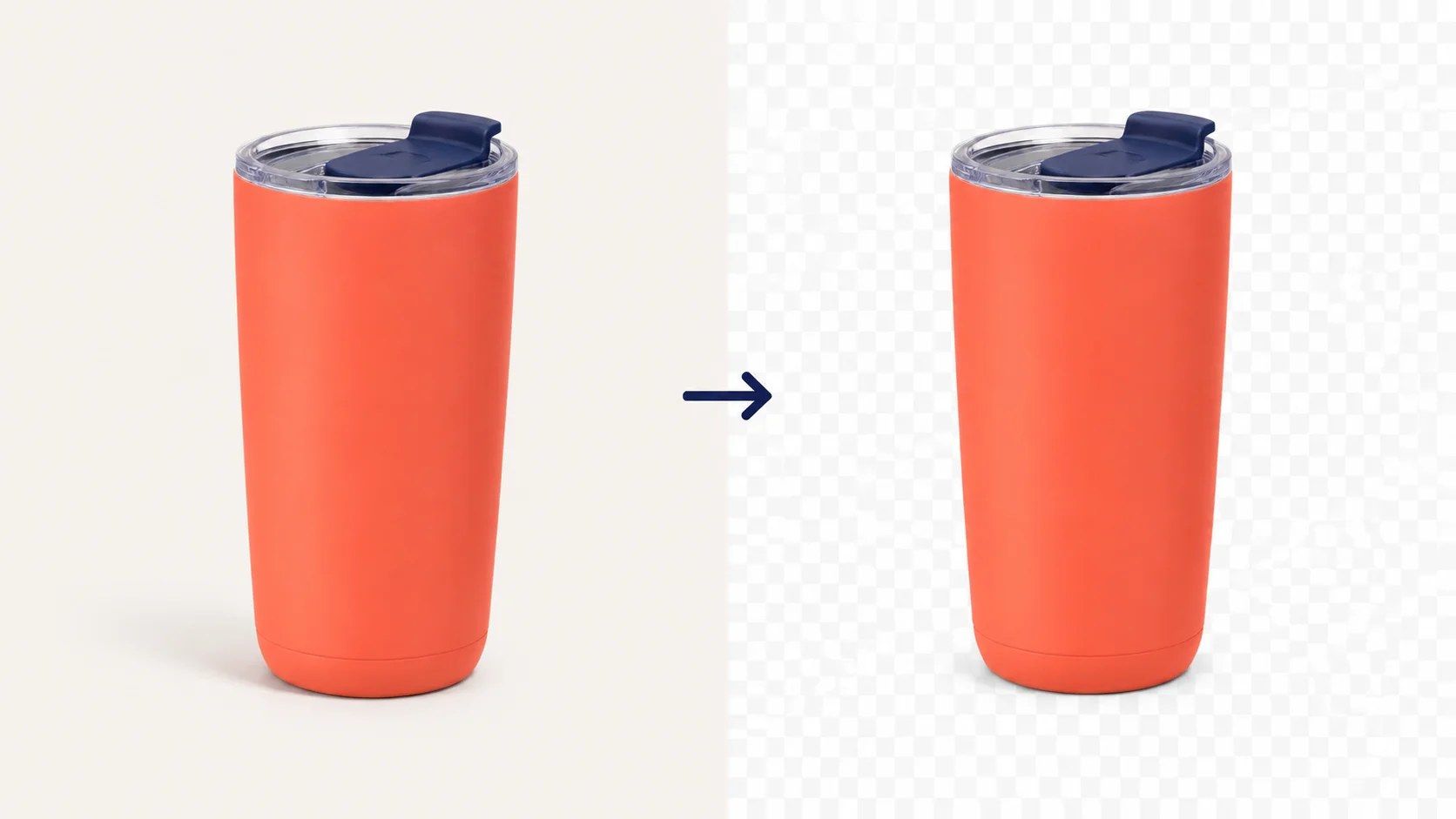
A PNG is not automatically transparent. Yours may still contain background pixels, an export may have added a solid background, or the viewer may be showing white behind transparent areas.
Start with the file you downloaded: place it over a colored background. If the color shows through around the subject, those areas are transparent and you do not need to remove their background again. If a white box stays attached, follow the checks below.
Why Does My PNG Have a White Background?
White pixels and transparent pixels look the same on a white page. A logo can look fine there, then reveal a white rectangle when you put it on a navy header.
To check your file:
- In the slide, design, or page where you plan to use the image, set the background to blue or another contrasting color.
- Insert the downloaded PNG above it. Keep the image at full opacity and remove any filled frame around it.
- Change the background to a darker color. Watch the space around the subject and any gaps that should be open.
Changing your browser theme or viewing a thumbnail is not the same test: the color needs to sit directly behind the image. If you have not placed the PNG in a design yet, a white thumbnail alone is not a reason to edit it.
| What you see | What it means | What to do next |
|---|---|---|
| The new color shows through around the subject | Those areas are transparent | Keep the PNG; check the background where it looked white |
| A white rectangle stays attached | The file contains a white background, or a filled frame is behind it | Remove any frame, then check the source and export settings |
| Gray-and-white squares stay attached | The checkerboard may be saved into the image | Get the original asset instead of its preview |
| Only a pale outline remains | The background is transparent, but the edge has residue | Go to the white-edge checks below |
Viewers can choose a background color for transparent areas; the PNG specification explains this display behavior. Seeing white in a viewer does not, by itself, mean the file has white pixels there.
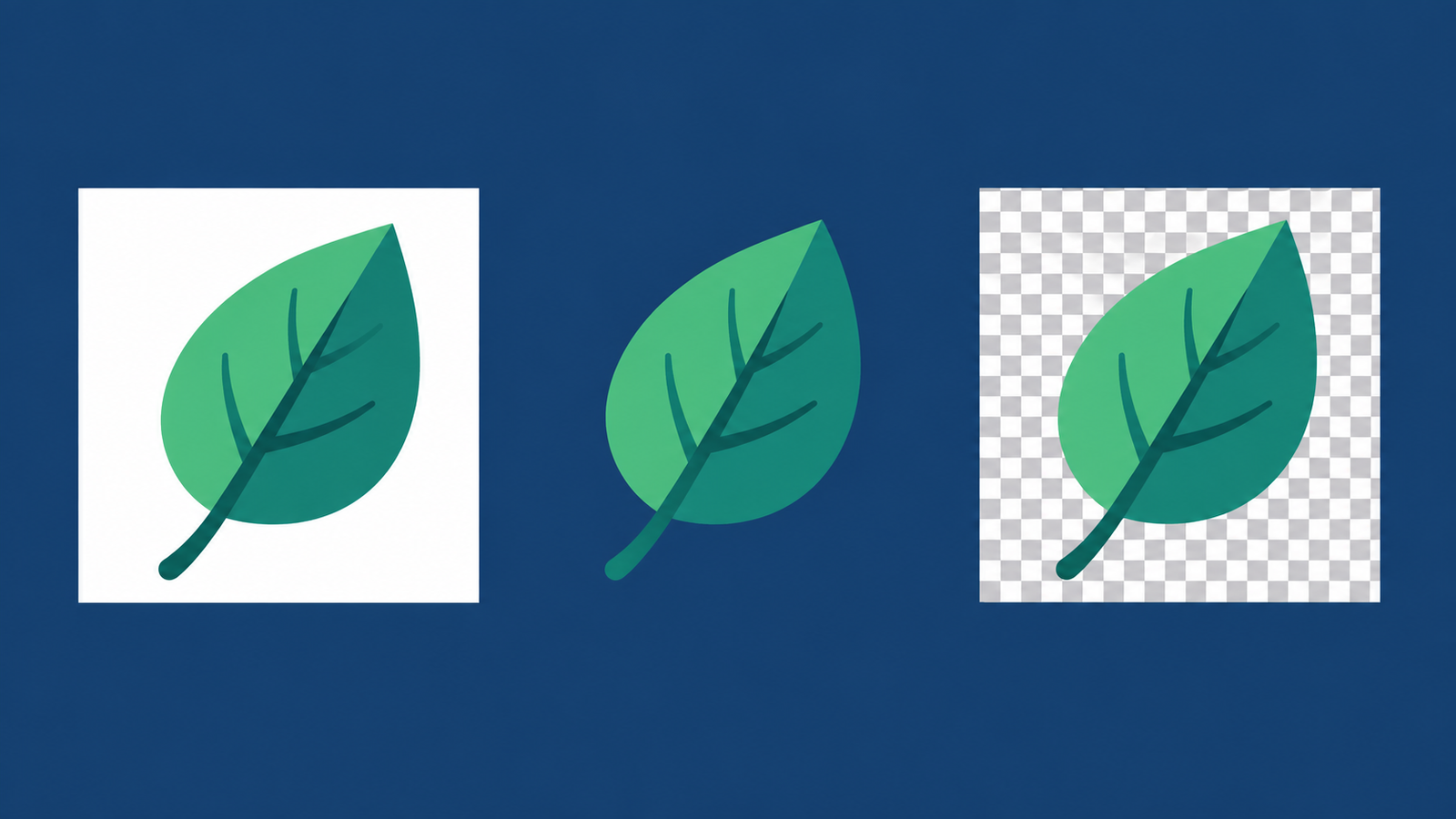
PNG Transparency Not Working? Check These Common Causes
Choose the situation that matches when the background first appeared.
The Original Image Still Has a Background
If you converted a white-background image to PNG, the white stays. Renaming .jpg to .png does not help either: it changes neither the file format nor its pixels.
Have the editable source? Hide the background layer or delete the background object, then export with transparency enabled. If the background is already part of a single image, remove it with FreeBG before saving a transparent PNG.
You Downloaded a Preview Instead of the Original File
A thumbnail or screenshot can include the white background or checkerboard you saw on screen. The squares are then picture content, even if the filename says “transparent.”
Return to the source and use its original-file download. If that file is unavailable, you will need to remove the captured background; changing the extension will not erase it.
The Background Was Included During Export
If the design looked transparent before export but the saved file has a white box, check for a visible background layer, white rectangle, or canvas fill. Hide that content, select PNG, and enable the available transparency setting.
In FreeBG, White and Custom color save a filled background into the PNG. Switch to Transparent and download again. You do not need to run background removal again just to change the output selection.
Transparency Was Lost During Conversion or Transfer
If your PNG worked before you sent or uploaded it, compare the local file with the version you received or downloaded afterward. Place both over the same colored background.
- Only the local file works: the transferred copy changed. Send the original PNG as a file attachment and check that the received copy retains transparency.
- Both files work: check the destination’s image frame and background settings.
- Neither works: return to the source or export settings; the problem started before the transfer.
An intermediate JPG can explain the change. Ordinary JPG output cannot keep transparency, and converting it back to PNG will not restore the transparent areas. Use the last working PNG if you still have it.
The Preview Is Showing White Behind a Transparent Image
A transparent logo inside a white content block will appear over white, even on a dark page. Change the block’s fill or place the logo directly on the intended background.
If the PNG already passed the color test, leave the file alone. Running background removal again will not change the page behind it.
How to Make Your PNG Background Transparent with FreeBG
If the white background is part of your image, you can use the FreeBG PNG background remover to create a transparent version.
- Upload the original image. Click Upload an image and choose a clear source file instead of a screenshot or small preview.
- Remove the background. Click Remove background and wait for FreeBG to separate the main subject from its surroundings. Uploading alone does not start removal.
- Inspect the result. Check hair, thin lines, pale details, and spaces inside the subject.
- Select Transparent. Under Output background, choose Transparent. If you preview a white or custom-color background, switch back before saving.
- Download the PNG. Click Download transparent PNG, then open that downloaded file in its intended location and check it against a contrasting background.
For a walkthrough with a saved-file example, see how to make a PNG transparent. FreeBG’s output-color controls let you inspect the processed result, but they do not independently test the PNG you uploaded or downloaded.
How to Keep White Details When Removing the Background
For white headphones on a white backdrop, the space around the product should disappear. The headband and cushions should stay. Deleting every white pixel would damage the product too.

Compare the cutout with the original on a dark background. Look for missing white letters, pale fabric, highlights, and thin outlines. Check open spaces separately: the gap beneath a handle may need transparency, while a reflection on the handle belongs to the subject.
If an important detail is missing, return to the original. A sharper source may help when the image is small or blurred. If the source is already clear, repeating the same removal may give the same mistake.
FreeBG’s automatic workflow has no restore brush. If it keeps removing part of the subject, use an alternative source or return to an editable original; do not use a damaged cutout in the finished design.
Why Does My Transparent PNG Still Have White Edges?
A pale outline around a dark subject can remain after the surrounding background is removed. Edge pixels may still contain color from the previous white backdrop, which becomes visible on dark layouts.
Compare the edge with the original before trying to remove it. White fur, highlights, and intentional outlines should stay. A uniform pale fringe that was not part of the subject may be background residue.
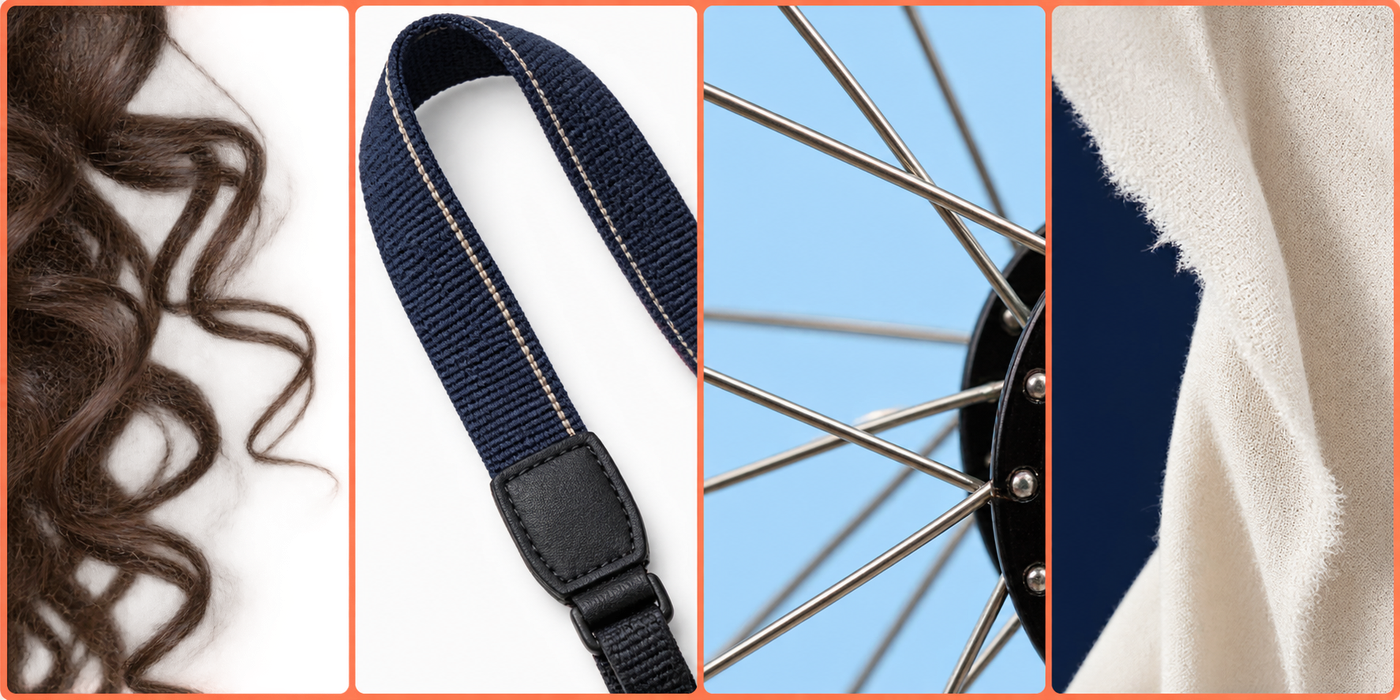
If the fringe appeared after a later export, return to the earlier transparent PNG. If it is already in the first cutout, changing the output background will only disguise it. Start from a better source or an editable original if the edge is unsuitable.
Check at the intended display size as well as enlarged. Hair and soft shadows need some partial transparency; turning every edge into a hard line can create jagged contours.
How to Check That Your PNG Is Truly Transparent
Your file is ready when the downloaded PNG passes these checks in its final placement:
- The intended empty areas show the background beneath them, with no attached white rectangle or checkerboard.
- White details, thin lines, and the subject’s outline are intact.
- The edges look acceptable on both light and dark backgrounds at the size you need.
Keep that PNG alongside the untouched original. If a later upload changes its appearance, you will have a working file to compare against.
Frequently Asked Questions
Does converting JPG to PNG make the background transparent?
No. Converting JPG to PNG preserves the visible image, including its background. Remove the background first, then save the result as PNG to retain the new transparent areas.
Why does my PNG have a checkerboard background?
A checkerboard can be a preview convention showing transparency, or it can be an actual pattern saved inside the image. Place the PNG over a solid color. If the squares remain over that color, they are part of the image rather than an empty background.
Can I fix a PNG with a white background without the original file?
Often, yes. Remove the background from the PNG you have and save a new transparent copy. Small text, blurred edges, and white subjects on white backgrounds can be difficult to separate. A tool cannot reliably reconstruct fine detail that the available image no longer contains.