Pick the exact color
Click a pixel in the image or enter a six-digit HEX value.
✦ 100 percent freeNo sign-upNo watermark
Pick a color from your PNG, make it transparent or replace it with a solid color, then download a clean PNG. Free to use, with no sign-up or watermark.
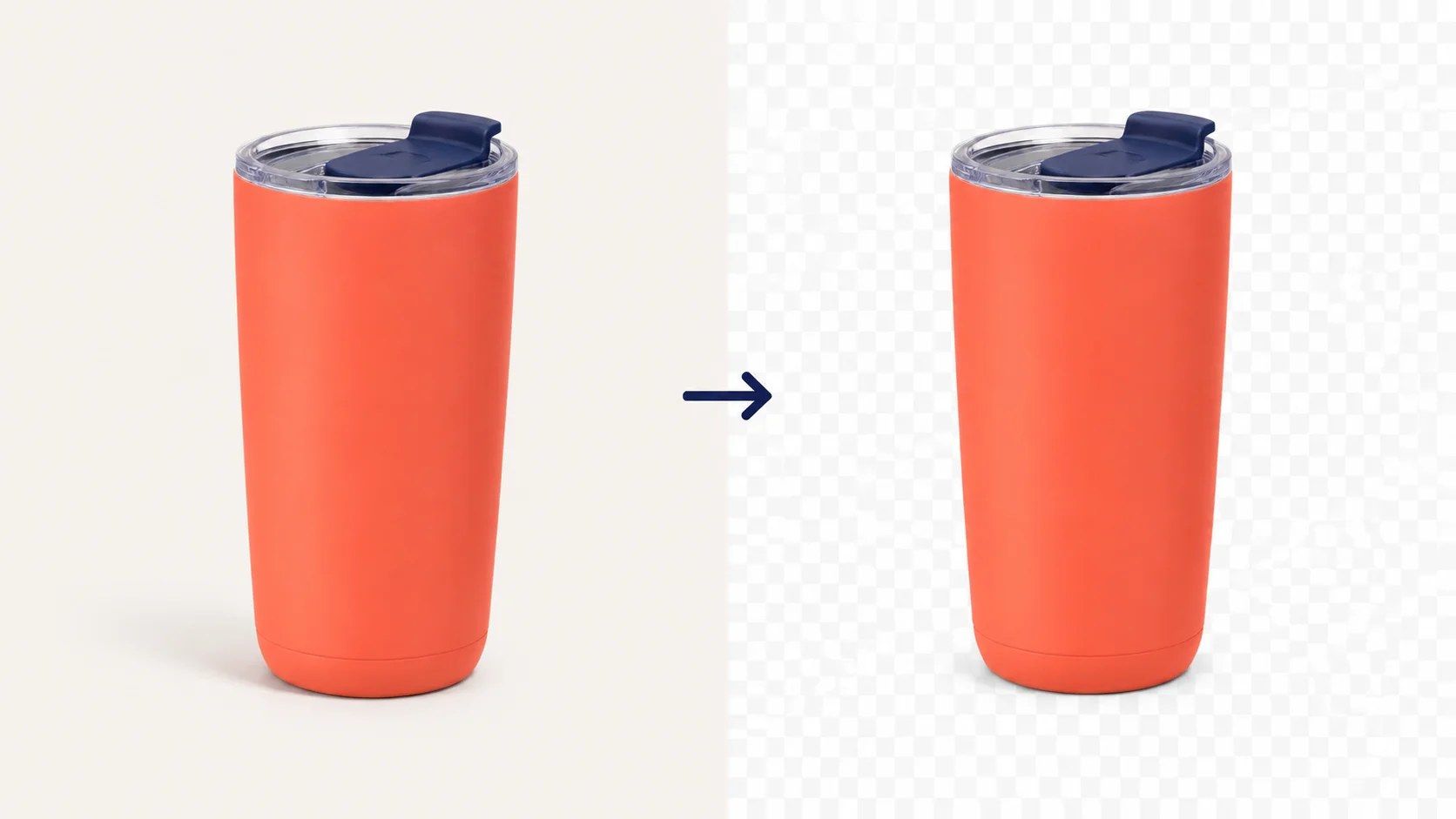
 OriginalTransparent PNG
Choose a PNG, JPG, or WebP image up to 15 MB. PNG is ideal when the final background needs to stay transparent.
Click a color in the source image or enter its HEX value. Start low, then raise tolerance a little at a time for nearby shades.
Inspect the checkerboard around the subject. When the selected color is gone and important details remain, download your transparent PNG.
Exact color control
Choose the color you want to change rather than deleting every background detail. This works especially well for flat artwork, icons, logos, screenshots, stickers, and simple backdrops.
Click a pixel in the image or enter a six-digit HEX value.
Only the selected color and the nearby shades you include are changed.
Make the selected area transparent, or fill it with a solid replacement color.
If the subject contains the same color as the background, start with a low tolerance and inspect the result before downloading.
Color-background scenarios
Use color removal when the area you want to remove is one color or a small range of similar shades. Pick that color, review the edges, and keep the rest of the PNG ready for a new layout.
Turn a flat product graphic, scan, or logo into a transparent PNG. Check white text, highlights, and gaps inside the subject.
Choose green or blue, then increase tolerance gradually to clear the color without eating into hair, fabric, or reflective edges.
Remove a colored box behind simple artwork so the PNG can sit on a website, slide, label, or social graphic without a square backdrop.
Remove one unwanted fill color or replace it with a solid color while preserving the rest of the design.
Best for solid or near-solid backgrounds. For a person, product, or object on a varied photo background, use our AI Background Remover.
A careful match
Tolerance controls how close a pixel must be to your selected color before it changes. A careful adjustment removes color residue while protecting the details you want to keep.
Use low tolerance for a flat logo, icon, or color block.
Raise tolerance in small steps when a solid background includes light shadows or nearby shades.
Check thin lines, hair, reflections, pale lettering, transparent objects, and areas that share the background color.
Too much disappeared? Lower tolerance or choose the color again. Color still remains? Raise tolerance slightly and recheck the edges.
After you remove a color, choose transparency for flexible placement or a solid replacement color for a finished flat background. Download as PNG when you need the result to keep transparent pixels.

Choose by image type
The fastest method depends on what you want to remove. Choose by image type, not by the most familiar editing term.
One flat or near-flat color behind a logo, icon, scan, sticker, or graphic
Remove Color from PNGYou choose the exact color and control nearby shades.
A person, product, or object against a busy or multi-color photo background
AI Background RemoverThe task is to separate a subject, not match one color.
A small unwanted object, text mark, or irregular area
Manual editor or object eraserA brush or selection is more precise when the unwanted area is not defined by one color.
Clear access, clear limits
Open the tool, choose a color, review the result, and download your PNG without an account wall. The facts below are part of the workflow—not fine print.
Remove a selected color without a credit, trial, or account.
Download a clean PNG ready for your next layout.
Open the tool, upload an image, review the result, and download.
Upload JPG, PNG, or WebP images up to 15 MB; download your result as PNG.
Questions, answered
Quick help for removing a background color, making one color transparent, fixing close shades, and downloading a PNG.
Upload the image, click the background color or enter its six-digit HEX value, adjust tolerance for nearby shades, preview the result, and download a PNG.
Yes. The tool changes the color you select and the nearby shades included by tolerance. Start low when the subject has a similar color.
Yes, these are strong use cases when the background is solid or nearly solid. Check highlights, hair, fabric, and text before downloading.
Tolerance controls how similar a pixel can be to the selected color before it is changed. Raise it gradually to clear nearby shades; lower it if part of the subject disappears.
The subject may contain the selected color or a close shade. Lower tolerance, select the color again, and inspect the checkerboard preview.
Choose Transparency and download the result as PNG. PNG preserves transparent pixels; JPG does not.
Yes. Upload JPG, PNG, or WebP up to 15 MB, then download the color-removed result as a PNG.
This tool works best for one selected color or a near-solid background. For a person, product, or object on a varied photo background, use the AI Background Remover.
Yes. Free BGRemover is 100% free to use, with no sign-up and no watermark.
Tutorials & Guides
Tutorials & Guides
Tutorials & Guides
Ready when your PNG is