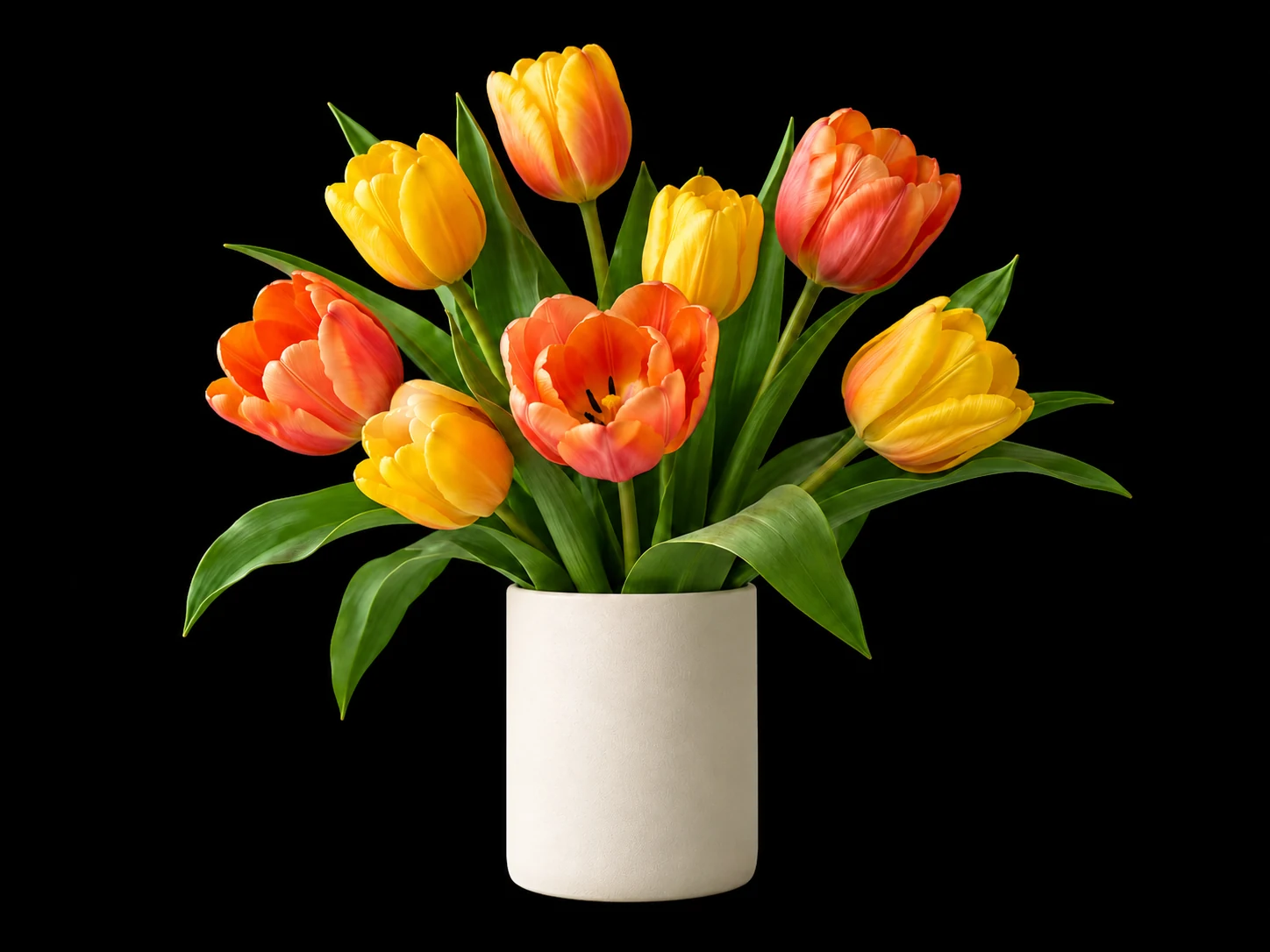

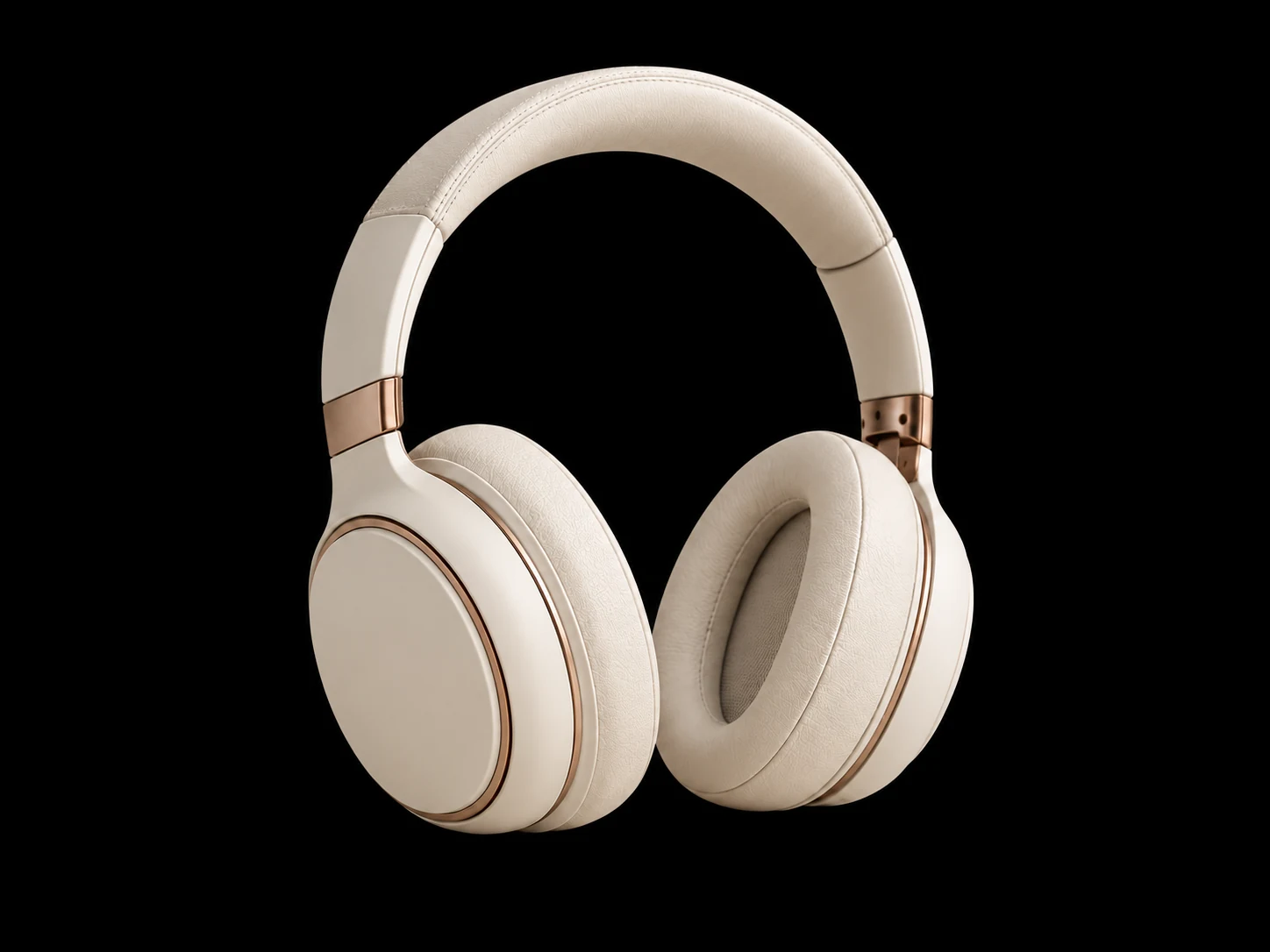
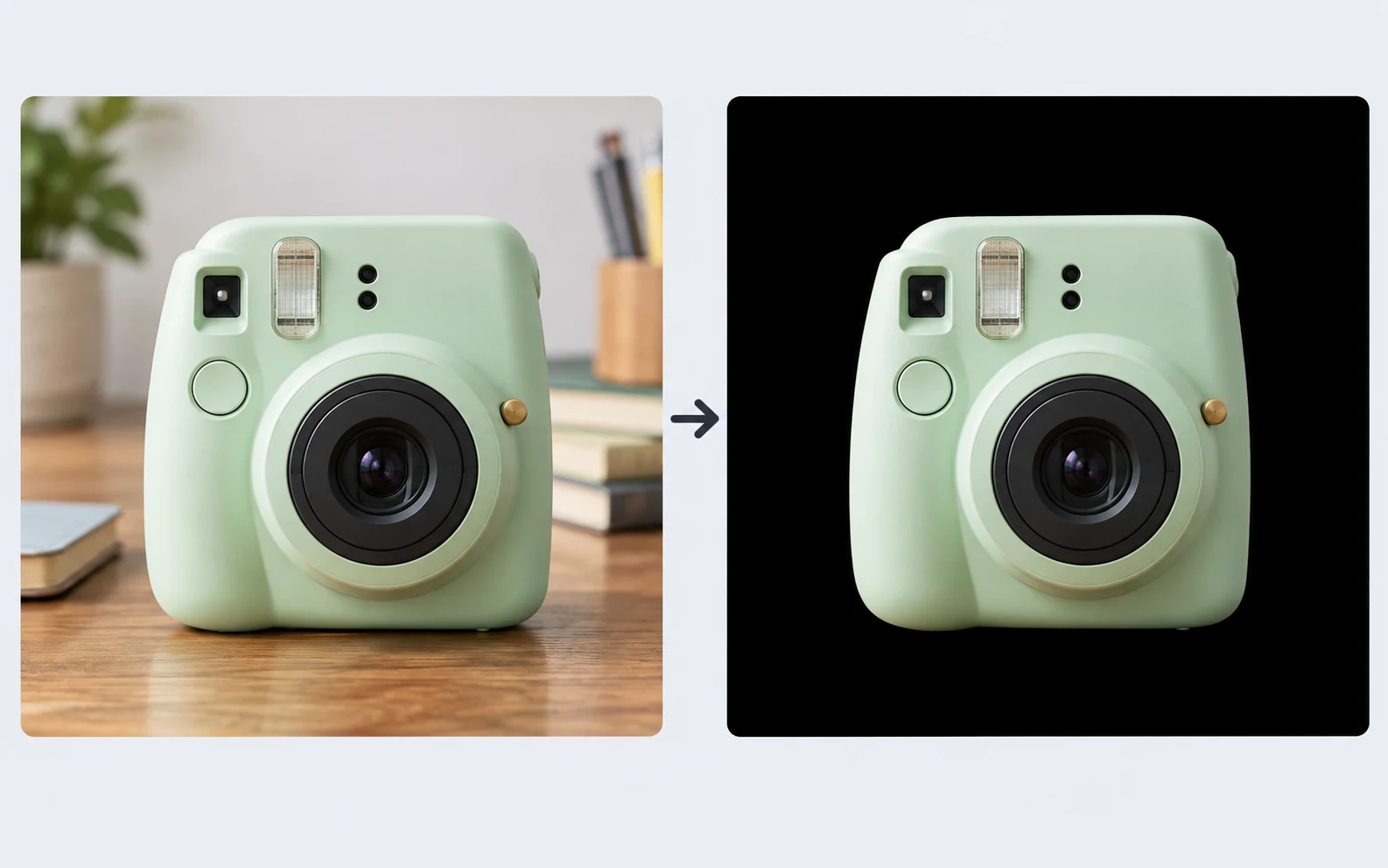
Reuse Your Photo Without Manual Cutouts
Start with an existing product shot or portrait. AI separates the subject from its backdrop and uses your photo as the foreground, so you can try a new setting without tracing the outline yourself.
Free to useNo account neededPNG download
Upload a photo and let AI replace its backdrop with solid black automatically. Ideal for online sellers, content creators, and anyone updating a portrait or profile photo. Preview and download your PNG for free—no manual outlining, software installation, or sign-up required.
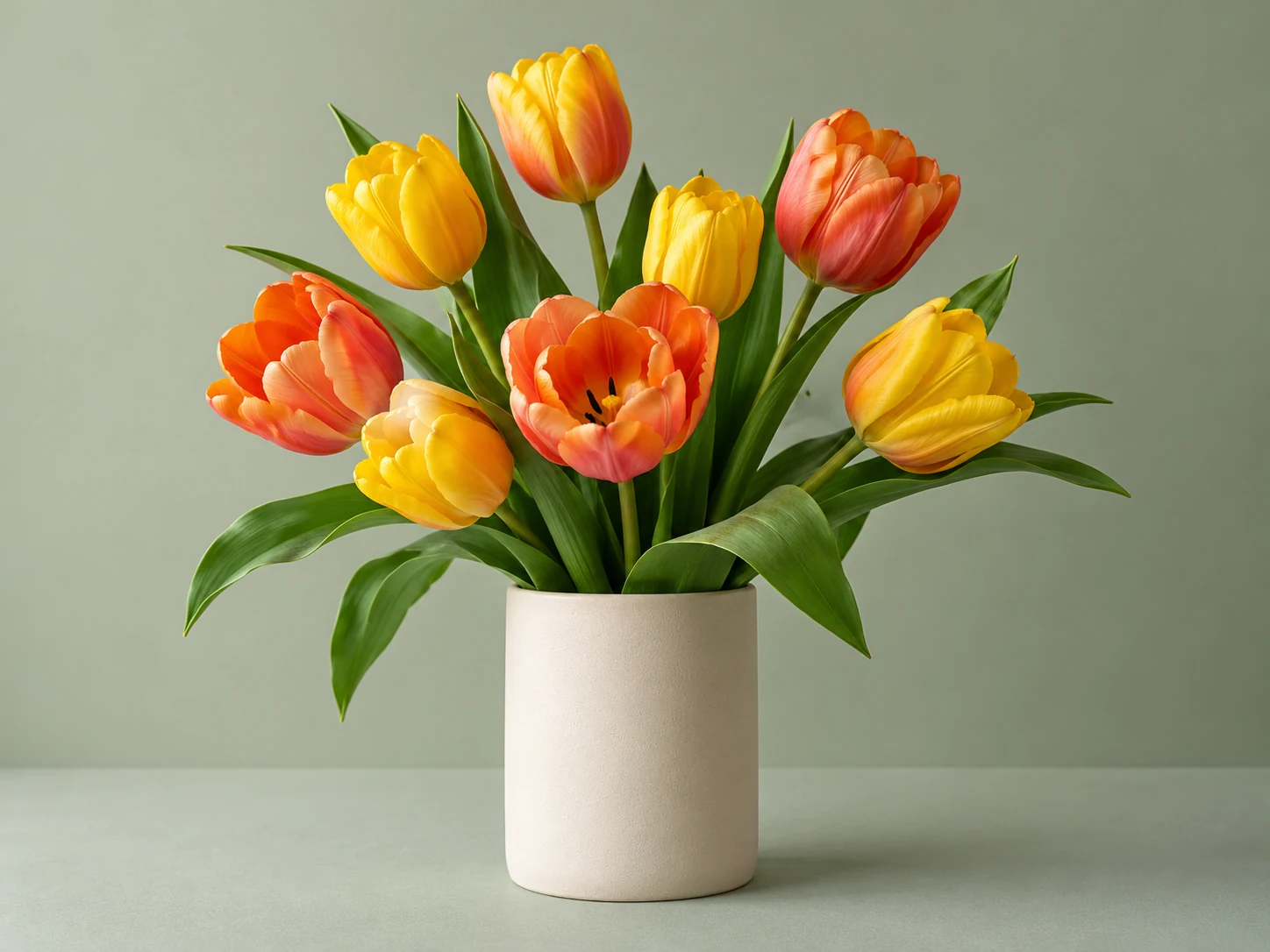
Drag to compare the light backdrop and the solid black result.
YOUR NEXT PHOTO
JPG, PNG, or WebP. Up to 15 MB.
Privacy detailsWant a cleaner, more dramatic look for your photo? Free BGRemover uses AI to replace the original backdrop with solid black, with no manual outlining or advanced editing skills required. Use it for a profile picture, product image, or creative project, then preview and download your PNG for free.

A solid black backdrop adds contrast, helping bright colors and light-colored subjects stand out. Use Free BGRemover to give product shots, portraits, and marketing visuals a clean, polished look without a distracting scene behind them. Preview the result and download a PNG for your next project.
Try the Black Background Photo Editor for FreeGive bright or light-colored products bold contrast that draws attention to their shape, color, and details. A solid black backdrop removes visual distractions and keeps the item in focus across product grids, category pages, and promotional feeds. Upload your product photo to Free BGRemover, preview the darker look, and download a PNG for your storefront or next campaign.
Create My Black Background Product Photo for Free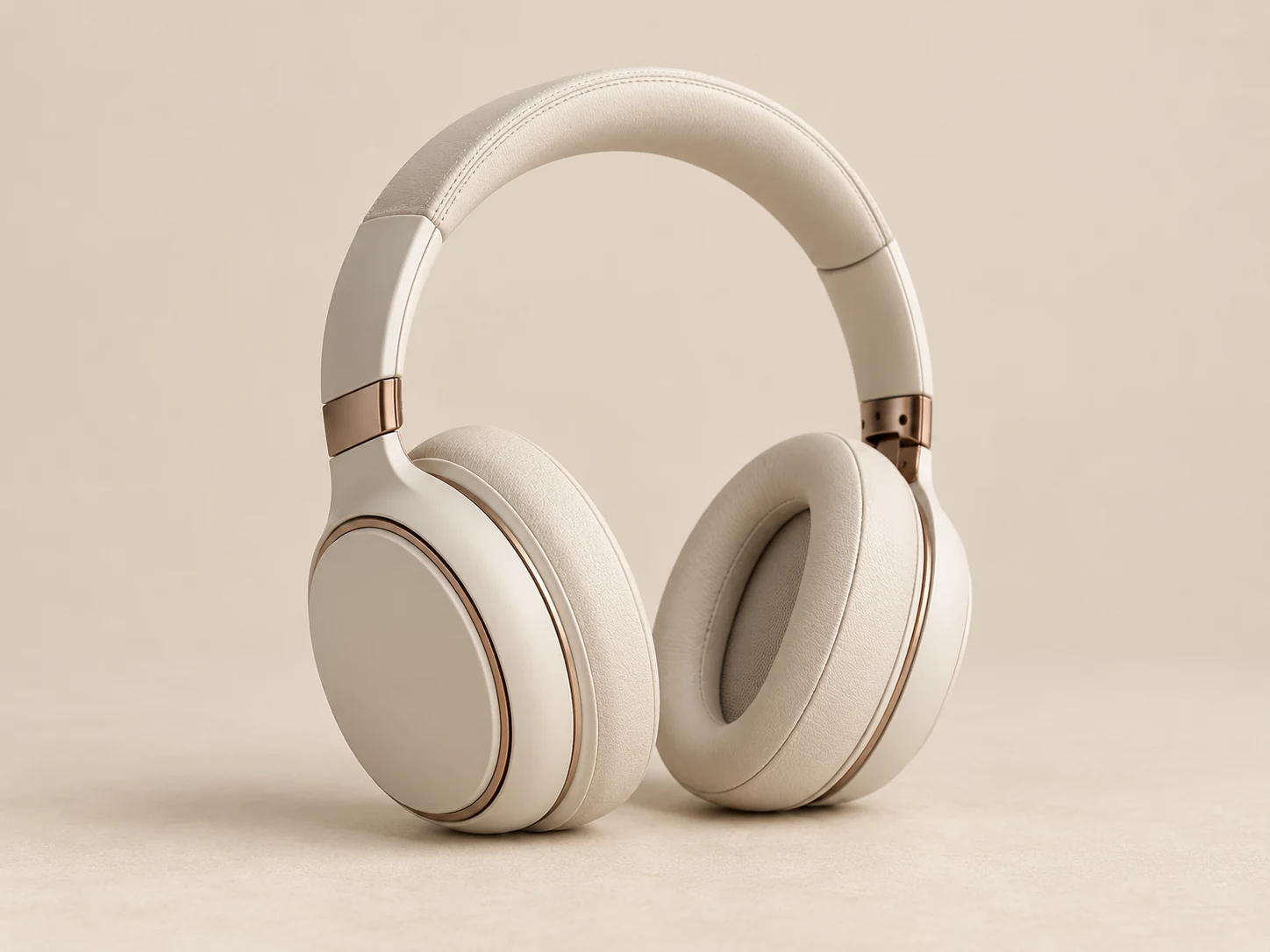
Follow these steps to replace the old scene, choose pure black, and save your edited image. You can switch the backdrop color after processing to compare how it looks with your subject.
Upload your photo, remove its backdrop, choose solid black, and check the result before downloading.
Choose a JPG, PNG, or WebP image up to 15 MB. Use a clear photo with the whole subject visible, then click “Apply black backdrop” to start AI processing.
The editor separates your subject and applies pure black (#000000) by default. Compare the result with the original. To try another shade, open the custom color controls and adjust the RGB values.
Compare the result with the original, paying attention to hair, fine edges, and dark clothing. Once the selected color has finished applying, download the PNG with the solid backdrop included.
Create a black background photo from an image you already have. AI handles the cutout, solid black is applied by default, and you can compare the result before downloading your finished PNG for free.
Start with an existing product shot or portrait. AI separates the subject from its backdrop and uses your photo as the foreground, so you can try a new setting without tracing the outline yourself.
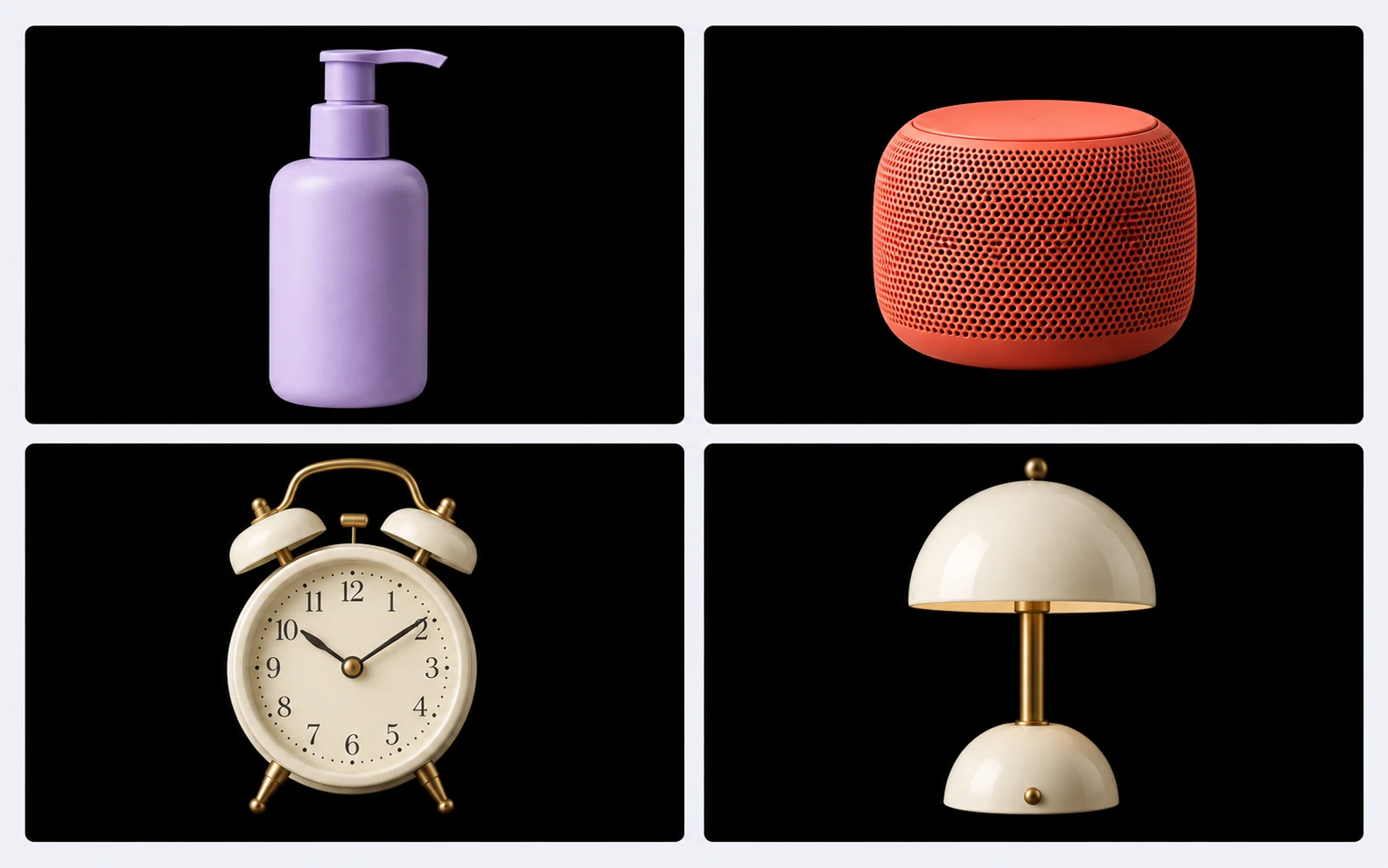
Pure black (#000000) is applied by default after processing. Use the same background color for separate product shots or portraits to create a consistent set of images for your catalog, portfolio, or campaign.
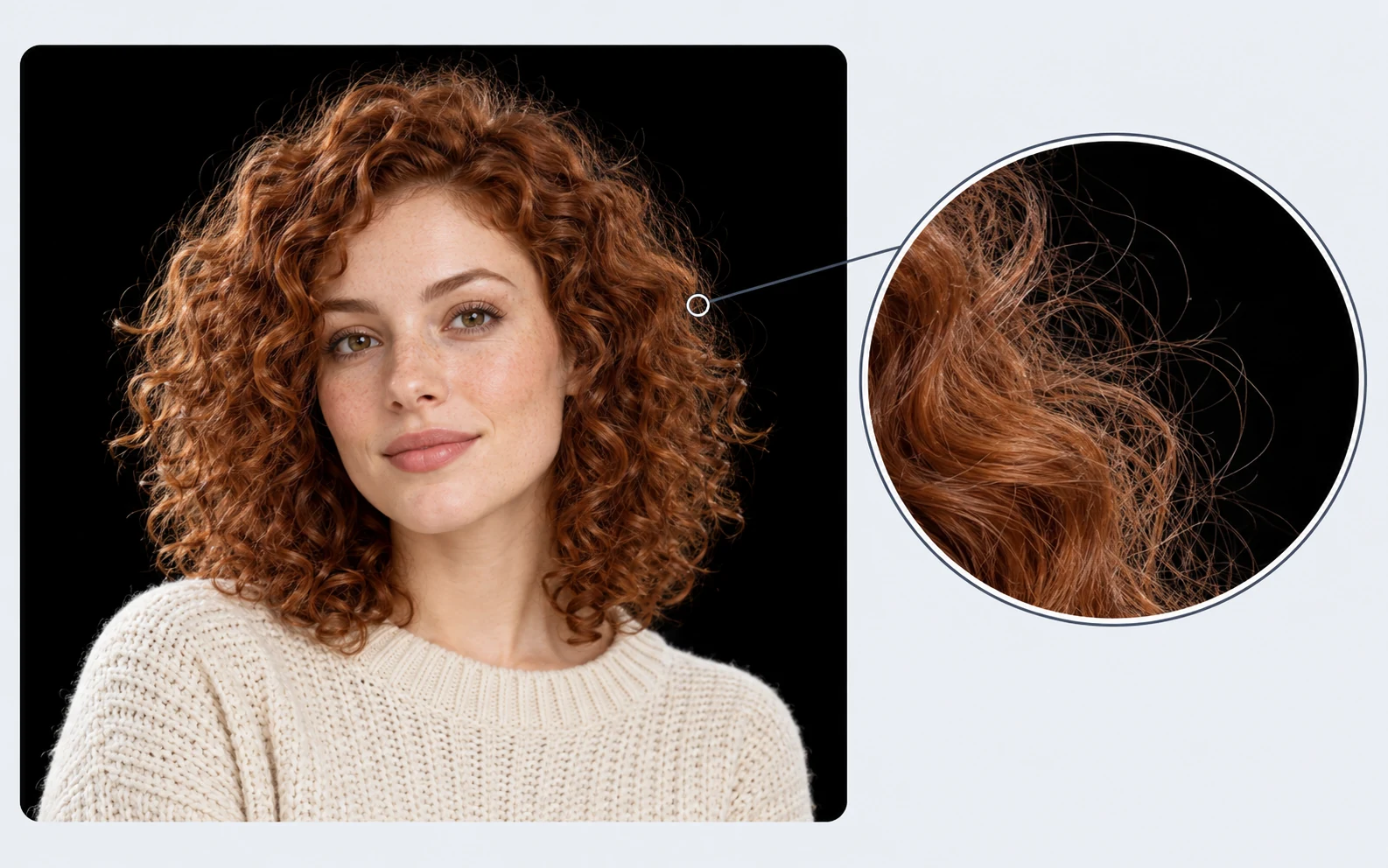
Compare the edited photo with the original in the preview. Check hair, fine edges, and dark clothing against black before saving, so you can judge whether the result suits your photo and intended use.
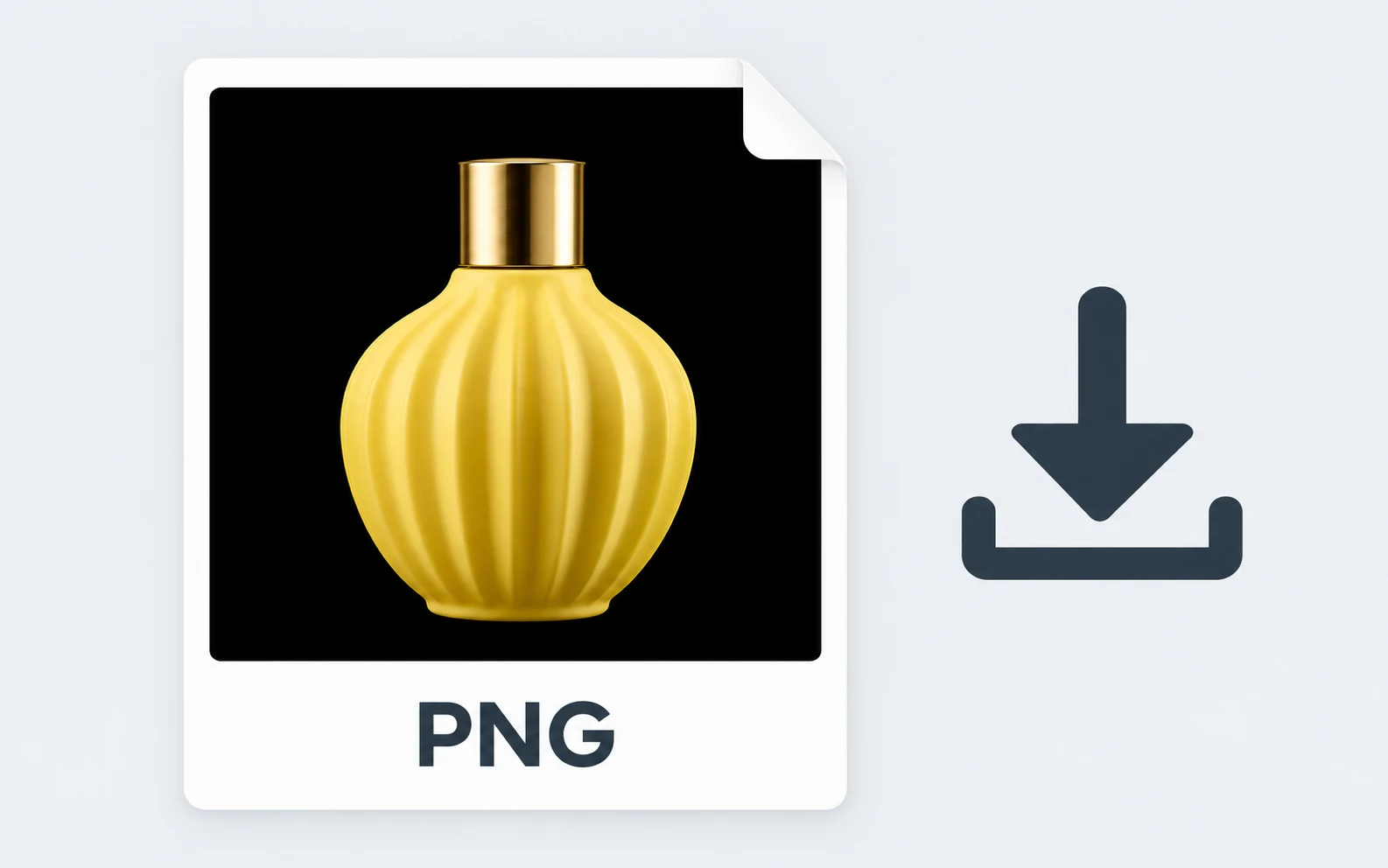
Upload, edit, and download without an account or payment. The solid black backdrop is included in your PNG, giving you a finished image you can place in a product page, social post, or presentation.
Choose the use case closest to your project. A solid dark backdrop works best when the subject stays easy to distinguish from it; review the image at its intended viewing size before sharing.
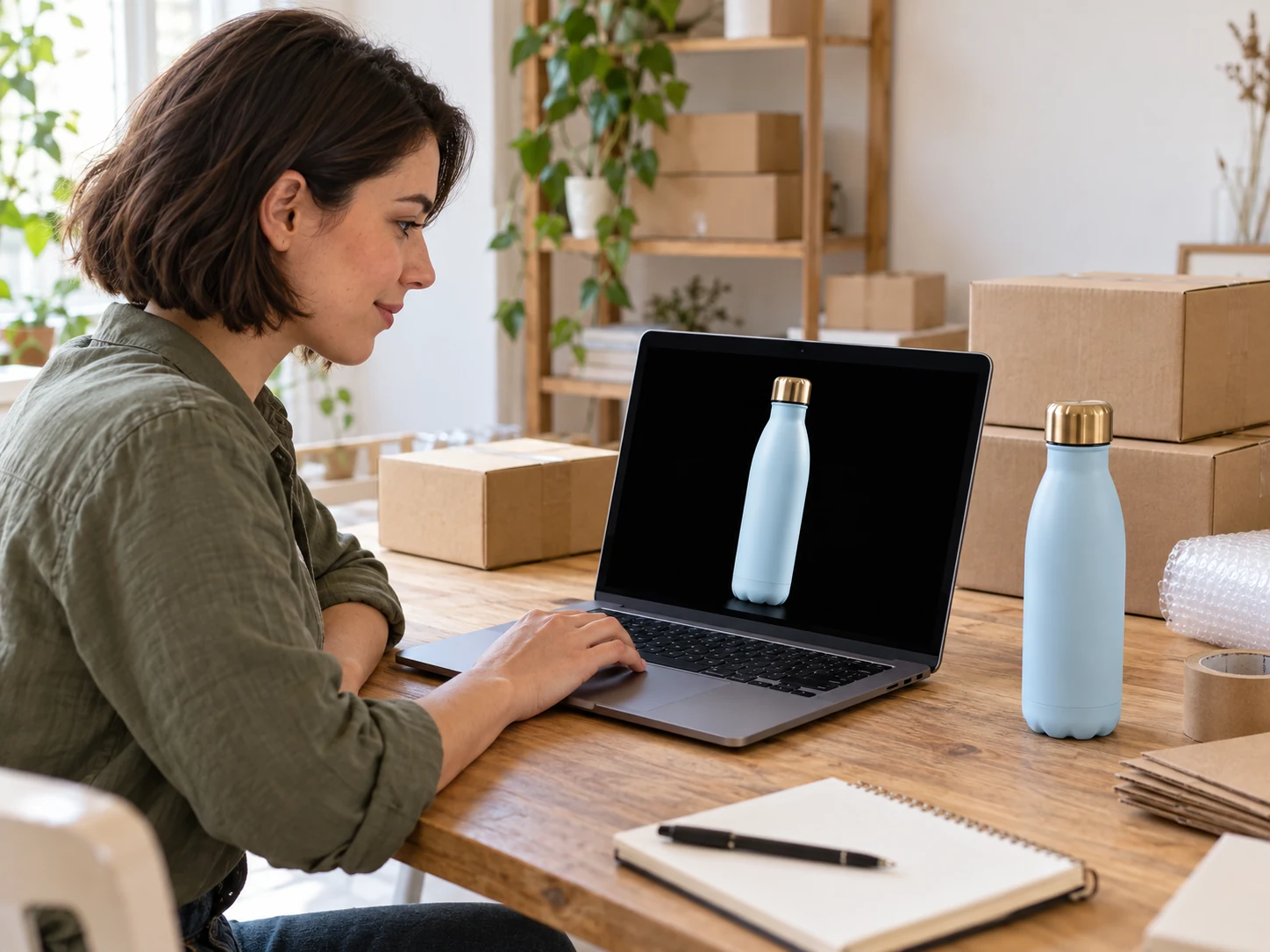
Prepare product images for your own storefront, lookbook, or promotional campaign. A consistent dark setting can help a colorful item hold attention without keeping the original room or display props in the picture.
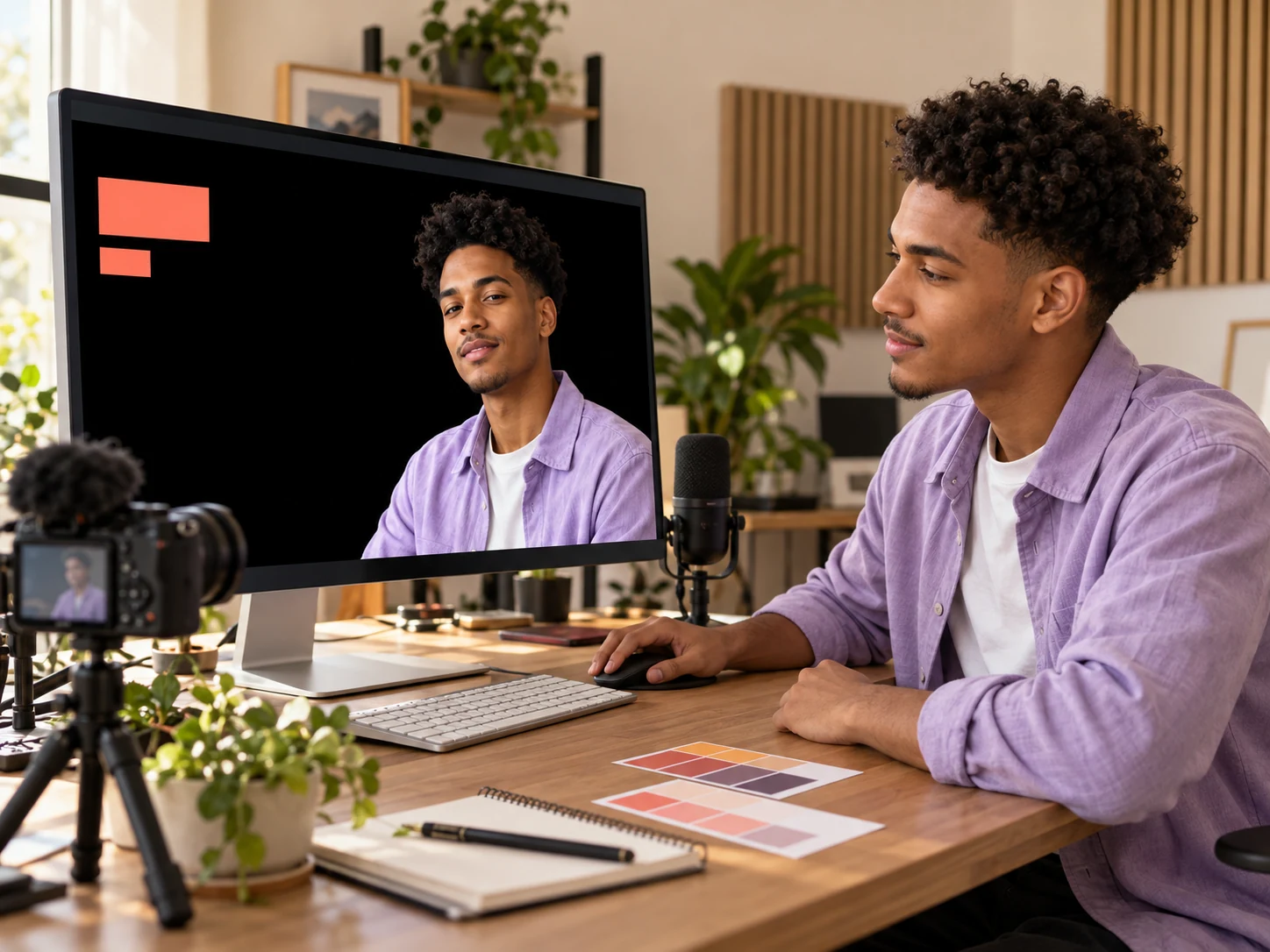
Turn an existing portrait or product shot into a visual for a social post, campaign graphic, or video cover. Use the exported image in your usual layout tool when you need text, cropping, or additional design elements.
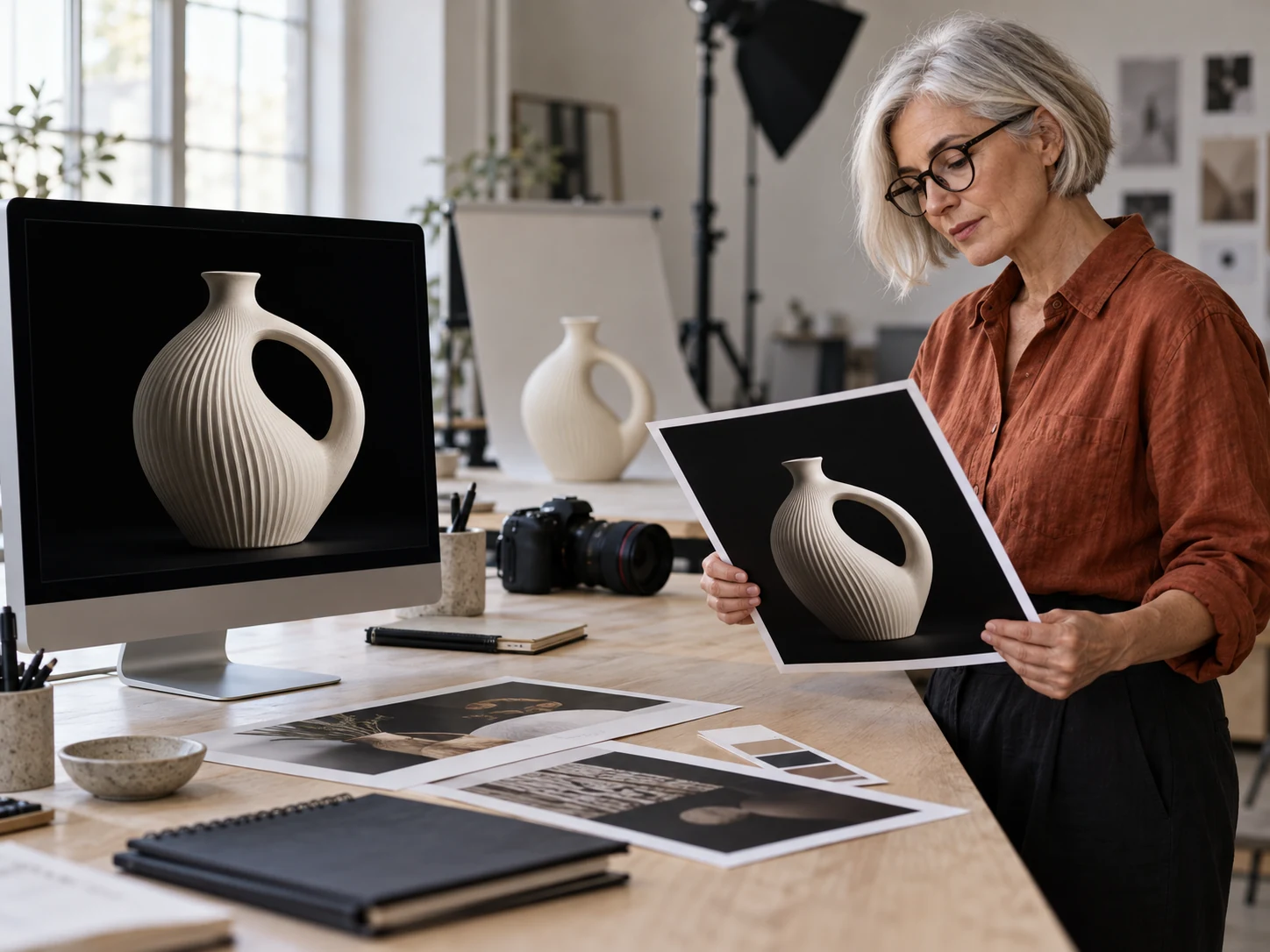
Explore a darker treatment for a client presentation, portfolio image, or visual concept. Start from the photo you already have, compare the cutout against the new color, and use the download as an asset for further design work.

Give a favorite portrait a simpler setting for a profile picture, personal page, or digital keepsake. Choose a photo where your face and clothing stand out from black, then review the result before using it elsewhere.
Upload your photo and click “Apply black backdrop.” The editor separates the subject and applies pure black by default. Review the result and download the finished PNG. To change the shade, use the custom color controls; R, G, and B set to 0 gives #000000.
Yes. The current Free BGRemover editing flow is free and does not require an account. You can upload a supported image, replace its backdrop, preview the result, and download the PNG without a payment step.
Use subject separation followed by a new backdrop color rather than inverting the whole image. Free BGRemover places the selected color behind the extracted foreground. Check the result for missed edges or removed details before saving.
The current editor accepts JPG, PNG, and WebP files up to 15 MB and exports PNG. If your photo is in another format, convert it first. A clear source image gives you a better starting point for checking the result.
Fine strands, translucent areas, and light from the original backdrop can be difficult to separate. A dark setting can make leftover pale edges more noticeable. Compare the preview with the original and try a clearer source if important details are missing.
With the custom color selected, the PNG includes a solid backdrop. If you need a cutout with no visible background, switch to the transparent option before downloading. PNG files can contain either transparency or a solid color.
You can try them, but a dark subject may blend into black and become harder to distinguish. Check the outline and key details in the preview. If contrast is too low, select a lighter backdrop color instead.
Timing varies with your device, browser, image, and whether the AI model needs to load. Wait for processing and color application to finish before downloading. If processing fails, follow the editor’s browser guidance or try another supported image.
Find answers about changing colors, checking edges, supported files, and saving the finished image before you start.
Upload the image you already have, replace its old setting, and preview a darker look. Download your finished PNG for your next post, product campaign, or personal project. Free to use, with no account required.
Add Black Background to Photo for Free