
Skip Tracing the Subject by Hand
AI creates the initial cutout from your photo, reducing the need to draw around the subject yourself. Review fine edges in the preview to decide whether the separation works for your image.
Upload a photo and let AI remove the original backdrop. Choose a solid background color for product images, social posts, or profile photos, then preview and download your PNG. Free to use, with no signup required.
Start with your photo
JPG, PNG, or WebP · Up to 15 MB
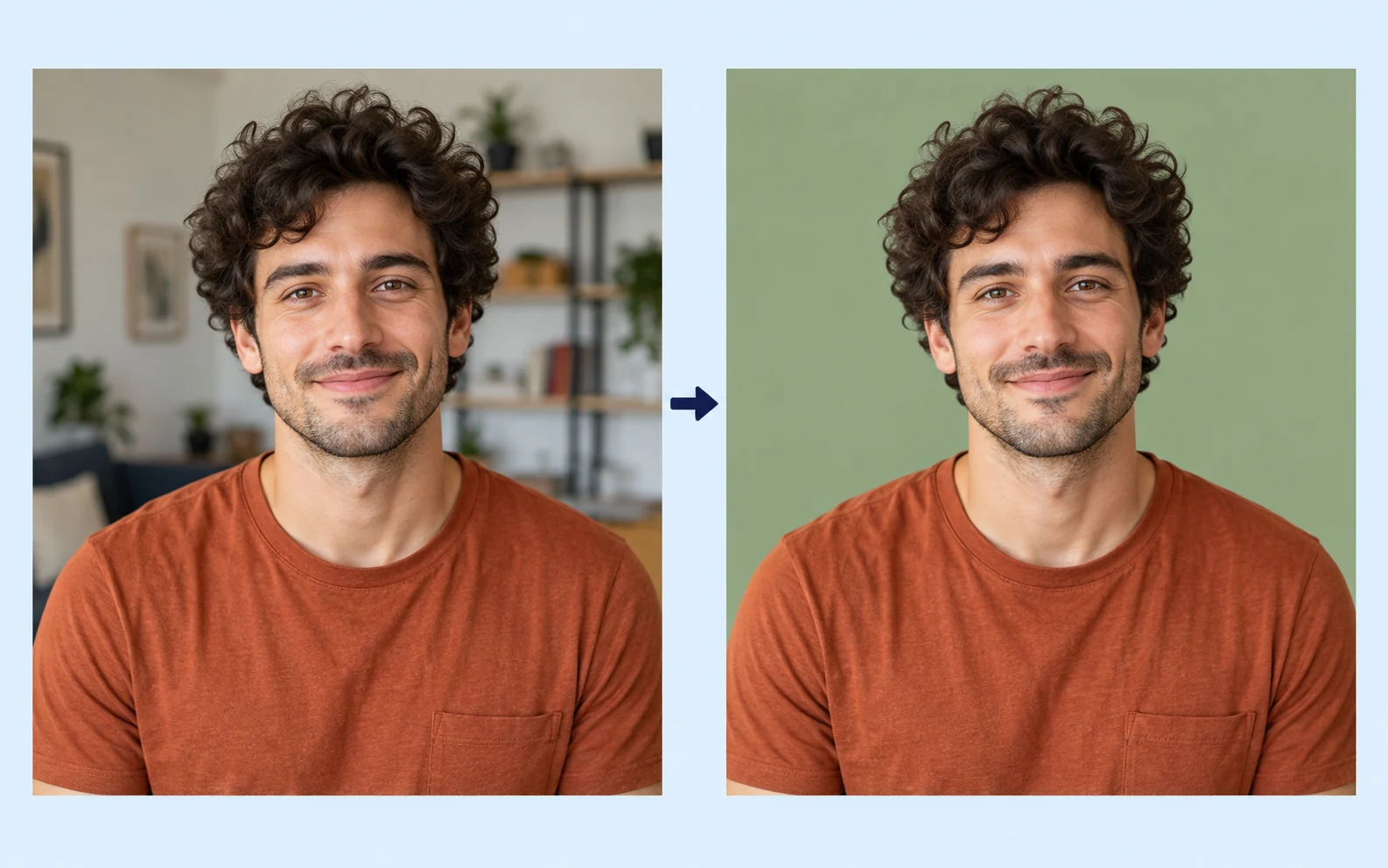
Privacy detailsA busy room or uneven backdrop can pull attention away from your subject. To add a color background to a photo, remove the original scene and replace it with a solid shade. Start with a clear image, then review the cutout around hair, clothing, or product edges. You can give an existing photo a different backdrop without taking another shot.

AI-generated illustration of replacing a busy photo background with a solid color. Actual results vary by photo.
White can give a product photo a neutral setting, while a darker shade can help a light subject stand out. Choose white or open the custom color picker to explore other options. Adjust the color visually or enter RGB values, then compare the preview with your original image. Check both contrast and overall appearance before deciding which background to save.
Add Background Color to Your Photo for Free
AI-generated background-color illustration. Actual results vary by photo.
Use a neutral background for a storefront photo or try a campaign color for a social post. After checking the result, download the solid-background PNG and add it to your preferred layout tool. You can return to the color controls to save another version of the same cutout. Adjust framing, text, and layout in your design editor to suit each placement.
Change the Color of a Picture Background for Free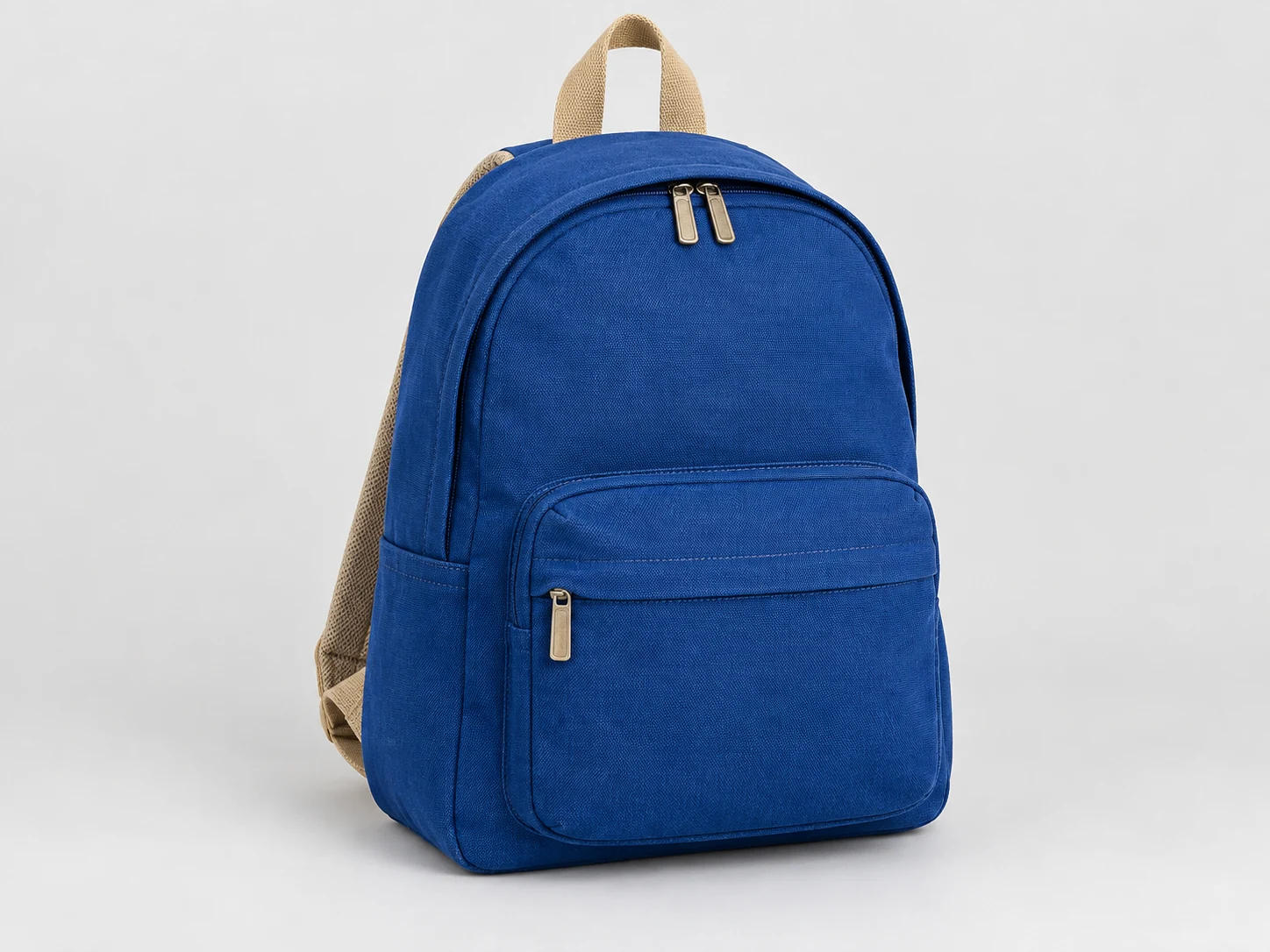
AI-generated background-color illustration. Actual results vary by photo.
Replace your photo’s backdrop in three steps: upload an image, remove the original background, and save a version with your chosen color.
Start with a clear photo, choose a solid background, and check the final PNG before you download it.
Choose a JPG, PNG, or WebP file up to 15 MB. Use a photo with a visible subject and enough contrast to distinguish it from the surrounding background.
Click “Remove background” and wait for the preview. Compare the cutout with the original, especially around hair, thin parts, and gaps inside the subject.
Select white or a custom solid color. Adjust the picker or RGB values, review the result, and download your PNG when the background looks right.
Free BGRemover uses AI to separate the subject from its surroundings, so you can replace the backdrop without tracing the outline by hand. Choose a solid color for product listings, campaign images, or personal portraits. Review the preview and download a PNG that you can use in your next design.
AI creates the initial cutout from your photo, reducing the need to draw around the subject yourself. Review fine edges in the preview to decide whether the separation works for your image.
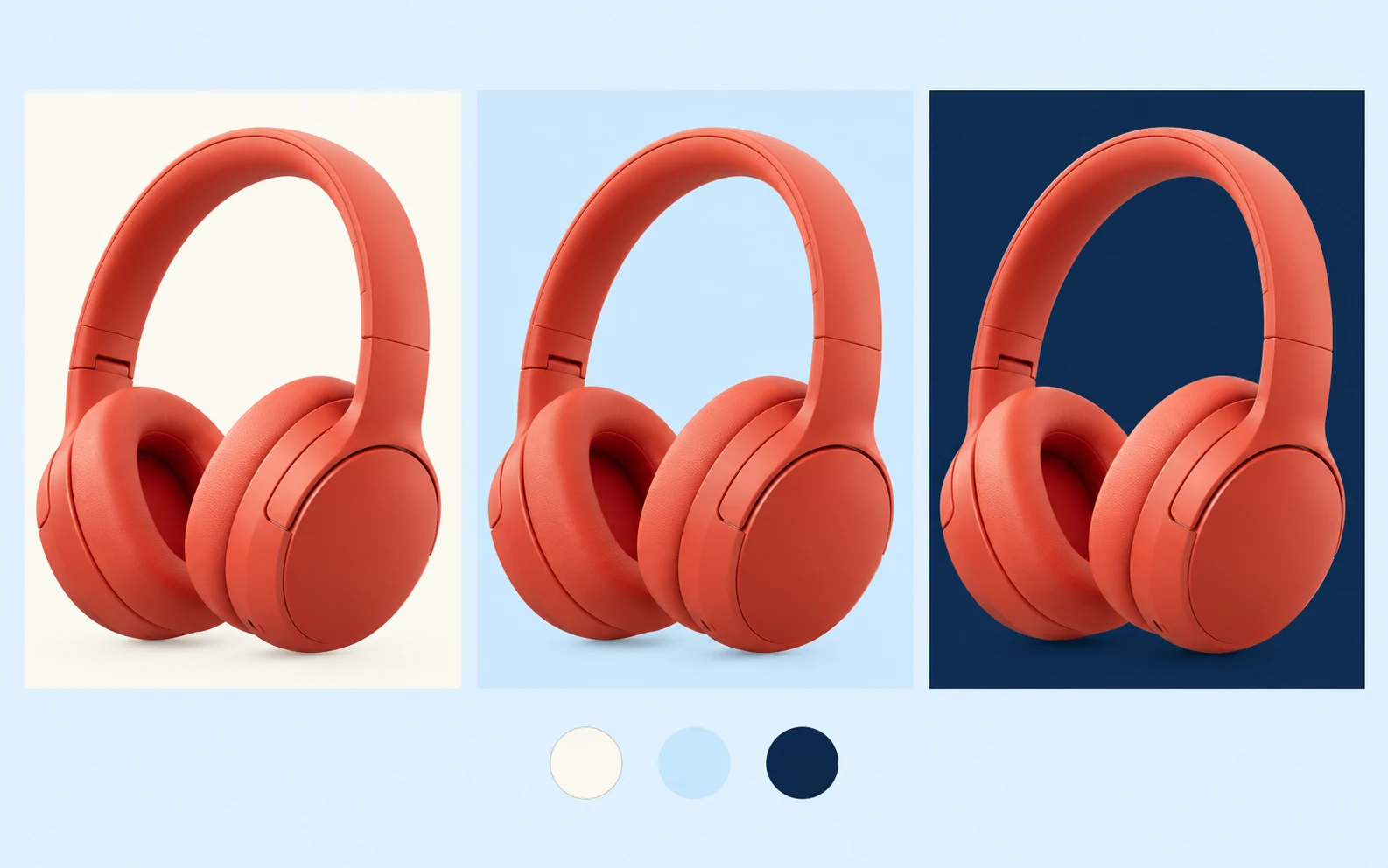
The custom picker and RGB controls let you adjust the background beyond plain white. Try contrasting or complementary colors while checking whether the subject remains easy to see against the new backdrop.
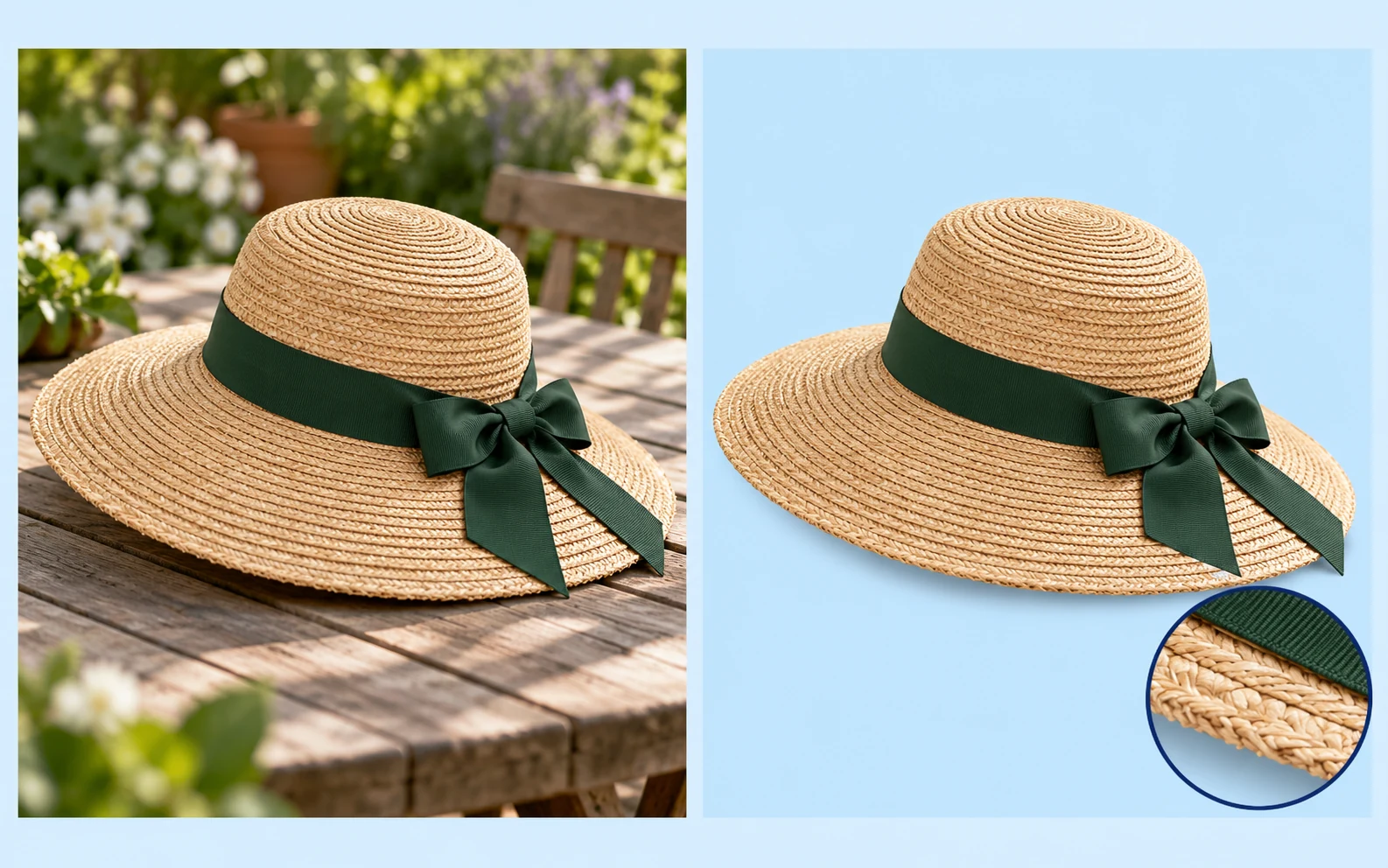
The original and edited images appear side by side, so you can review the separation and your chosen background. Look for missing details or leftover areas before downloading the version you want to use.
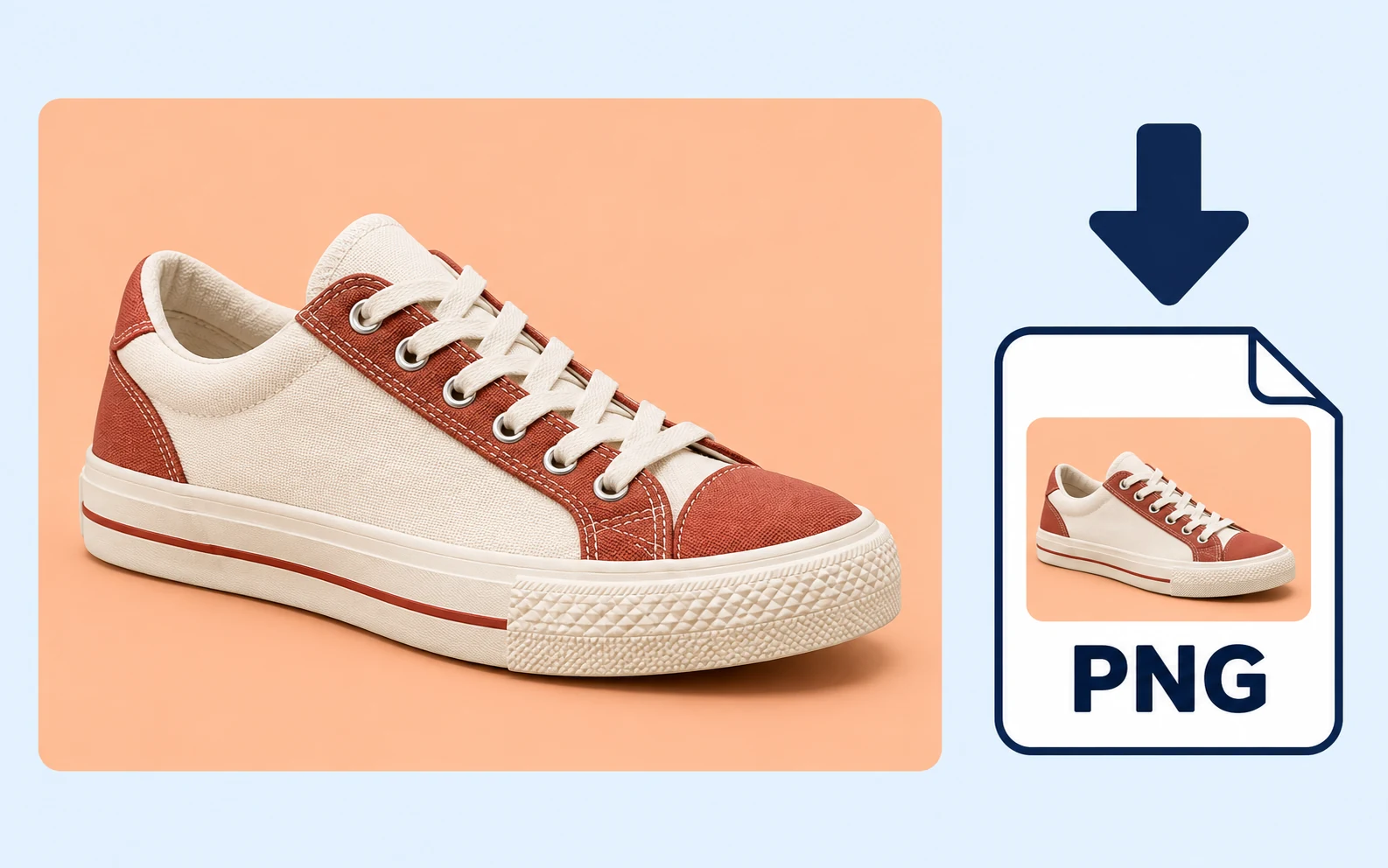
Use the tool and save the result without creating an account or paying for the download. The PNG includes your selected solid background, ready to upload or place in another design editor.
Illustrative examples. Actual results vary by photo.
Give an existing photo a backdrop that suits its next use. Whether you are preparing a product image, a campaign visual, or a personal portrait, choose a shade that keeps attention on the subject.
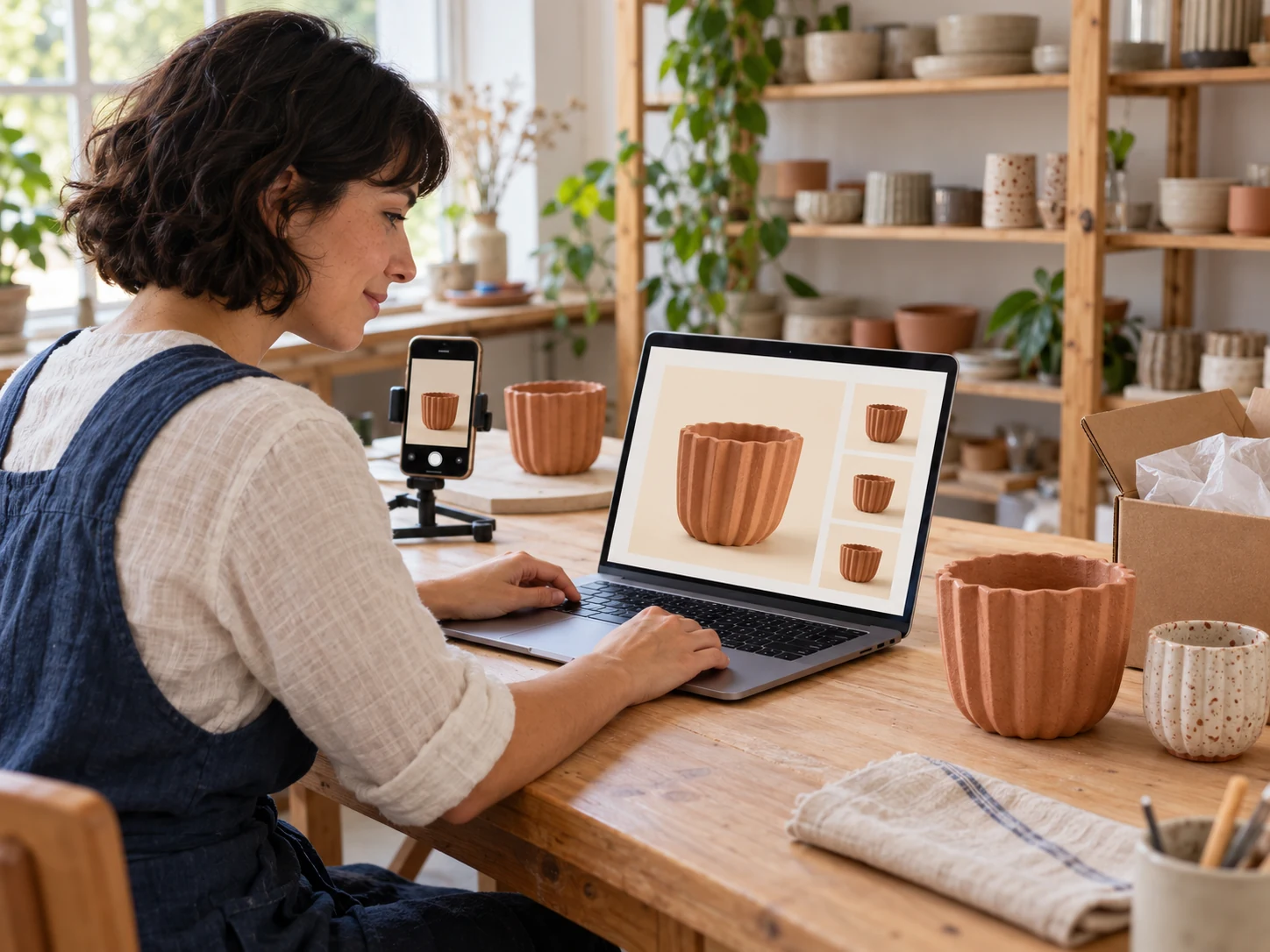
Prepare product images for your store with a neutral or custom background. Use the same RGB values across individual photos to help create a consistent presentation, and check each item’s edges before saving.

Choose a backdrop that works with your campaign palette, then download the image for your next post or promotion. Add headlines, logos, and layout details in your preferred design editor after exporting.
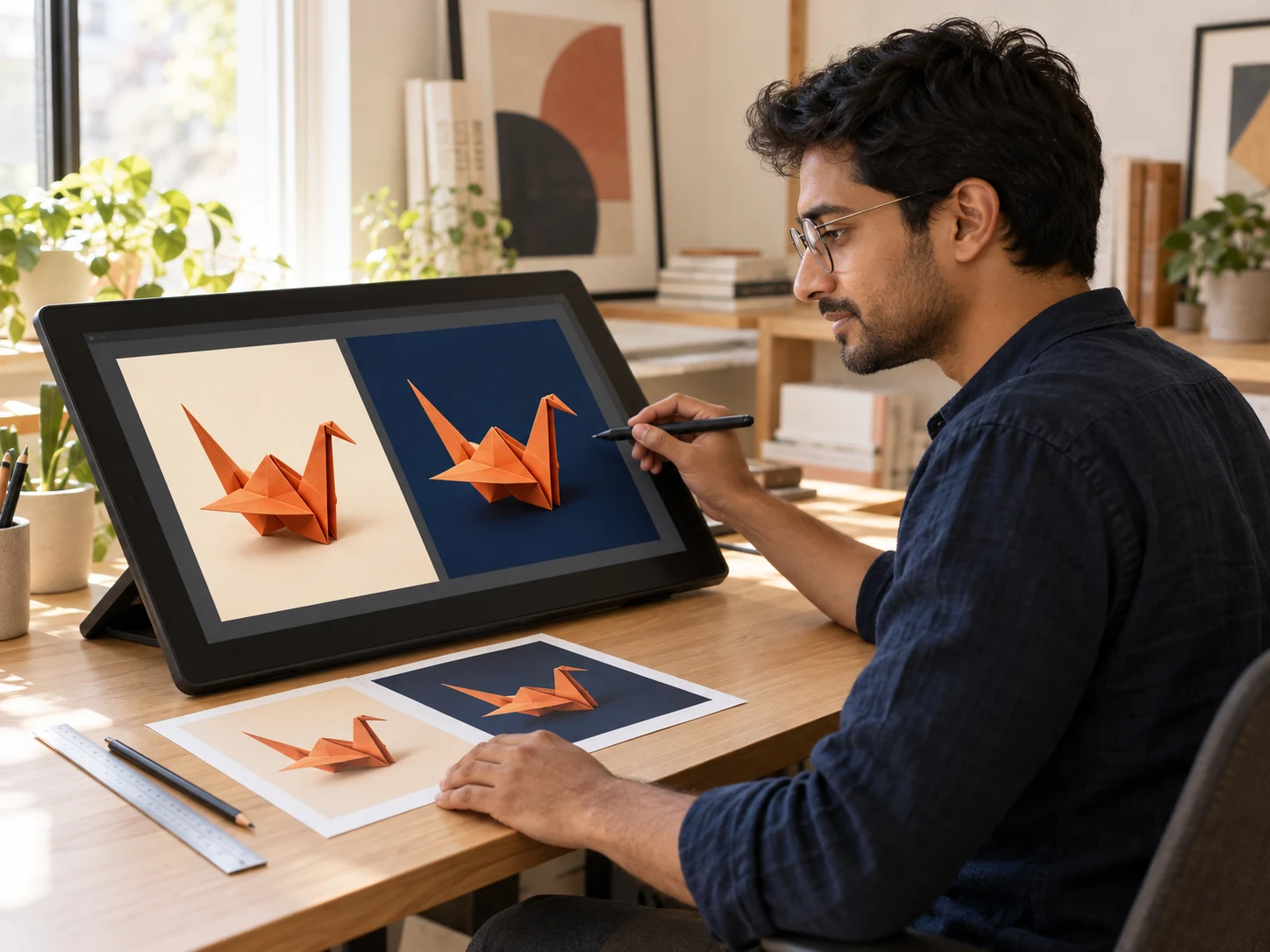
Test solid colors around a subject before placing it in a mockup or client presentation. Download the versions you want to compare, then continue the composition in the design software you already use.

Replace a distracting room behind a portrait with a shade you prefer. Check hair and clothing against the new color, then save the PNG for a profile image, personal project, or photo you want to share.
Illustrative background examples. Actual results vary by photo.
Upload your image, click “Remove background,” and wait for the cutout preview. Select white or a custom solid color, check the result, and download the PNG. This changes the area behind the detected subject rather than applying a color filter to the whole photo.
Yes. Free BGRemover lets you process an image, choose a solid background, and download the PNG without payment or signup. Review the preview first so you can decide whether the cutout and selected color suit your photo.
The tool runs in a browser, but AI processing requires WebGPU support. Availability depends on your iPhone and browser version. If processing is unavailable, try a supported browser on another device. An iPhone photo saved as HEIC must be converted to JPG, PNG, or WebP before upload.
You can enter RGB values in the custom color picker to choose a specific shade. The picker also displays the corresponding HEX value. Direct HEX entry is not currently available, so use RGB values when you need to match a known color.
The tool places your chosen color behind the AI cutout; it does not apply a color filter to the whole image. Background separation can still affect fine edges or low-contrast areas. Check hair, pale clothing, and thin details in the preview before saving.
Upload a JPG, PNG, or WebP image up to 15 MB. The result downloads as a PNG with your selected background. A solid-color PNG has a visible backdrop; choose the transparent option instead when you need a cutout with no visible background.
Hair, thin objects, and subjects close in color to the original background can be harder to separate. Try a sharper source photo with clearer contrast. Compare both versions before downloading, and use a separate editor if the image needs further edge cleanup.
Find answers about changing a backdrop, choosing colors, supported files, and checking the finished image before you download it.
Choose a photo you want to update, replace its backdrop with a solid shade, and review the finished image. Download a PNG for your next listing, post, or personal project. Free to use, with no signup required.
Add a Color Background to a Photo for Free