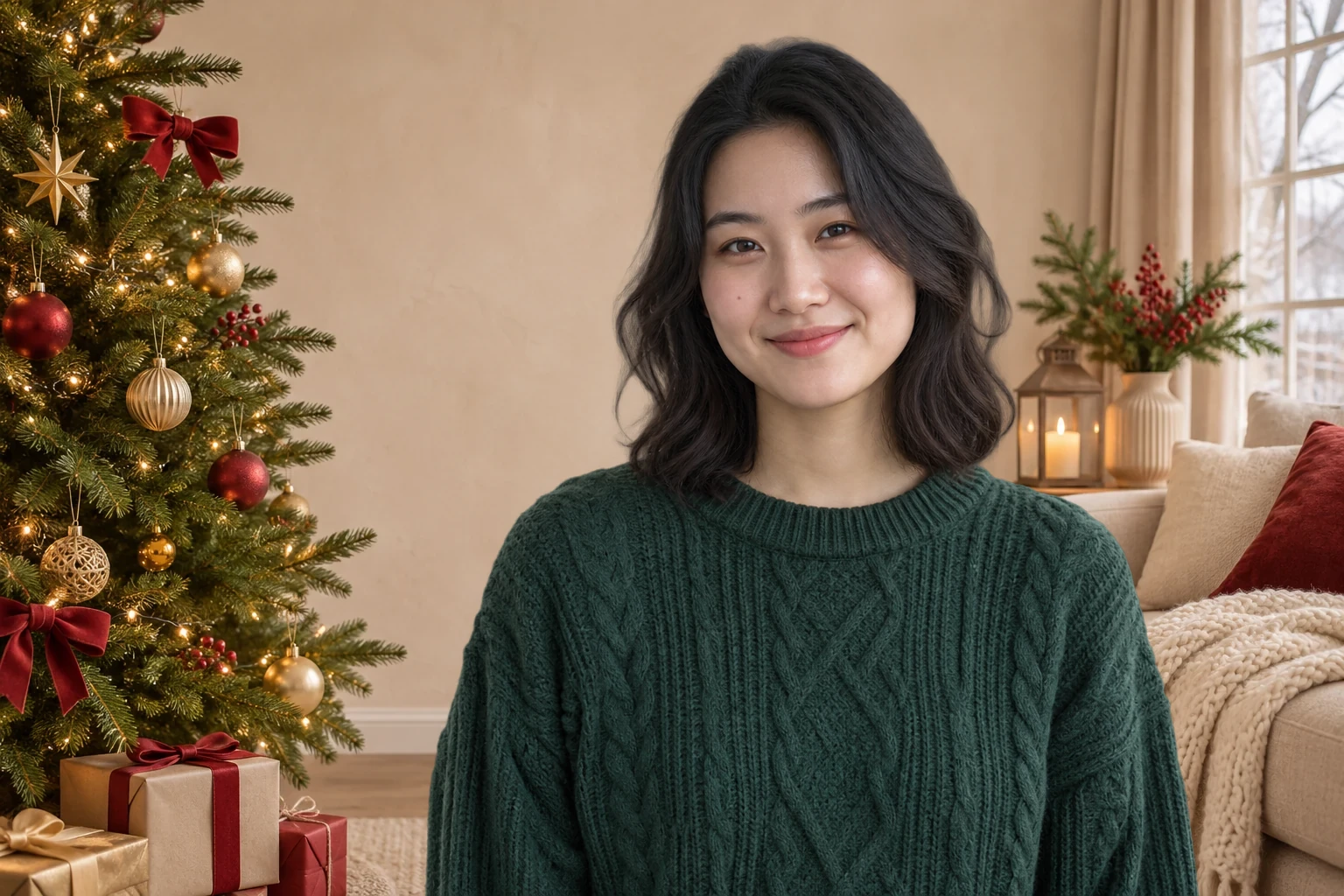

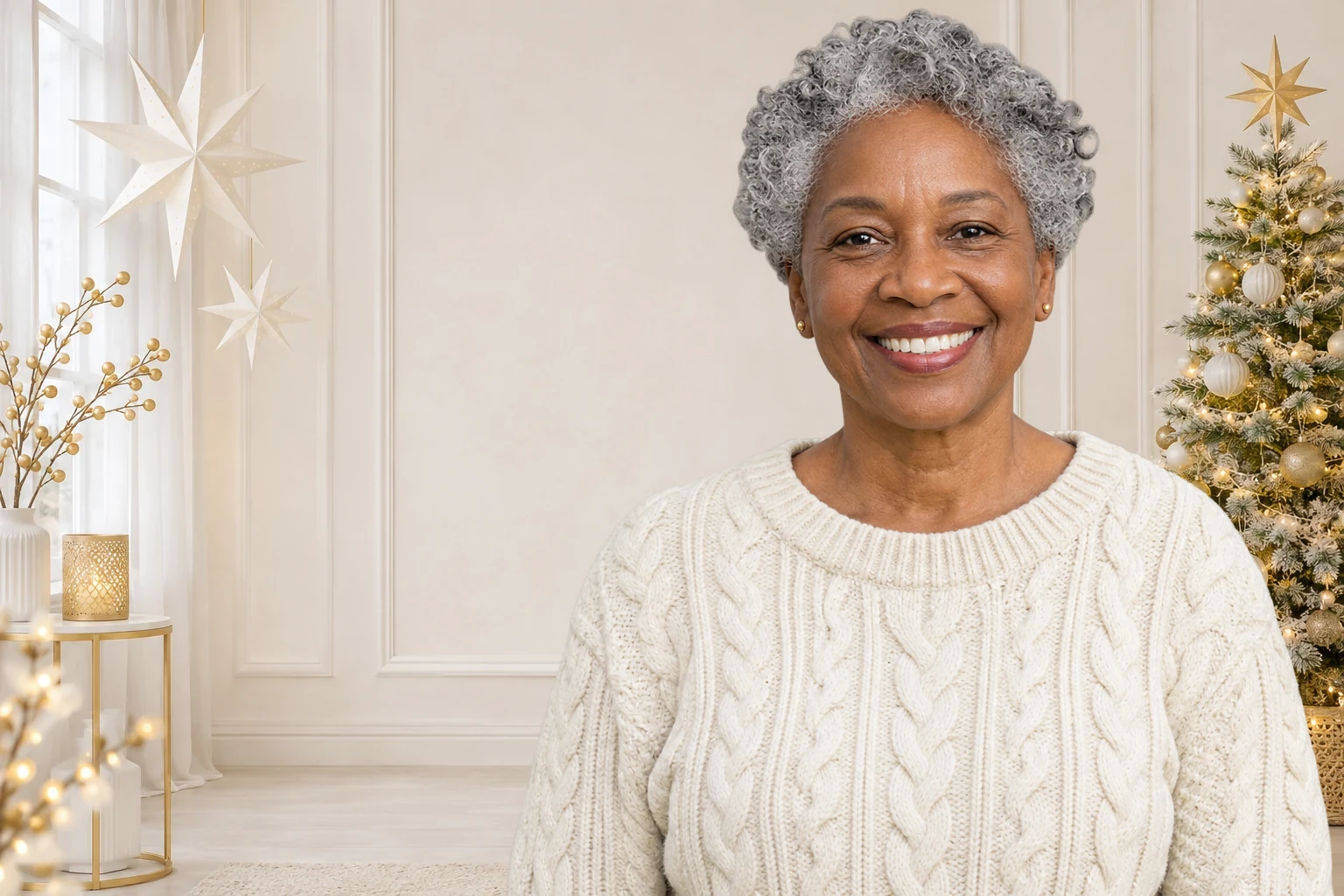
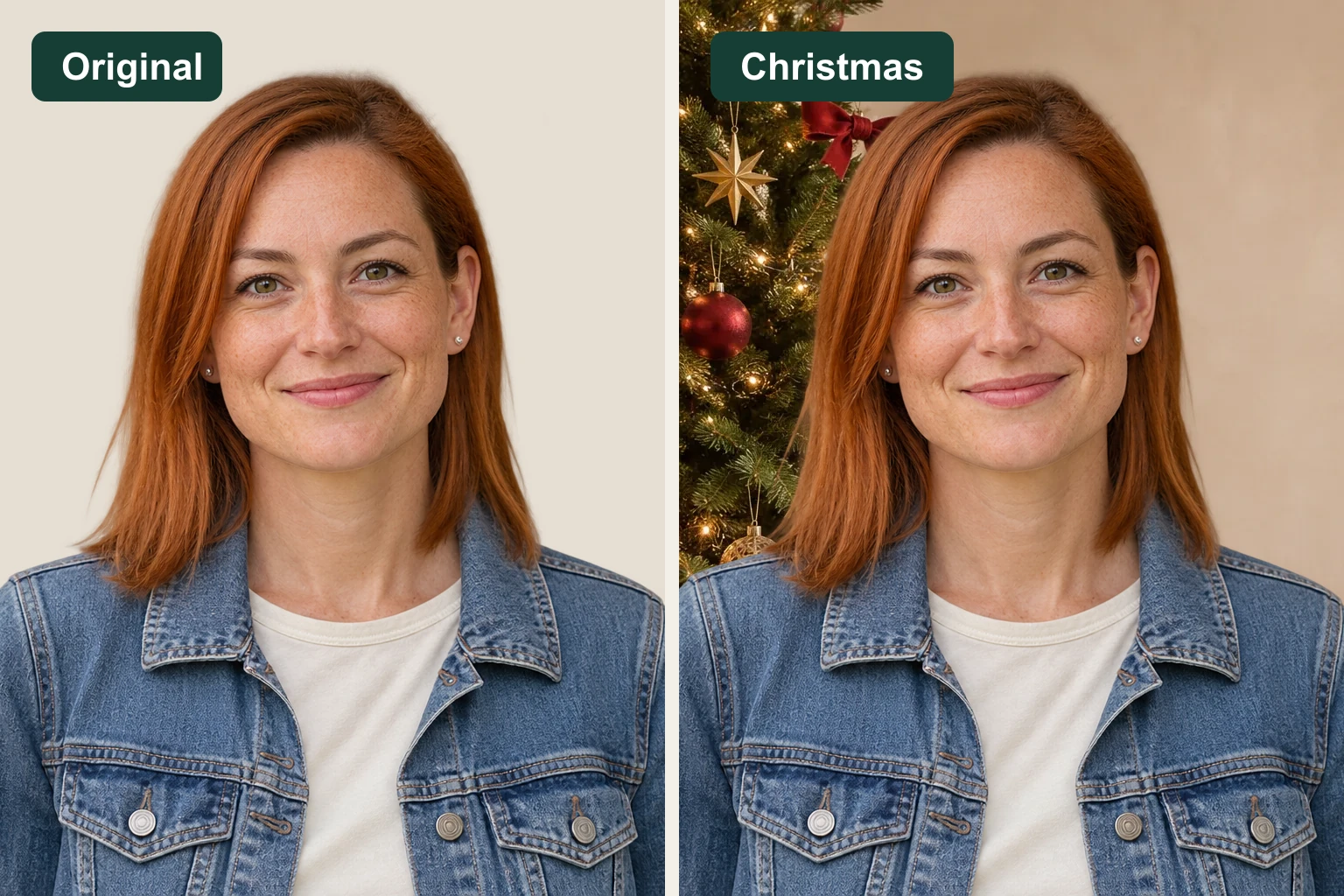
Keep the Portrait You Already Like
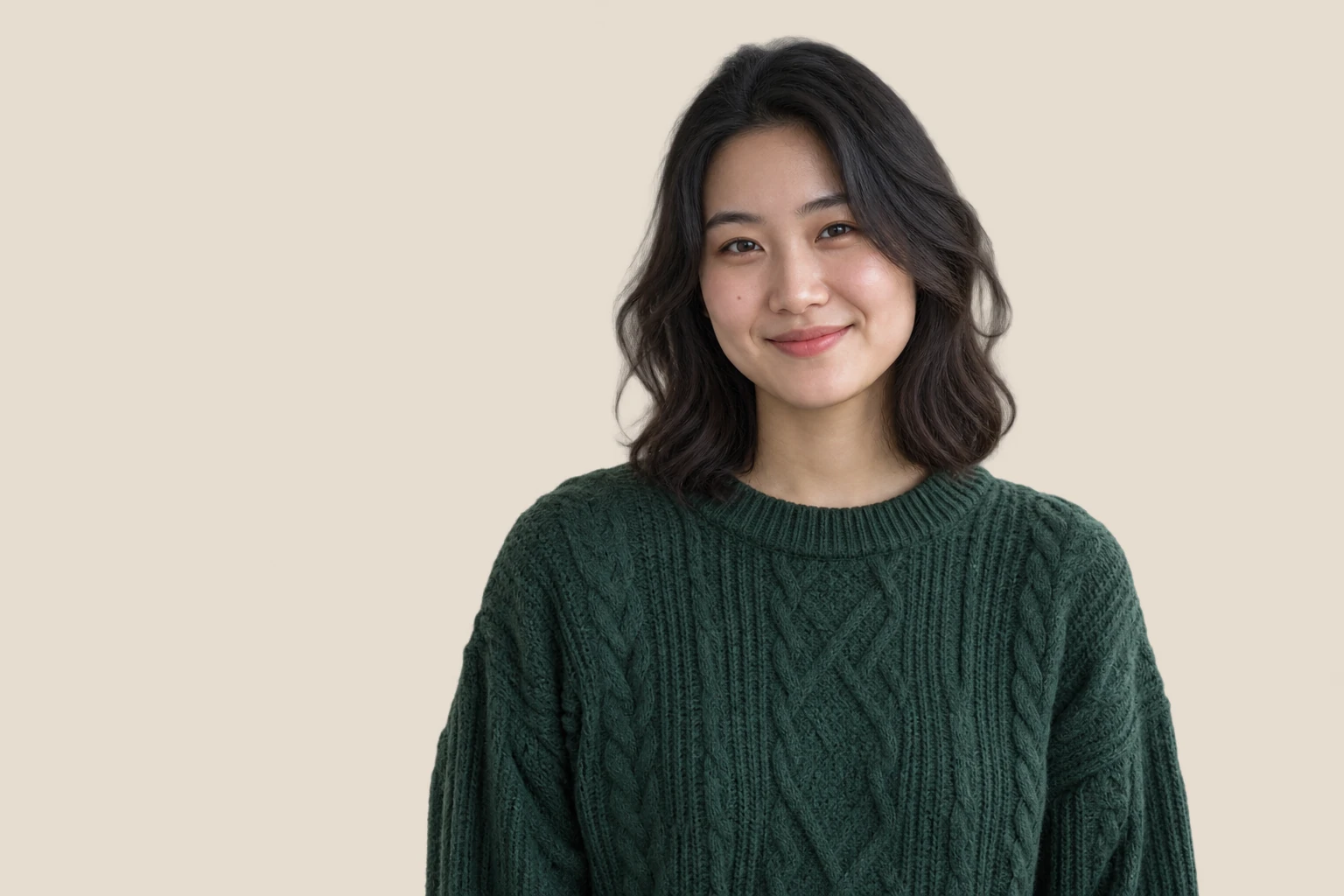
Your face, clothing, and pose come from the photo you upload. The tool places that subject into your chosen setting, letting you build a holiday portrait around a picture you already like.
A little holiday magic, with your own photo
Upload a portrait, choose a festive scene, and preview the finished picture. Turn an everyday photo into a seasonal image for a greeting card, personal profile, or holiday post, with AI helping separate the subject from the original setting.
JPG, PNG, or WebP · Up to 15 MB
Loading your selected scene…
AI processing requires a WebGPU-compatible browser and a model download.
Bring your portrait into a setting with a decorated tree, warm indoor light, or softly glowing ornaments. Compare the available Christmas background images and choose a scene that works with your clothing, camera angle, and the light already on your face. A quieter area behind the head can help facial details stand out. Use the previews to explore Christmas background ideas, then apply your preferred setting to your own photo and check the complete composition.
Set the mood with an outdoor winter scene or a room arranged around a glowing hearth. A snowy setting can suit a cool-toned portrait, while a Christmas fireplace background may work better with warm indoor light. For a softer look, choose a Christmas lights background with space around the subject. Compare each setting against your original photo, paying attention to the direction of the light and the size of objects behind you. Pick the combination that feels most consistent.
Add a Christmas Background to My Photo
Give a favorite portrait a seasonal setting before adding it to a card design. Choose a scene with room around your head and shoulders, then inspect the preview for distracting branches, lights, or ornaments. Save the picture and place it in your preferred greeting-card template, where you can add names, a personal message, and the layout you need. The same edited portrait can become part of a festive profile image or a social post after you finish the crop in your design app.
Make My Christmas Photo Background
Create your holiday photo in three steps. Upload a portrait, choose a scene and let AI handle the cutout, then preview the result and download your finished PNG.
Choose a JPG, PNG, or WebP image up to 15 MB. Start with a well-lit photo where the person is easy to distinguish from the surroundings. Keep the original file available so you can compare facial details, clothing, and edges with the edited version.
Select one of six festive scenes. Click Apply background to separate the subject and place it in your selected scene. Once the preview appears, compare how each setting works with your portrait and choose the scene that best fits the original lighting.
Inspect hair, glasses, shoulders, and any visible gaps around the subject. Check the available export dimensions, then download the completed picture as a PNG. Use the saved file in your card, profile layout, or seasonal design, choosing a different source photo if important details are missing.
Free BGRemover separates your subject and combines it with a festive scene, saving you the work of cutting out and layering your photo by hand. For greeting cards, profile pictures, and holiday posts, create a seasonal portrait you can compare with the original before downloading it as a PNG.
Your face, clothing, and pose come from the photo you upload. The tool places that subject into your chosen setting, letting you build a holiday portrait around a picture you already like.
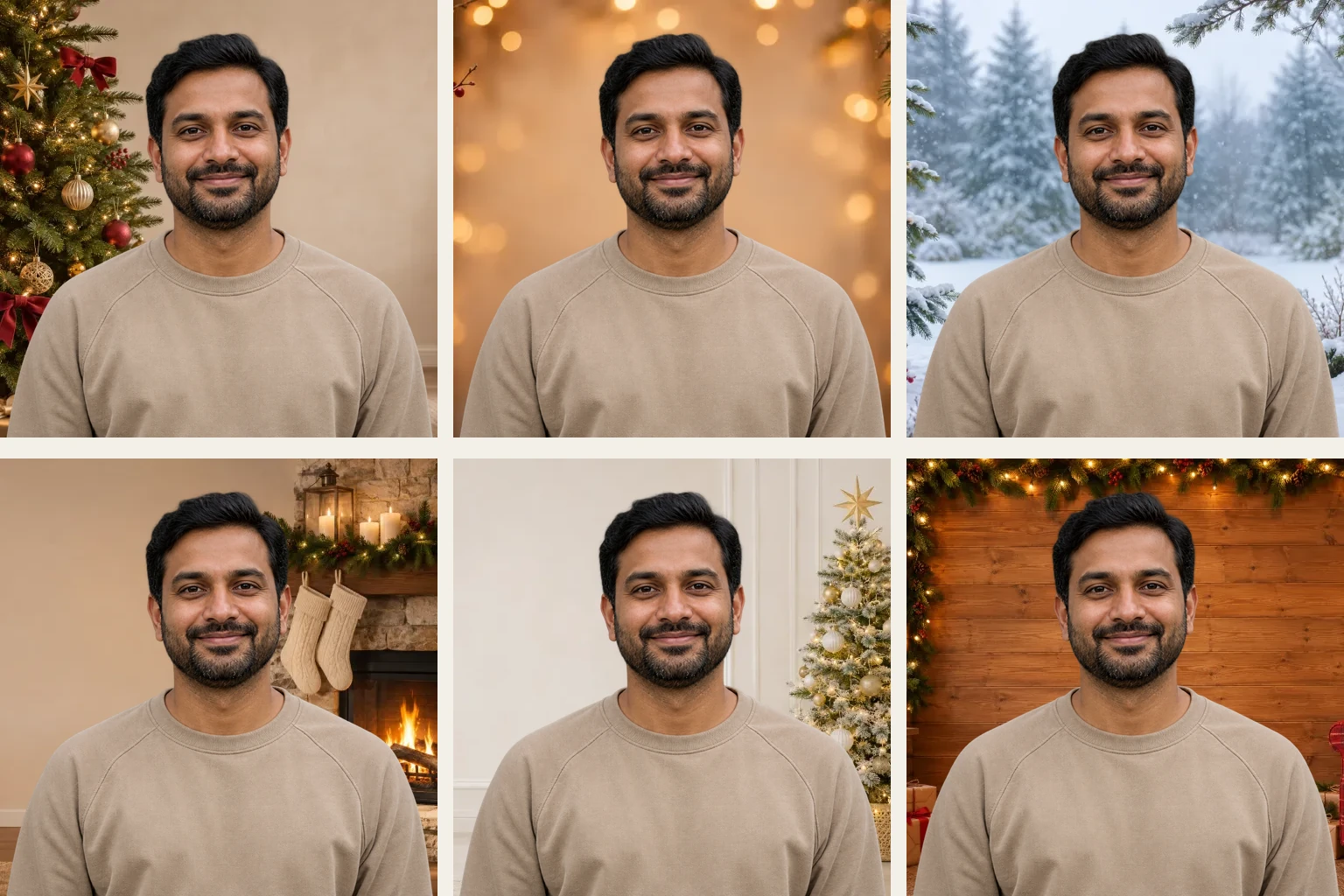
Choose a tree, glowing lights, snow, a fireplace, a white-and-gold studio, or a rustic cabin. Switching scenes reuses the extracted subject, so you can compare moods for the same portrait without repeating the cutout process.
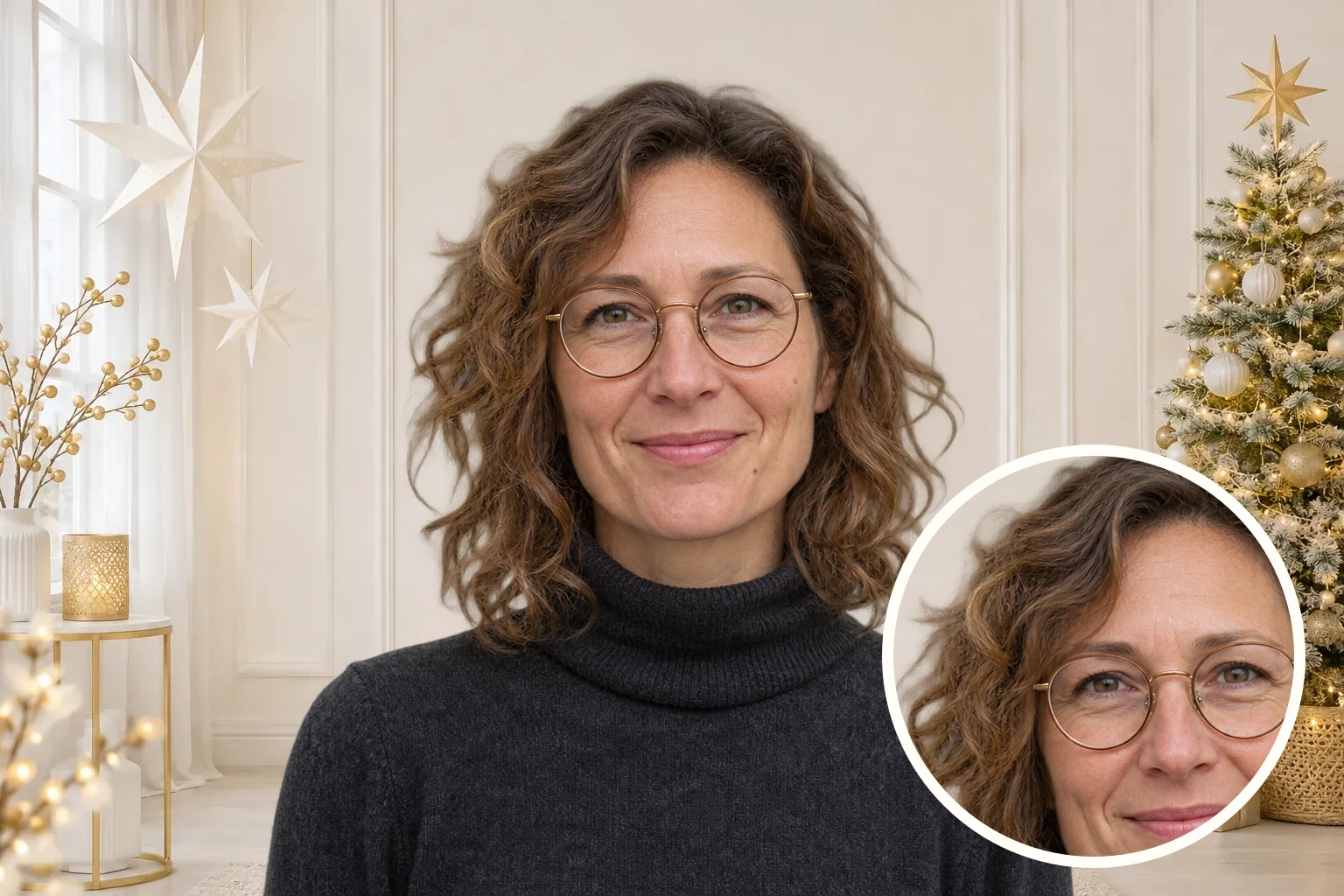
The original-photo toggle lets you compare the edited picture with your source image. You can check hair, glasses, shoulders, and how the new scene fits around the subject before deciding which version to save.
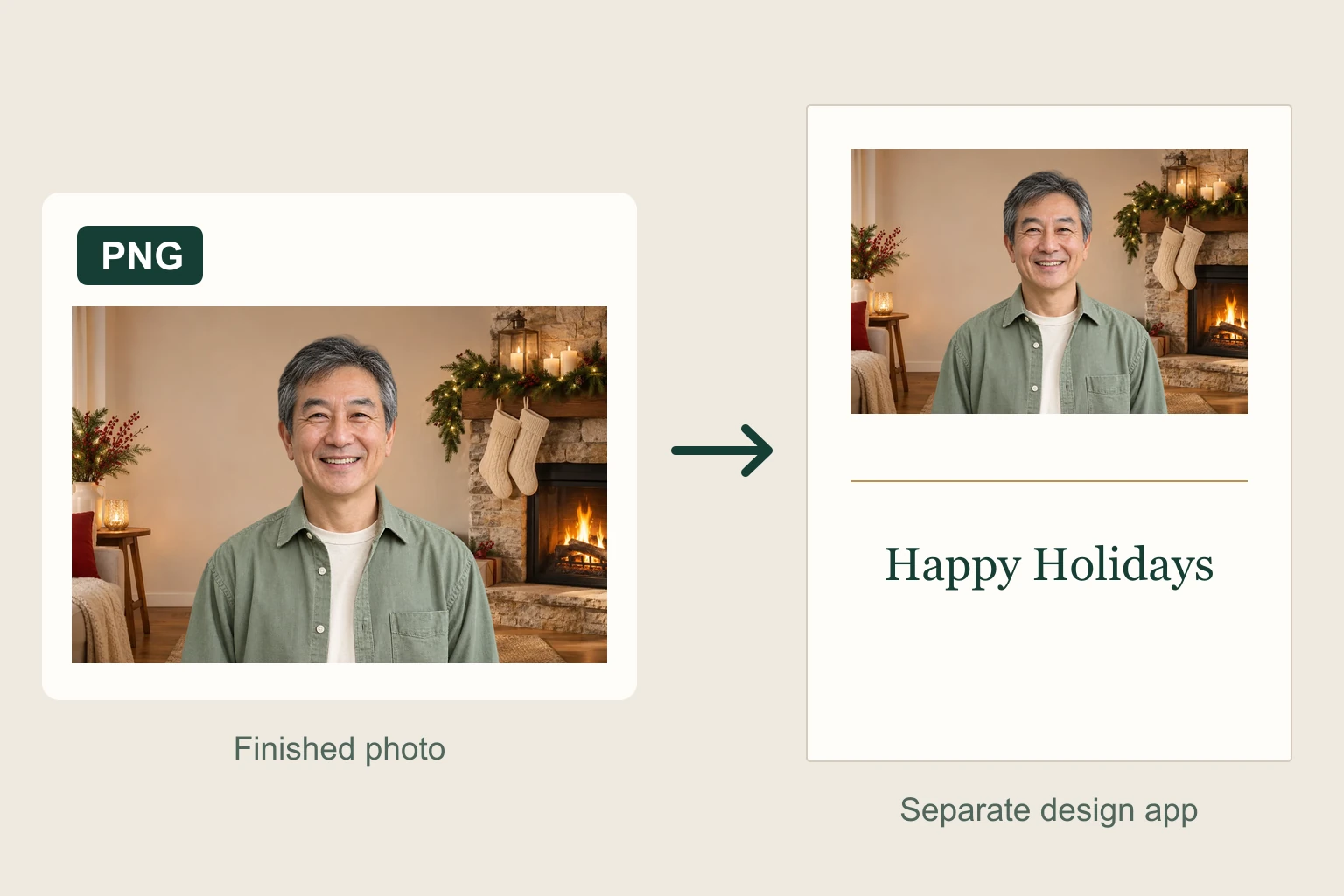
Your finished portrait downloads as a PNG, with its export dimensions shown before saving. You can bring the image into your preferred design app and check its size against the layout you’re making.
Use an existing portrait as the starting point for a seasonal design. Choose the setting around the person, then take the edited picture into the card, profile, or post you want to make.
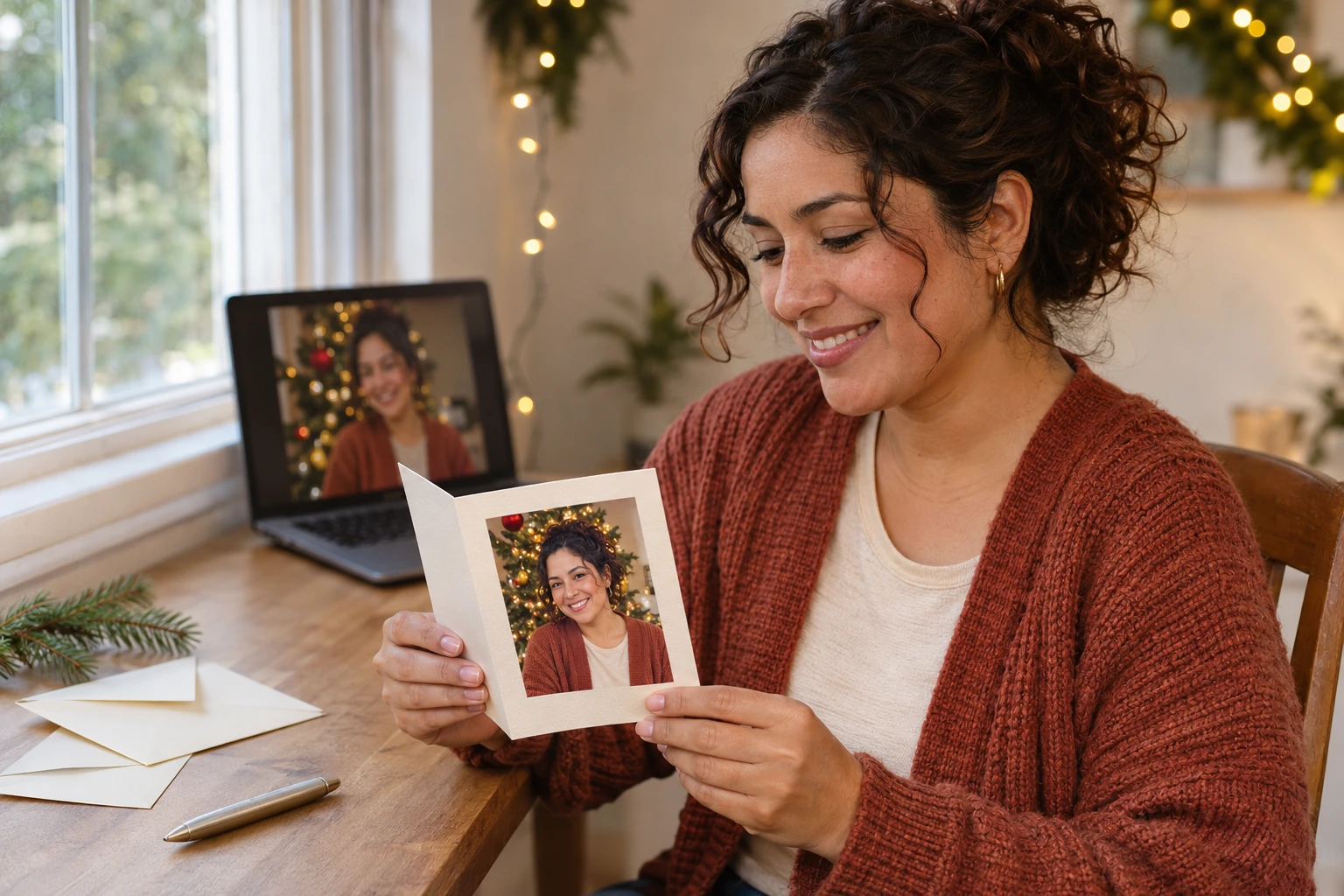
Prepare a seasonal portrait for a personal greeting card. Choose a scene that leaves enough room around the face, then place the saved picture in your card template. Finish the message, names, and layout in your design app, and check the final image size against your printer's requirements.

Give an existing headshot a festive setting for a personal profile. Choose a backdrop that works with your outfit and keeps the face easy to see. Review the edges before saving, then make the final square or circular crop in the app where you manage your profile picture.
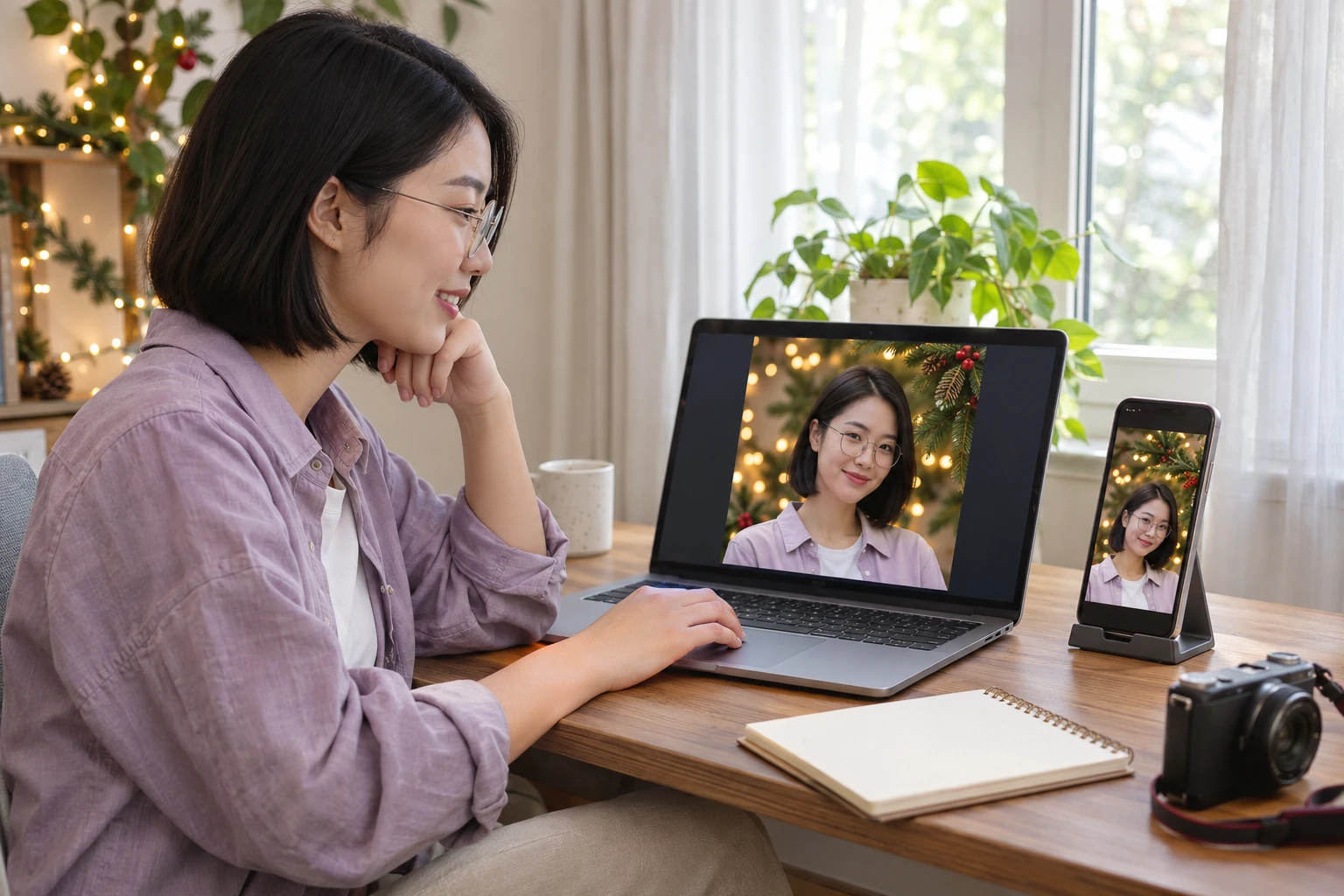
Prepare a seasonal portrait to include in an Instagram layout, community update, or personal announcement. Keep room for the crop you plan to use, then add your caption and any design elements in your usual editor. Preview the finished layout at its posting size before sharing it with your audience.
Upload a clear portrait, select a scene, and click Apply background. Review the result around the face, hair, and shoulders, then download the completed picture. Choose a source photo with clear edges and lighting that works with the setting you want to use.
Choose from a decorated tree, glowing lights, a snowy garden, a cozy fireplace, a white-and-gold studio, and a rustic Christmas cabin. Compare the scene with your photo's colors and light direction. A quieter area behind the face can help keep attention on the person, while larger decorations may work better farther from the head.
Start with a well-lit image where the person stands out from the surroundings. Clear hair and shoulder edges give you more detail to inspect in the preview. If part of the person is hidden or blends into the original scene, another photo may provide a better starting point.
Yes. Save the completed image as a PNG using the download option. The saved picture includes your subject and the selected scene. PNG describes the file format, and the visible background remains part of the finished composition you have chosen.
Check the export dimensions shown before downloading and compare them with the requirements of your card template or printer. Print suitability depends on the source image, the available output size, and how large you place the picture. Review the final card at its intended print size.
Download the edited picture and place it in your preferred card or design app. Add the name and greeting there, then choose their size, placement, and contrast. A scene with open space around the portrait can make it easier to arrange your message.
Match the scene to the light already falling on the subject. Warm indoor lighting may suit a fireplace or tree lights, while cooler light may fit an outdoor winter setting. Check perspective, background object sizes, and the edges around hair and glasses before saving.
Choose an existing scene in this editor and apply it to your uploaded photo. Creating an entirely new setting from a written description requires a text-to-image workflow. For this page, start by finding the preset that best matches the mood and lighting of your source image.
Get help choosing a source photo, matching a scene, and preparing the result for your next design.
Start with a portrait you already like. Choose a tree, lights, snow, or a cozy room, then preview the picture you want to share. Bring the finished image into your holiday card or next seasonal design.
Create Your Christmas Background Photo