✦ 100% FREENo account needed

Change Your Passport Photo Background Online

Upload your portrait for a passport photo background change. Choose a solid color, preview the result, and download your PNG for free. No account needed.

PASSPORT PHOTO BACKGROUND CHANGE

Start with a clear portrait

JPG, PNG, or WebP. Up to 15 MB.

Privacy details
Free PNG downloadNo account neededYour choice of background color

Change Passport Photo Background Color Without Manual Tracing

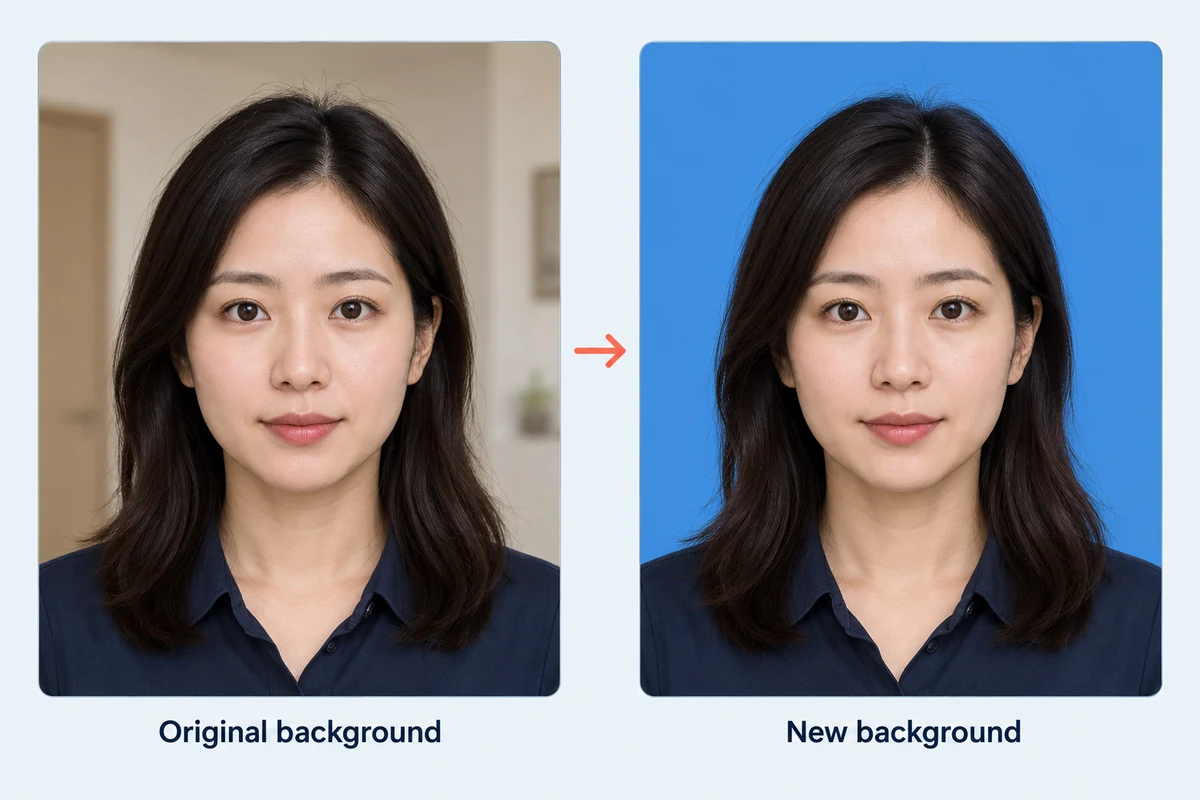
A busy room or colored wall can distract from your portrait. Free BGRemover uses AI to separate the person from the original backdrop, so you can replace it with a solid color without drawing around the subject yourself. Start with a sharp photo and inspect the hair, neck, and shoulders after processing.

Illustrative before-and-after comparison of the same front-facing portrait, with an indoor backdrop replaced by a solid blue background.

Choose the Background Color Your Photo Needs

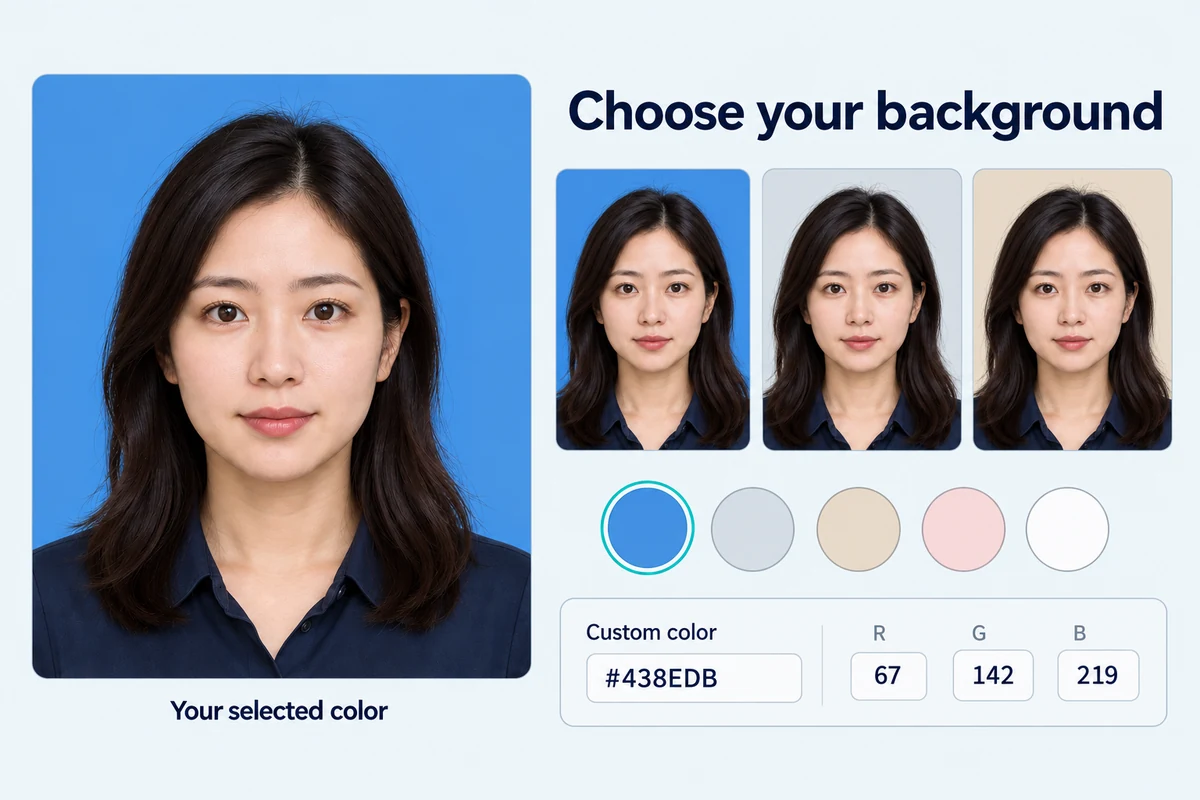
Replace the original backdrop with the solid color requested by the receiving organization. Choose White or use Custom color to set blue, gray, or another shade with the RGB controls. Preview your choice before saving; the selected color stays in your downloaded PNG. Check that background editing is allowed before using the result.

Choose My Passport Photo Background
Illustrative portrait preview with blue, gray, and beige backgrounds, color swatches, and custom RGB values.

Review Your Background Change Before Downloading

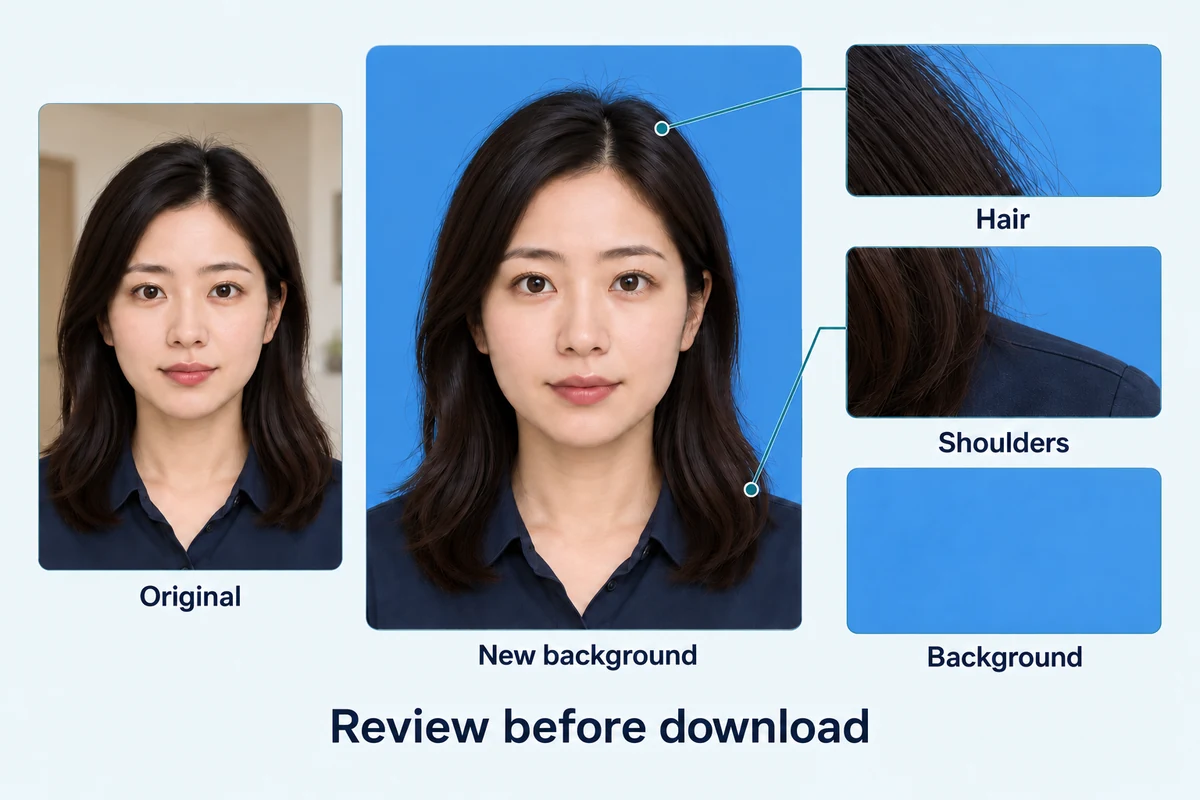
Compare the edited portrait with the original before saving. Look for missing hair, leftover backdrop around the shoulders, and clothing that blends into your selected color. Download the PNG when the result looks suitable for your next step. Background replacement does not set passport dimensions, correct facial lighting, or check official photo requirements.

Preview My Passport Photo Background
Illustrative comparison of an original portrait and its new background, with magnified hair, shoulder, and solid-background details to inspect before downloading.

How to Complete a Passport Photo Background Change Online

Upload your portrait, remove its original backdrop, choose a color, then review and download your PNG.

  1. 1

    Upload Your Portrait

    Choose a clear JPG, PNG, or WebP image up to 15 MB. Use a photo with visible hair and shoulders and good separation from the background. Check that the receiving organization allows digital background changes.

  2. 2

    Replace the Background with Your Chosen Color

    Click Remove background and wait for processing to finish. Under Output background, use Custom color to choose a shade or enter RGB values. White is also available as a preset. Follow your destination’s color instructions and compare the result with the original.

  3. 3

    Download and Check Your PNG

    Click Download PNG to save your result. Open the file and inspect the edges, background color, and pixel dimensions. Check the destination’s framing and file requirements; use separate resizing or conversion tools if needed.

Why Use Free BGRemover to Change Your Photo Background?

Free BGRemover combines AI background removal with solid-color selection, helping you replace a portrait’s backdrop without manual tracing. For passport-style photos where edits are permitted, student forms, and employee profiles, you can choose a background, compare the result with the original, and download a PNG in one workspace.

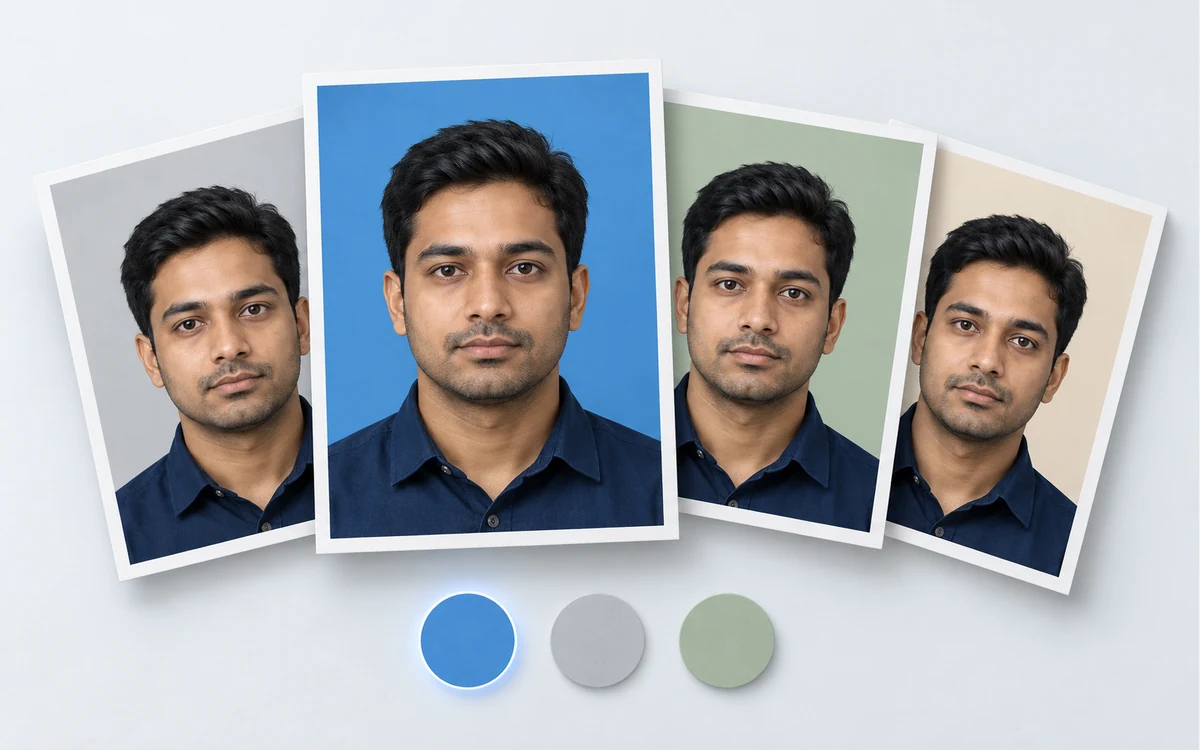
Illustrative fan of the same portrait on blue, gray, sage, and beige backgrounds, with color swatches below.

Choose the Background Color You Need

Use the custom color picker and RGB controls to choose the backdrop requested by the receiving organization. A white preset is also available. Preview the color behind your portrait before saving it in the downloaded PNG.
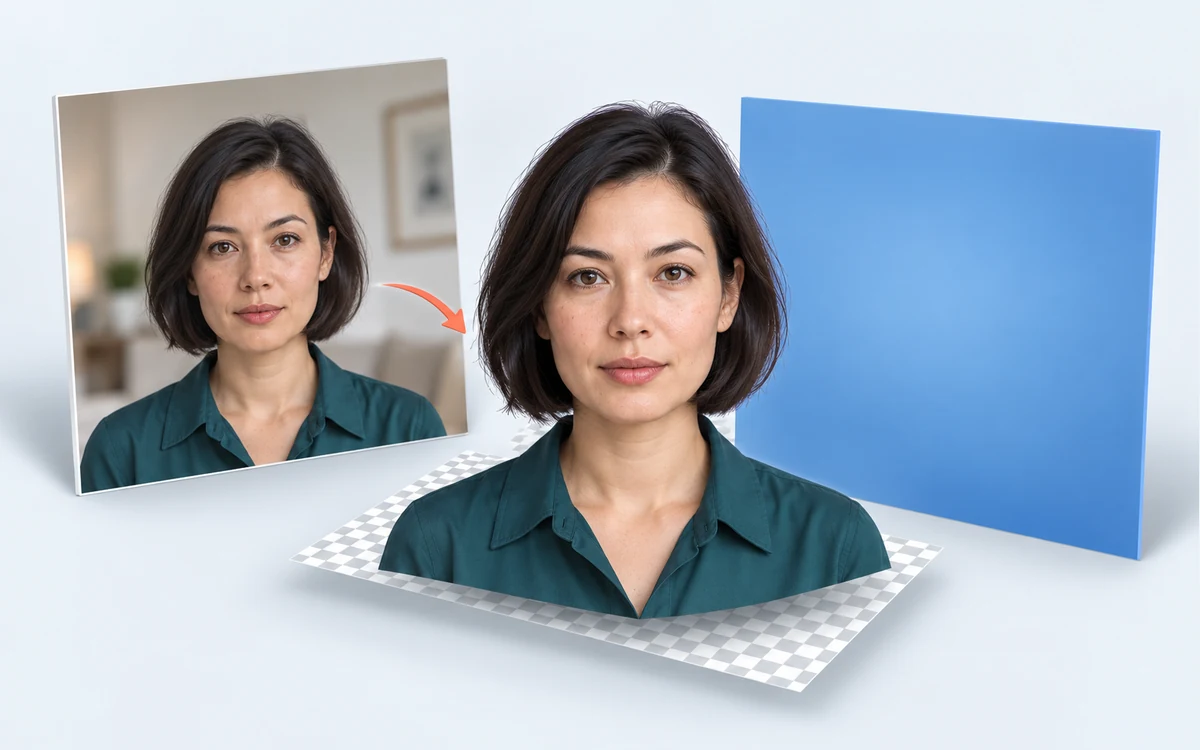
Illustrative layers showing an original indoor portrait, the isolated person, a checkerboard representing transparency, and a replacement blue backdrop.

Replace the Backdrop Without Manual Tracing

AI separates the person from the original background to create the cutout used for your color change. This reduces manual selection work, while leaving you responsible for checking fine details such as hair and clothing edges.

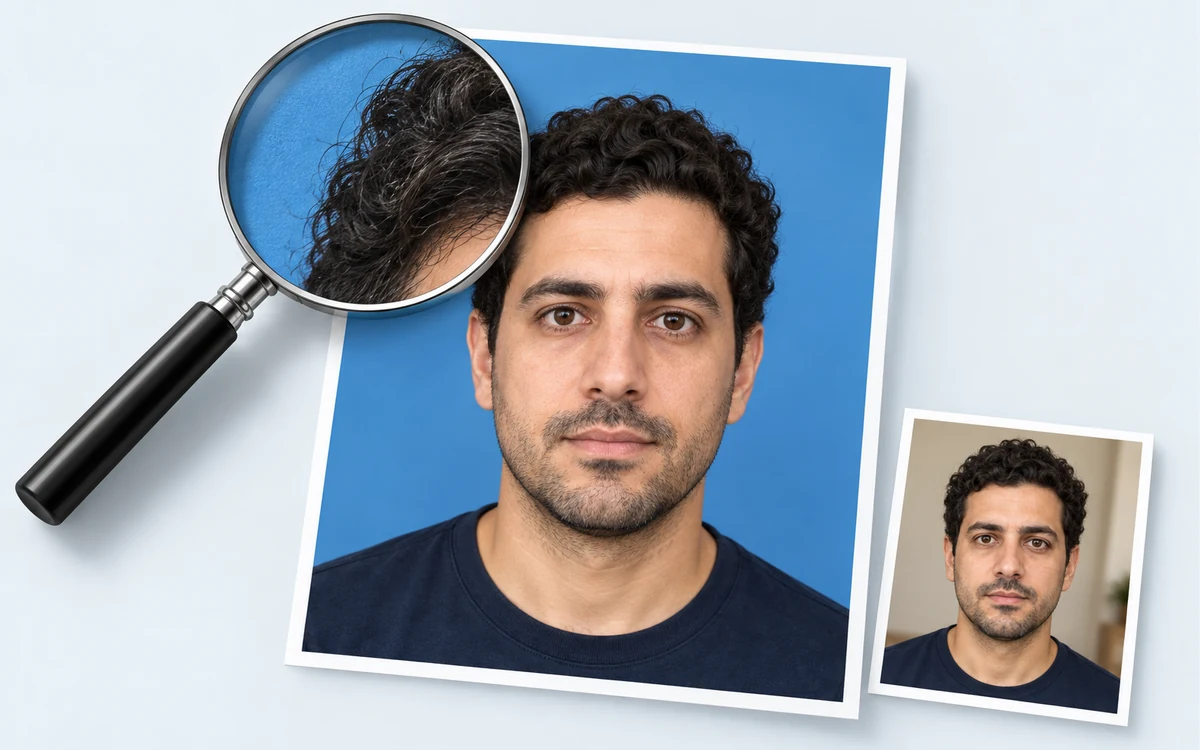
Illustrative magnifying glass enlarging the hair edge of an edited portrait, with a smaller original photo for comparison.

Inspect the Portrait Before You Save

The workspace displays your original portrait beside the edited result. Compare the outline, shoulders, and remaining background details before downloading, so you can decide whether to keep the result or try a clearer source photo.

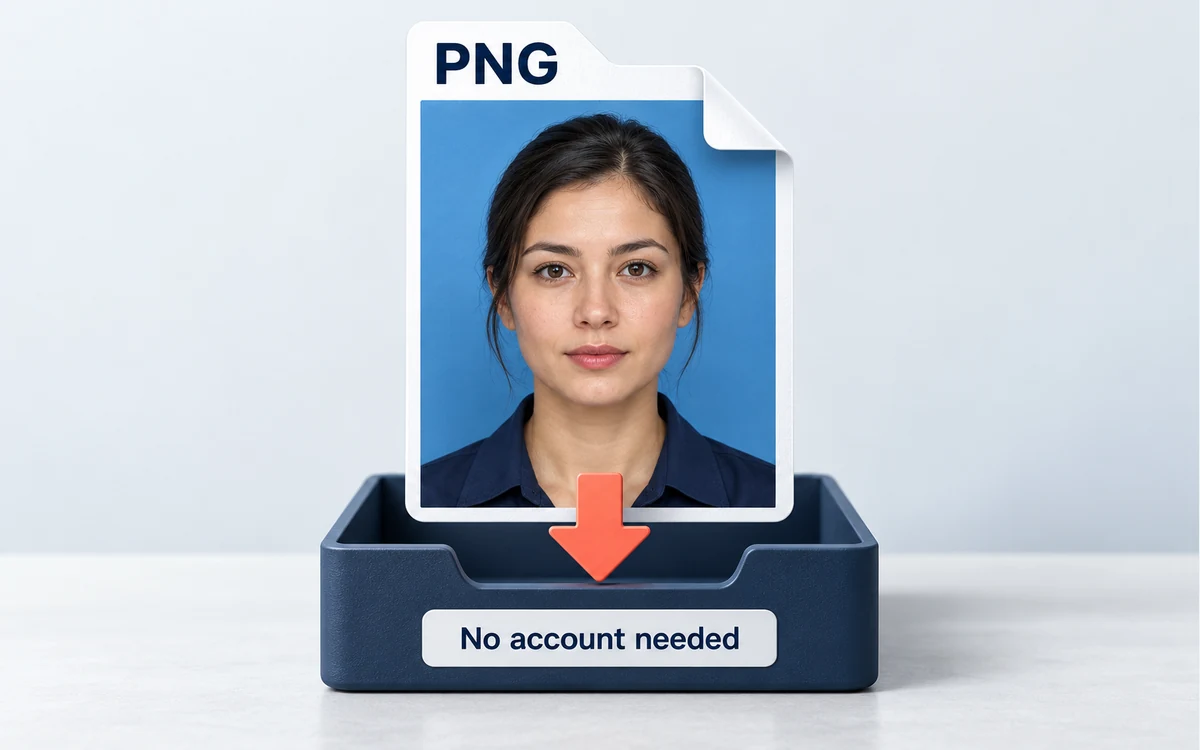
Illustrative PNG portrait file with a chosen blue background descending into a download tray labeled No account needed.

Download a PNG Without an Account

The single-image workflow includes background removal, solid-color selection, and PNG download without payment or registration. Save the selected backdrop in the actual image file, then check whether its format fits your next task.

Who Can Use This Portrait Background Editor?

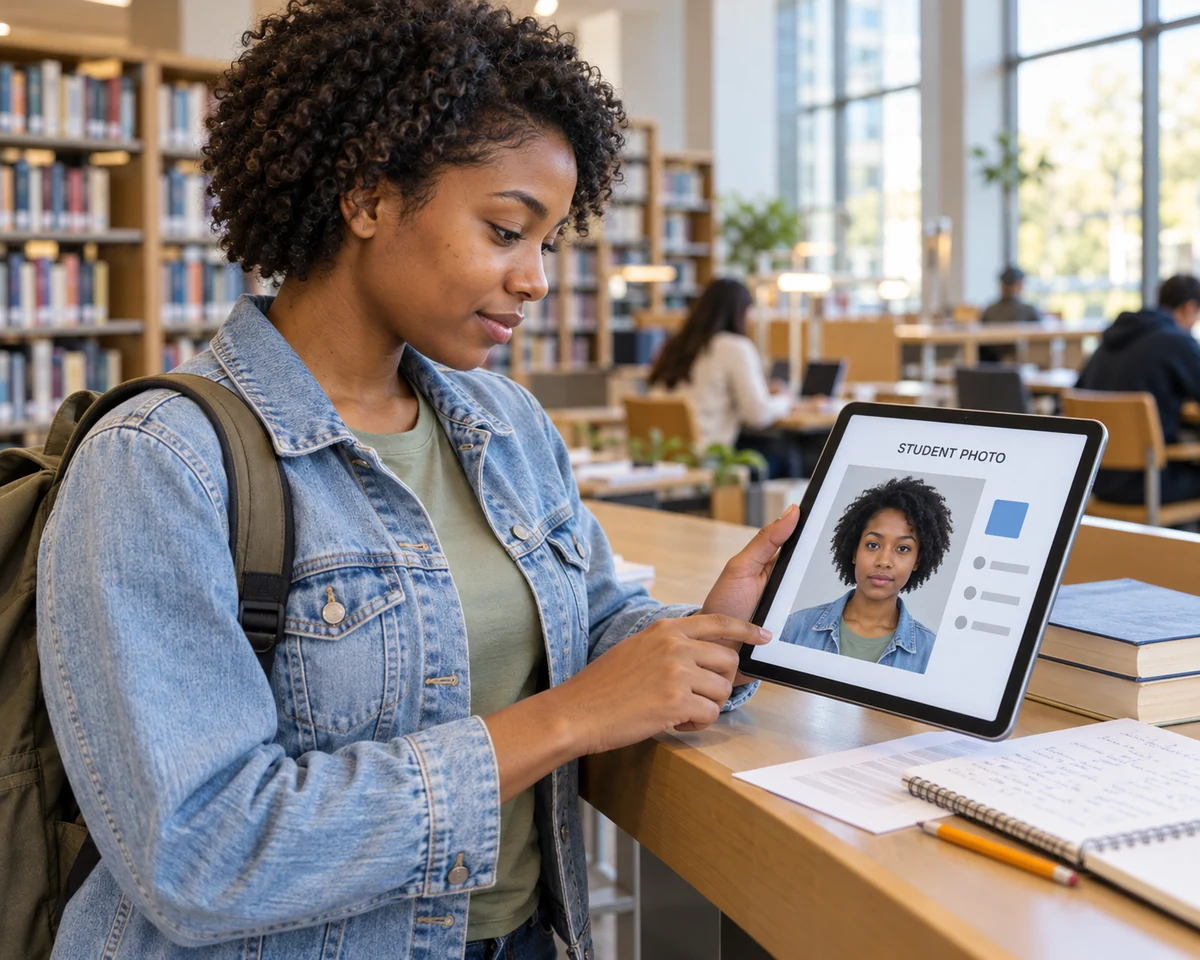
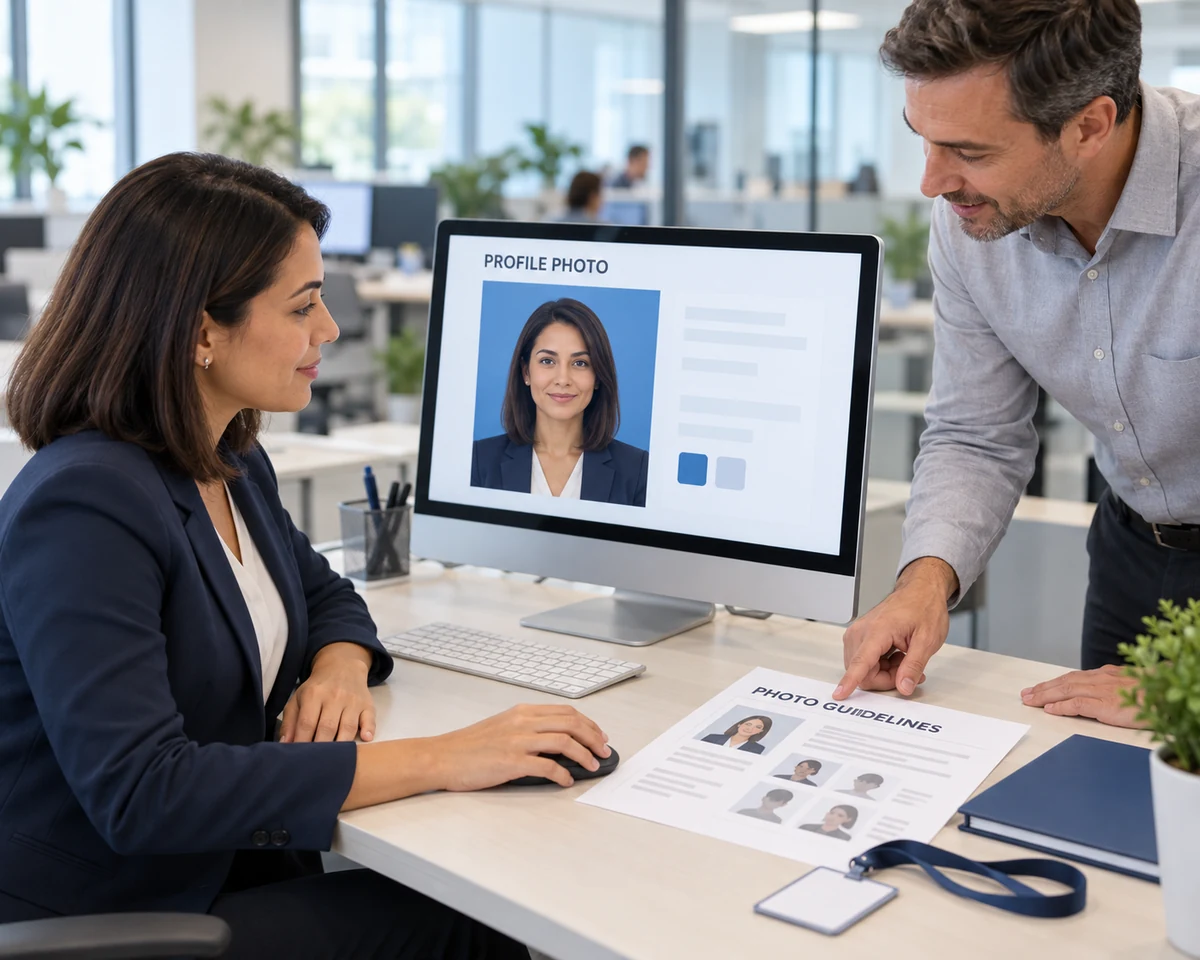
Different forms call for different portrait backgrounds. Whether you are checking passport photo instructions, preparing a student image, or updating an employee profile, start with the receiving organization’s rules and edit only when background changes are permitted.

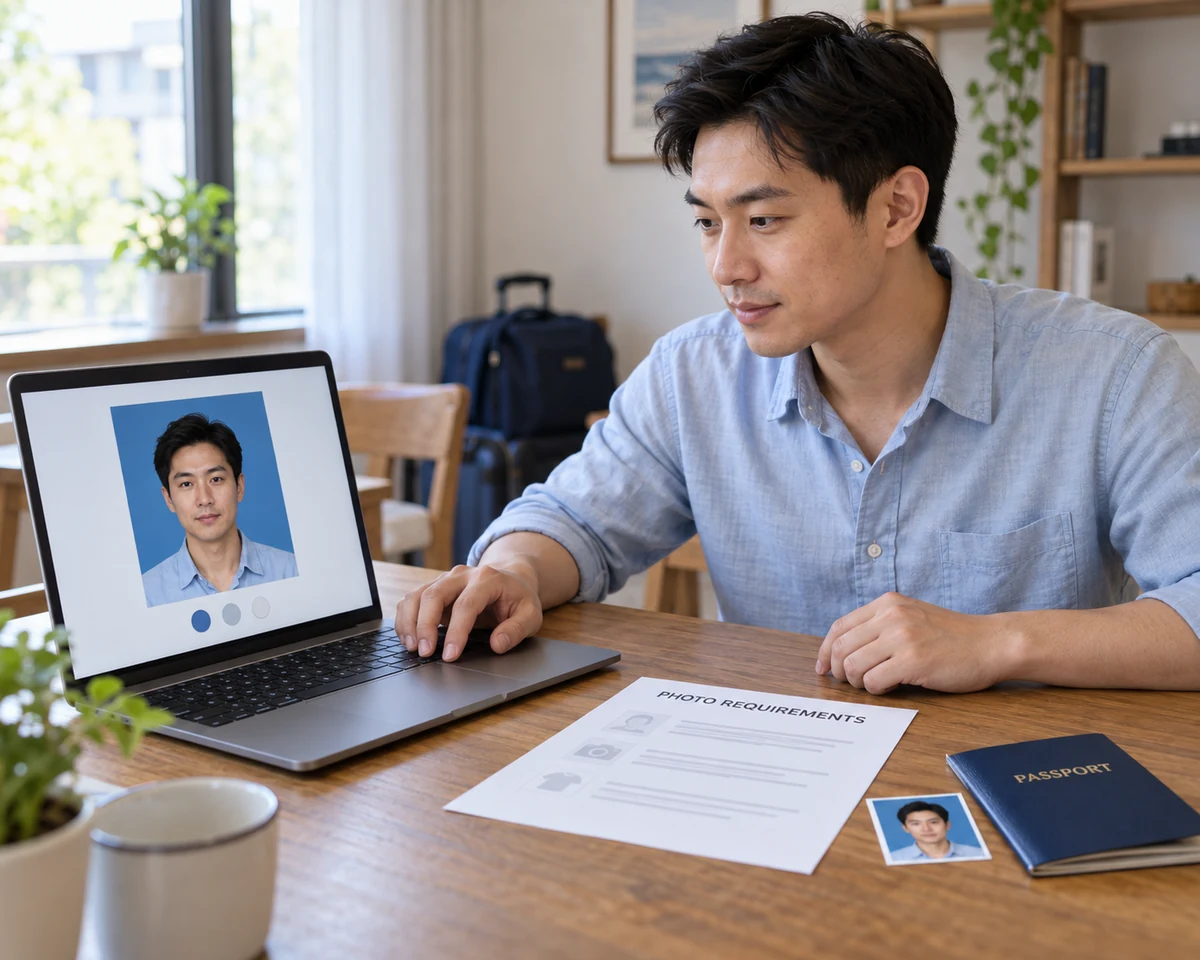
Illustrative scene of a passport applicant at home reviewing photo requirements and a portrait preview on a laptop.

Prepare a Portrait Where Background Edits Are Allowed

Check your destination’s passport photo instructions before changing the backdrop. If digital background replacement is permitted, use a clear portrait to prepare the requested color, then review the saved file against the remaining requirements. For U.S. passport applications, take an original, unedited photo instead.

  • Check editing rules before starting
  • Choose the requested background color
  • Review the saved portrait before use
Choose My Photo Background
How can I change passport photo background color online?

Upload a supported portrait, click Remove background, and wait for processing to finish. Choose the requested solid color under Output background, compare the result with the original, and download the PNG. Check that the receiving organization permits digital background changes before using the image.

Is the passport photo background changer free?

Yes. The current single-image tool lets you remove the original backdrop, choose a solid color, and download a PNG without payment or an account. You can preview the result before saving. A free background edit does not include passport sizing or an official compliance check.

Can I use an edited photo for a U.S. passport?

No. The U.S. Department of State requires an original, unchanged photo and prohibits changes made with software, apps, filters, or AI. This includes digitally replacing the background. Take a new photo against a suitable white or off-white background instead.

Does this tool crop my photo to passport size?

No. It changes the background and exports a PNG. It does not automatically crop to passport dimensions, set head measurements, or create a print layout. Where background editing is allowed, use a separate sizing tool and follow the destination’s current photo instructions.

Which file formats can I upload and download?

Upload a JPG, PNG, or WebP image up to 15 MB. The tool downloads the edited result as a PNG. If your destination requires JPG or a specific file size, convert or resize the saved image separately, then check the final file again.

What if hair is missing or the old background remains?

Compare the edited portrait with the original before downloading. Changing the background color will not restore missing hair or remove leftover pixels. The current tool has no manual erase or restore brush. Try a sharper original with clearer separation between the person and the backdrop.

Which background color should I choose?

Follow the photo instructions from the organization receiving your image. The editor offers a white preset and a custom color picker with RGB controls for other shades. There is no single color that applies to every passport or ID form. Also confirm that digital background editing is allowed.

Why is my photo taking time to process?

The first edit may take longer while the AI model loads. Processing time depends on your device and connection. Keep the tab open while it runs. The current background-removal workflow requires a browser and device with working WebGPU support.

Passport Photo Background Editing FAQs

Find answers about changing backgrounds, choosing colors, free downloads, photo sizes, and when an edited portrait can be used.

Change Your Passport Photo Background for Free

Have a clear portrait and your destination’s photo instructions ready? Replace the old backdrop with your chosen solid color, compare the result, and download the PNG. No account required.

Change My Passport Photo Background for Free