Remove Background from GIF and Keep the Animation

Upload your GIF and let AI process every frame instead of editing them one by one. Check the full loop against light or dark backgrounds, then download a transparent GIF. Try a sample first—no account required.

Before & after animation

Give your GIF a clean start

Drop an animation here to remove its backdrop.

Or

GIF only · Up to 15 MB
1024 × 1024 px · 120 frames · 20 seconds

  • Animated GIF export
  • Review the full loop

Remove the Backdrop, Keep the Movement

A still cutout is not enough when the movement carries the message. Remove the background from an animated GIF while keeping the subject in motion, whether it is a reaction, a wave, or a looping product demo. Check the full loop so the result works as an animation, not just a single frame.

Illustrative animation · Drag to compare

Remove GIF Backgrounds Without Manual Editing

Upload your animation and let AI separate the subject from its background across every frame. Preview the full loop, then download a transparent GIF that keeps the original frame timing and loop settings. Use the result for reaction stickers, memes, or animated graphics without preparing each frame yourself.

Remove My GIF Background
Illustrative animation · Drag to compare

Automatic Background Removal Across Every GIF Frame

Skip color picking, shade sliders, and manual frame edits. AI processes your animation frame by frame, while GIF export preserves the original frame timing and loop settings. Preview the full result against light or dark backgrounds to check for leftover edges, missing details, or flicker before downloading your transparent GIF.

Try AI GIF Background Removal
Light & dark preview

Illustrative animation · Compare wing edges and antennae throughout the loop.

How to Remove Background from GIF

Create a transparent animation in three steps: upload your GIF, let AI remove the background, then review the full loop and download your finished GIF.

  1. 1

    Upload your animation

    Choose the GIF you want to edit. Pick a clip where the subject is visible throughout the loop, and check the upload requirements before starting. A clear source makes it easier to assess which details belong to the subject.

  2. 2

    Remove the background and review the loop

    Click Remove background to let AI process every frame, then play the preview from beginning to end. Watch for missing details, flickering edges, and pieces of the original backdrop before downloading.

  3. 3

    Download and check your transparent GIF

    Save the result as a GIF, then open it in the app where you intend to use it. Confirm that it still animates and that transparent areas reveal the background beneath them. Keep the source file in case you need another attempt.

Why Use Free BGRemover as a GIF Background Remover?

Free BGRemover uses AI to remove backgrounds across your animation, so you can isolate the subject without selecting colors or editing individual frames. For reaction stickers, presentation graphics, and product animations, you get a reusable transparent GIF that preserves the original frame timing and loop settings.

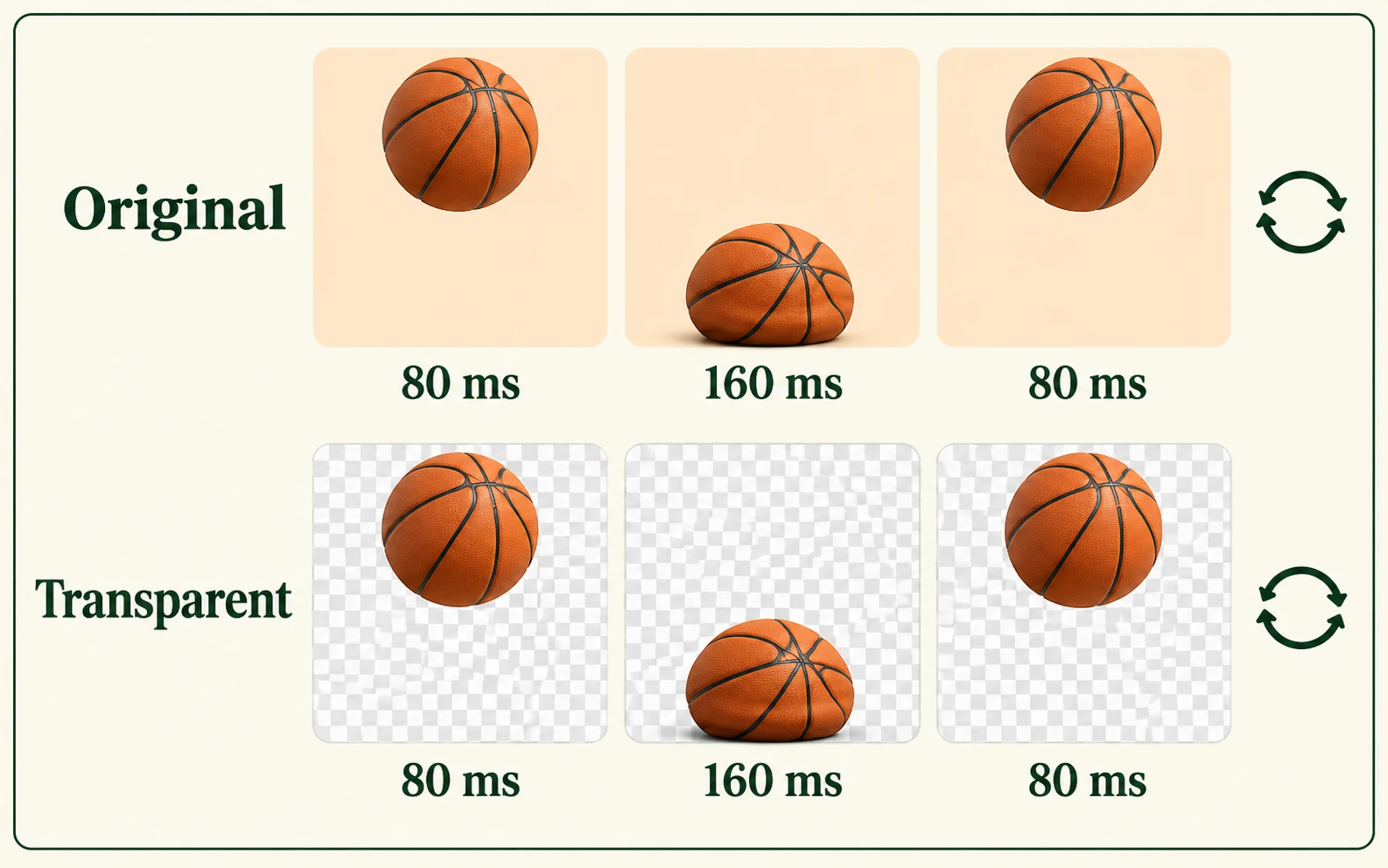
Illustration of matching basketball bounce frames, durations, and loop settings before and after background removal

Keep Your Animation’s Original Timing

GIF export retains the frame sequence, individual frame delays, and loop setting. Your reaction or product movement stays animated, so you can reuse the clip without rebuilding its playback.

Illustrative frame timing example.
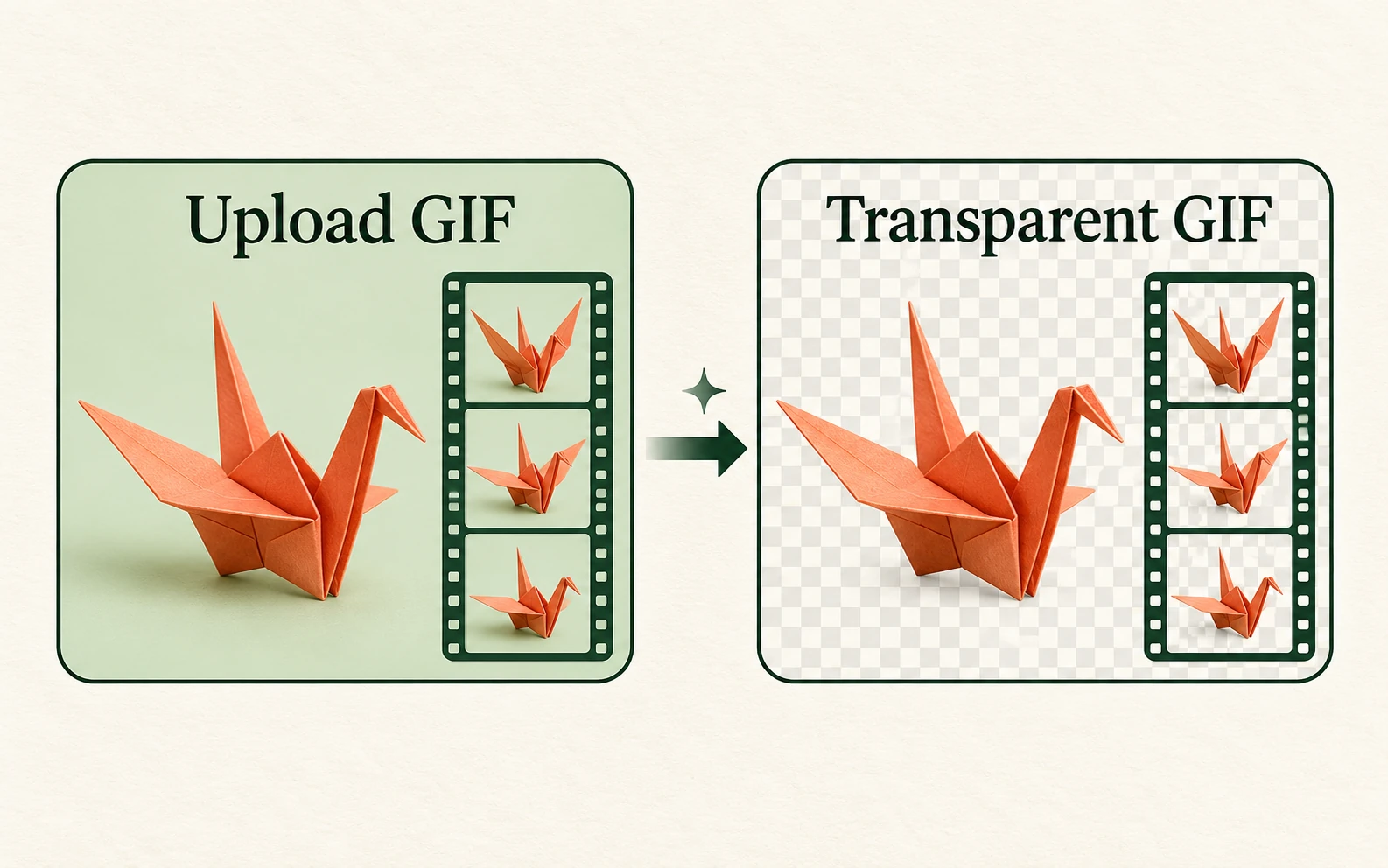
Illustration of one origami-crane GIF processed into a transparent animation with all frames together

Skip Editing Frames One by One

AI separates the subject from the background across the animation’s frames. You don’t need to choose a background color, adjust matching shades, or prepare individual cutouts before the file is reassembled.

Illustrative animation processing example.

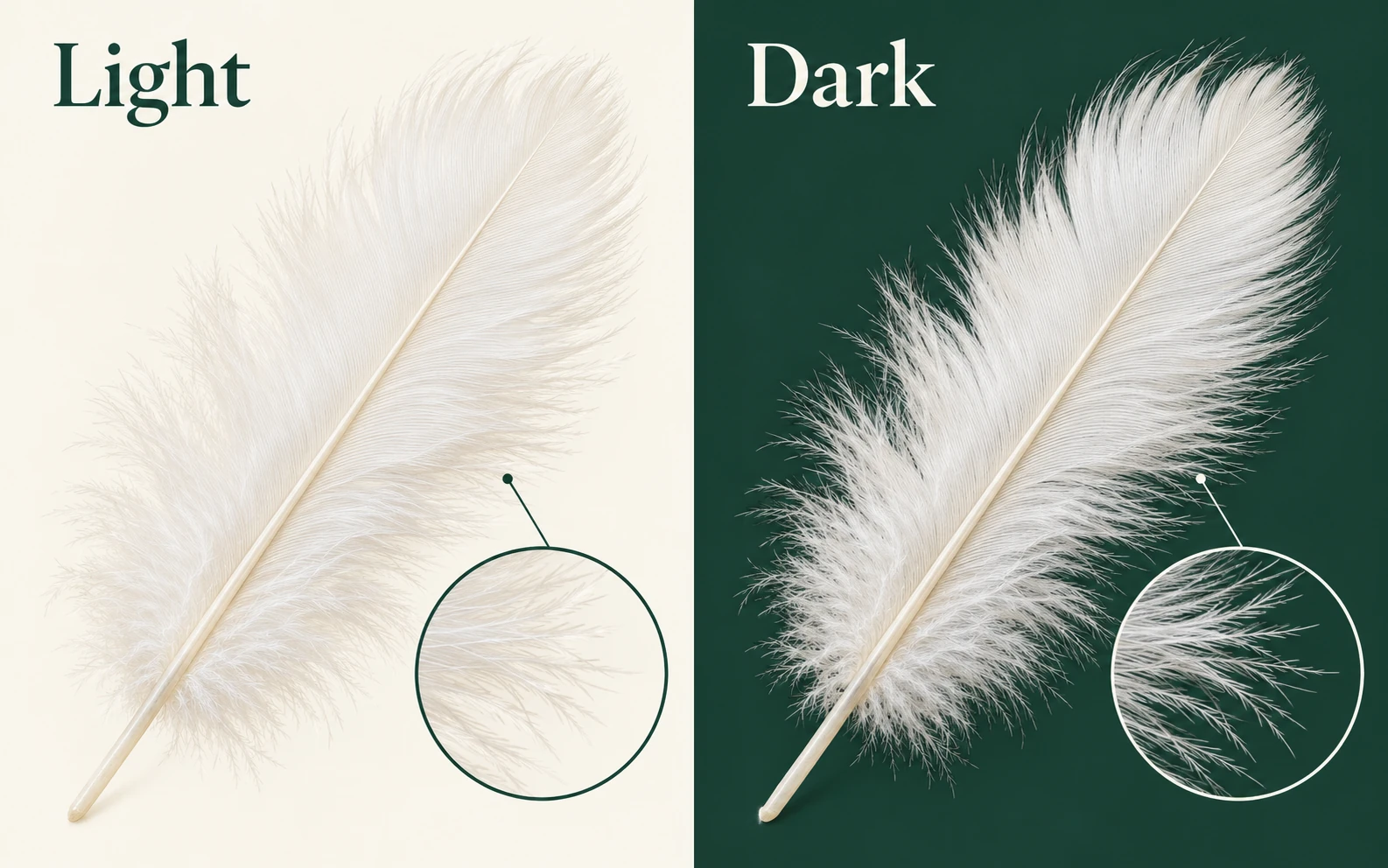
White feather on light and dark backgrounds with enlarged views of its fine edges

Catch Edge Problems Before Downloading

An animated preview lets you inspect the full loop against light or dark backgrounds. This helps reveal leftover borders, missing subject details, and flicker that a single still frame could hide.

Illustrative edge inspection example.

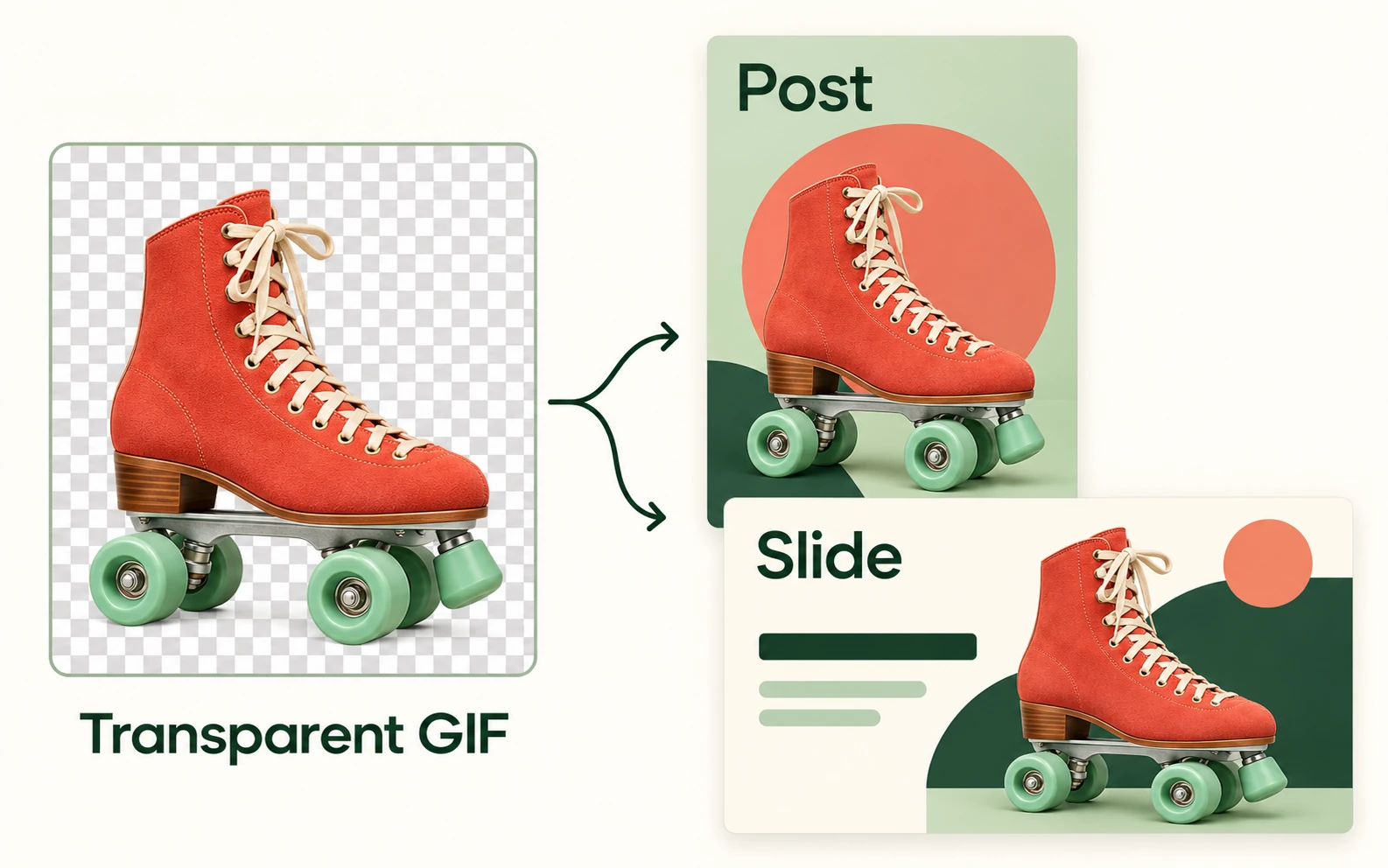
The same transparent roller skate cutout placed in a social post and a presentation layout

Fit Your GIF into New Layouts

A transparent GIF lets the surrounding design show through where the backdrop used to be. Reuse the animation in stickers, slides, or layered graphics in apps that support GIF playback and transparency.

Illustrative layout reuse examples.

Who Needs a GIF Without the Background?

Start with the animation you already have and the place you want to use it. A transparent background is useful when the subject should sit inside a larger design rather than remain inside its original rectangle.

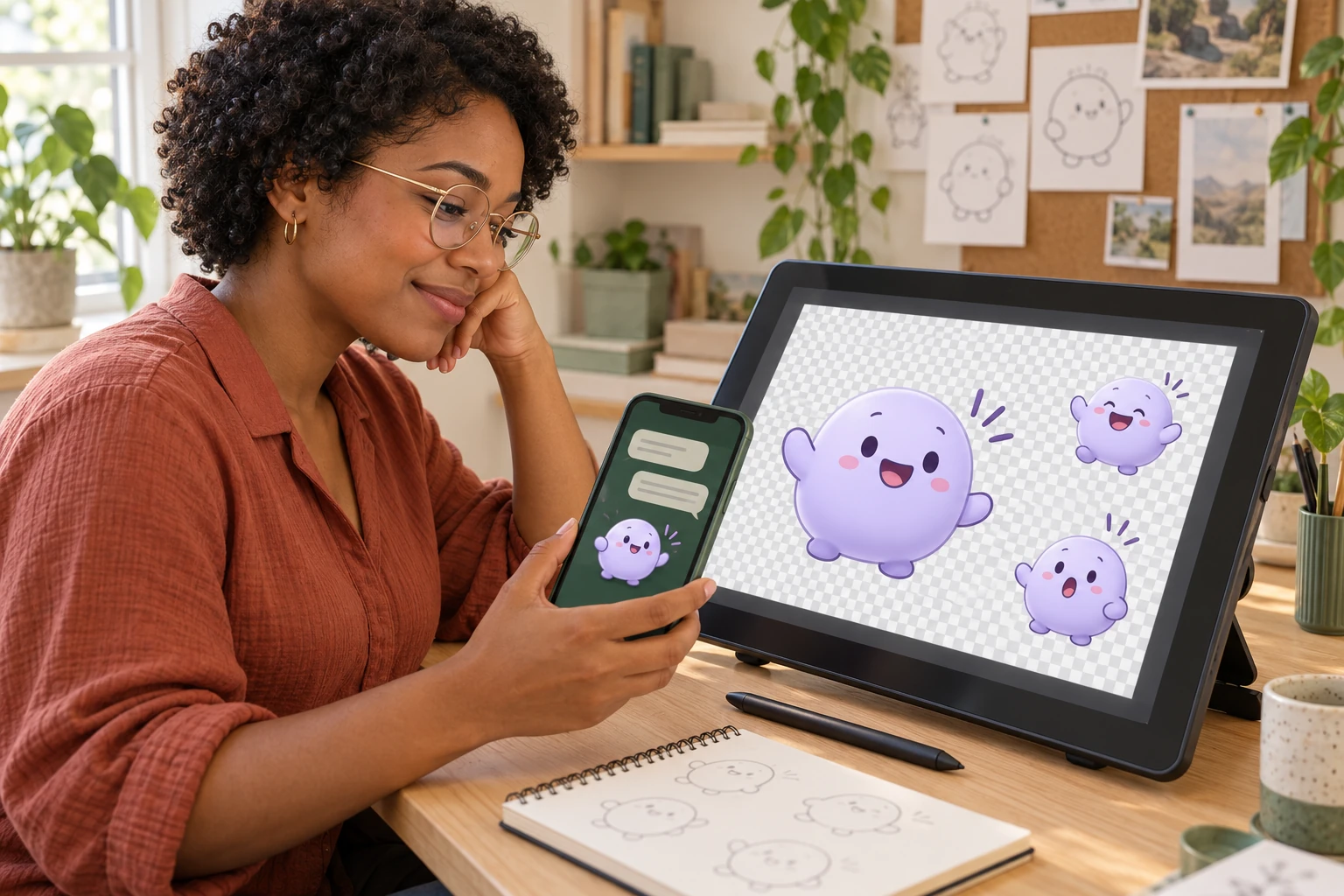
Illustrative scene of a social media creator reusing his reaction cutout in a post design

Social Media Creators

Turn a gesture or reaction into an animated element for your next composition. Check your publishing app’s format requirements before adding it, since GIF uploads may be converted or displayed differently across platforms.

  • Prepare a reusable animated subject
  • Check the destination format before posting
Prepare My GIF
How is removing an animated background different from editing a still image?

An animation contains multiple frames. Removing the backdrop from just one frame does not create a finished transparent animation. The subject needs to remain visible across the sequence, and the exported file needs to preserve playback. Review the entire loop instead of judging the result from one screenshot.

Can I remove background from a GIF without making it static?

Yes. AI processes all frames and exports an animated GIF, preserving the stored frame delays and loop setting. Review the full loop before downloading, since difficult edges can vary between frames.

Can I remove a white background when the subject also contains white?

The key is to separate the subject from the backdrop rather than delete every white area. Check pale clothing, lettering, reflections, and highlights in the preview. If those details disappear or flicker, the result needs further work before it is ready to use.

Why does my downloaded GIF look white instead of transparent?

Some viewers display transparent areas against a white canvas. Place the GIF over a colored background in an app that supports transparency to check it. If the white area still covers the design beneath it, it may be part of the exported image rather than the viewer’s background.

Will a transparent PNG keep my GIF animated?

A regular PNG export is a still image, so it does not preserve an animated GIF’s playback. Keep an animated output format when movement matters. Do not assume that a transparent file is also animated; check the downloaded file and play it before adding it to your project.

What should I check before using the finished animation?

Play the full loop and watch for flickering outlines, missing subject details, or leftover background. Test the file against the background you intend to use, then check it inside the destination app. A result that looks right in one preview may display differently in another layout.

Is this GIF background remover free?

Yes. This GIF workspace has no payment, account, or watermark step. AI background removal requires WebGPU and downloads a model on its first run; processing time depends on your animation, connection, and device.

What are the GIF upload limits?

Upload a GIF up to 15 MB, with dimensions no larger than 1024 × 1024 pixels, no more than 120 frames, and a playback duration of up to 20 seconds. A combined limit of 32 million frame pixels also applies. If the file exceeds a limit, shorten it or reduce its dimensions and try again.

What does my browser need for AI background removal?

Use a browser with WebGPU and hardware acceleration, such as a recent Chrome or Edge. The first run also needs a connection to download the AI model. You can cancel and retry if the download stalls. AI can produce flicker on difficult details, and GIF output uses one-bit transparency, so very soft edges may look harder than a PNG cutout.

GIF Background Removal FAQ

Find answers about animation, white backdrops, transparent exports, and checking your finished file.

Give Your Animation a Background-Free Start

Have a GIF you want to reuse? Remove the backdrop, review the moving result, and save a transparent version for your next sticker, slide, or design. Check the finished file where you plan to use it before sharing.

Try the GIF Background Remover