


Free to useNo sign-upNo watermark

Remove Green Screen Backgrounds and Save a Transparent PNG

Upload a photo, select the green backdrop, and adjust the color match in your browser. Save a transparent PNG for product listings, thumbnails, and everyday designs. Try a sample photo first or start with your own image. Free to use, with no account or watermark.

Three simple steps

How to Use the Green Screen Remover

Turn a photo with a solid green backdrop into a cutout you can use in another design.

Upload a photo, pick the green backdrop, check your cutout and download a PNG for your next project.

  1. 01

    Upload your photo

    Choose a JPG, PNG, or WebP image up to 15 MB. Use the sample if you want to explore the tool first. A sharp photo with an evenly lit backdrop is a good starting point.

  2. 02

    Select the backdrop and adjust the match

    Click the green area in your photo to sample its shade, or enter a HEX color. Choose Transparency and adjust tolerance for nearby shades. Apply the removal, then check whether any background color remains.

  3. 03

    Review and save your PNG

    Compare the result with your original photo. Check the outline, clothing, and small details. Adjust the match again if needed, then download the PNG. Keep this format when you need the background to stay transparent.

For your product listings

Green Screen Removal for Cleaner Product Photos

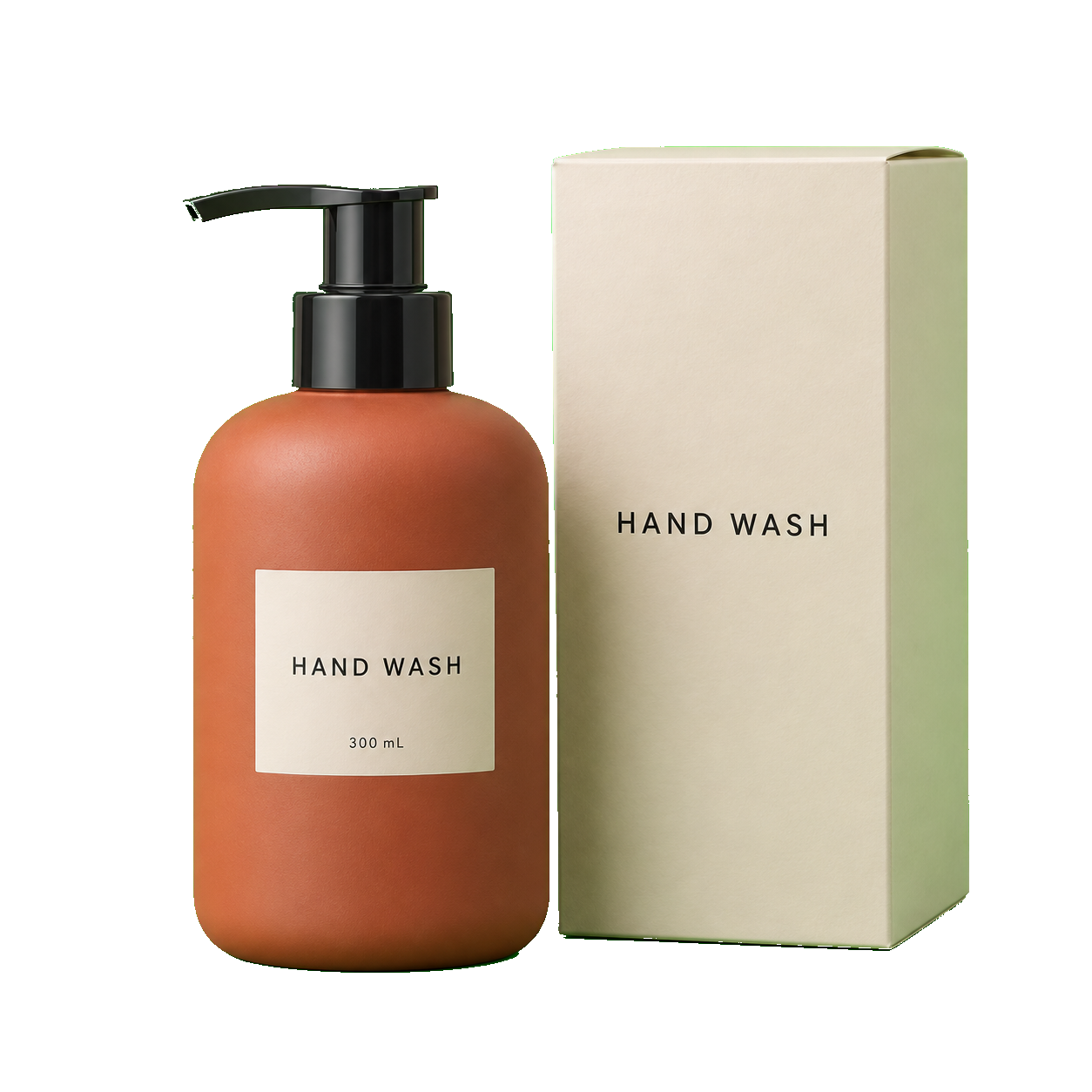
A green studio backdrop can distract buyers and clash with your store’s layout. Select its shade and make it transparent, or replace it with a solid white color. Use the result in product listings, catalogs, and promotional graphics. Preview packaging, labels, and reflective details before saving so you can spot any areas that need a closer check.

Terracotta hand-wash bottle and ivory carton with readable labels against a green studio backdrop.

For thumbnails and social posts

Make Portrait Cutouts for Thumbnails and Social Posts

Your next thumbnail does not need the same background as your original photo. Separate a still portrait from its backdrop, then download the PNG for your design editor. Add your own artwork, headlines, or colors without carrying over the green rectangle. Adjust tolerance and compare the original to check hair and clothing before you save.

Remove Green Screen from Your Photo Free
Smiling content creator in an orange sweatshirt pointing beside her against a green backdrop.

Ready for your next layout

One Transparent PNG, More Ways to Use Your Image

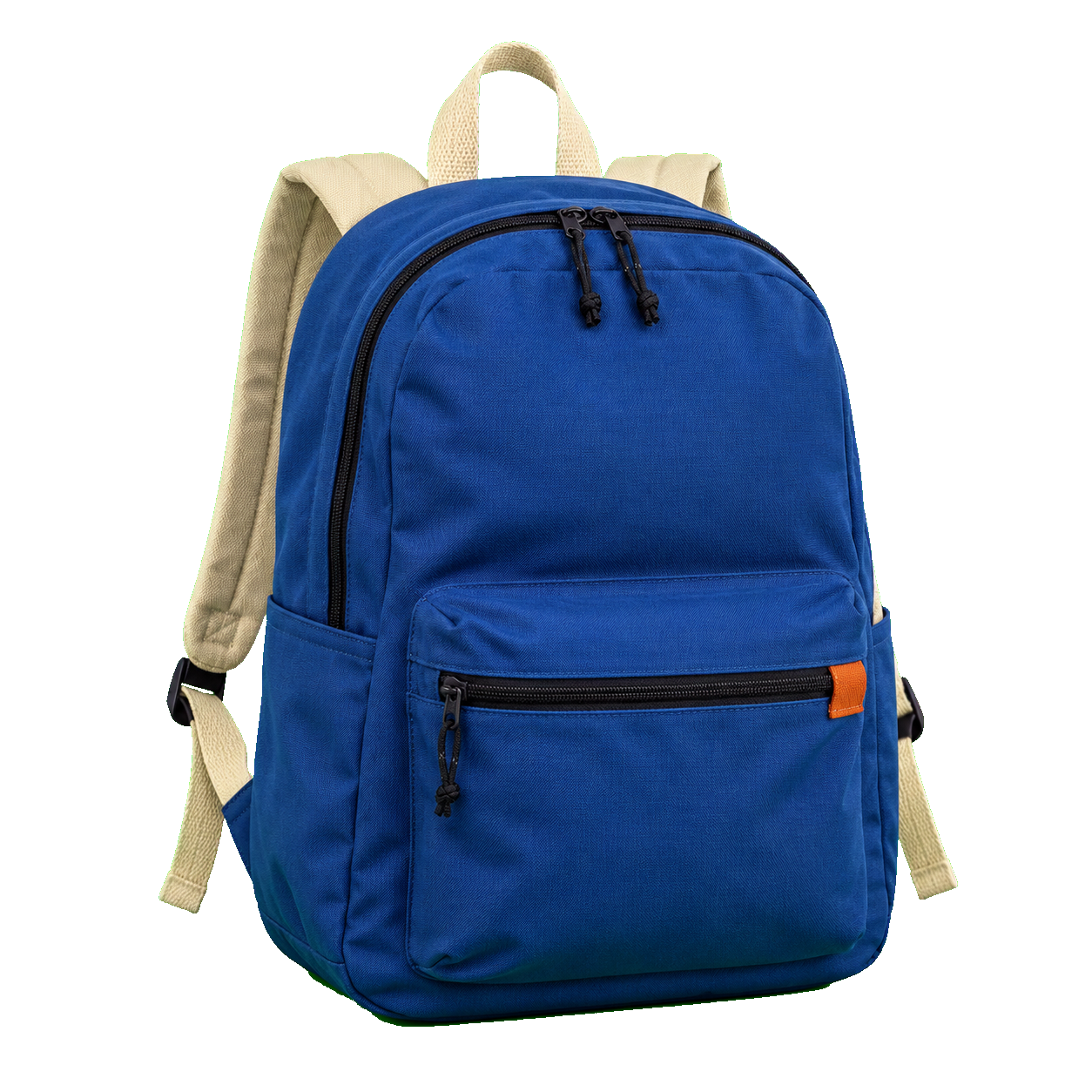
Keep a reusable version of your photo for the next slide, banner, or graphic. A transparent PNG lets you place the subject over a new background without including the original colored rectangle. Download the cutout once, then use it in different layouts in your design editor. The checkerboard is a preview of transparency and will not appear in your exported file.

Start Green Screen Removal for Free
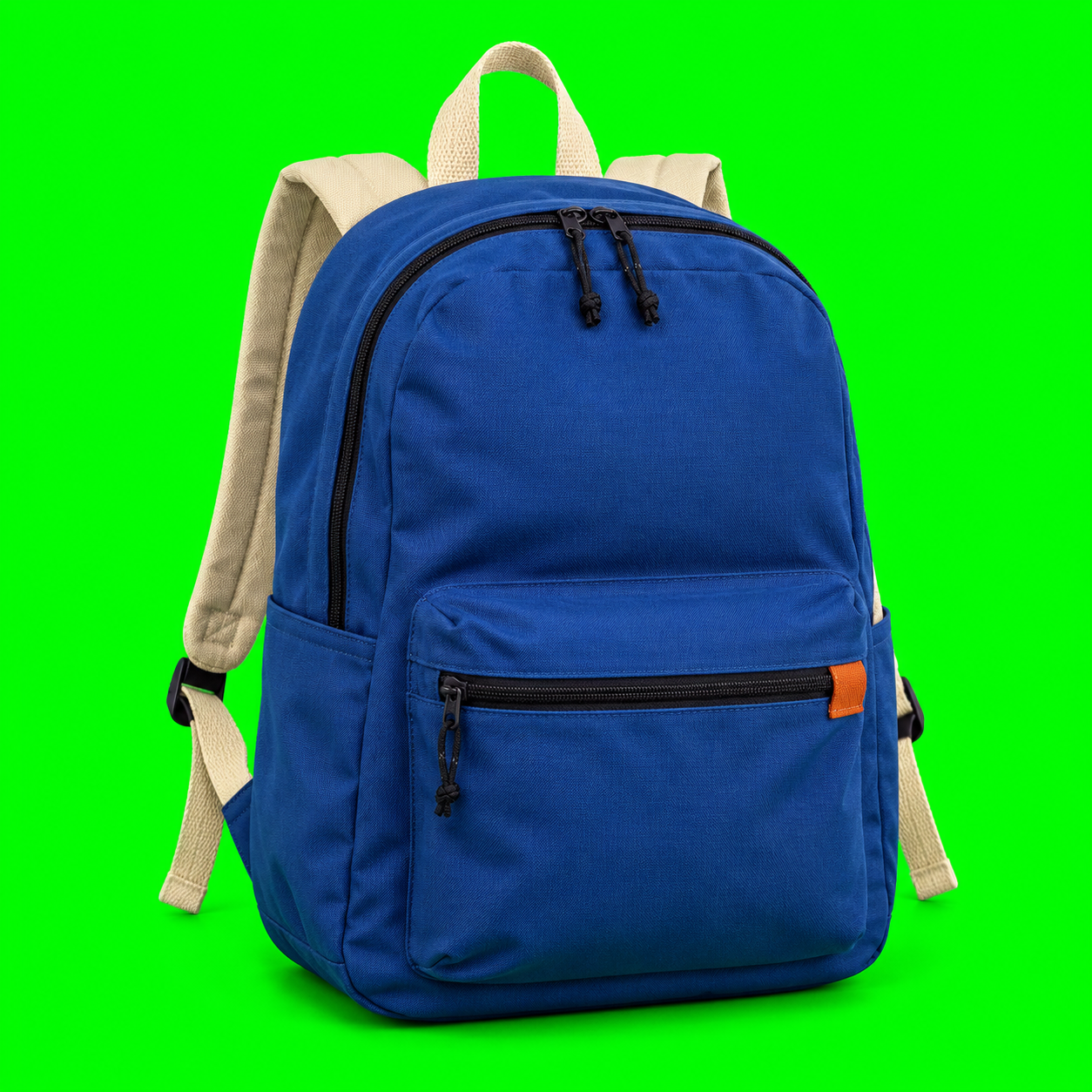
Blue hiking backpack with cream straps and an open carry loop against a green backdrop.

Simple controls. Useful results.

Why Choose Free BGRemover’s Green Screen Remover?

Get a reusable transparent PNG for free, with no account or added watermark. Sample your photo’s green backdrop, adjust the match, and compare the result before saving. These checks help you spot leftover green and missing subject details.

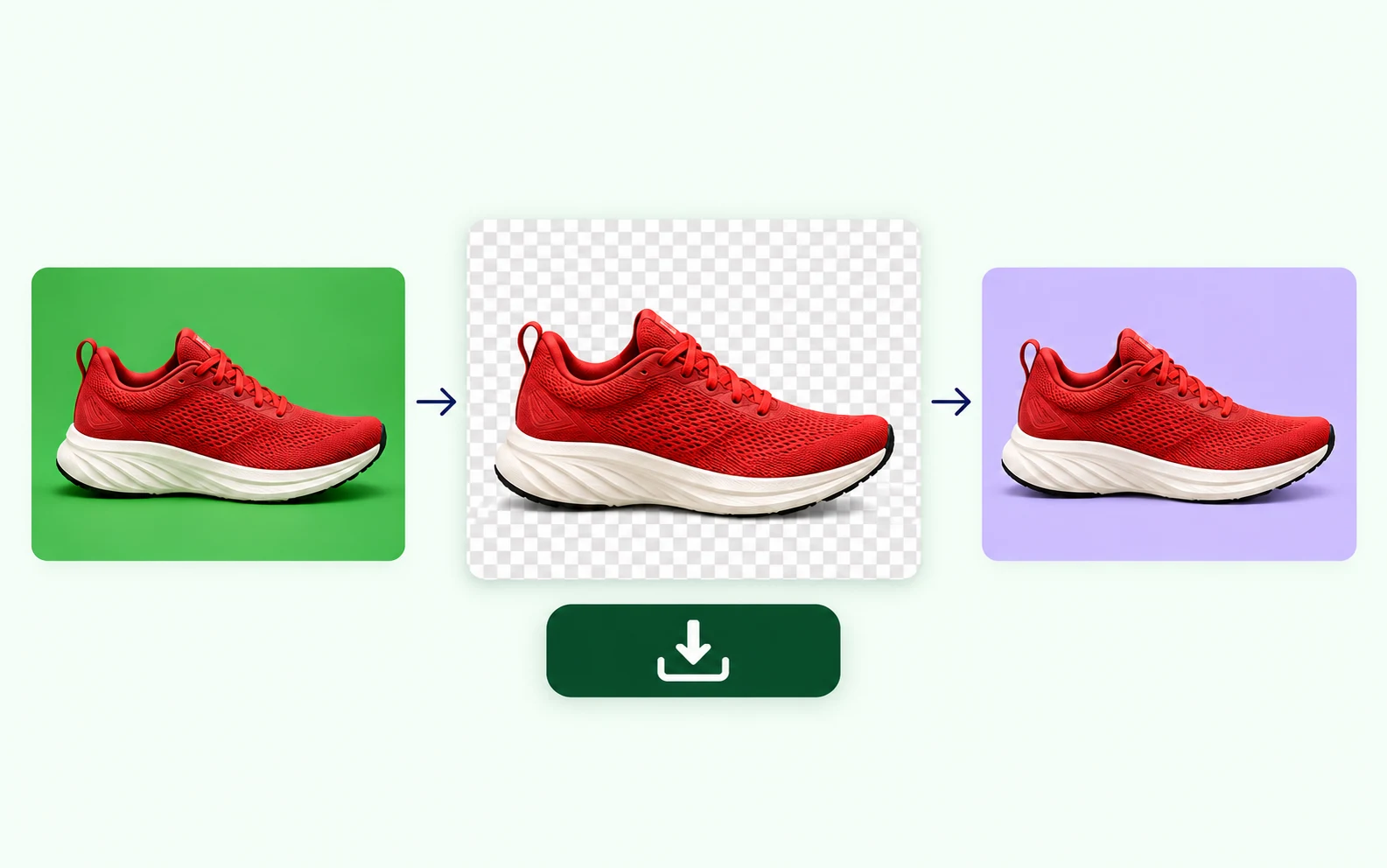
Illustration of the same red running shoe on a green backdrop, a transparency checkerboard, and a lavender design background, with a download icon.

Download a Reusable PNG for Free

Choose Transparency, then download your PNG without signing up or paying. Place the cutout over a new background in your design editor. Keep it as PNG to preserve transparency—the preview checkerboard is not part of your downloaded image.
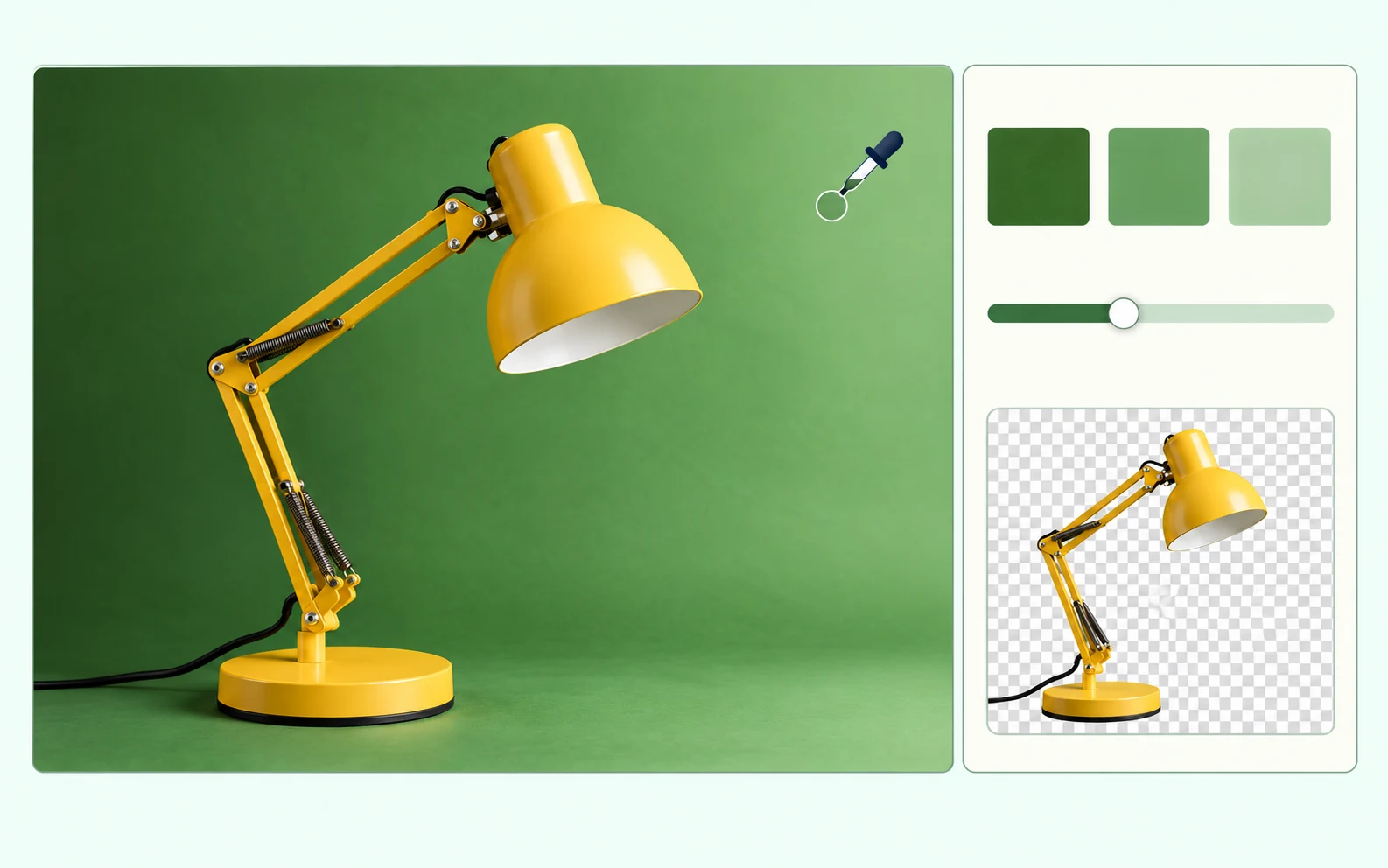
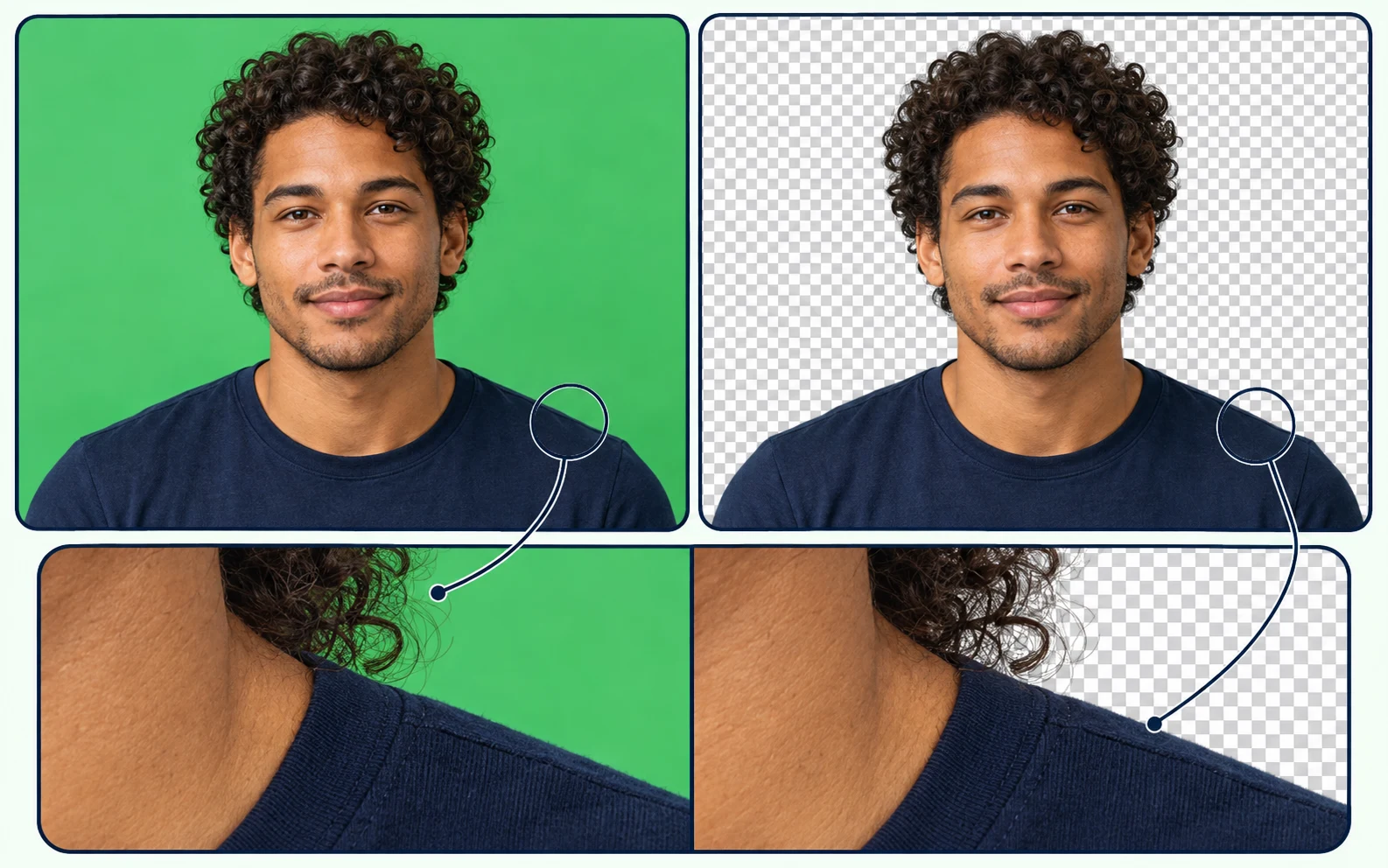
Illustration of sampling a yellow desk lamp’s unevenly lit green backdrop, with green swatches, a tolerance slider, and a transparent lamp preview.

Match the Green in Your Own Photo

Click an empty green area to sample the backdrop. If darker or lighter patches remain, increase tolerance a little and apply removal again. Check the subject after each change; lower tolerance if parts of it disappear. Similar green colors in the subject can also be removed.

Illustration comparing a curly-haired man’s portrait on green and transparent backgrounds, with a close-up of the hair and shoulder edge for inspection.

Check Hair and Edges Before Saving

Use Compare original to check hair, clothing, and small gaps against the source photo. Look for leftover green and missing details before downloading. If the match is too broad, reduce tolerance and try again. Green reflections on hair or shiny surfaces may need separate retouching.

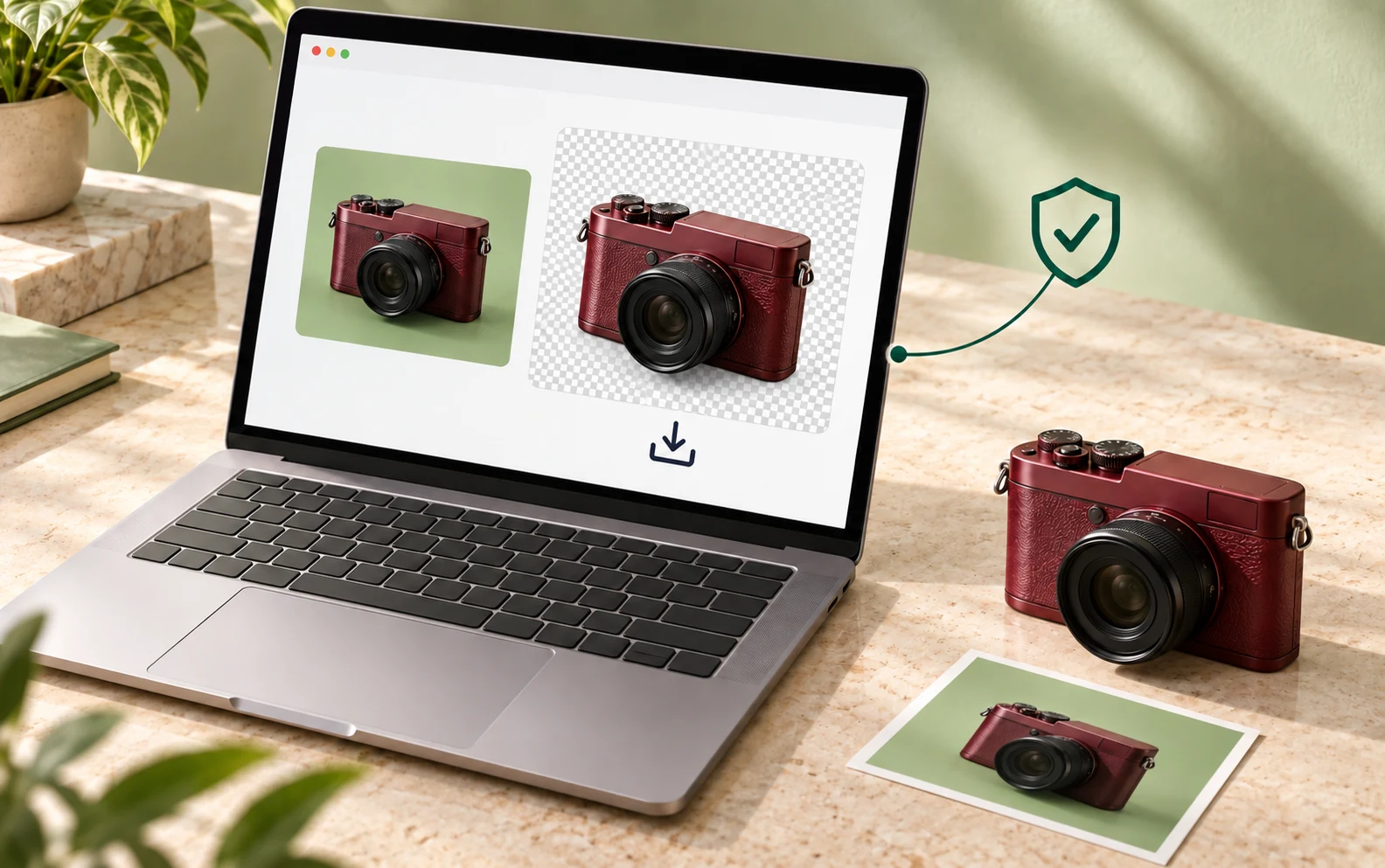
Illustration of an overhead laptop workspace processing a burgundy camera photo locally, showing green-background and transparent previews with a shield icon.

Keep Photo Processing on Your Device

Your selected photo is opened and processed in this browser; it is not sent to an image-processing server. Start with a JPG, PNG, or WebP up to 15 MB and 16 megapixels. Check and download the result on your device without installing a desktop editor.

Made for your next project

Who Can Use These Photo Cutouts?

Start with a portrait, product shot, or photographed object against a plain green backdrop. Turn it into a reusable asset for the projects you already create.

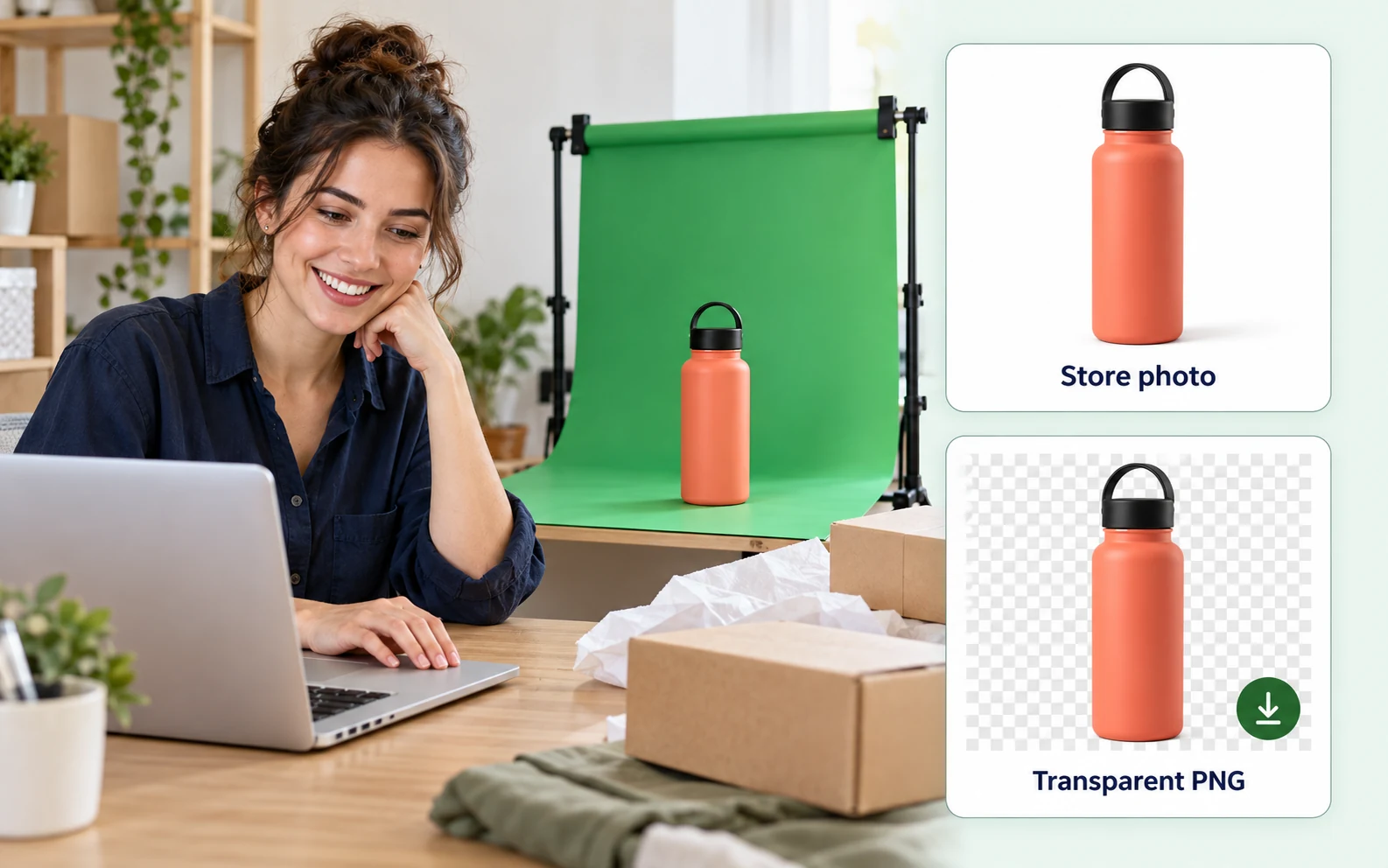
Illustration of an online seller preparing product photos beside a green-screen water bottle setup, with white-background and transparent PNG previews.

Prepare Product Images for Your Store

Give product photos a backdrop that fits your store. Make the green area transparent for a promotional layout, or replace it with solid white for a simpler product image. Check fine print and reflective packaging before downloading.

  • Use the same product photo in different layouts.
  • Choose transparency or a solid background color.
  • Save a version without an added watermark.
Prepare Your Product Photo
How do I remove a green screen from an image?

Upload your photo, click the green backdrop to sample its color, and choose Transparency. Adjust tolerance, apply the removal, and compare the result with the original. Download the PNG when you are satisfied with the cutout.

Can I get a white background instead of transparency?

Yes. Choose Solid color and select white before applying the removal. Matching green areas will be replaced with white. Check the preview, then download the PNG. Choose Transparency instead when you want to add a background in another editor.

Why are some green patches still visible?

Those patches may be different shades from the sampled color. Increase tolerance a little at a time and process the photo again. Check the subject after each adjustment so you can spot any details that are also being removed.

What if my subject is wearing green?

The tool removes matching colors across the image, including colors inside the subject. Lower tolerance to reduce unwanted removal. If the clothing and backdrop share the same shade, a photo with a different backdrop or an editor with subject selection may work better.

Can this tool fix green reflections around hair?

It removes matching pixels but does not automatically restore the original colors of hair or clothing. Reflected green light and fine translucent details may need additional retouching. Compare the preview with the original before increasing tolerance further.

Which image formats can I upload?

Use JPG, PNG, or WebP images up to 15 MB. The result downloads as a PNG. If a very large photo cannot be processed, try a smaller version and check that important details are still visible.

Will the checkerboard appear in my download?

No. It represents transparent areas in the preview. Download as PNG to preserve those areas. If you later save the image as JPG, the transparency will be replaced with a solid background because JPG does not support transparent pixels.

Is the PNG download free and without a watermark?

Yes. Free BGRemover lets you process the photo and download the result for free. No account is required, and the tool does not add a watermark to your PNG.

Can I use this tool for a video clip?

This page processes still images. It does not accept video files or edit moving footage. Use a video editor for a clip, or upload a still image here when you need a portrait cutout or thumbnail asset.

What kind of photo should I start with?

Choose a clear photo with a solid or nearly solid backdrop and even lighting. Avoid a backdrop color that also appears in the subject. Strong shadows, motion blur, and reflected color can make the result harder to refine.

Questions, answered

Green Screen Removal FAQ

Get practical help with photo formats, leftover color, subject details, and transparent downloads.

Ready to Give Your Photo a New Background?

Upload a photo with a green backdrop and turn it into a file you can reuse. Select the shade, check the result, and save your PNG for free. No account or watermark. Not sure where to start? Try the sample photo first.

Use the Green Screen Background Remover Free