



Keep Attention on Your Main Subject
Softening the area behind a clear subject can reduce competing detail in the picture. This is useful when a busy wall, room, or street draws the eye away from the person or object you want people to notice.
Free to useNo sign-upAdjustable strength
Upload a photo to soften the area behind your subject, then review the result before downloading. A less distracting backdrop can help portraits, pet photos, and everyday pictures feel more focused. Start with a clear subject and check the outline before saving your edit.
Start with an image
JPG, PNG or WebP · Up to 15 MB
Privacy detailsA busy room, crowded street, or patterned wall can compete with the person in your photo. Softening those details gives the viewer fewer distractions while keeping the setting recognizable. For a portrait, look at the face and shoulders first, then check the hairline and any gaps around the arms. The effect should guide attention toward the person without making the outline look cut out. Choose a photo where the subject is already clear; background editing cannot recover a face that was out of focus in the original.

You do not always need to replace the scene to improve a picture. A softer backdrop can make a pet, handmade item, or favorite object easier to notice while preserving the colors and atmosphere around it. For social posts, compare the image at the size people will actually see. For an item photographed in a real setting, make sure important details remain visible and the softer surroundings still suit the picture. If a marketplace requires a plain white background, use an edit that meets that requirement instead.
Try Photo Background Blur
The most useful result is one you can inspect, not just an image with softer surroundings. Compare the subject with the original and look for changes around hair, fur, glasses, and thin objects. Watch for a bright border, missing details, or background patches that remain sharp. If the subject blends into the scene, try a clearer original with stronger separation. Also check the picture at its intended display size: an edge that looks acceptable in a small preview may become distracting when the image is enlarged.
Blur Picture Background Now
Choose your picture, apply the effect, and review the subject before saving the edited photo.
Start with a clear photo, soften the area behind your subject and check the result before saving it.
Select a picture with a clear main subject. An original photo usually gives you more detail to work with than a small screenshot. Before you begin, check that the file type and size are supported by the tool.
Apply the background effect, then inspect the subject and the surrounding area. Look for missing details, unwanted sharp patches, or an obvious border. A difficult outline may need a different source photo rather than a stronger effect.
Save the edited picture and open the downloaded file. Review it at the size you plan to use, whether that is a profile image, a social post, or a larger layout. Keep the original so you can compare or try another edit.
Free BGRemover helps soften the scene behind a subject while keeping that subject prominent. For portraits, pet pictures, and everyday posts, the goal is to reduce visual distractions without replacing the original setting. Guidance on source photos and edge checks helps you judge whether the edit is useful for your next step.
Softening the area behind a clear subject can reduce competing detail in the picture. This is useful when a busy wall, room, or street draws the eye away from the person or object you want people to notice.
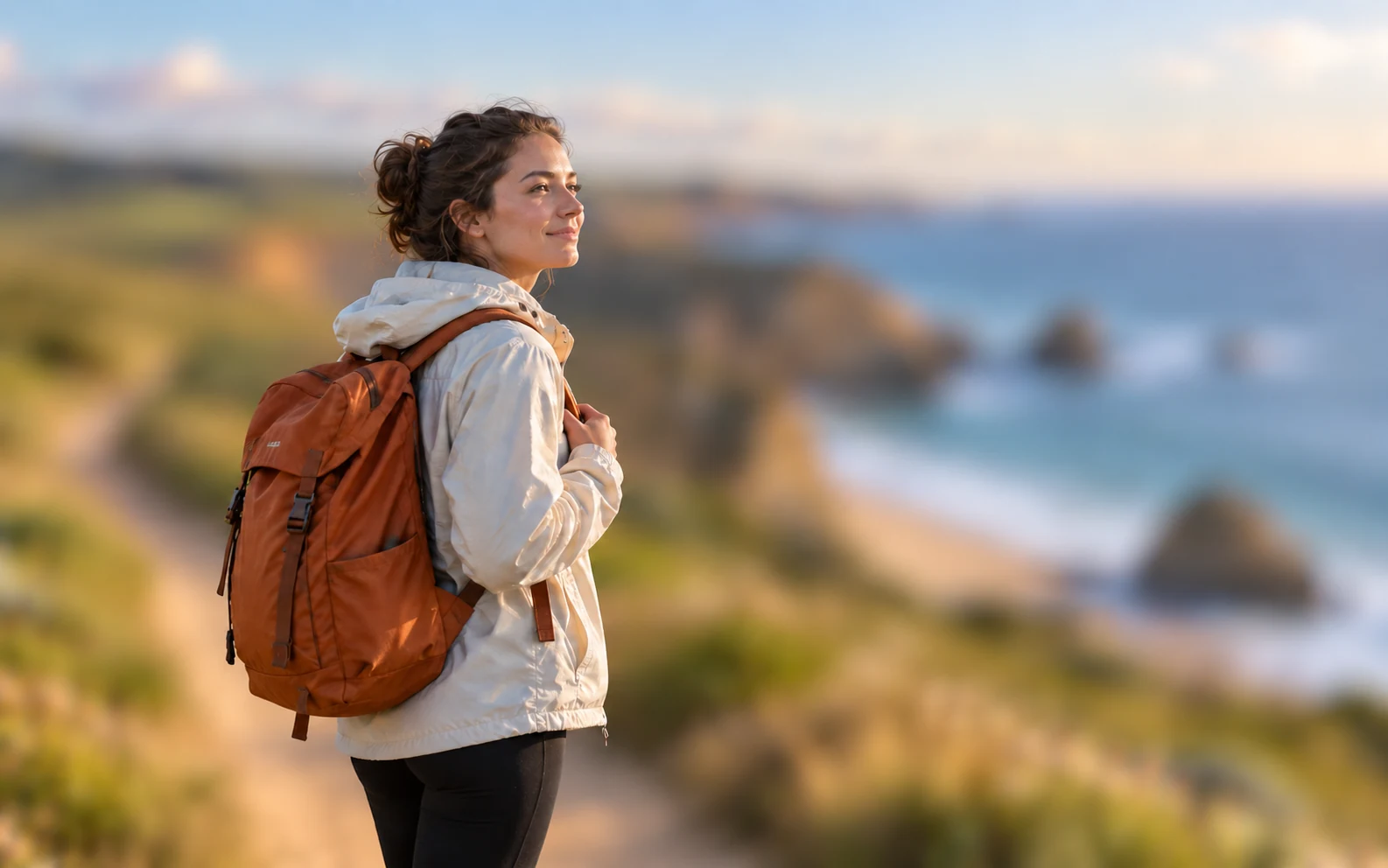
The edit softens the existing scene rather than replacing it with a different backdrop. That lets the surrounding colors and atmosphere remain part of the photo when the location matters to the story you want to share.

The page explains how to inspect hair, fur, thin objects, and leftover sharp patches. Those checks help you assess the result and recognize when a clearer source photo may be more useful than repeating the same edit.

Guidance for portraits, social posts, and photos of everyday objects helps you choose an appropriate use for the result. Checking the saved image at its final display size makes it easier to spot problems before adding it to a layout.
Different photos need different checks. Find a use that matches your picture, then review the details that matter before using the result in a profile, post, or personal project.

A room or street behind you can compete with your expression. A softer backdrop may suit a personal profile or casual portrait. Check your face, hair, glasses, and shoulders before using the image, and follow any photo rules that apply to its destination.

A social feed gives each image limited space. Softer surroundings can help viewers notice the person or object in the post. Check the result after cropping and at the intended display size, especially when the subject occupies only a small part of the frame.
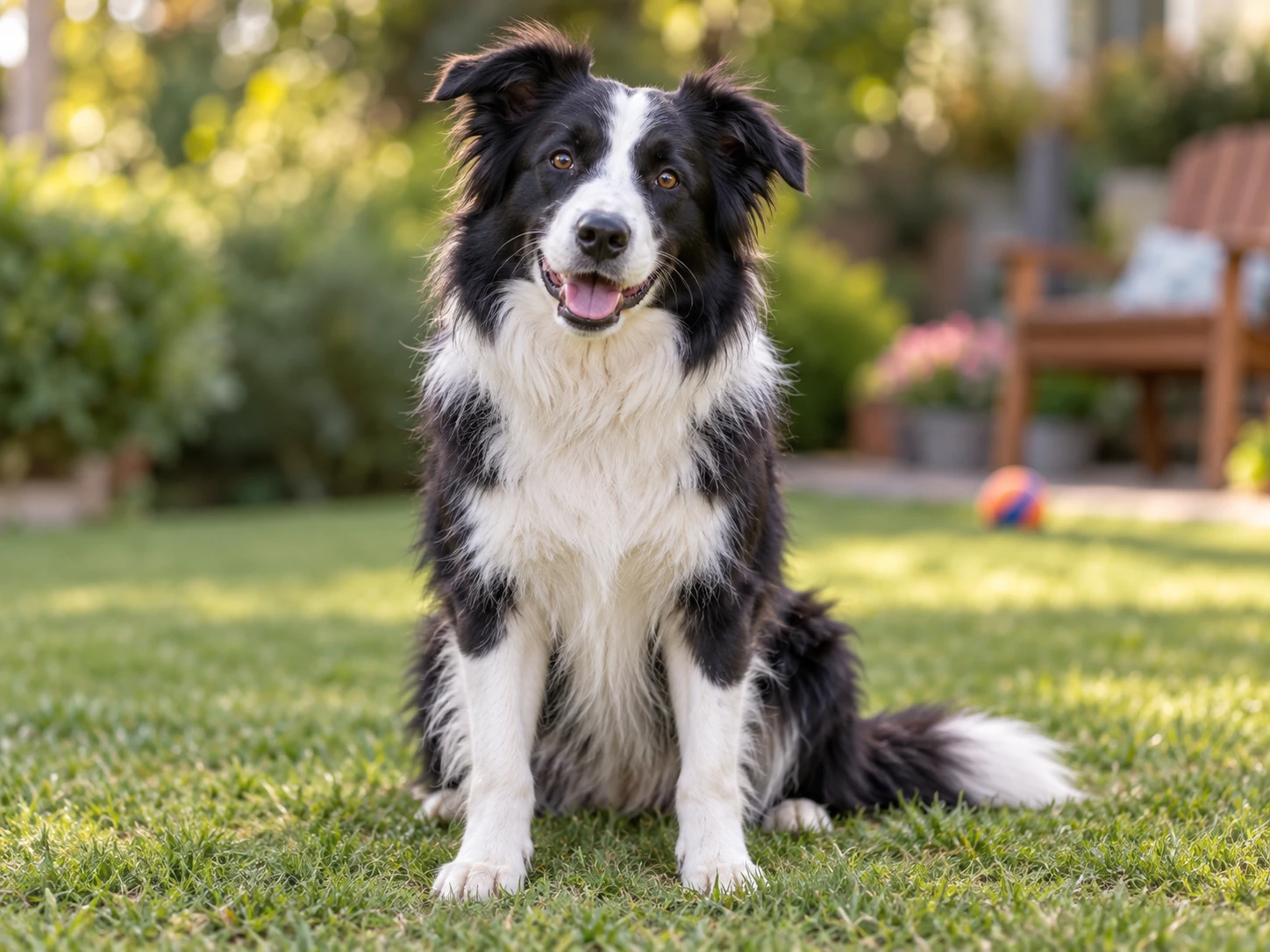
Toys, furniture, and outdoor scenery can draw attention away from your pet. A softer setting may make the picture feel more focused. Inspect fur, ears, whiskers, and gaps around the legs; fine details and similar colors can make the outline harder to separate.
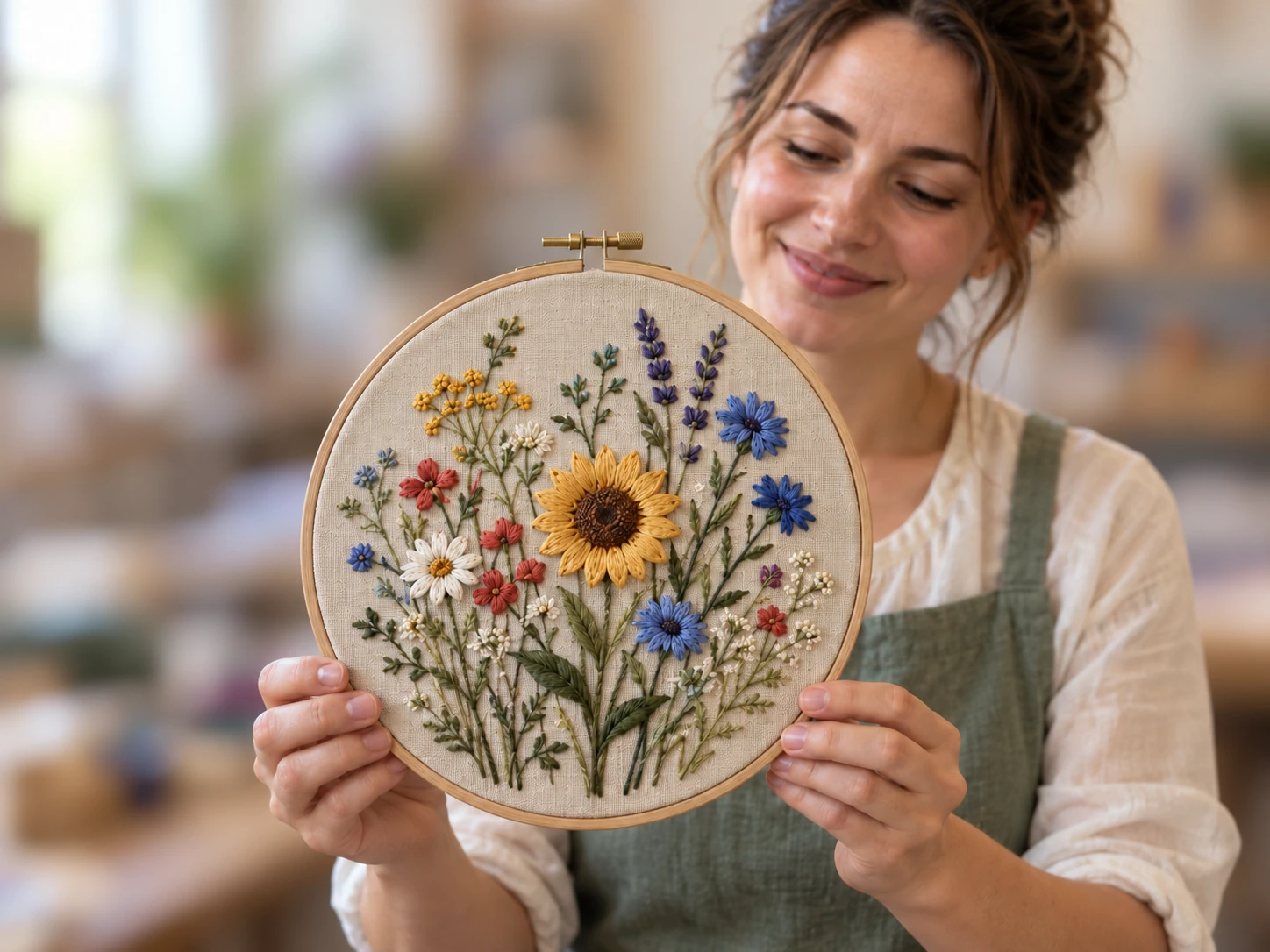
For a portfolio or social post, a softer worktable or room can help a handmade item stand out without changing the whole scene. Keep textures and small details visible. If you are preparing a marketplace listing, check its image requirements before choosing this style.
Use an editor that can apply the effect behind your subject rather than across the whole picture. Open your photo, apply the effect, and inspect the outline before saving. Compare the result with the original so you can spot missing details or areas that were softened by mistake.
Choose a clear original where the main subject is easy to distinguish from the surroundings. Good lighting and visible edges help you assess the edit. Low contrast, motion, fine fur, and small subjects can make separation more difficult, so review those areas closely.
No. Softening the surroundings can make a clear subject more noticeable, but it does not restore detail that was missing from the original. If the person, pet, or object is already out of focus, try a sharper source photo.
Blurring softens the existing surroundings while leaving the scene in the image. Removing the background separates the subject from that scene so it can be used on transparency or another backdrop. Choose the approach that matches where and how you plan to use the photo.
Those areas may indicate that the subject and its surroundings were not separated cleanly. Similar colors, fine edges, and gaps around the subject can be difficult to handle. Compare with the original and try a clearer source if you have one; a stronger effect alone may not fix the outline.
Do not assume softened text or faces are unreadable. Details may remain visible in the saved image. If you need to remove private information before sharing, crop it out or cover it completely, then inspect the exported file.
Choose a JPG, PNG, or WebP photo from your iPhone, then apply the effect and save the PNG. Photo processing requires a browser with compatible graphics support. If your browser cannot run the editor, use the sample preview or try a supported desktop browser. Convert HEIC photos to a supported format first.
You can open the page on Android, but processing your own photo depends on your browser and device graphics support. Choose a supported file, apply the effect, adjust the strength, and download the result. If processing is unavailable, try another compatible device; not every Android phone can run the editor.
This background blur editor is free to use and does not require an account. Upload a JPG, PNG, or WebP file up to 15 MB. Results download as PNG, with images larger than 2,200 pixels on the longest side reduced to that limit. Keep your original for future edits.
Find guidance on choosing a photo, checking the effect, and understanding what a softer backdrop can and cannot do.
Choose a clear photo and try a softer backdrop for your next portrait or post. Review the subject and its outline before saving, then check the downloaded image at the size you plan to share.
Start Your Background Blur