Remove Product Photo Backgrounds for Clean, Reusable Images

Upload a product photo, let AI separate the item from its background, and download a transparent or solid-color PNG. Built for sellers and creators, with no signup or watermark. Processing time varies by device; the first image may take longer while the model loads.

Start with your product photo

Upload a product. Choose its next background.

JPG, PNG, or WebP · Up to 15 MB

Privacy details

Keep the Product in Focus, Remove the Distractions

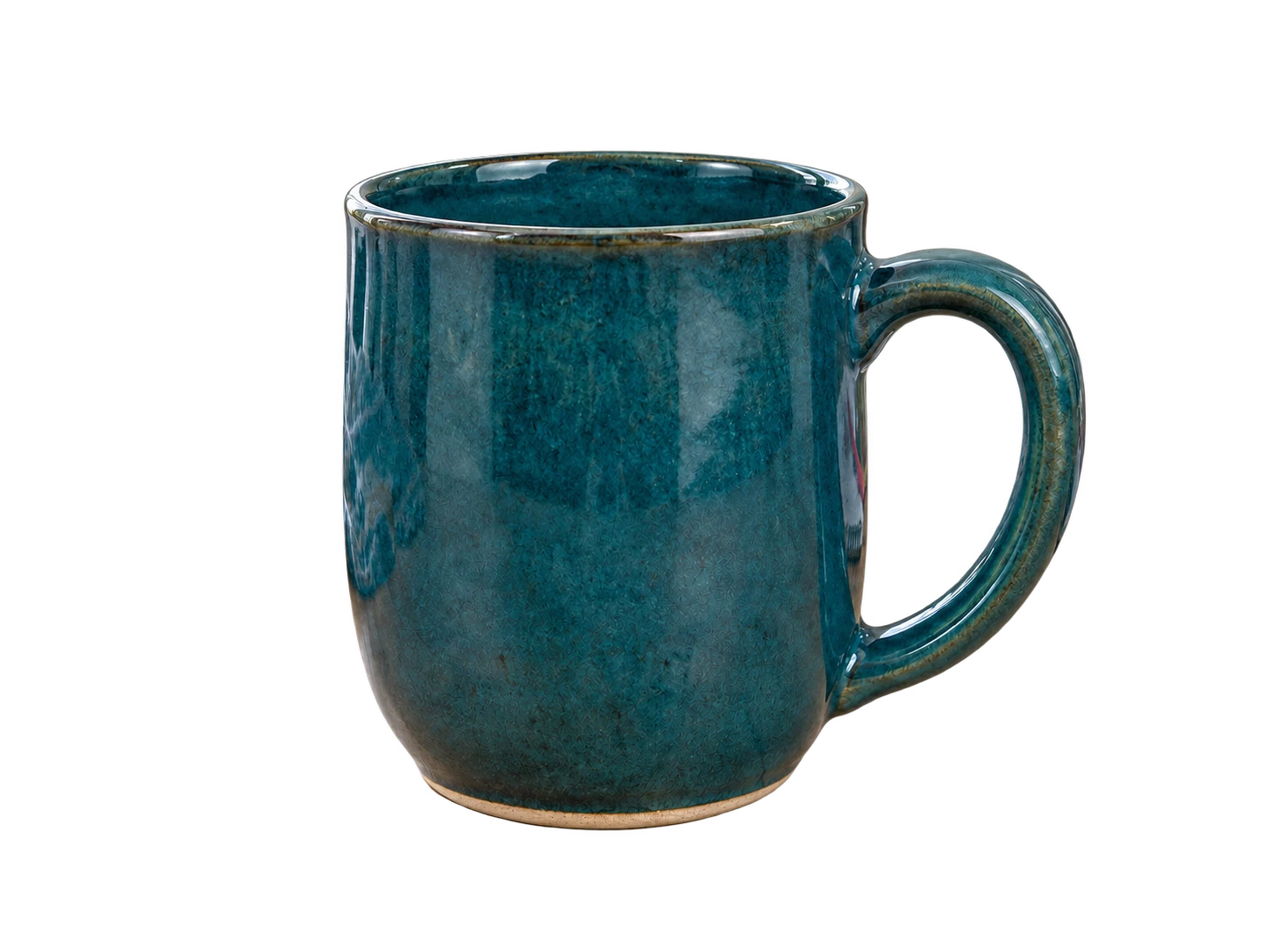
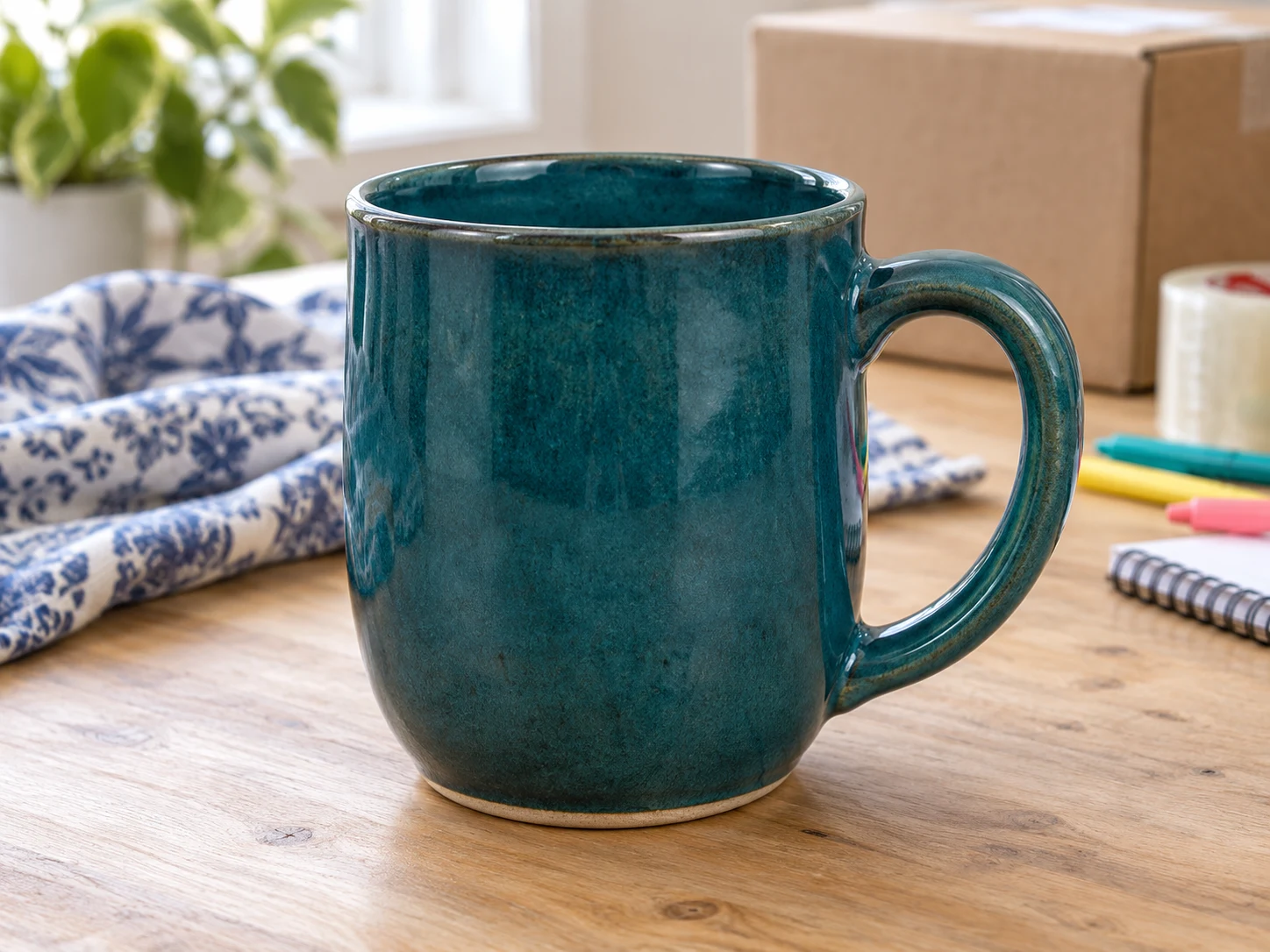
A busy tabletop or patterned backdrop can distract shoppers from the item you want to sell. Remove the surrounding background and give the product its own space. Start with a sharp photo that shows the whole item, then compare the result with the original to check corners, handles, and other important details before downloading.

Teal ceramic mug with a complete rim, base, and rounded handle on a cluttered tabletop with patterned cloth, a shipping box, and stationery

AI-generated example of removing a distracting background. Actual results vary by photo.

Choose a White Background or a Reusable Cutout

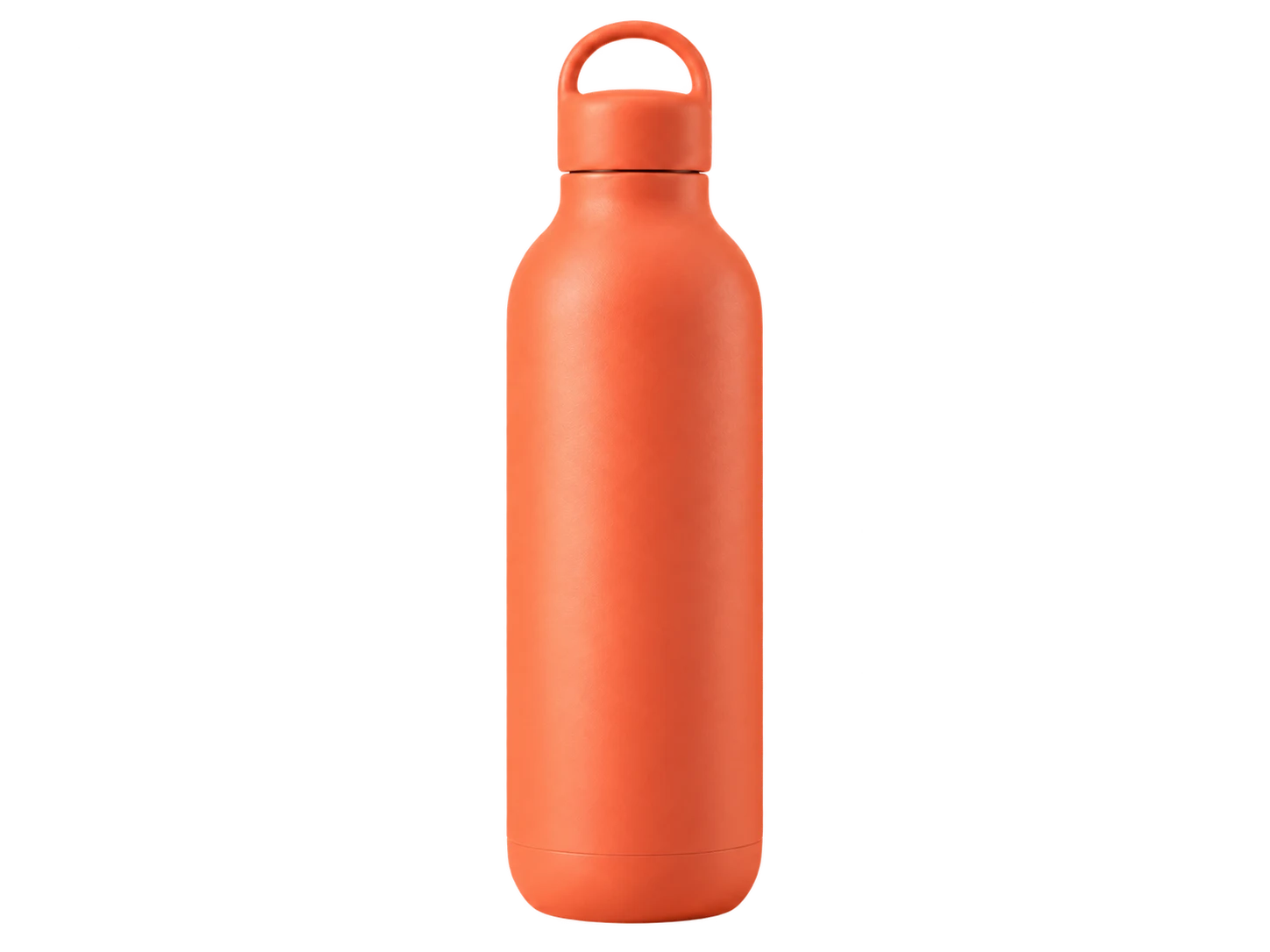
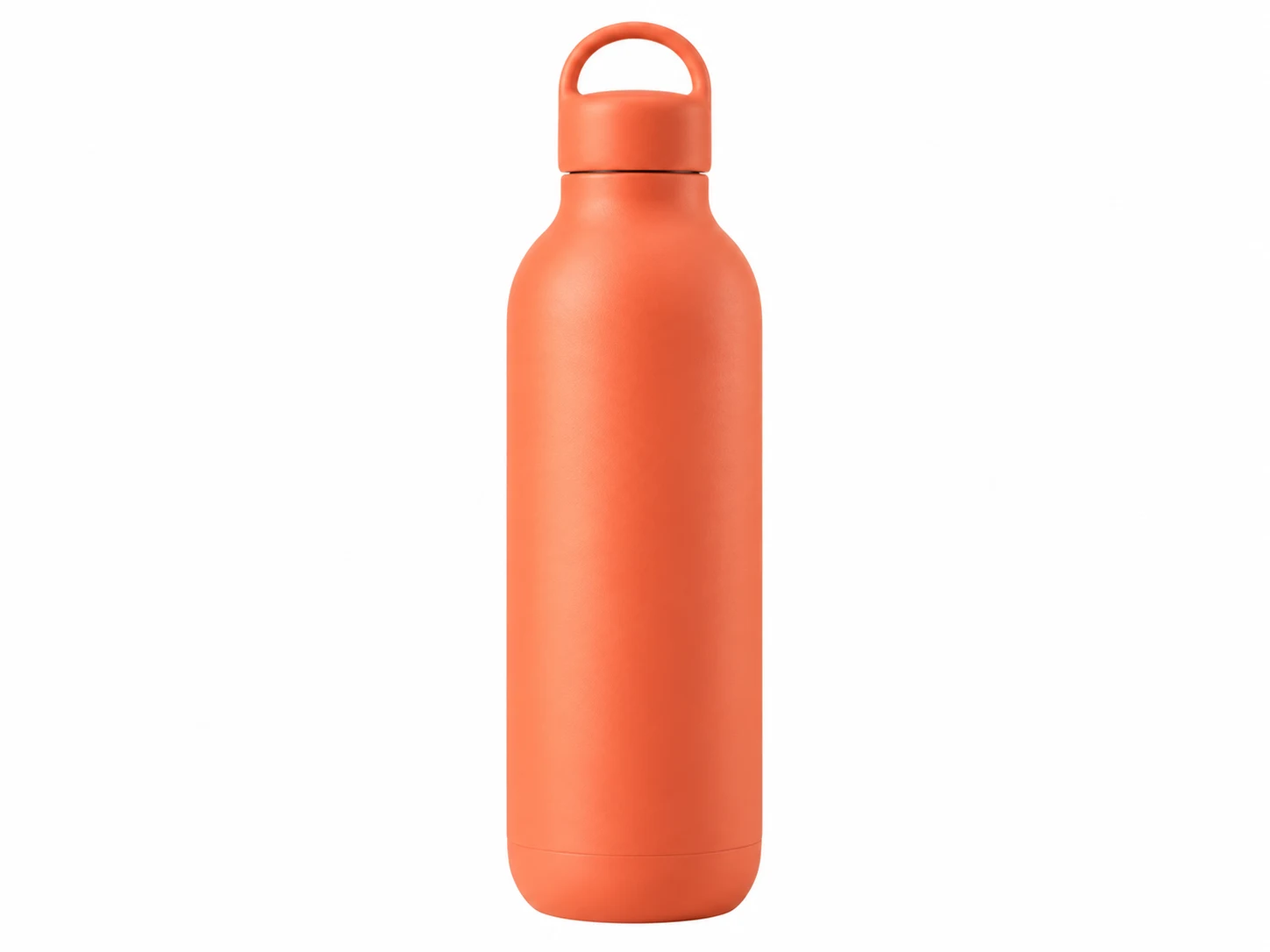
Need a plain white image for a listing or a transparent cutout for a new design? Choose the background that fits your next task. Keep transparency for flexible placement, apply white for a simple presentation, or pick a custom solid color. Preview each option before saving the PNG so the downloaded image matches your choice.

Try Free Product Photo Background Removal
Coral-orange reusable water bottle with a loop cap on a white background

AI-generated output examples. Choose white for a listing or transparency for another design. Actual results vary by photo.

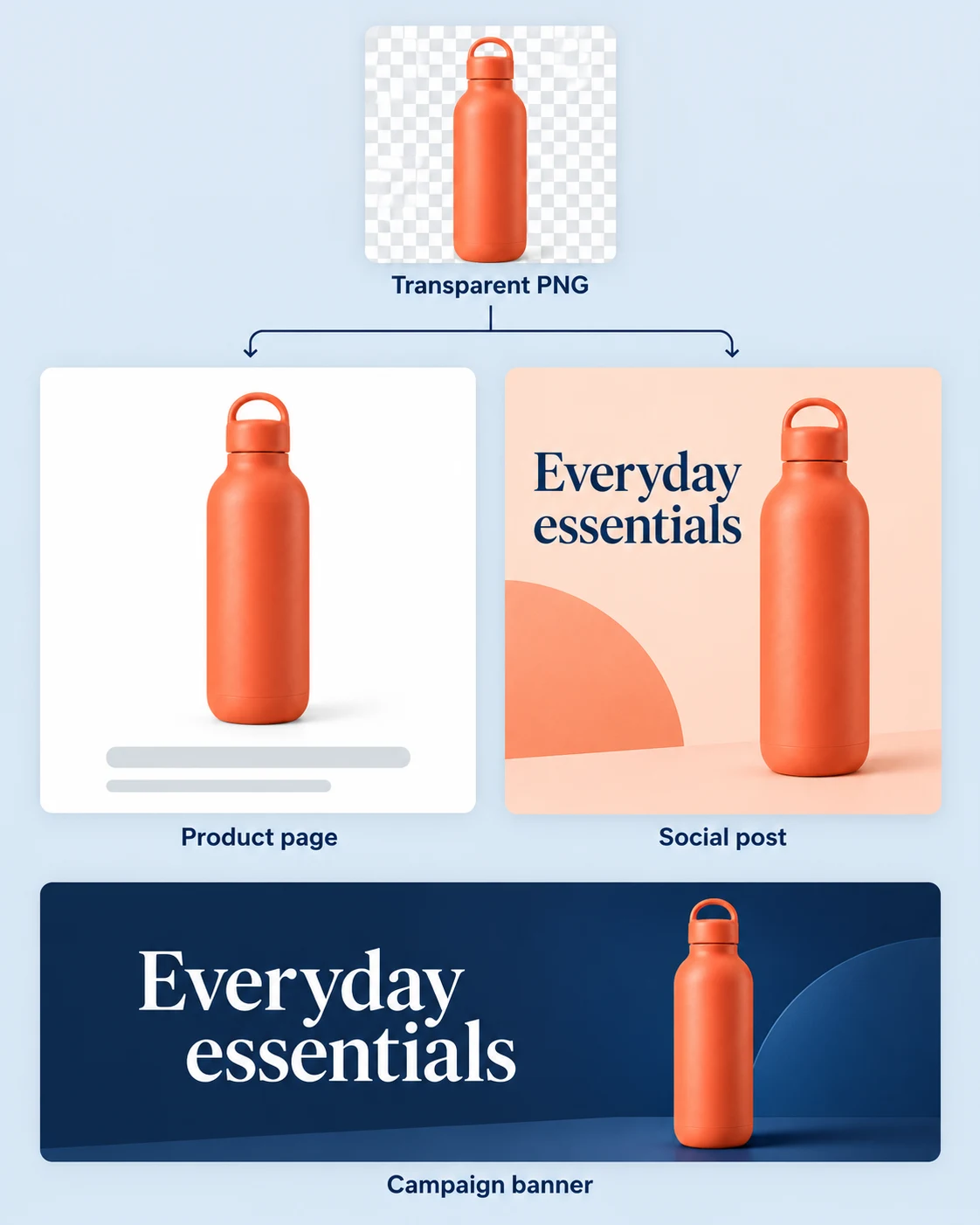
Reuse One Product Photo Across Your Store and Campaigns

Use this ecommerce background remover to prepare an item for product pages, promotional graphics, and social posts. Download a transparent PNG and place it in your preferred design editor, or save a solid-background version for a simpler layout. Reusing the same source photo can help keep the product recognizable across placements, while you adjust each design’s size and framing separately.

Remove Product Backgrounds for Free
One transparent coral-orange water bottle cutout reused in a white product page, a square peach social post and a wide navy campaign banner

AI-generated layout examples. Place your downloaded cutout in your preferred design editor to create store and campaign graphics.

How to Use the Product Background Remover

Prepare your image in three steps: upload a supported file, review the cutout, and download the background version you need.

Upload a clear photo, remove its background, and choose the PNG version you need for your next step.

  1. 01

    Upload Your Product Photo

    Choose a JPG, PNG, or WebP file up to 15 MB. Use a sharp image with the entire product visible and enough contrast to distinguish its outline from the background.

  2. 02

    Remove the Background and Check the Result

    Click “Remove background” and wait for processing to finish. Compare the preview with the original, paying attention to labels, thin parts, and openings inside handles or straps.

  3. 03

    Choose Your Background and Download

    Keep the background transparent, select white, or choose a custom solid color. Download the PNG and check the saved image before adding it to your listing or design.

Why Use Free BGRemover to Prepare Product Photos?

Free BGRemover uses AI to separate a product from its surrounding background, reducing the need to trace its outline by hand. Choose a transparent cutout for promotional layouts or a solid background for store images. Preview the result before downloading, so you can decide whether it suits your next use.

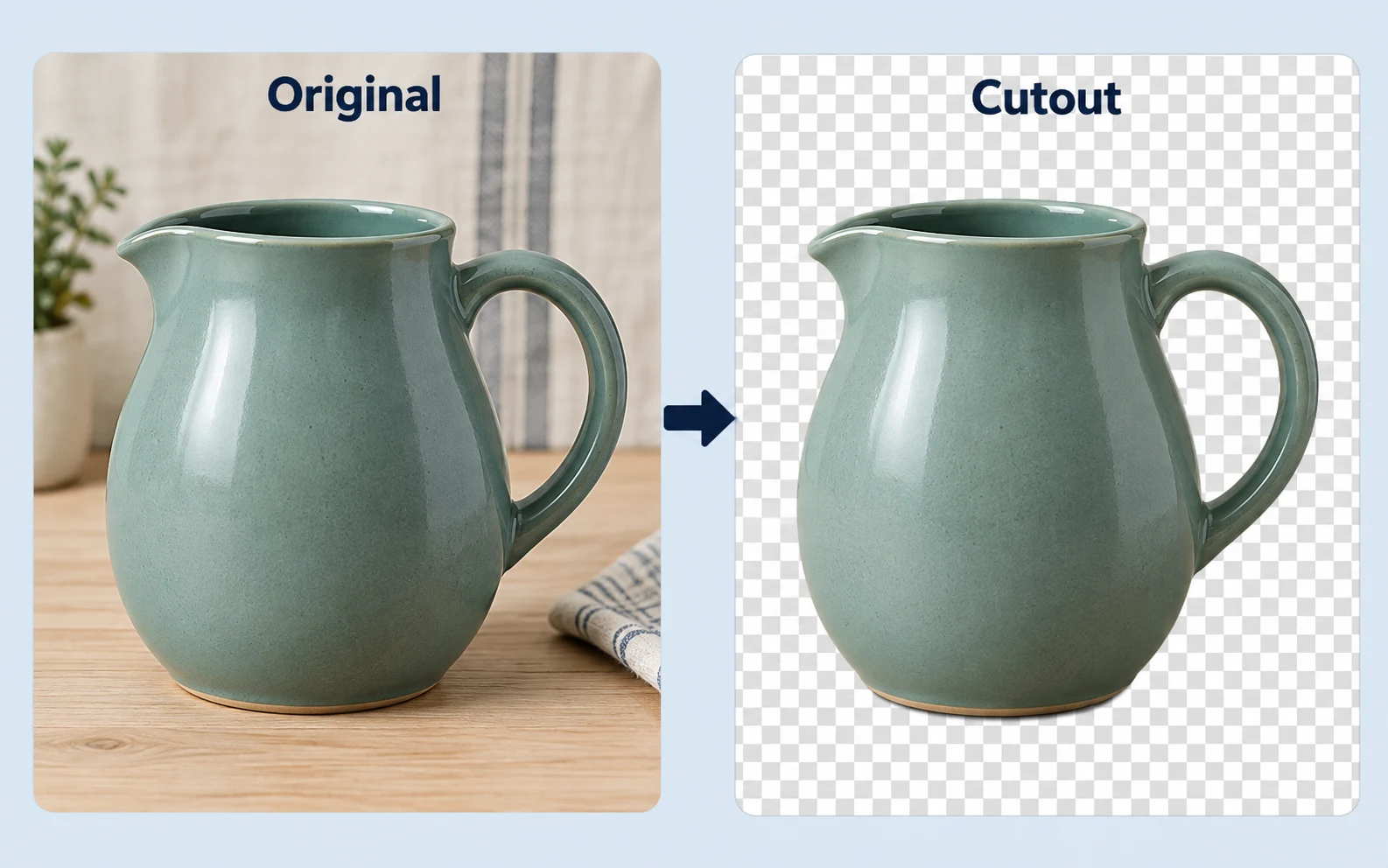
Before-and-after illustration of the same sage-green ceramic pitcher on a tabletop and as an isolated cutout, with its handle opening cleared of background

Create Cutouts Without Tracing Every Edge

AI handles the initial background separation, so you can start with a preview rather than draw an outline around the item. Check fine parts and openings to decide whether the result is suitable.

AI-generated illustration. Actual results vary by photo.
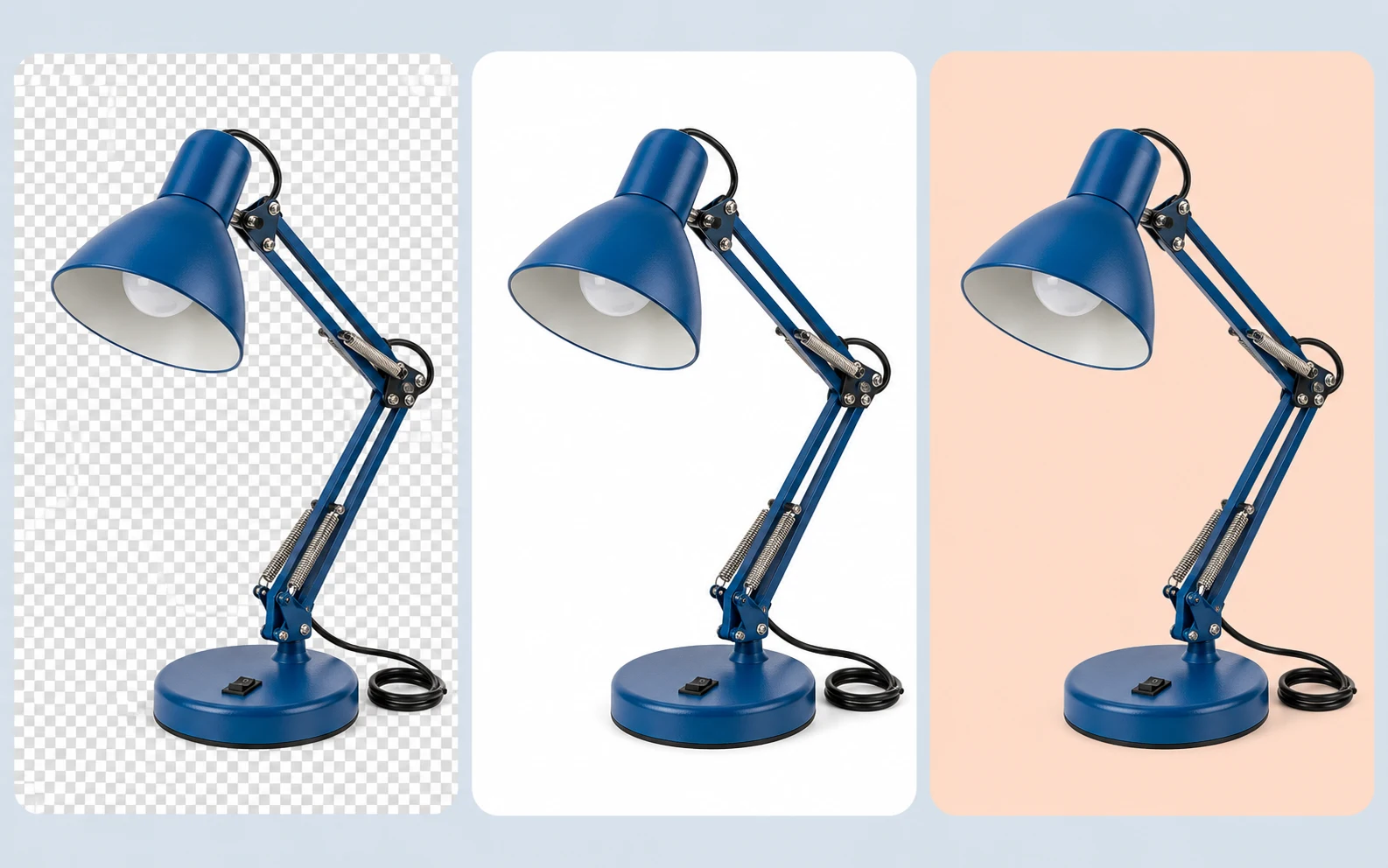
A realistic blue adjustable metal desk lamp with visible springs, pivot screws, bulb, switch, and power cord, shown consistently on transparent checkerboard, white, and peach backgrounds

Match the Background to Your Placement

Choose transparency, white, or a custom solid color after processing. These options let you prepare the same photo for different layouts without using another tool just to fill the removed background.

AI-generated illustration. Actual results vary by photo.
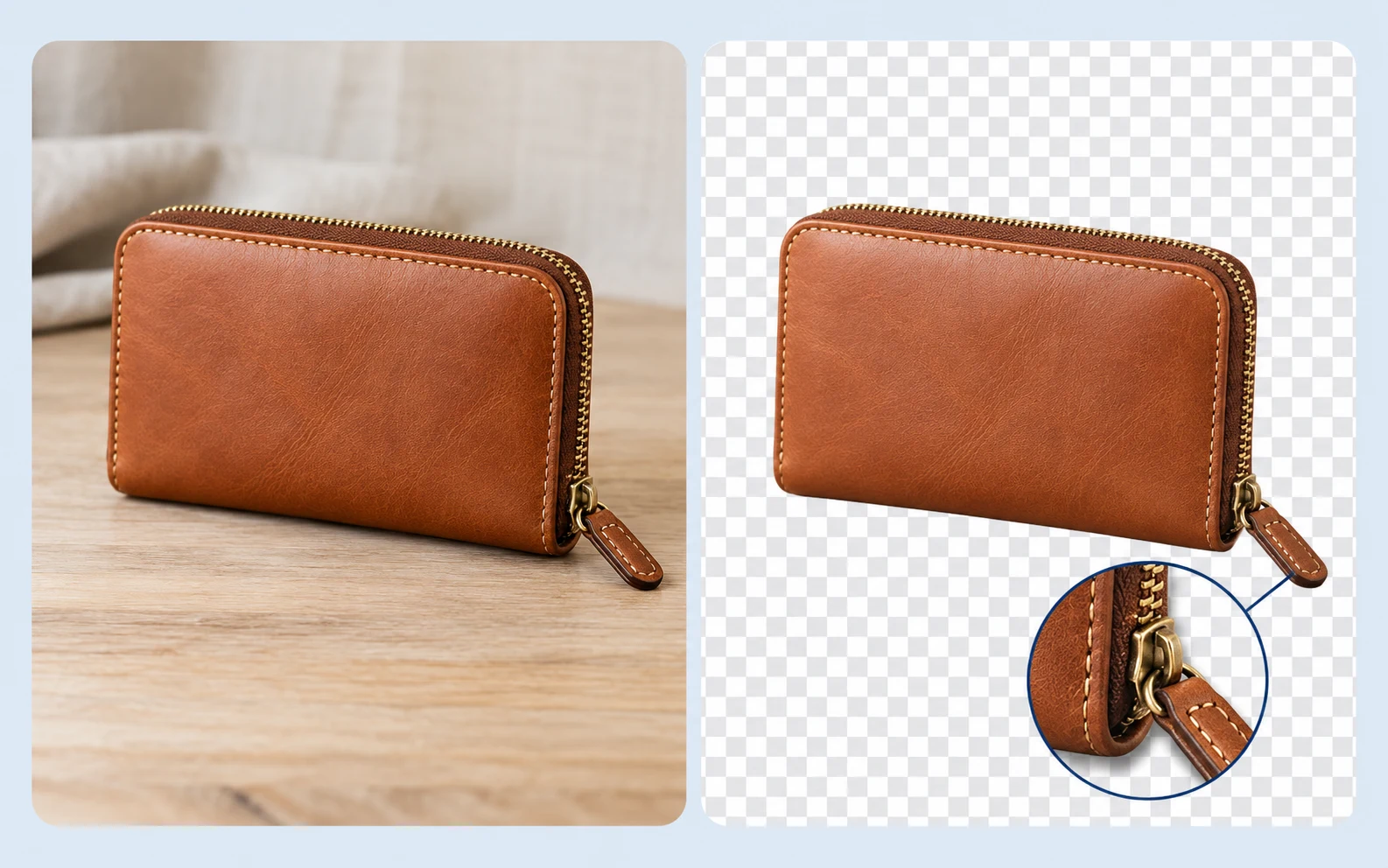
Photorealistic comparison of a cognac leather wallet on its original tabletop and as a cutout, with an enlarged view of its brass zipper pull and edge stitching for checking product details

Check Product Details Before You Download

The workspace shows the source photo alongside the processed result. Compare the item’s shape, label, and edges before saving, especially when small details affect how buyers understand the product.

AI-generated illustration. Actual results vary by photo.
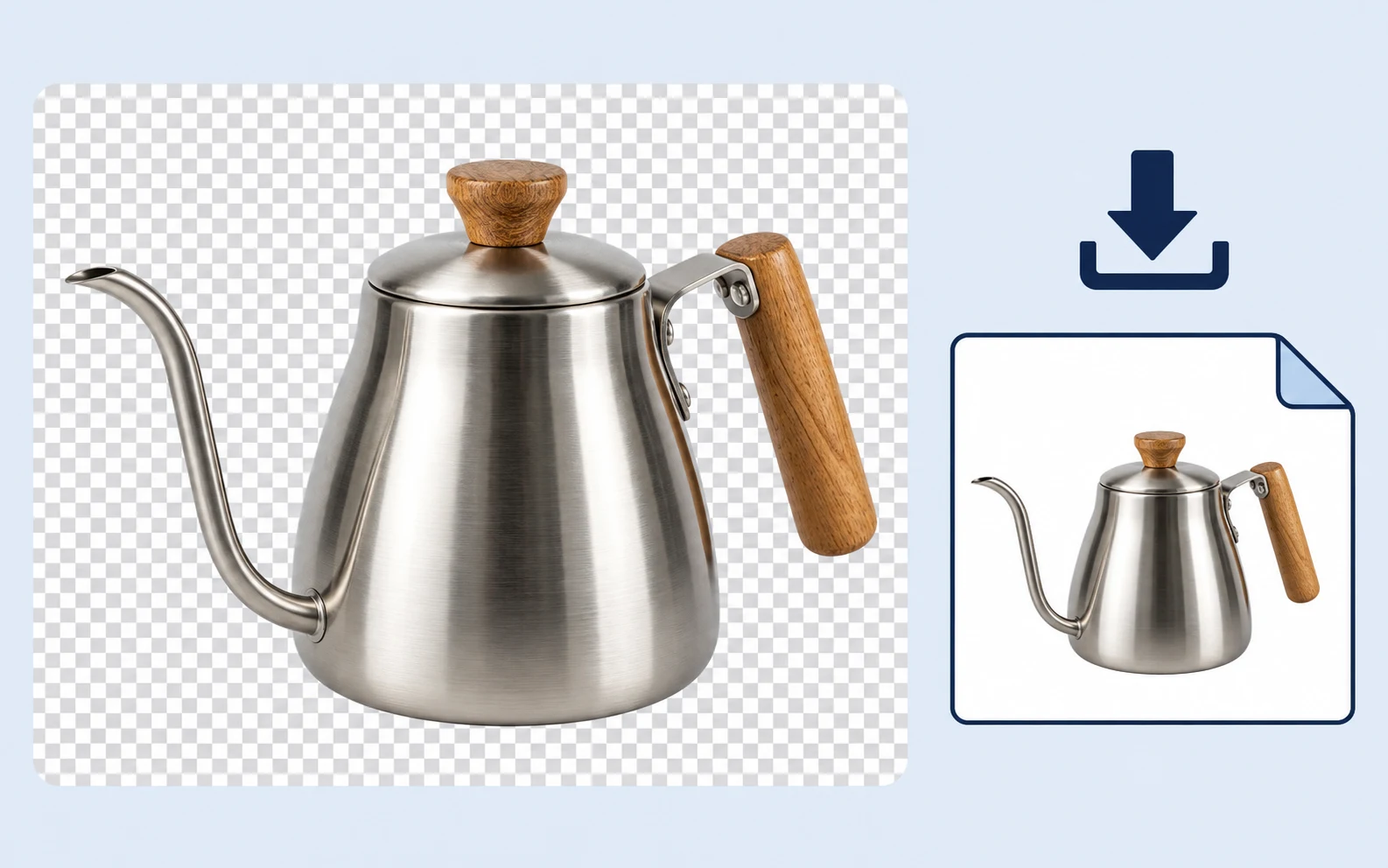
Photorealistic stainless-steel gooseneck kettle cutout with a wooden handle, a download symbol and a clean unwatermarked output image preview

Download Without Signup, Payment, or Watermarks

The current workflow lets you process a supported image and download its PNG without creating an account or paying. No watermark is added, so you can use the result in your next layout.

AI-generated illustration. Actual results vary by photo.

Product Photo Editing for Sellers and Creators

Whether you sell handmade goods, manage a store, or design promotional content, start with the image you already have. Choose the result that fits your workflow, then check its details and dimensions before publishing.

An independent handmade-goods seller photographing an amber candle jar with a smartphone at a home worktable, with shipping boxes and a laptop showing a clean white-background product preview

Prepare Your Next Item for Sale

Turn a photo taken on a desk or at home into a cutout or plain-background image. Use the preview to check that the item’s shape and visible condition are still represented accurately.

  • Remove distracting surroundings
  • Choose transparent or white output
  • Check details before downloading
Prepare My Product Photo
Can I remove a product photo background for free?

Yes. Free BGRemover’s current workflow lets you upload a supported image, remove its background, and download the PNG without payment or signup. The downloaded result has no watermark. Review the preview before using it, since the cutout depends on the source photo.

Which image formats can I upload?

You can upload JPG, PNG, or WebP files up to 15 MB. The result downloads as a PNG, including when the source is a JPG or WebP. Choose the original photo when possible; screenshots and heavily compressed copies may make small details harder to separate.

Can I save a white background instead of transparency?

Yes. After background removal, select white and download the PNG. You can also keep transparency or choose a custom solid color. A transparent image may look white in some viewers, so select white when you need white pixels saved into the file.

Will the tool preserve glass, jewelry, and thin product details?

Results vary with the image. Transparent materials, reflections, fine chains, and low-contrast edges can be difficult to separate. Inspect these areas in the preview. The tool has no manual restore brush, so a sharper photo with clearer separation may be necessary if important details disappear.

Will my download keep the original image dimensions?

Not always. The standard processing path limits the longest side to 2200 pixels, so larger photos may be reduced. Check the downloaded file’s dimensions before publishing. The tool does not automatically crop, center, or resize the product to a particular listing template.

Can I use the result for an online store or marketplace?

You can prepare an image for those uses if you have the necessary rights to the source photo. Check the destination’s current requirements for backgrounds, framing, dimensions, and file formats. Background removal alone does not confirm that an image meets every listing requirement.

Why does processing take longer or fail on my device?

Processing depends on your device and browser, and the first image may take longer while the model loads. The current AI workflow requires WebGPU support. If processing fails, review the error message and try a browser and device that support the required feature.

Are my product photos uploaded to a server?

The browser processes the image, and the website also attempts to upload the original and result to its server for task records. Stored images and task details are private and accessible to site administrators. Review the Privacy Policy before submitting confidential or unreleased product photos.

Product Background Removal FAQs

Find answers about free downloads, supported files, background choices, and the details to check before using your edited product image.

Give Your Next Product Photo a Cleaner Background

Upload one image, review the cutout, and choose transparency or a solid background. Download a PNG for your listing or next design, with no signup or watermark.

Start Removing Product Backgrounds for Free