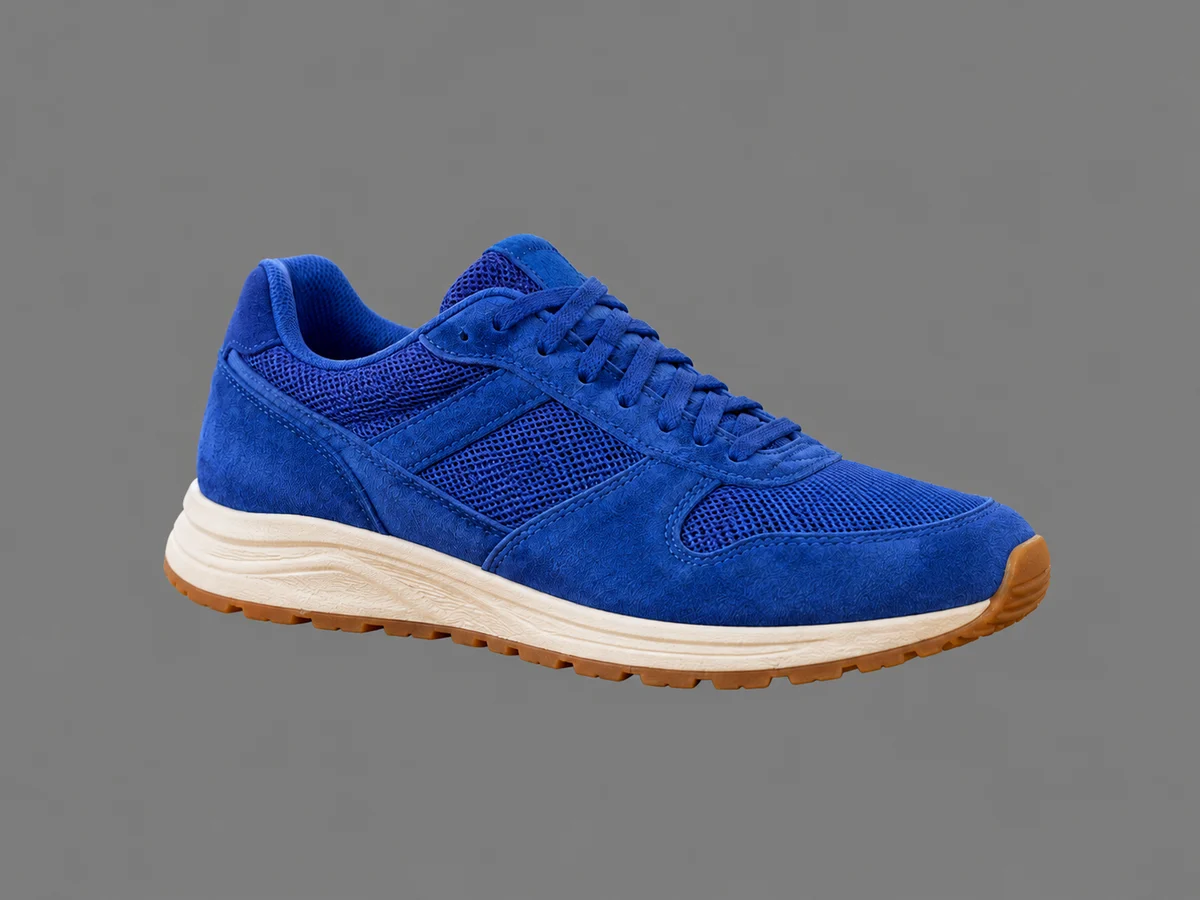

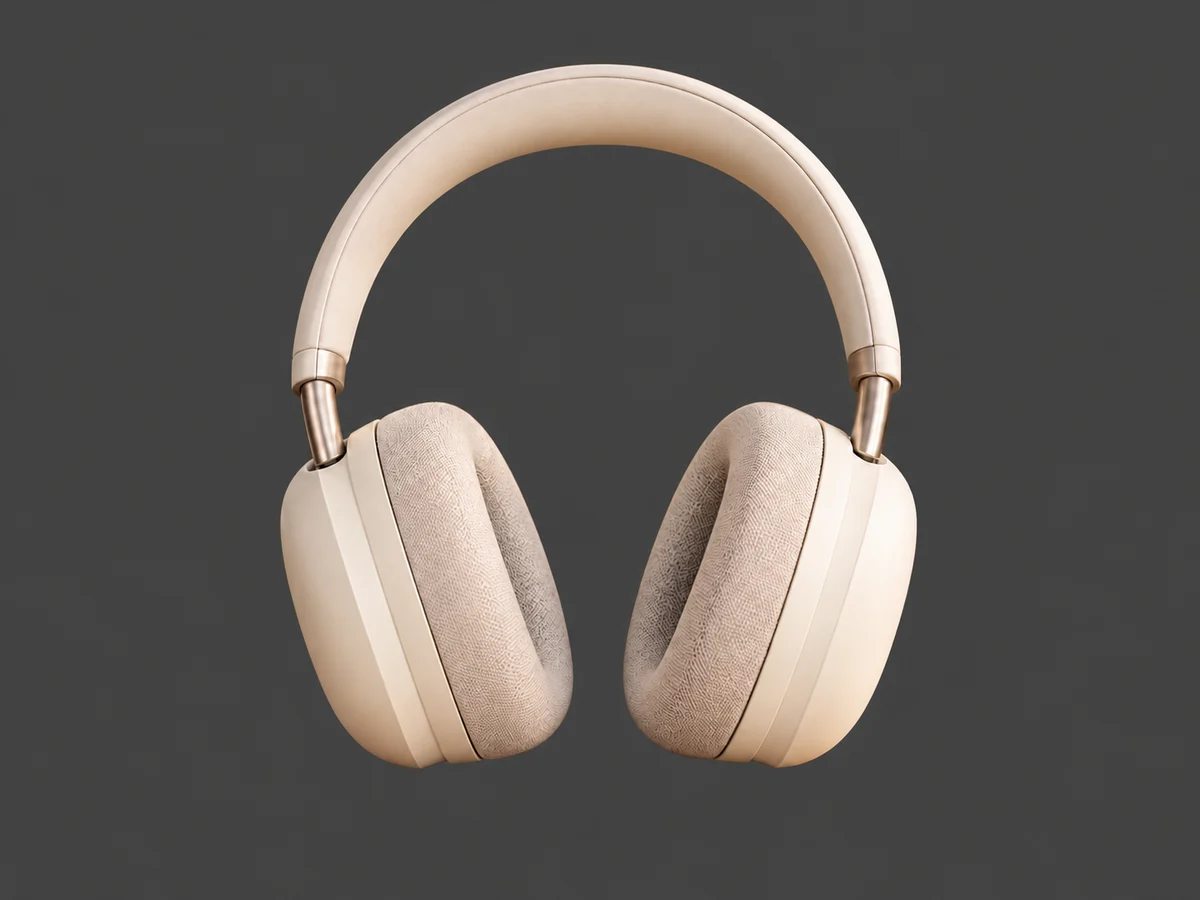

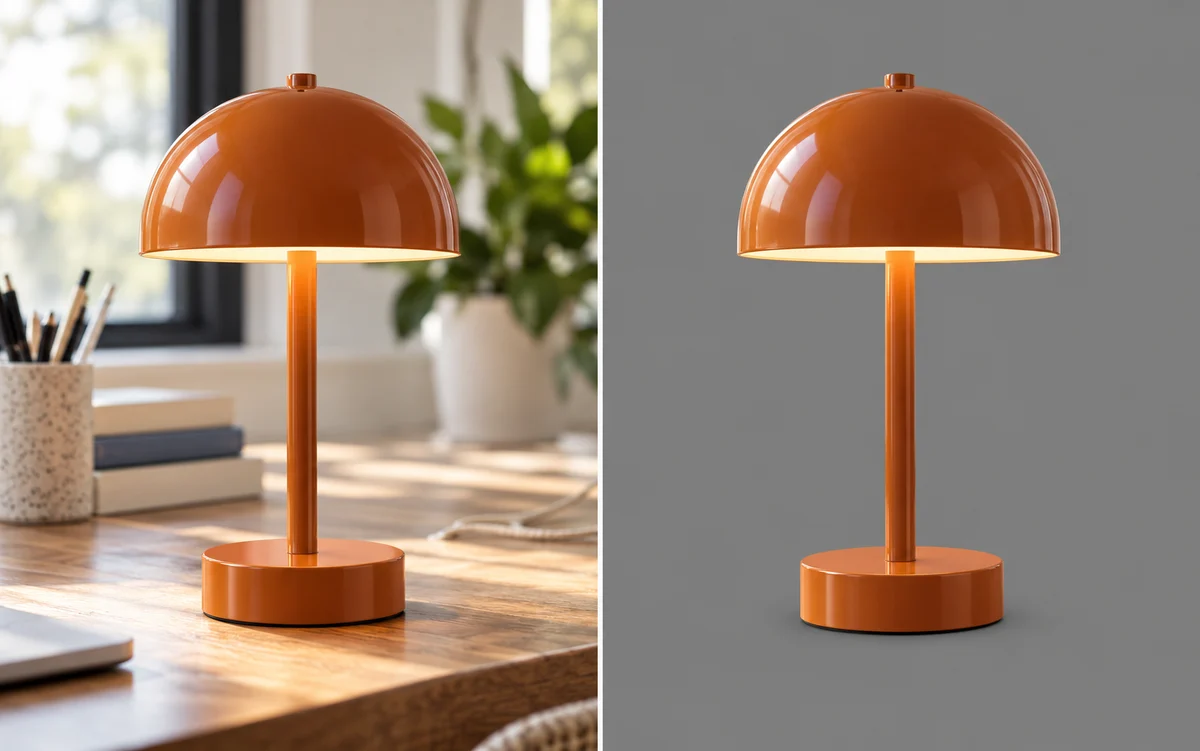
Use a Photo You Already Have
Turn a photo taken at home, outdoors, or on a busy desk into an image with a simpler grey backdrop. AI separates the subject from its surroundings, reducing the need to trace it by hand before choosing a new background.
Free to useNo signupNo watermark
Upload your photo, let AI remove the original backdrop, and choose a solid shade in the preview. Create neutral product images, portraits, or social posts without tracing the subject by hand. Use Free BGRemover for free, with no signup.
Your photo, a new setting
JPG, PNG, or WebP · Up to 15 MB
Privacy details#808080Light gray #EEEEEEDark gray #404040Blue-gray #DCE2E8 A solid gray background fills the area behind your subject with one uniform, neutral color. Start with RGB 128, 128, 128 (#808080) for a medium gray with no blue tint, gradient, or texture. Use it for product photos, profile portraits, and presentation images when you want a simple backdrop that keeps attention on the subject. Compare the shade with your clothing or product colors, then enter the same RGB values on other photos for a consistent look.
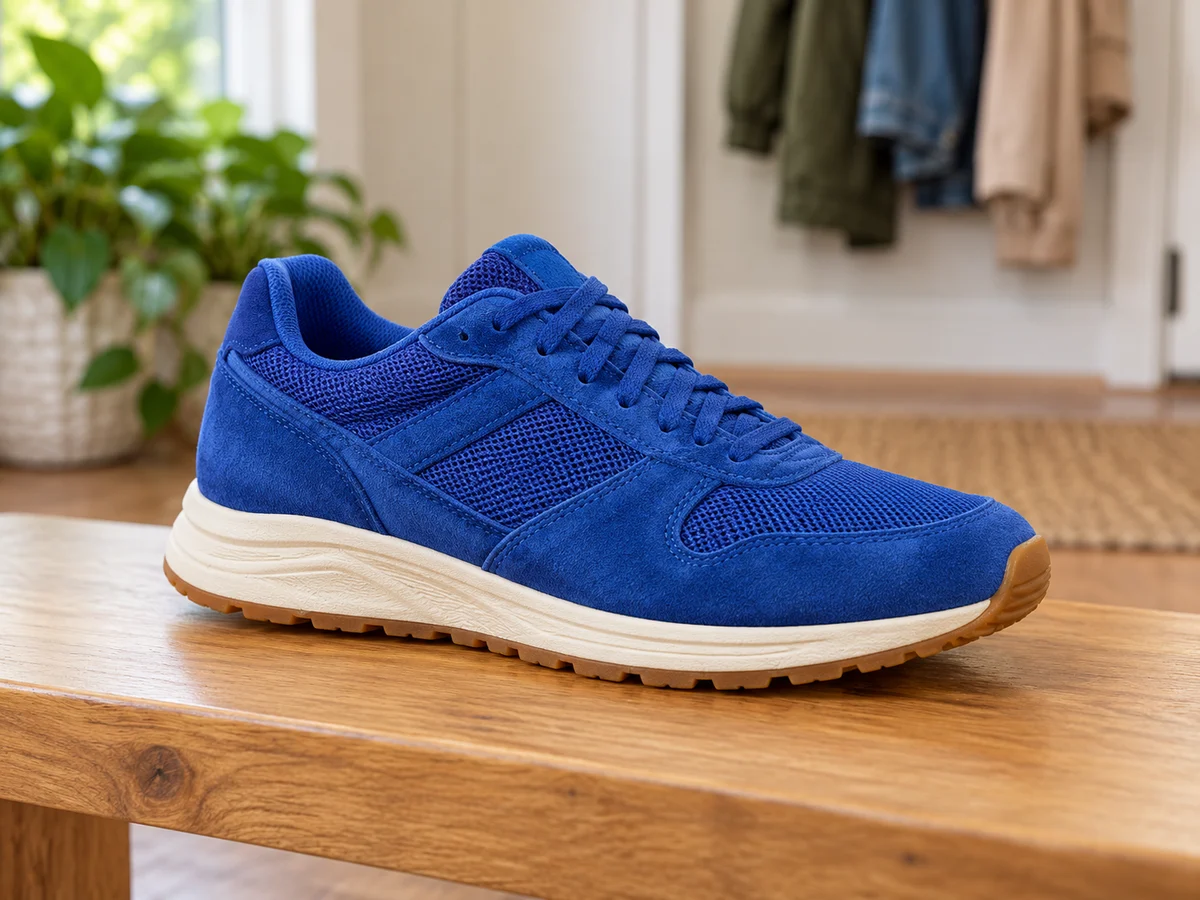
Replace a busy room or uneven wall with a pale, neutral backdrop that keeps attention on your subject. Start with RGB 238, 238, 238, then check whether clothing, packaging, or other light details remain visible. A softer shade can suit product photos and casual portraits when you want a bright setting without the stark look of pure white. Adjust the color in the preview before downloading.

A deeper neutral shade can help pale clothing, light packaging, and bright objects stand apart from the backdrop. Try RGB 64, 64, 64 as a starting point, then inspect the outline in the preview. Dark hair, black clothing, and shadowed details may blend into a similar tone, so choose a lighter shade when needed. Changing the backdrop does not relight your subject or restore detail missing from the original photo.
Create a Dark Grey Background Now
Want a neutral setting with a hint of color? Start with RGB 220, 226, 232 for a pale gray-blue shade, then adjust it to suit your image. The subtle blue tint offers an alternative to a strictly neutral tone for profile pictures, personal projects, and presentation graphics. Compare it with a plain shade in the preview, especially when your subject already contains cool colors. The result uses one solid color, not a gradient or textured backdrop.
Try the Grey Photo Background Tool for Free
Replace the original setting, choose your color, and save the result in three steps.
Upload a photo, remove its backdrop, then choose a solid tone and check the preview before you save.
Choose a JPG, PNG, or WebP image up to 15 MB. Use a clear photo with a visible subject. A sharp outline and a subject that stands apart from its surroundings give you a better starting point.
Start background removal and wait for the result. Select the custom color option, open the picker, and adjust the color or enter RGB values. Check the subject against your chosen shade before continuing.
Inspect hair, clothing, and object edges in the preview. Change the shade if the subject blends into it, then download the PNG with your selected color. You can also switch to a transparent result for another design.
Use a photo you already have, replace its busy setting, and try the grey shade that suits your subject. Free BGRemover lets you adjust the background after removal, reuse RGB values across separate photos, and download your PNG for free—with no account or added watermark.
Turn a photo taken at home, outdoors, or on a busy desk into an image with a simpler grey backdrop. AI separates the subject from its surroundings, reducing the need to trace it by hand before choosing a new background.
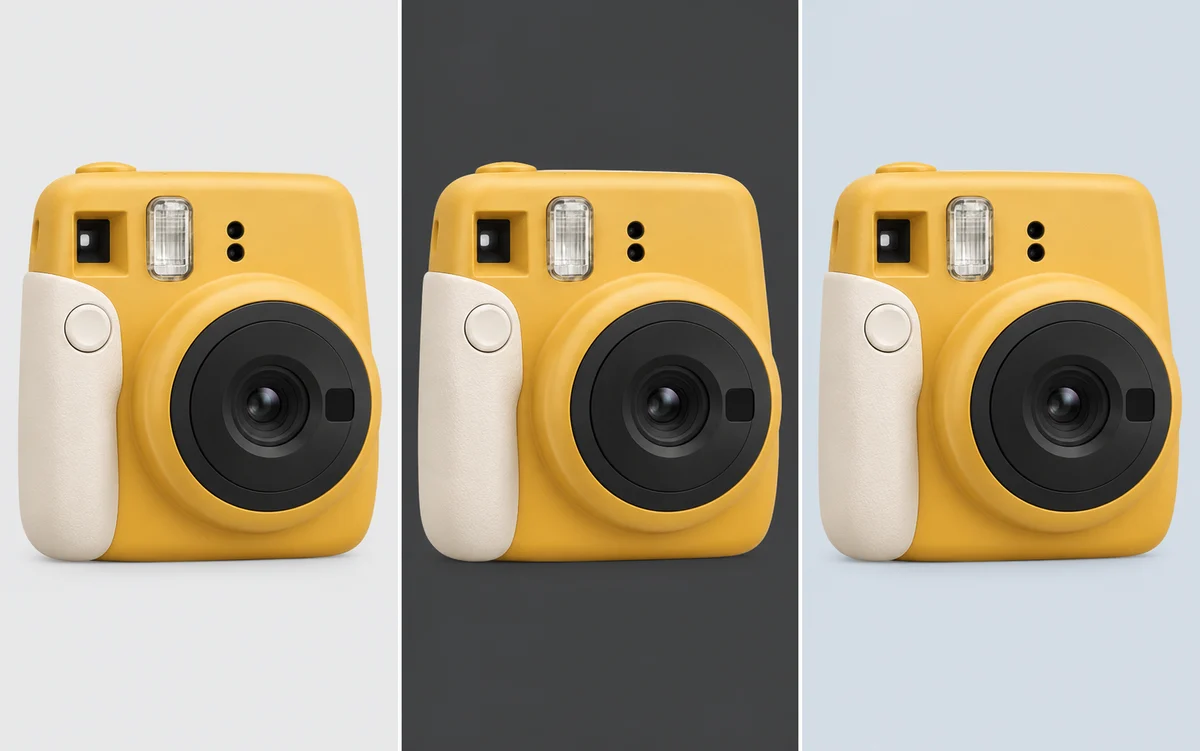
Compare lighter, darker, or blue-grey shades after the background has been removed. Adjust the color behind the same subject without uploading the photo again, so you can explore different looks before choosing your final version.

Reuse the same RGB values across separate product photos or portraits to keep their background color consistent. This helps related images look more coherent in a collection, team introduction, or presentation.
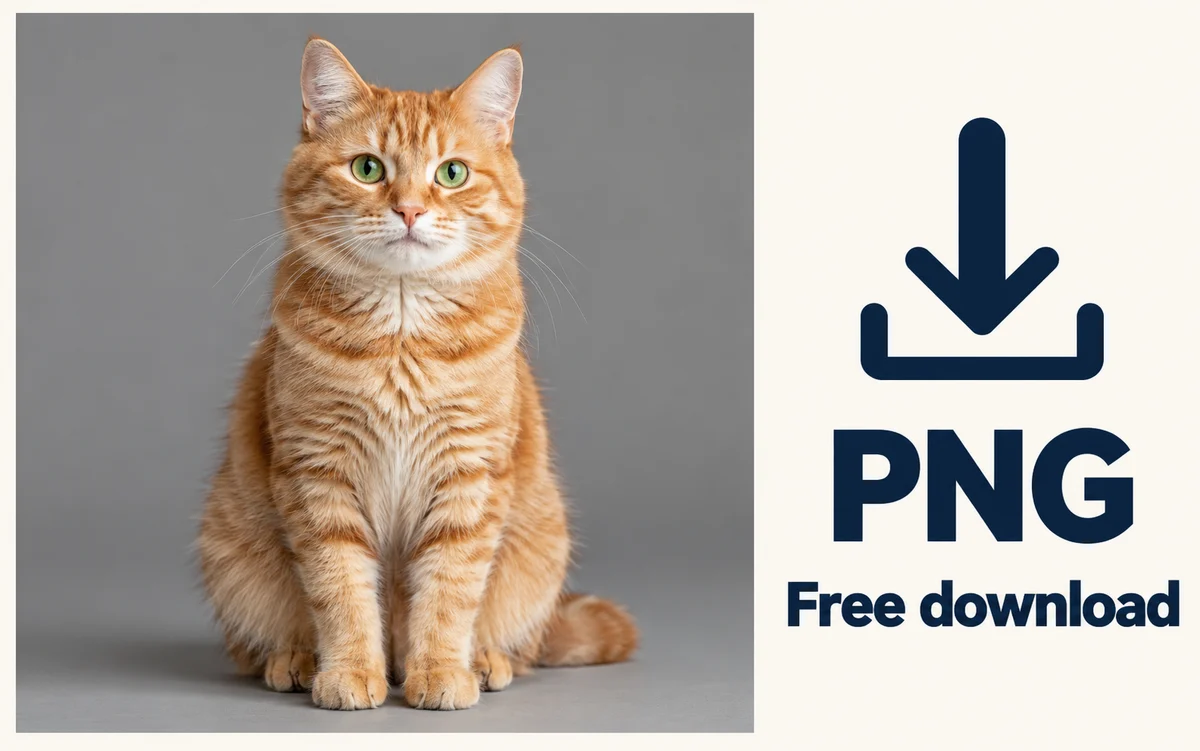
Save your edited photo with the selected grey background for your next project. Downloads are free, require no account, and have no added watermark. You can also choose a transparent PNG when you need the subject for another design.
Choose the use case closest to your project. A solid backdrop can remove visual distractions, but the best shade depends on your subject and where the image will appear. Preview the result before deciding whether a pale, deep, or slightly cool tone fits your needs.

Replace distracting surfaces behind individual products, then reuse your chosen RGB values on other images. A consistent backdrop can help a collection look more coherent. Check each marketplace's image requirements before publishing; some listings require white rather than another neutral shade.

Replace a cluttered room or outdoor setting behind your portrait with a single neutral color. Pick a tone that keeps your face, hair, and clothing visible. This changes the setting behind you; it does not retouch your face or recreate studio lighting.
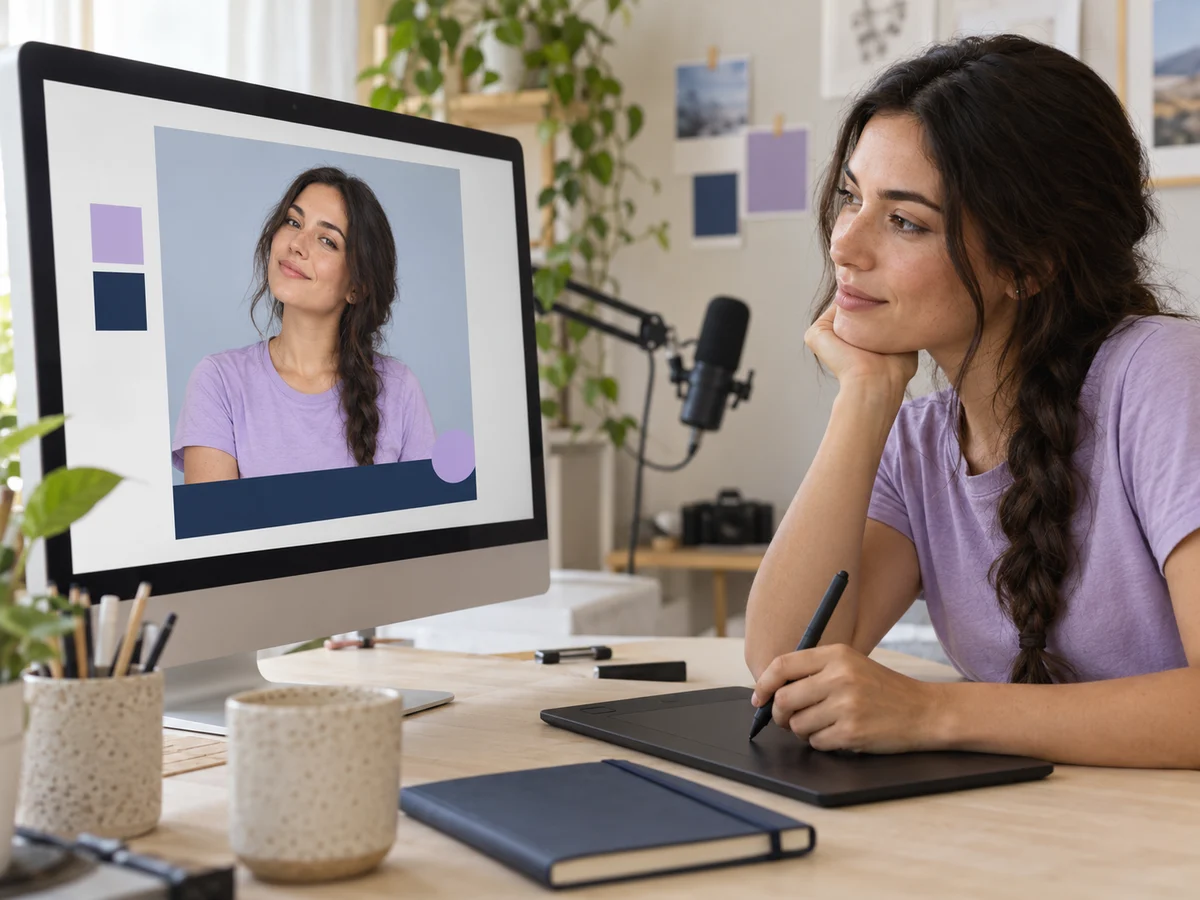
Give a subject photo a simpler setting before placing it in a slide, social post, or other layout. Match the backdrop to the colors in your project, then download the image. Add text, cropping, and other layout elements in your preferred design tool.

Try a simpler backdrop for a personal portrait or pet photo when the original setting draws too much attention. Compare your preferred shade with the subject before downloading. Fur, wispy hair, and overlapping objects deserve a closer check because automatic separation can leave imperfect edges.
Yes. Free BGRemover lets you remove the original backdrop, choose a solid color, and download a PNG for free. You do not need to create an account, and the download has no added watermark. Review the result before using it in your project.
Start with contrast. A pale backdrop may suit dark clothing or darker products, while a deeper tone may help light subjects stand apart. Try RGB 238, 238, 238 for a pale option or 64, 64, 64 for a darker one, then check the preview rather than relying on the color alone.
Yes. Open the custom color picker and try RGB 220, 226, 232 as a starting point. Adjust it to fit your image, and check whether cool-colored clothing or objects blend into the backdrop. You are choosing one solid color, so this option does not create a gradient or lighting effect.
You can upload JPG, PNG, or WebP images up to 15 MB. Choose an image with a clear subject and check that the file opens correctly before uploading. The edited result downloads as a PNG, even when the original file uses a different supported format.
AI removal can leave imperfect edges around hair, fur, transparent objects, or subjects that blend into the original setting. Inspect those areas in the preview. This tool does not provide a manual edge-retouching brush; if important detail is missing, try a clearer source image or refine the cutout in another editor.
When you select a solid color, the PNG includes that color behind the subject. If you need an isolated cutout instead, switch to the transparent option before downloading. Choose the version that fits your next task; the PNG file format by itself does not mean the backdrop is transparent.
The current tool replaces the original setting with one solid color. It does not build split-color patterns, textures, or gradients. For a more complex composition, download a transparent cutout and place it over the backdrop you create in a separate design tool.
Processing requires a browser and device with WebGPU support enabled. If removal fails, check compatibility or try another supported setup. Your first image may take longer while the model loads. Processing time varies with the image, device, and connection, so a fixed completion time is not guaranteed.
You can prepare a product image with a neutral backdrop, but check the destination's requirements before uploading it. Some marketplaces require pure white backgrounds for main listing images. Also inspect the product's edges, color, and visible details; changing the backdrop does not certify that the result meets a platform's rules.
Get practical answers about color choice, uploads, downloads, and what to check before using your edited image.
Upload a photo, replace the original backdrop, and choose a shade that suits your subject. Check the preview, then save your PNG for the next step. Free to use, with no signup required.
Add a Grey Background for Free