

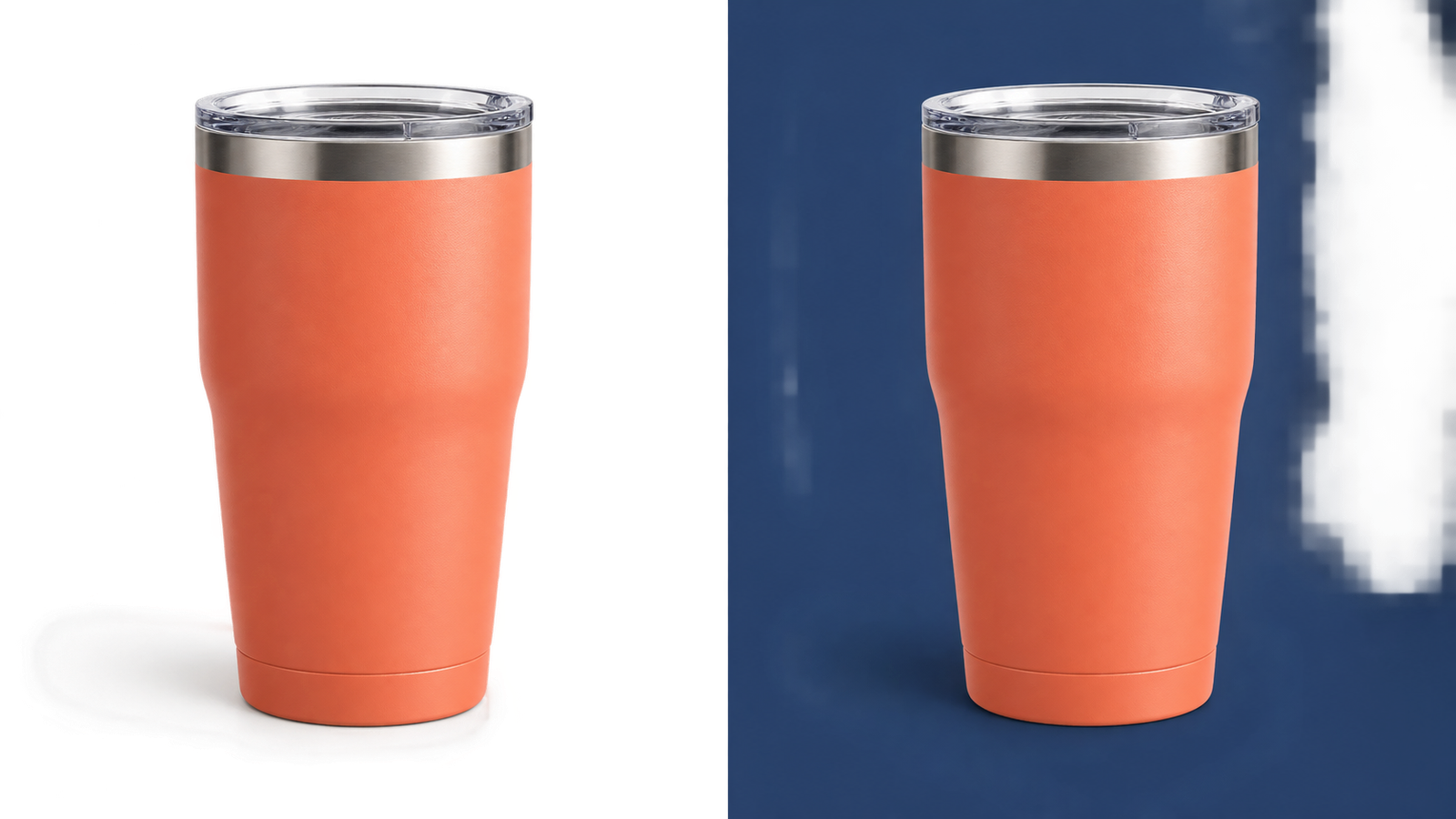
Original vs. Transparent Result
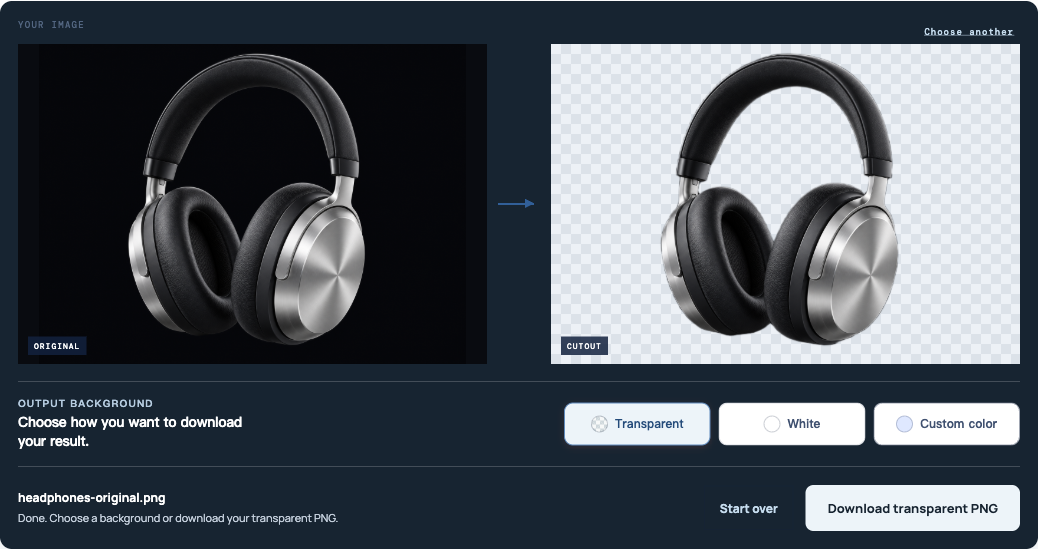
Compare the original with the checkerboard result before saving. The checkerboard marks pixels with transparency; it should disappear when the cutout is placed on a solid color.
Free PNG background remover
Upload JPG, PNG, or WebP and download a transparent PNG—free, no sign-up, no watermark.
Start with an image
JPG, PNG, or WebP. Up to 15 MB.
Privacy detailsUse this PNG background remover free of charge. Upload JPG, PNG, or WebP files up to 15 MB. No sign-up and no watermark on your downloaded result.
Need to remove a PNG background free online? Drop one image here or choose a JPG, PNG, or WebP file.
By uploading, you confirm you can use the image and agree to our Privacy Policy and Terms.
Inspect before processing
Compare the original and transparent result to see how hair, fine lines, and inner gaps can stay visible.
Drag to compare the original and transparent PNG.
Check hair, fine lines, and inner gaps before you upload.
Compare the original with the checkerboard result before saving. The checkerboard marks pixels with transparency; it should disappear when the cutout is placed on a solid color.
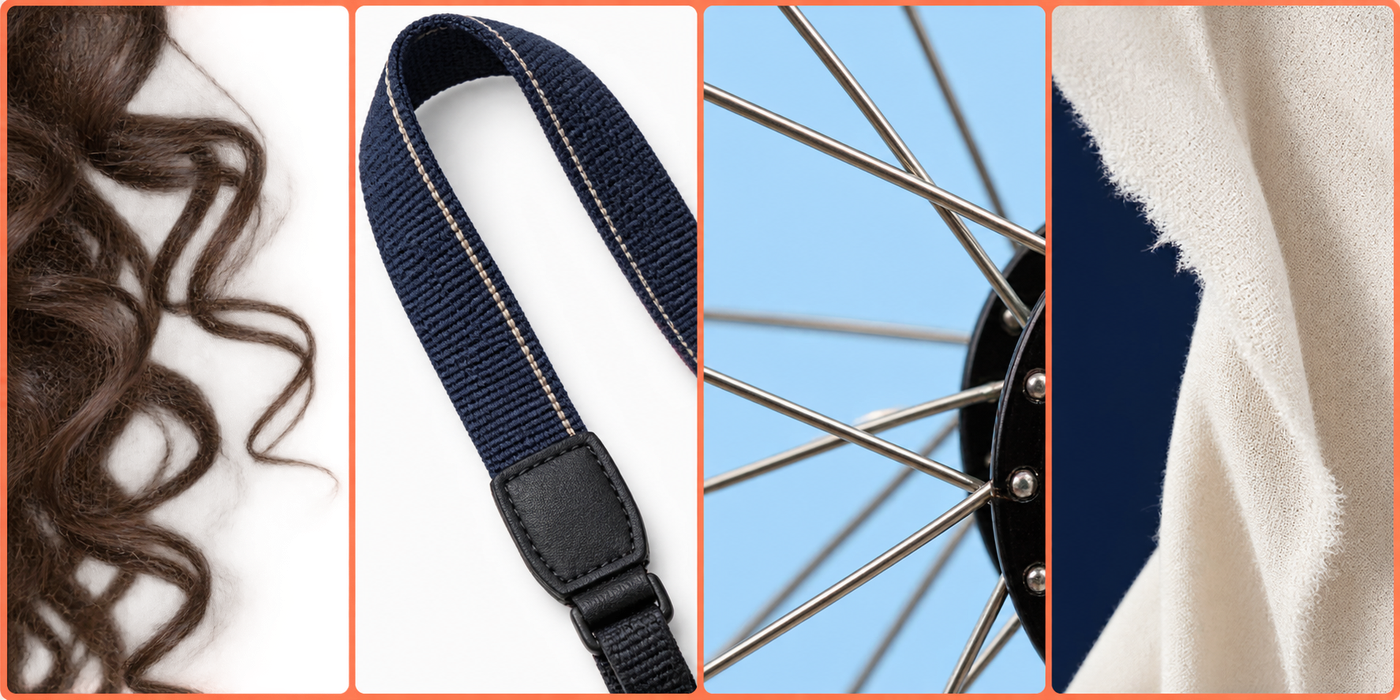
Look for missing strands or a solid halo around soft edges.
Zoom in on straps, wires, stems, and thin logo strokes.
Check spaces between arms, handles, letters, and product parts.
Decide whether a natural shadow belongs with the subject or the removed background.
Four clear steps
Go from upload to a transparent PNG in four clear steps—no manual tracing or complicated editing tools.
Upload, process, inspect the edges, then download your PNG.
Choose one JPG, PNG, or WebP up to 15 MB to remove the background from your PNG.
The tool can remove a background in a PNG image by detecting the main subject automatically.
Check hair, thin lines, pale details, and inner gaps in the preview.
Choose the background you need, then save the result as PNG.
Use this free workflow to remove background from PNG, including when you need to remove a PNG background for free online or turn a JPG or WebP source into a transparent PNG.
Upload your PNGChoose the right result
Choose a transparent PNG for flexible reuse, a white background for clean listings, or a custom color for branded graphics.
Transparent preserves alpha; white and custom-color results use a solid PNG canvas.
Choose transparency, white, or a custom color; advanced scene editing is not included here.
 PNG · Alpha
 Drag the divider to compare the original image with the transparent cutout. Confirm that the subject and framing still match; use the detailed proof checklist above for edge inspection.
Keep the background transparent, use white, or choose a custom solid color. Choose transparency for flexible layouts, white for a clean catalog canvas, or one solid color for branded graphics.
Download the finished image as a transparent PNG. This transparent PNG maker preserves alpha when Transparent is selected; white and custom-color results use an opaque PNG canvas.
Start with the subject
Find the right source tips for your product, portrait, logo, or graphic—then create a cutout that fits how you plan to use it.
Compare product, portrait, logo, and graphic examples before uploading.
Create clean assets for product listings, profiles, logos, and social graphics.
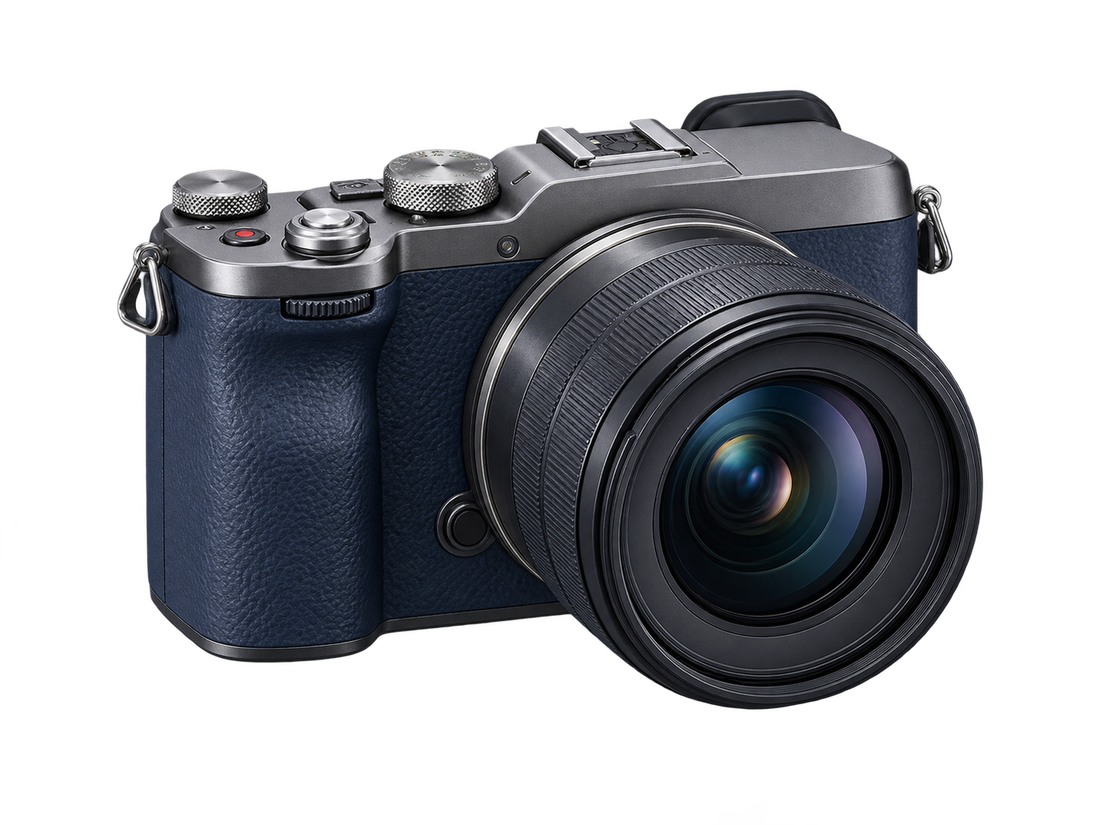
For a white background, inspect pale clothing, highlights, and thin white details carefully.

Create transparent, white, or brand-color assets for a listing or catalog. To remove a white background from a PNG, inspect pale materials, highlights, and thin white details on a dark preview.

Use a well-lit portrait with visible separation around hair and shoulders. Check loose strands on both light and dark backgrounds before using the cutout in a profile or presentation.

Inspect thin strokes, letter counters, and pale marks after you remove background from a logo PNG. A larger, sharper source usually makes small details easier to preserve.
Open the logo background remover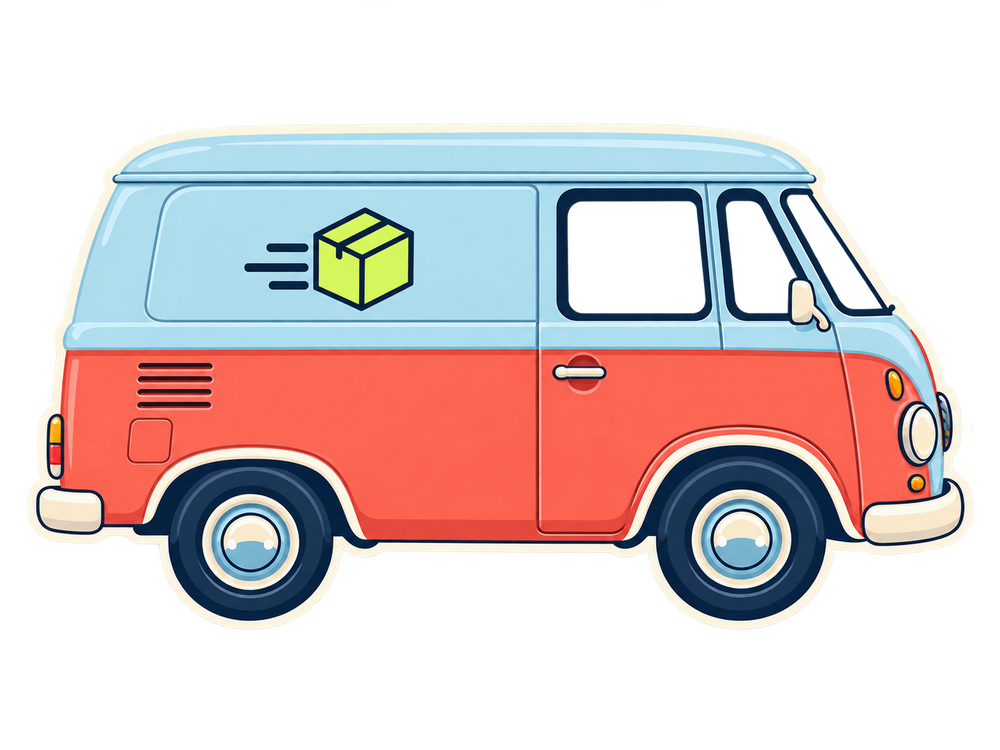
Flat graphics need clean interior gaps; stickers need crisp outlines; vehicle images need careful checks around windows, reflections, and ground shadows.
Individuals, sellers, marketers, and designers can download a single ready-to-use cutout.
Make a profile image, sticker, or presentation asset.
Prepare one quick proof before detailed retouching.
Create a clean product cutout for a listing.
Reuse a transparent subject in ads and layouts.
Prepare one editorial or social asset in the browser.
Format clarity
Upload any supported format, then save the cutout as PNG when you need transparency.
Upload a JPG, remove its background, and download a new PNG with transparency.
PNG can store an alpha channel: a per-pixel value that can be fully visible, partly transparent, or invisible. A PNG file is not automatically transparent—it must actually contain alpha pixels.
JPG, PNG, and WebP inputs are supported up to 15 MB. Remove an image background and download a PNG when transparency is selected.
| Format | Input | Transparency | Result |
|---|---|---|---|
| JPG | Supported | No alpha transparency | Download as PNG |
| PNG | Supported | Can contain alpha | Download as PNG |
| WebP | Supported | May contain alpha | Download as PNG |
Use the JPG-to-transparent-PNG background remover when the source cannot store alpha: remove the background, then save the new transparent result as PNG.
If you need to turn a JPG into a transparent PNG, the output changes format because JPG itself cannot preserve transparent pixels.
Transparency diagnosis
Place the image on a solid color first. If the squares remain, remove them as a visible background; if they disappear, the PNG is already transparent.
If the checkerboard stays visible on a colored preview, it is part of the image and must be removed.

Put the PNG on one bright solid color. This single action reveals whether the squares are viewer decoration or actual image pixels.
If the color shows through, the file has real alpha. If gray and white squares remain unchanged, the checkerboard is baked into the image.
Remove an ordinary white or baked pattern automatically, retry a clearer source when edges merge, or use a manual editor for precision repair.
Pick the shortest reliable path
Use the browser tool for speed, MS Paint for simple version-supported edits, or a manual editor when you need precise repair.
Check hair, fine lines, and soft shadows before you download.
Preview the cutout on light and dark colors to reveal halos or missing details.
Use the online tool for speed, Paint for simple supported edits, or a manual editor for precise edge repair.
Choose by subject complexity, required control, and the time you can spend—not by a blanket best-tool claim.
| Method | Best for | Control | Watch for |
|---|---|---|---|
| Free BGRemover | One quick subject cutout | Automatic result plus output color choices | No manual brush or batch workflow |
| MS Paint | Simple Windows edits when Remove background is available | Paint's current selection and background tools | Features and interface vary by Paint version |
| Manual editor | Hair, translucent edges, or precision repair | Masks, brushes, and edge refinement | More time and editing knowledge required |
Windows option
In a current Windows 11 Paint version, open the image and choose Remove background from the toolbar or Copilot menu when available. Inspect the cutout and save a PNG copy. If the command is missing, update Paint from Microsoft Store or use the browser tool. For hair, translucent edges, or exact repair, use a manual editor instead.
Escalation gate
Use this final gate to decide whether the automatic result is ready, needs a clearer source, or requires manual edge repair.
Clear conditions
This free PNG background remover handles one supported image in your browser. Review the privacy policy and upload only images you own or are authorized to use.
Conditions checked August 26, 2026
The limits and capabilities on this page come from the current tool workflow, not borrowed claims.
Only upload images you own or are authorized to use, and review the privacy policy before uploading.
Use the current background-removal workflow without creating an account and download the result without a watermark.
The limits and capabilities on this page come from the current tool workflow, not borrowed claims.
| Area | Supported here | Not included here |
|---|---|---|
| Files | JPG, PNG, WebP · up to 15 MB | URL or ZIP upload |
| Output | Transparent, white, custom solid-color PNG | AI scenes, filters, or templates |
| Workflow | One image in the browser | API, desktop, enterprise, or batch workflow on this page |
| Controls | Preview and output choices | Manual brush, tolerance, mask, smoothing, or clipboard output |
Before you upload
Only upload images you own or are authorized to use. Read the current Privacy Policy and Terms before uploading; this page does not promise a deletion time or grant new rights to an image.
Direct answers
Get concise answers about free use, transparency, formats, browsers, difficult backgrounds, and the downloaded PNG.
Find clear answers about transparency, formats, free use, browsers, and difficult backgrounds.
The tool runs in your browser, so there is no software to install.
Upload a supported image, let the tool separate the subject, inspect the preview, choose an output background, and download the PNG.
See the four-step workflowYes. You can remove background from a PNG for free in the current single-image workflow, without an account or watermark.
Review the current free-use conditionsRemove the visible background, keep Transparent selected, and save as PNG so the alpha channel is preserved.
Choose the right PNG outputIt may contain opaque white pixels, a baked checkerboard, the wrong export format, or edge residue. Test it on a solid color.
Diagnose the backgroundPlace the image on a bright solid color. Remove the squares only if they remain visible; disappearing squares indicate real transparency.
Run the checkerboard testYes. After removal, inspect pale details against a dark preview so white clothing, highlights, and thin logo strokes remain intact.
Open the white background removerYes. Upload the JPG, remove its background, and save the result as PNG because JPG cannot store alpha transparency.
See the JPG-to-PNG format guideYes. Choose white for a clean canvas or one custom solid color for a branded background before downloading the PNG.
Compare the output choicesNo. This tool runs in your browser. MS Paint is optional for simple supported edits, and its available features vary by version.
Compare browser, Paint, and manual methodsNo. Object removal is a separate task; this tool separates the main subject from the surrounding background.
Check supported capabilitiesReview the current Privacy Policy first, and upload only images you own or are authorized to process.
Read the upload and privacy guidance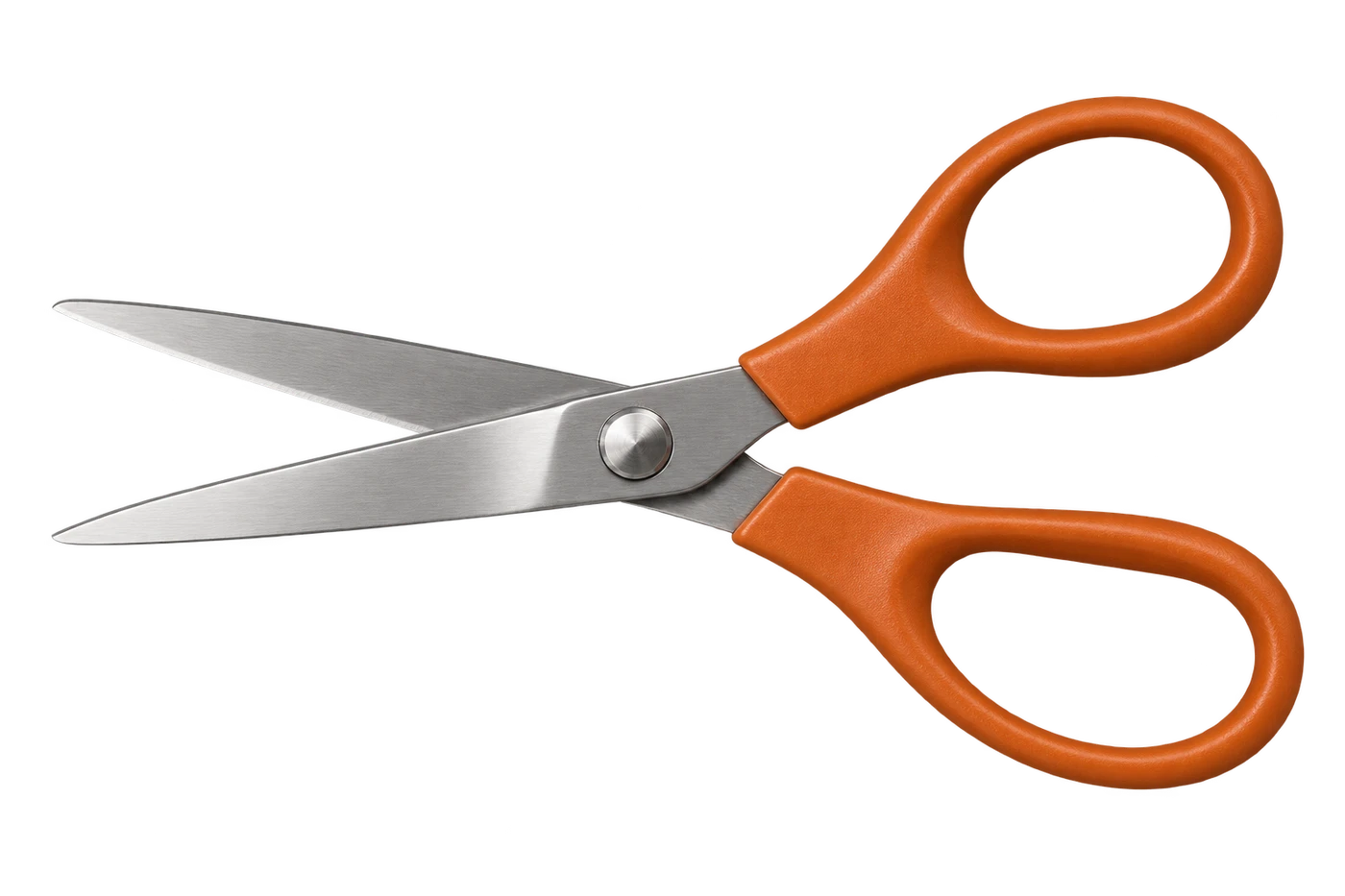
Tutorials & Guides
Tutorials & Guides
Tutorials & Guides
One image. One clean result.
Upload one JPG, PNG, or WebP up to 15 MB. Review the cutout, choose the background you need, and download the PNG.
Upload an image