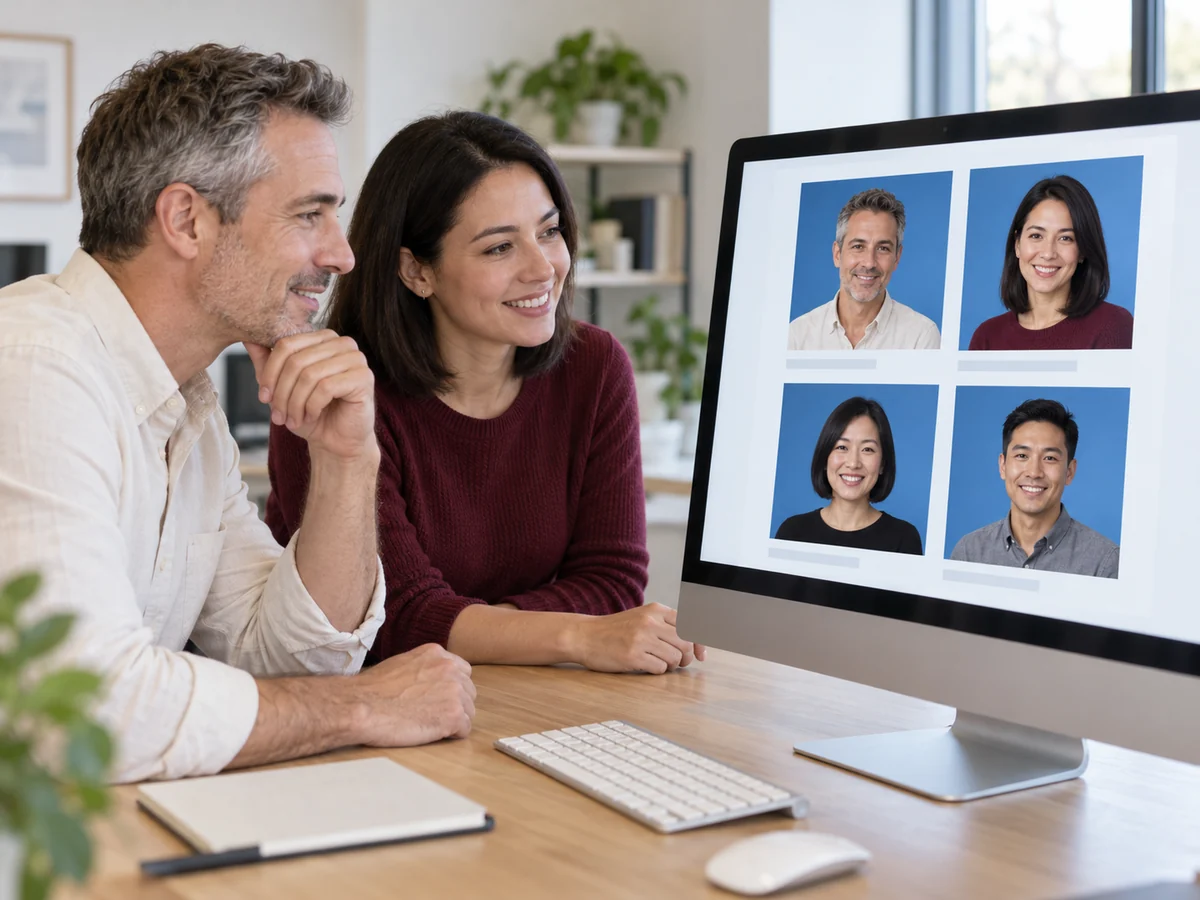
Can I add a blue background to a photo for free?
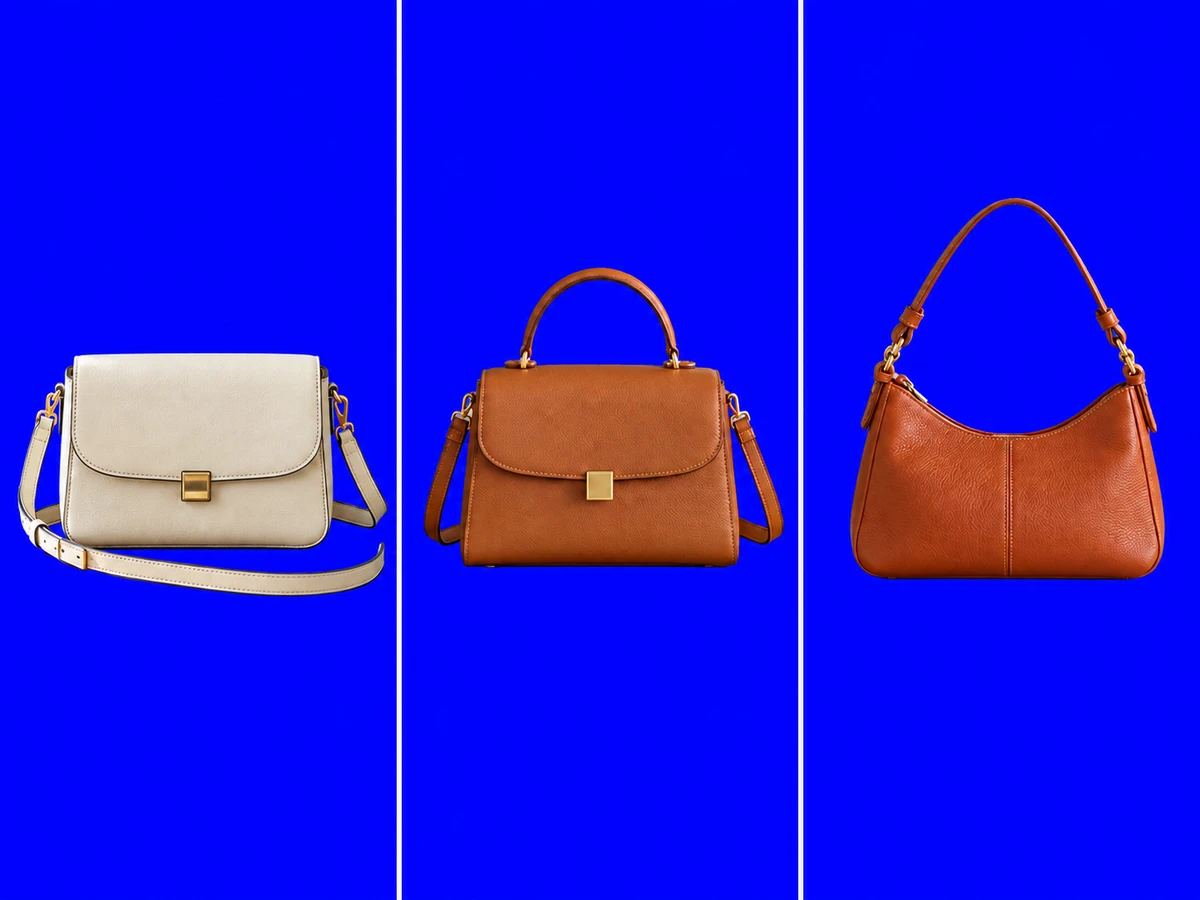
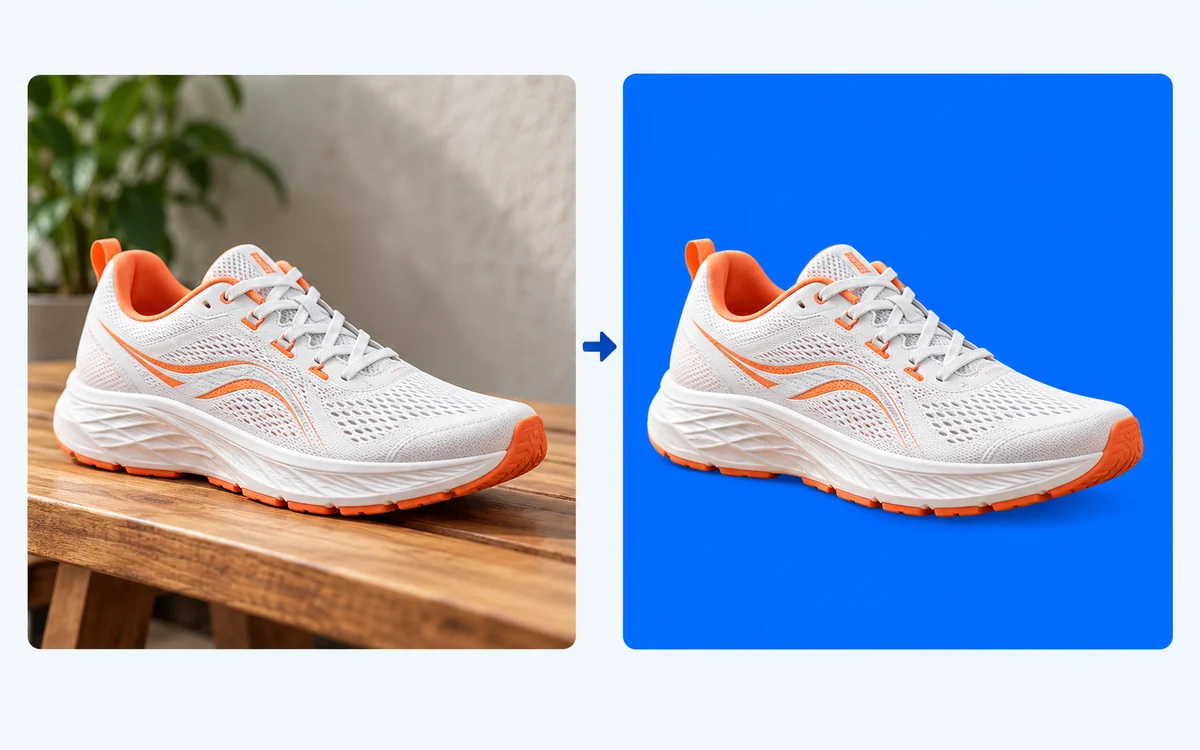
Yes. Free BGRemover lets you upload a supported photo, remove its original backdrop, choose a solid color, and download the result as a PNG for free. You do not need to register, and the exported image has no added watermark. Review the preview before downloading.
How do I change a white photo backdrop to blue?
Upload the photo, start AI background removal, and select blue with the custom color picker after processing. The tool separates the subject rather than replacing every white pixel. Check white clothing, pale packaging, and other details that blend into the original backdrop to make sure the cutout suits your needs.
Can I choose pure blue, light blue, sky blue, dark blue, or navy?
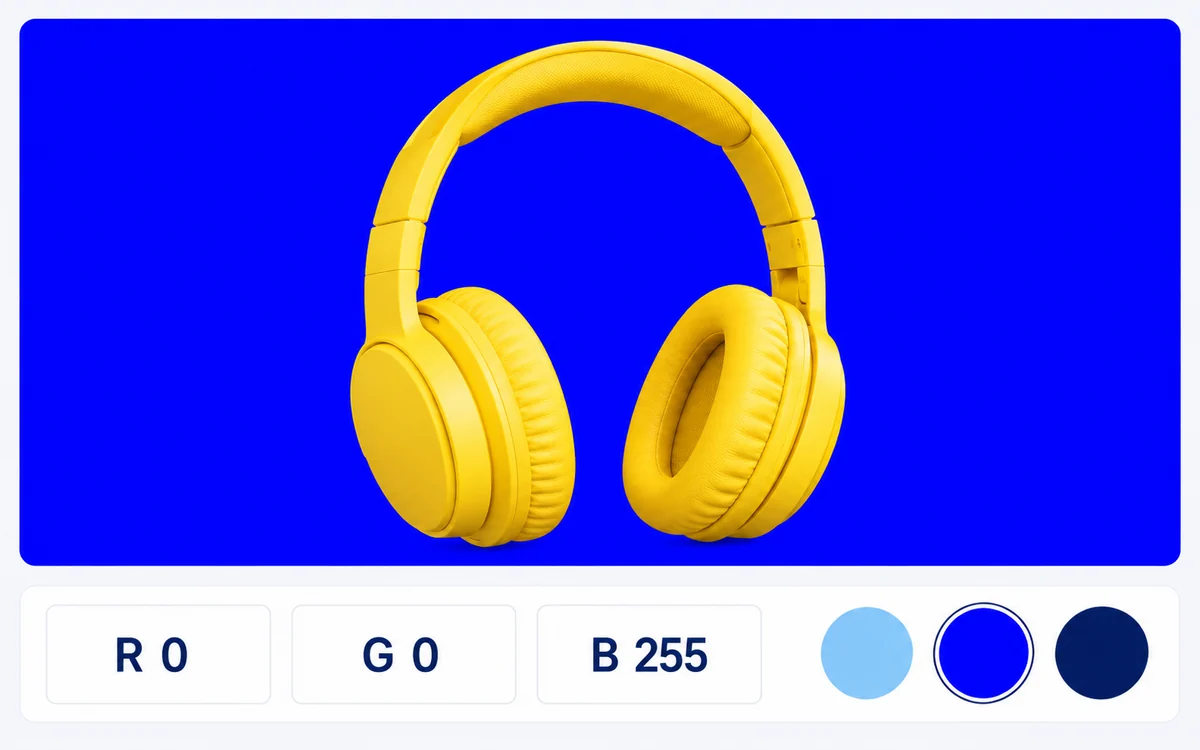
Yes. Use the color picker or enter RGB values. Suggested starting points are 0, 0, 255 for pure blue; 173, 216, 230 for light blue; 135, 206, 235 for sky blue; 0, 0, 139 for dark blue; and 0, 0, 128 for navy. These are manually entered examples. Compare the shade with your subject before saving.
Can I use a transparent PNG or a logo?
PNG files are supported, including files with transparency. The current workflow still runs AI subject separation before adding the selected color. It does not simply fill existing transparent areas while preserving every edge unchanged. Review logos, thin lines, lettering, and small gaps carefully before using the downloaded image.
Which image formats can I upload and download?
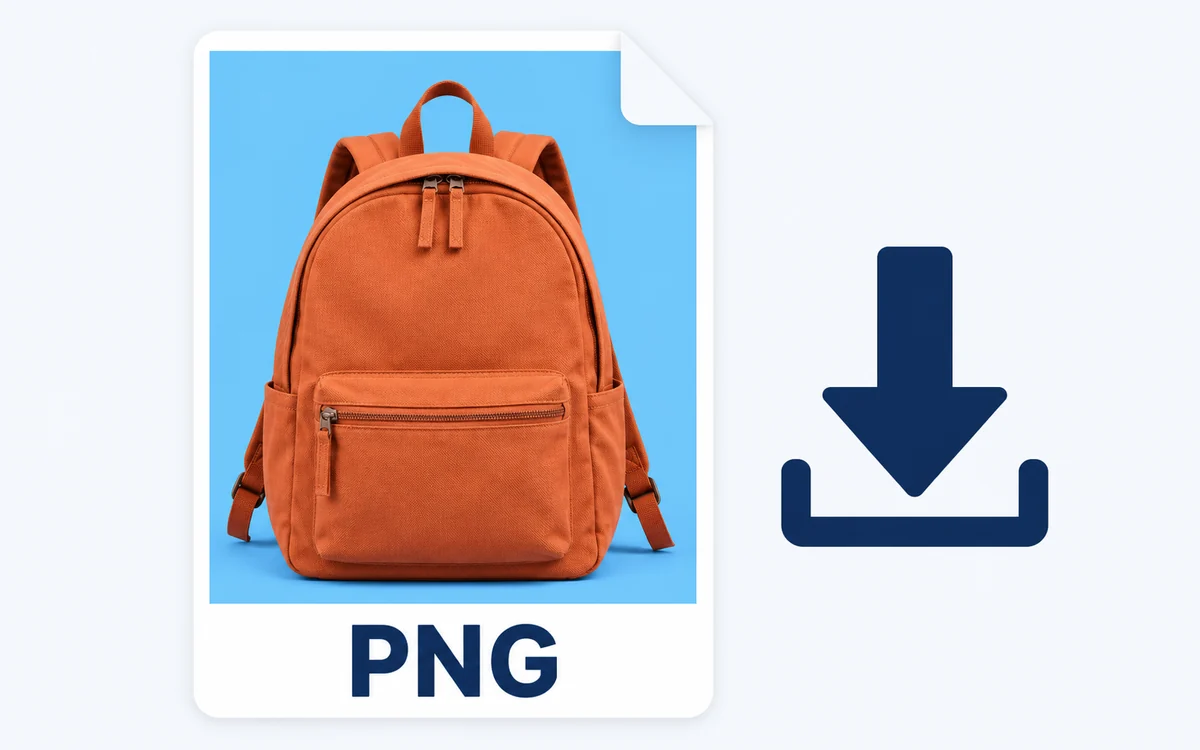
Upload a JPG, PNG, or WebP file up to 15 MB. The result downloads as a PNG. When you select a solid color, that backdrop is included in the saved image. If you need a transparent cutout instead, select the transparent option before downloading. The PNG extension can describe either type of result.
Can I use the result for product photos or headshots?
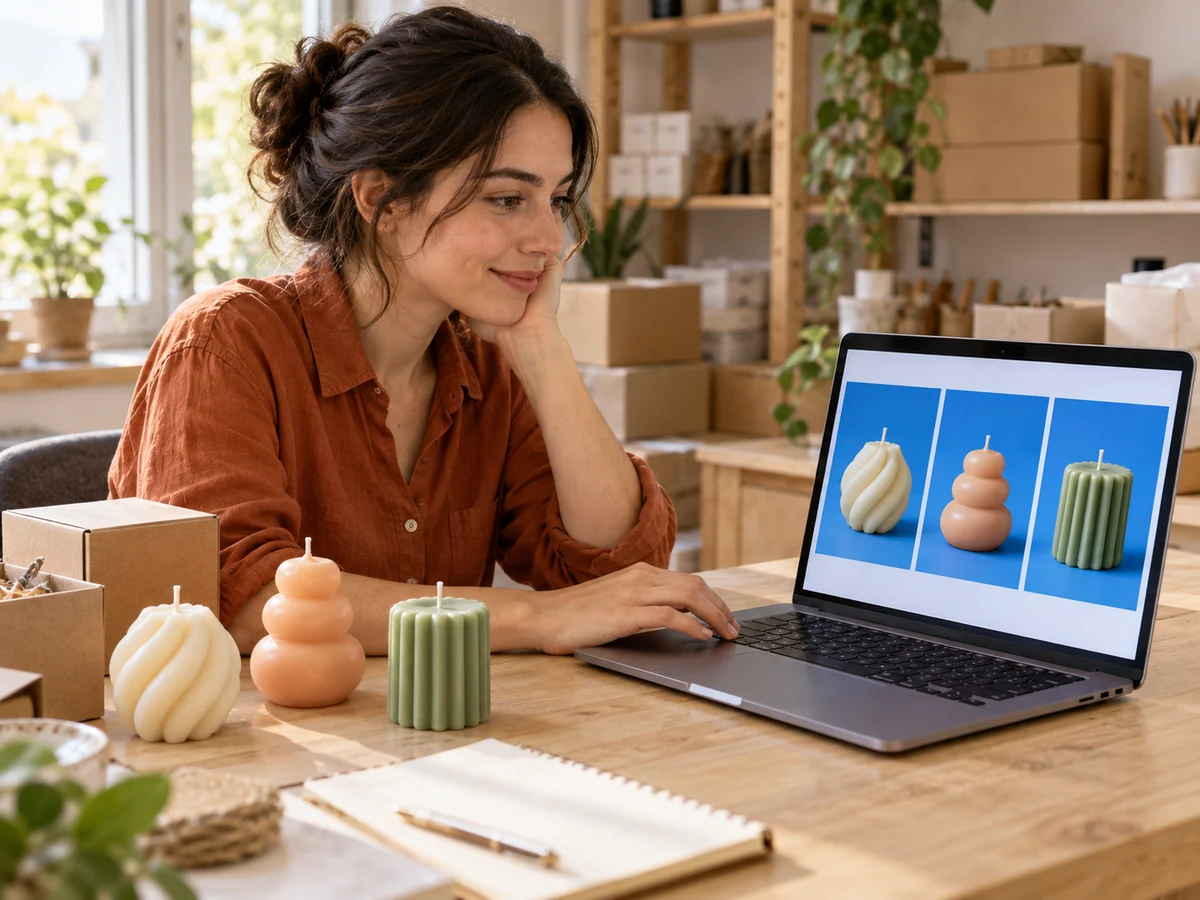
You can prepare product promotions, personal portraits, and team headshots. Check the destination's requirements before publishing, since a marketplace or profile service may require a specific background, size, or crop. This workflow replaces the backdrop; it does not crop to an official document template or verify passport photo compliance.
Will hair and other fine details always look clean?
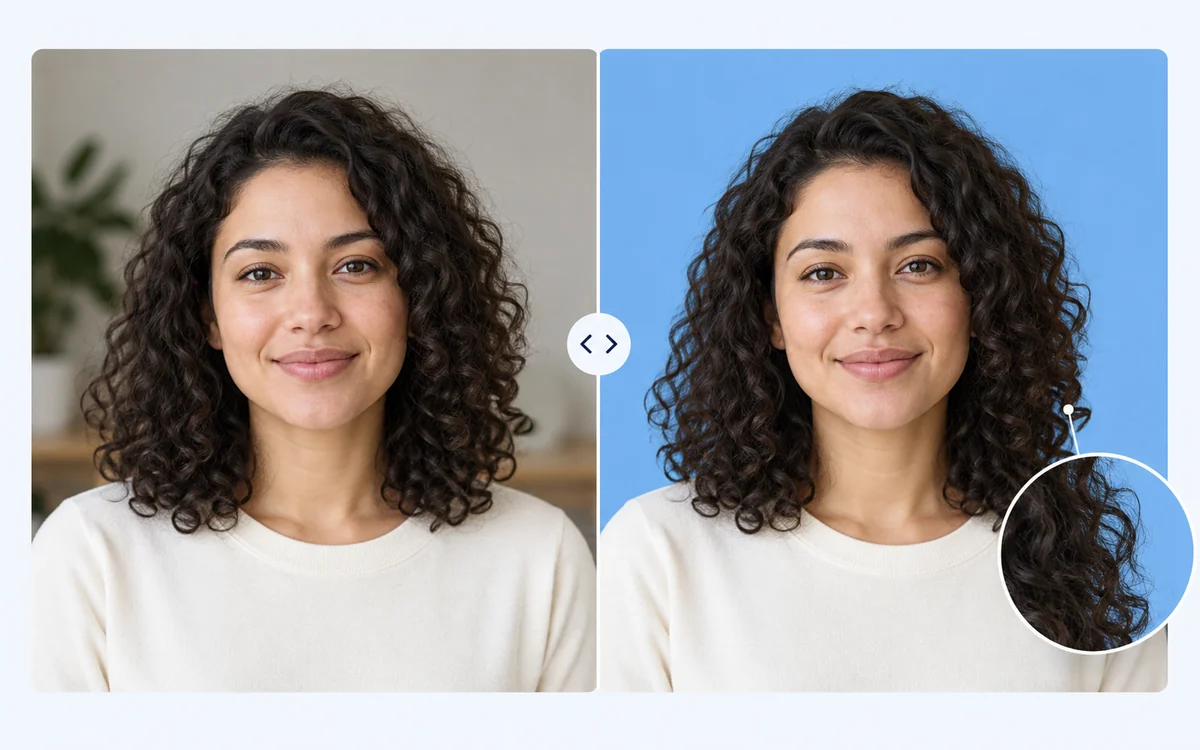
Results depend on the source image. Fine hair, transparent objects, and details that overlap the original backdrop can be difficult to separate. Start with a sharper photo and clear subject contrast. Changing the color can make an edge easier to see, but it does not repair an inaccurate cutout. Inspect the preview before saving.
Can I make a gradient or edit several photos at once?
This workflow adds one solid color and processes one image at a time. For a consistent set, edit photos separately and reuse the same RGB values. If you need a gradient, texture, text, or a more complex layout, download a transparent cutout and finish the design in a separate editor.
How long does processing take, and what if it fails?
Processing time varies with your device and the initial AI model download. The current tool requires a browser with WebGPU support. If an image fails to process, check the error message, confirm the file format and size, and try another clear photo or a compatible browser. There is no guaranteed completion time.
Questions About Changing Colors and Saving Your Photo
Find answers about free downloads, choosing a shade, changing a white backdrop, and using PNG files. Check the upload requirements and review tips before preparing your image for a profile, product promotion, or design project.