Free to useNo signupNo watermark

Add a Green Background to Your Photo in the Shade You Choose

Upload a photo and let AI remove the original background, then choose a green shade and download your PNG. Ideal for online sellers, content creators, and anyone refreshing a profile photo. Free to use, with no manual tracing or signup required.

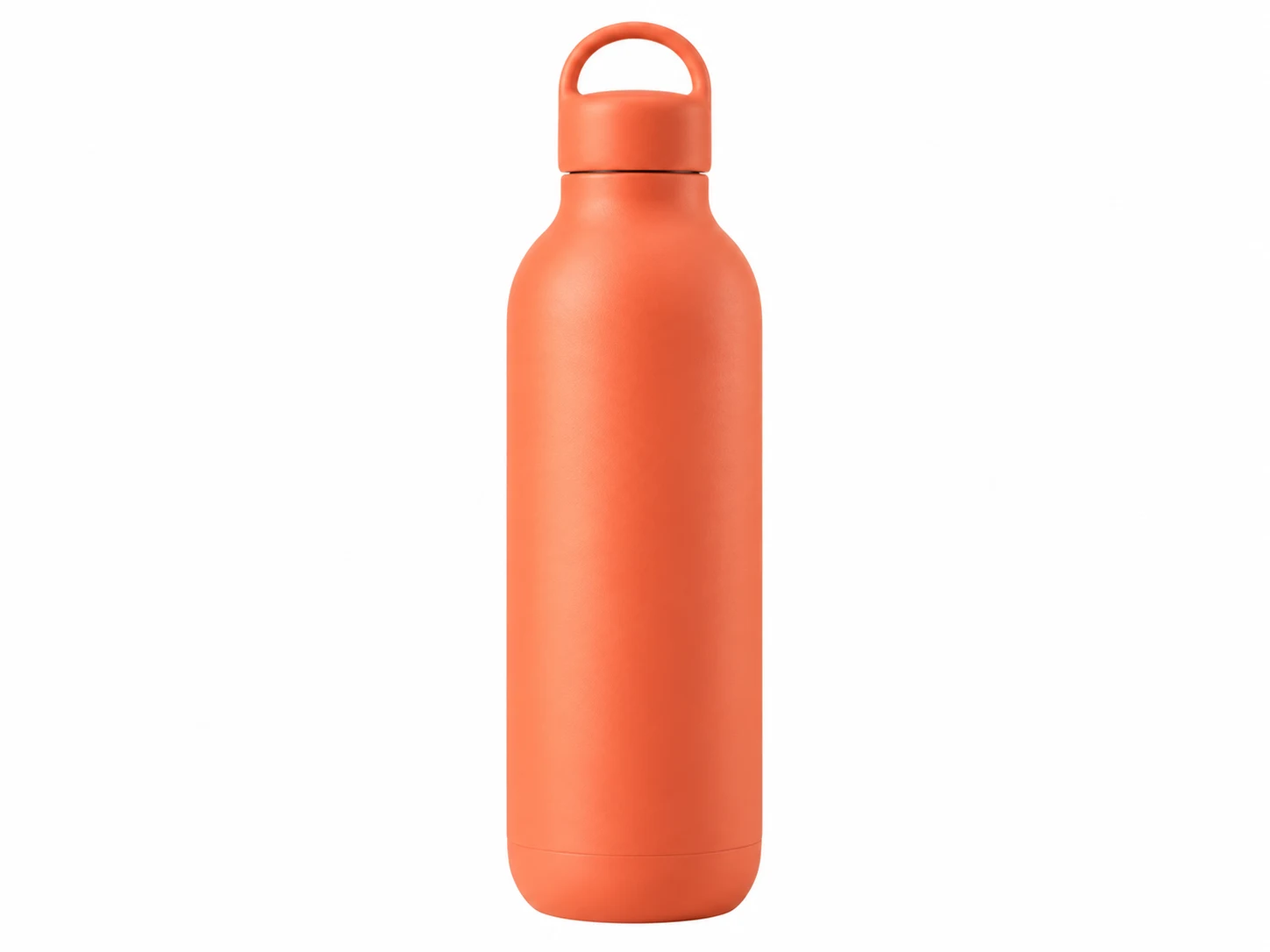
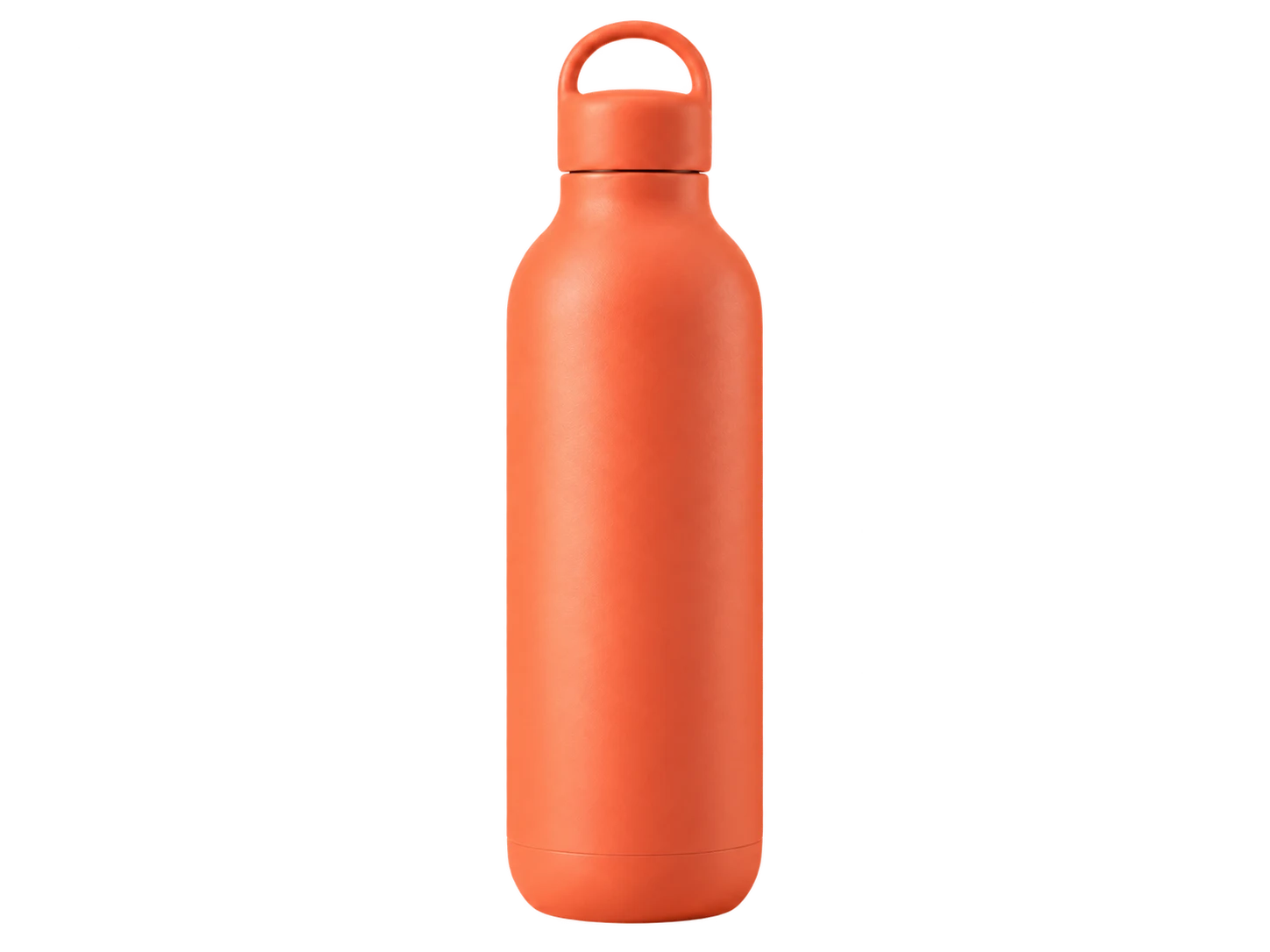
Coral bottle on a solid sage backdrop
One photo. Your choice of green.
Light greenDark greenMintSage

Your photo, a new setting

Upload your photo. Choose your green.

JPG, PNG, or WebP · Up to 15 MB

Privacy details

Replace a Busy Backdrop With Solid Green

A cluttered room, uneven wall, or bright white setting can pull attention away from your subject. Free BGRemover uses AI to separate the main subject from its surroundings, then places a solid color behind it. You do not need to paint around the object by hand. Start with a clear photo and inspect the preview, especially around hair, straps, and small gaps. Choose a shade that keeps your subject visible, whether you are refreshing a personal portrait or preparing an image for a campaign.

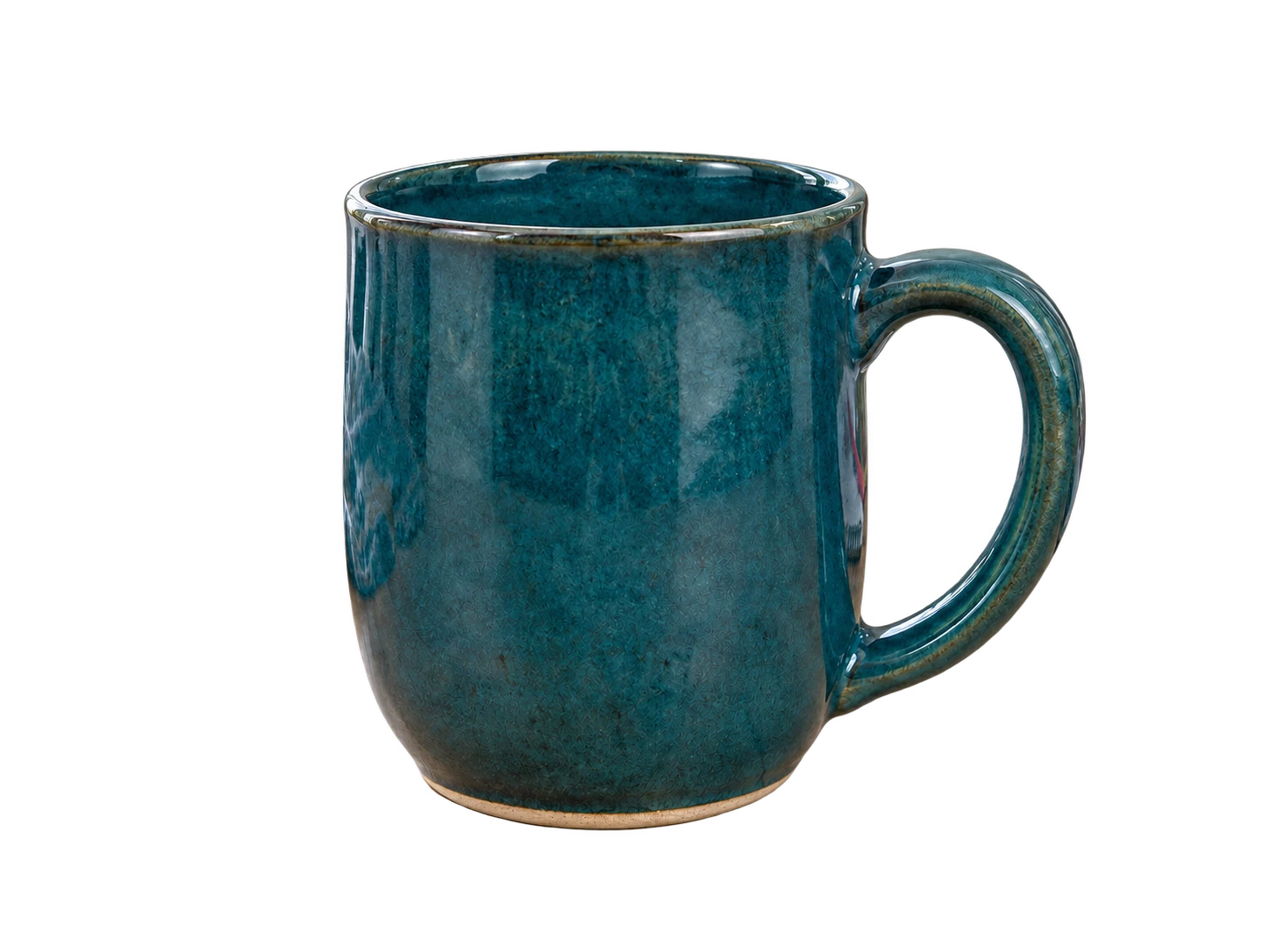
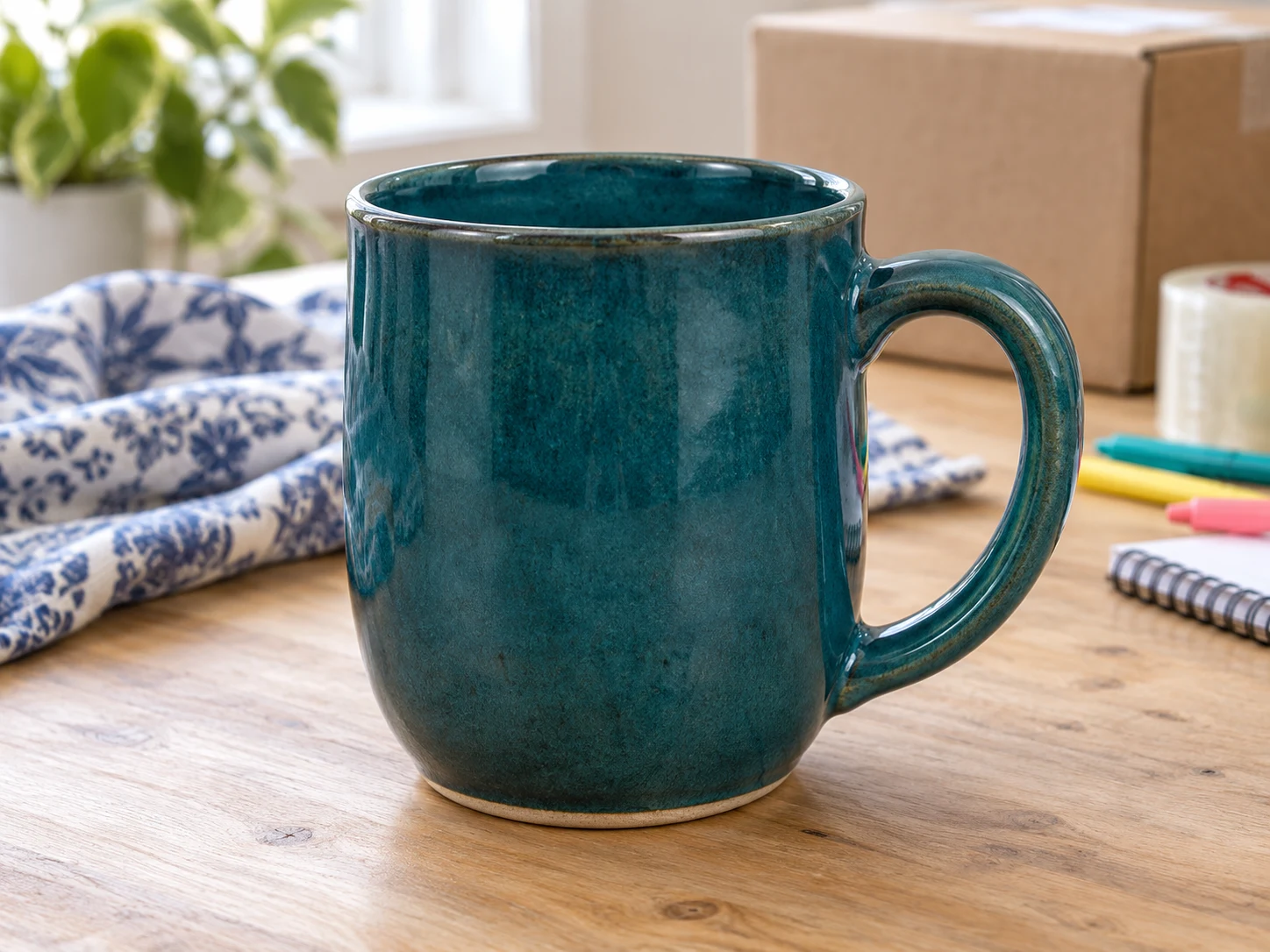
Teal ceramic mug on a busy desk with packing materials

Choose Light, Dark, Mint, or Sage Green

The right shade depends on your subject and where you plan to use the image. Open the custom color picker and adjust the color visually, or enter RGB values for a specific shade. Try light green at 220, 237, 200 for a pale setting, dark green at 27, 67, 50 for a deeper backdrop, mint at 209, 250, 229 for a fresh look, or sage at 163, 177, 138 for a muted option. These are starting points you can set manually. Compare the color with clothing, packaging, and other details before downloading.

Try the Green Background Maker for Free
Coral bottle against a backdrop in light green
Light greenRGB 220, 237, 200
Coral bottle against a backdrop in dark green
Dark greenRGB 27, 67, 50
Coral bottle against a backdrop in mint
MintRGB 209, 250, 229
Coral bottle against a backdrop in sage
SageRGB 163, 177, 138

Keep Product and Portrait Backdrops Consistent

Give related photos a shared look by reusing the same RGB values for each image. A consistent shade can bring product collections, team portraits, and social graphics together even when the original photos were taken in different settings. Process each photo separately, check how its subject looks against the chosen color, and save the result as a PNG. The tool replaces the backdrop; it does not match lighting, add shadows, or retouch the subject. Use the downloaded images in your store, presentation, or design layout, checking any destination requirements first.

Change My Photo Background to Green
Woman in a blue blazer against a peach backdrop

How to Add a Green Background to a Photo

Turn an existing photo into a solid-color image in three steps. Start with a clear subject, let AI remove the original surroundings, and review your chosen shade before saving. You can adjust the color after processing without uploading the same photo again.

Upload a photo, remove its backdrop, pick a shade, and check the preview before downloading the PNG.

  1. 01

    Upload a clear photo

    Choose a JPG, PNG, or WebP file up to 15 MB. Use a photo where the subject is easy to distinguish from the surroundings. Drag it into the upload area or select it from your device.

  2. 02

    Remove the backdrop and choose your shade

    Start AI background removal and wait for processing to finish. Select the custom color option, open the picker, and choose your preferred green. Adjust the RGB values if you want to reuse a specific color across other photos.

  3. 03

    Review the result and download

    Check hair, clothing, object edges, and spaces between parts of the subject. Try another shade if important details blend into the backdrop. Download the PNG when the preview suits your needs. Choose transparency instead if you want a cutout for another layout.

Why Use Free BGRemover to Add Green to Your Photos?

Give photos you already have a new setting with AI background removal and a green shade you control. Whether you are preparing product promotions, updating a profile, or designing social posts, you can adjust the backdrop without a new shoot or manual tracing, then save a PNG for your next project.

Teal mug cutout on a sage backdrop

Change the Setting Without a Reshoot

Use a product shot or portrait you already have, even if it was taken against a busy room or plain wall. AI separates the subject so you can replace the surroundings without photographing it against a physical green backdrop.

Use your existing photo

Coral bottle against a mint backdrop that contrasts with its color

Choose Green That Keeps Details Visible

Adjust the shade behind the same processed subject without uploading again. Compare lighter and darker tones with clothing or packaging in the preview, so you can choose a color that keeps important details visible.

Compare the color with your subject

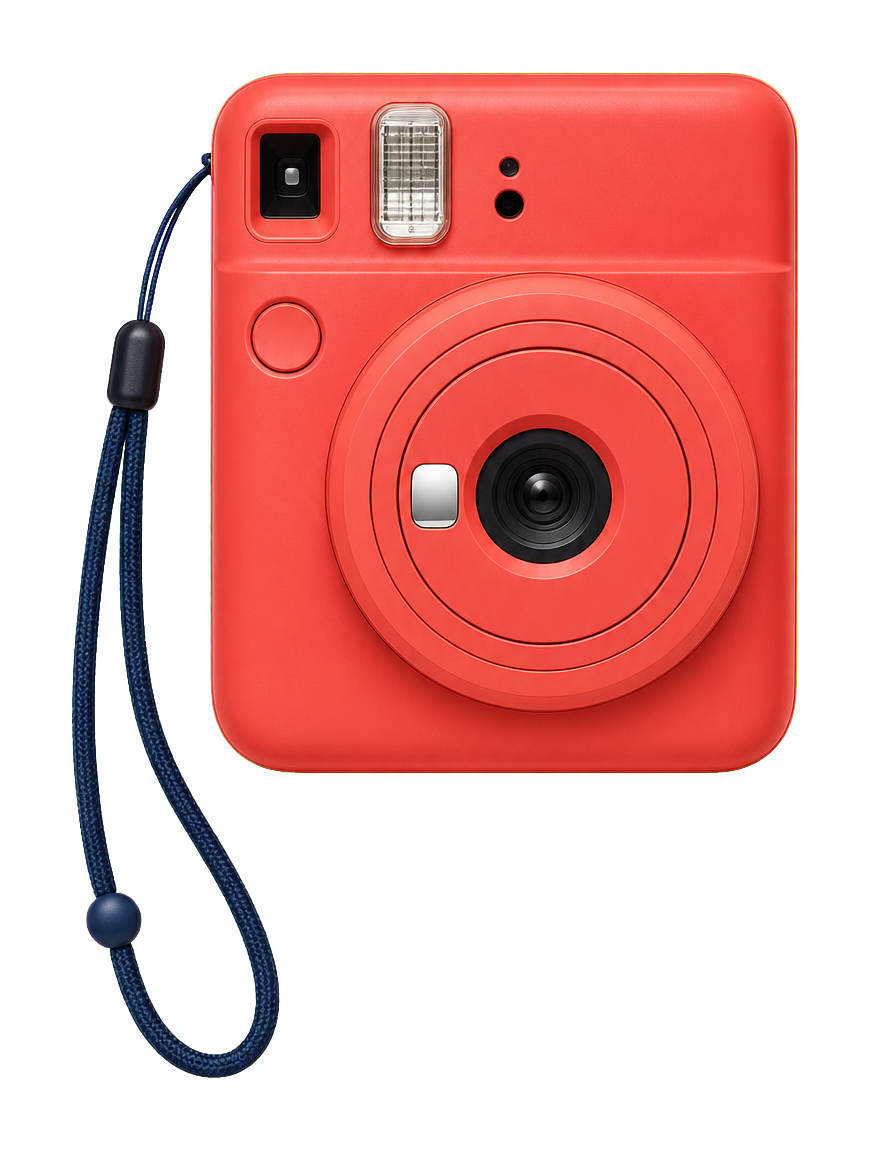
Camera cutout against a sage backdrop set to RGB 163, 177, 138

Match Colors Across Your Photo Set

Enter the same RGB values when editing each photo to keep the backdrop color consistent across a product collection or team portraits. Photos are processed separately, giving you a chance to review each subject before saving.

Reuse RGB 163, 177, 138 across photos

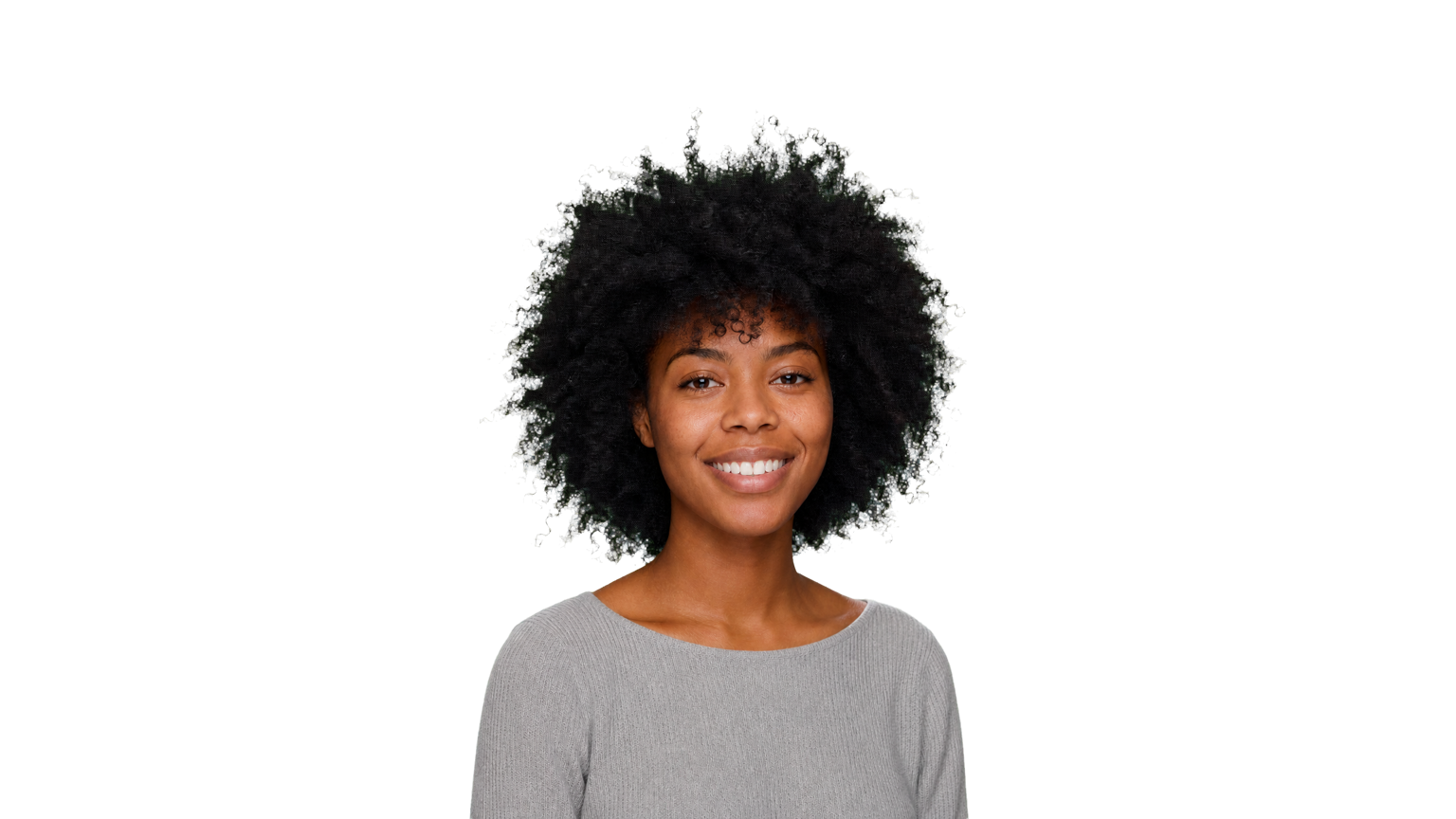
Portrait against a light green backdrop ready for PNG download

Download for Free, Without a Watermark

Save the photo with your chosen color as a PNG, with no account or payment required and no added watermark. The selected backdrop is included in the file, ready to place in your store, profile, or design layout.

Your chosen color is included in the PNG

A Fresh Setting for Products, Portraits, and Creative Work

Choose the use case closest to your project. A solid color can simplify a busy setting or connect an image to your design palette. Review each subject against the selected shade, then download the version you need for your next step.

Woman in a blue blazer against a peach backdropThe same subject against a light green backdrop

Refresh Your Portrait Without a New Shoot

Change the setting behind a personal portrait when the original room or wall feels distracting. Try a muted shade for your profile picture and compare it with your clothing. This tool changes the backdrop; use your preferred editor for cropping, skin retouching, or other adjustments.

  • Start with a portrait you already have.
  • Choose a shade that separates clothing from the backdrop.
  • Download an image for your profile or personal page.
Make My Portrait Backdrop Green
Can I add a green background to a photo for free?

Yes. Free BGRemover lets you upload a supported image, remove its original backdrop, choose a solid color, and download a PNG for free. You do not need to create an account, and the exported image has no added watermark. Review the preview before saving.

How do I change a white photo backdrop to green?

Upload the photo and start AI background removal. Once processing finishes, choose the custom color option and select your preferred shade. The tool separates the subject rather than replacing every white pixel, so white clothing or packaging may remain. Inspect those areas before downloading, especially when they blend into the original surroundings.

Can I choose light green, dark green, mint, or sage?

Yes. Use the custom color picker or RGB fields. Starting points include light green at 220, 237, 200; dark green at 27, 67, 50; mint at 209, 250, 229; and sage at 163, 177, 138. These are suggested values, not built-in presets or fixed definitions of those color names.

Can I upload a transparent PNG?

PNG is a supported input format, including files with transparency. The current workflow still runs AI subject separation before applying the selected color; it is not a dedicated fill-only tool that preserves every existing transparent edge unchanged. Check the preview carefully for logos, thin lines, and small graphic details.

Which image formats and file sizes are supported?

Upload a JPG, PNG, or WebP image up to 15 MB. Choose a file that opens correctly and has a clear subject. The edited result downloads as a PNG, regardless of the supported input format. This page edits still images; it does not process video backgrounds.

Will the downloaded PNG be transparent?

When you select a solid color, the downloaded PNG includes that color behind the subject. If you want transparency, switch to the transparent option before downloading. PNG supports both types of image, so the file extension alone does not tell you whether the backdrop is transparent.

Can I use the result for product listings or profile photos?

You can prepare product promotions, store images, and personal portraits with the tool. Check the destination's requirements before publishing: a marketplace may require a specific backdrop, while a profile service may crop the image. Use a separate editor for layout changes or cropping that this tool does not provide.

What if fine details disappear or the edges look uneven?

Try a sharper source photo with a clearer distinction between the subject and its surroundings. Fine hair, transparent objects, and overlapping details can be difficult to separate. Changing the backdrop shade may improve visibility, but it does not repair an inaccurate cutout. Review the result before using it.

Can I create a gradient or textured backdrop?

This workflow applies one solid color behind the processed subject. It does not generate gradients, textures, or new scenes. For a more complex background, download the transparent cutout and place it over a backdrop you create in a separate design tool. That keeps the next editing step clear.

How long does processing take, and what if it fails?

Processing time varies with your device and whether the AI model needs to download on the first run. The current tool needs a browser with WebGPU support. If processing fails, check the error message and try a compatible browser or another supported image. There is no guaranteed completion time.

Questions About Colors, Uploads, and Downloads

Find practical answers about choosing a shade, changing an existing backdrop, and saving your edited photo. Check these details before using the result in your project.
Give Your Photo a Fresh Green Backdrop

Start with a photo you already have. Remove its original surroundings, choose a shade that fits your subject, and review the preview before downloading a PNG. Try it for a product promotion, a portrait, or your next social graphic. Free to use, with no signup required.

Create My Green Background for Free