Free PNG downloadNo account requiredCustom blue shades

Add a Blue Background to Your Passport Photo

Upload your portrait, remove the original background, and choose a blue shade once processing finishes. Preview your result and download a PNG for free, with no account required. Use it for passport-style photos, school forms, or employee profiles when the receiving organization allows blue backgrounds and digital editing.

Start with your portrait

Upload a photo. Choose your blue.

JPG, PNG, or WebP. Up to 15 MB.

Privacy details

Add a Blue Background to Your Existing Passport Photo

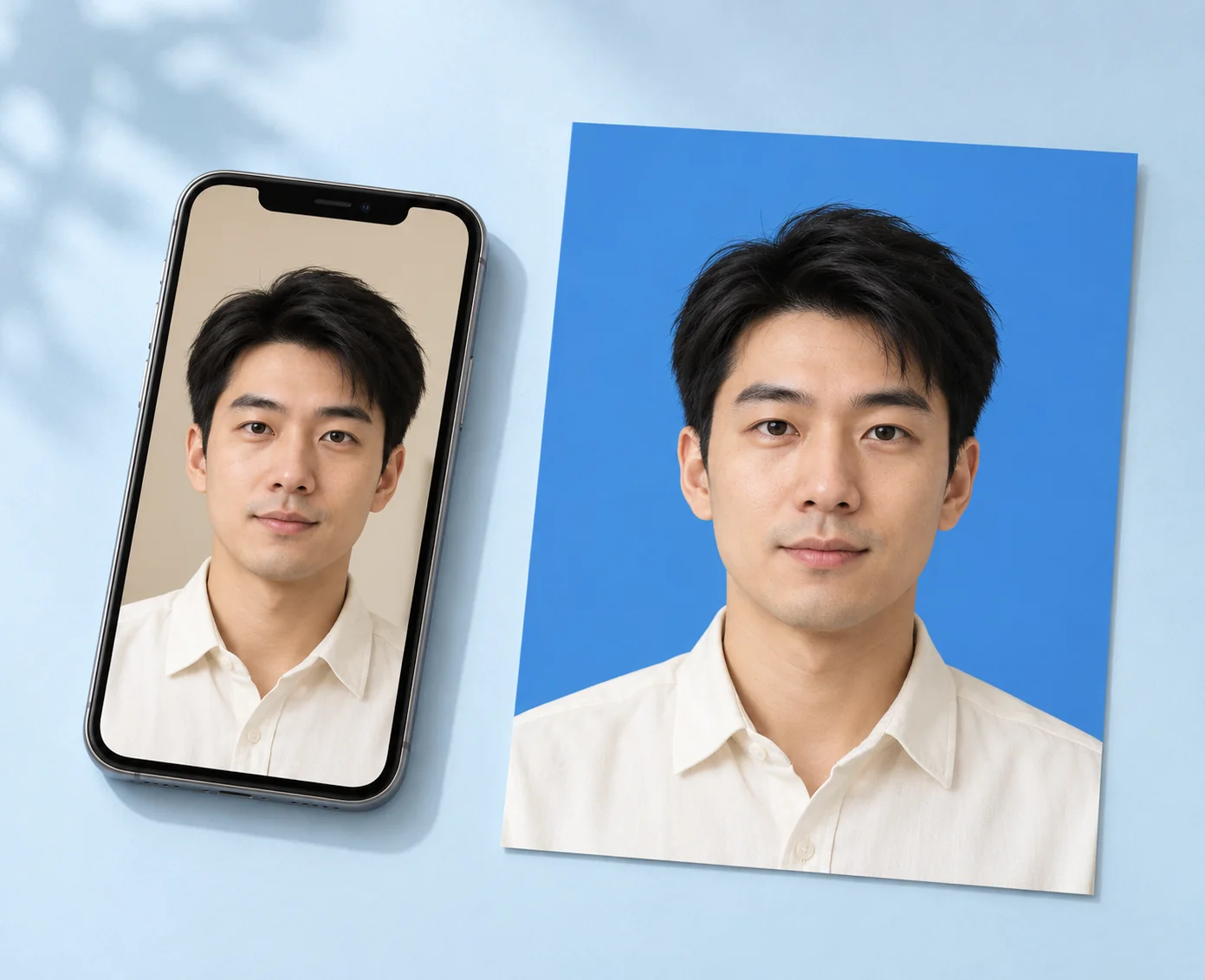
Need a light or dark blue background for a passport-style photo or ID form? Try a clear headshot you already have before booking a new photo session. Free BGRemover removes the backdrop so you can choose your blue shade, preview the result, and download a PNG for free. Check that your destination accepts blue backgrounds and digital edits.

Conceptual illustration of an existing headshot on a phone and the same man in a blue-background portrait.

Customize the Blue Background for Your Passport Photo

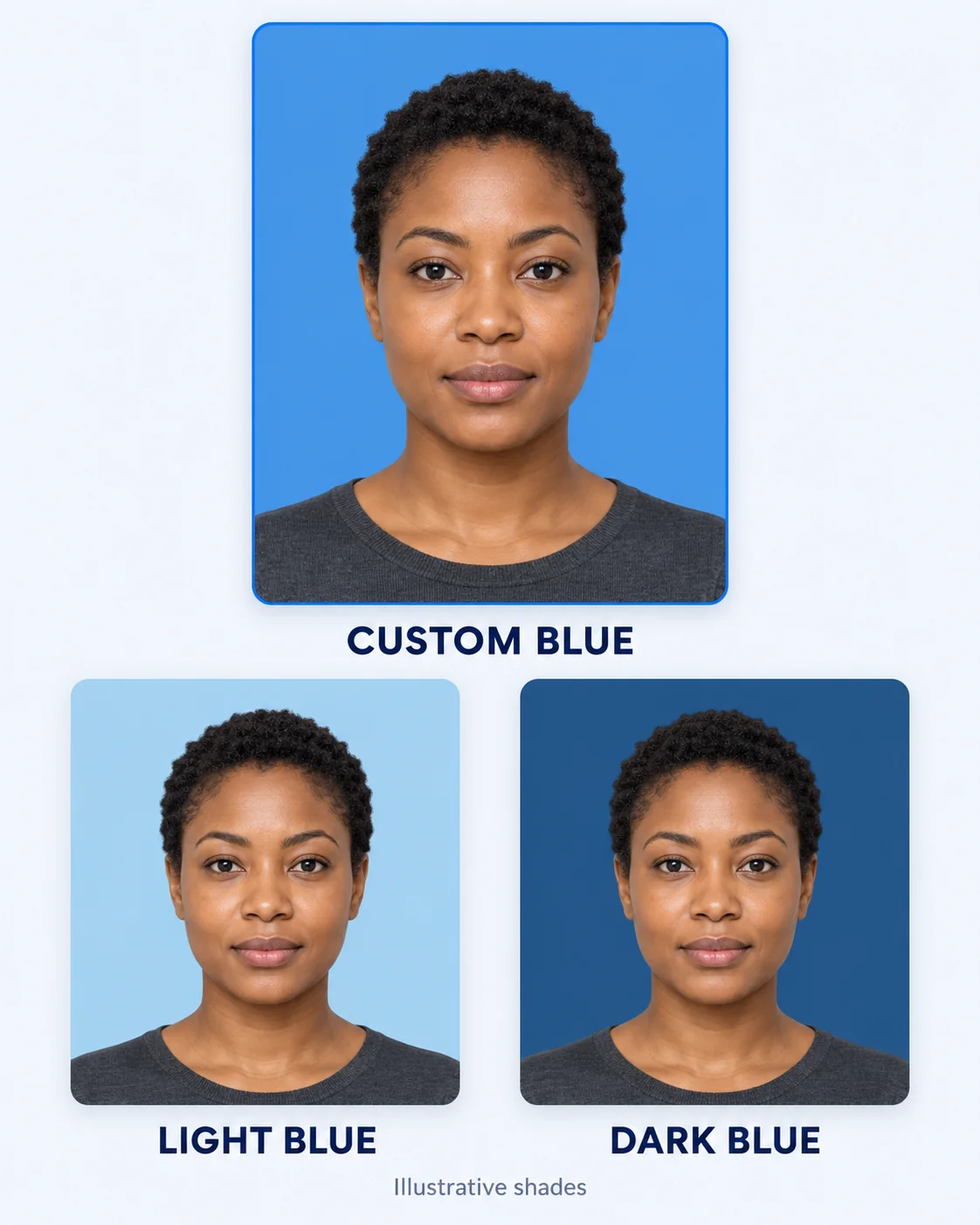
Need a particular shade of blue for your photo? Use the color reference from the organization receiving it. Free BGRemover lets you choose light or dark blue, adjust the RGB values, and check the displayed HEX code. Preview your passport-style photo before downloading. Check your destination’s full photo requirements, including dimensions, file format, and whether background editing is allowed.

Choose My Blue Background
Conceptual illustration of the same woman with custom, light, and dark blue portrait backgrounds; these are illustrative shades.

Illustrative shades. Use the color reference supplied by the receiving organization.

Blue Backgrounds for More Than Passport Photos

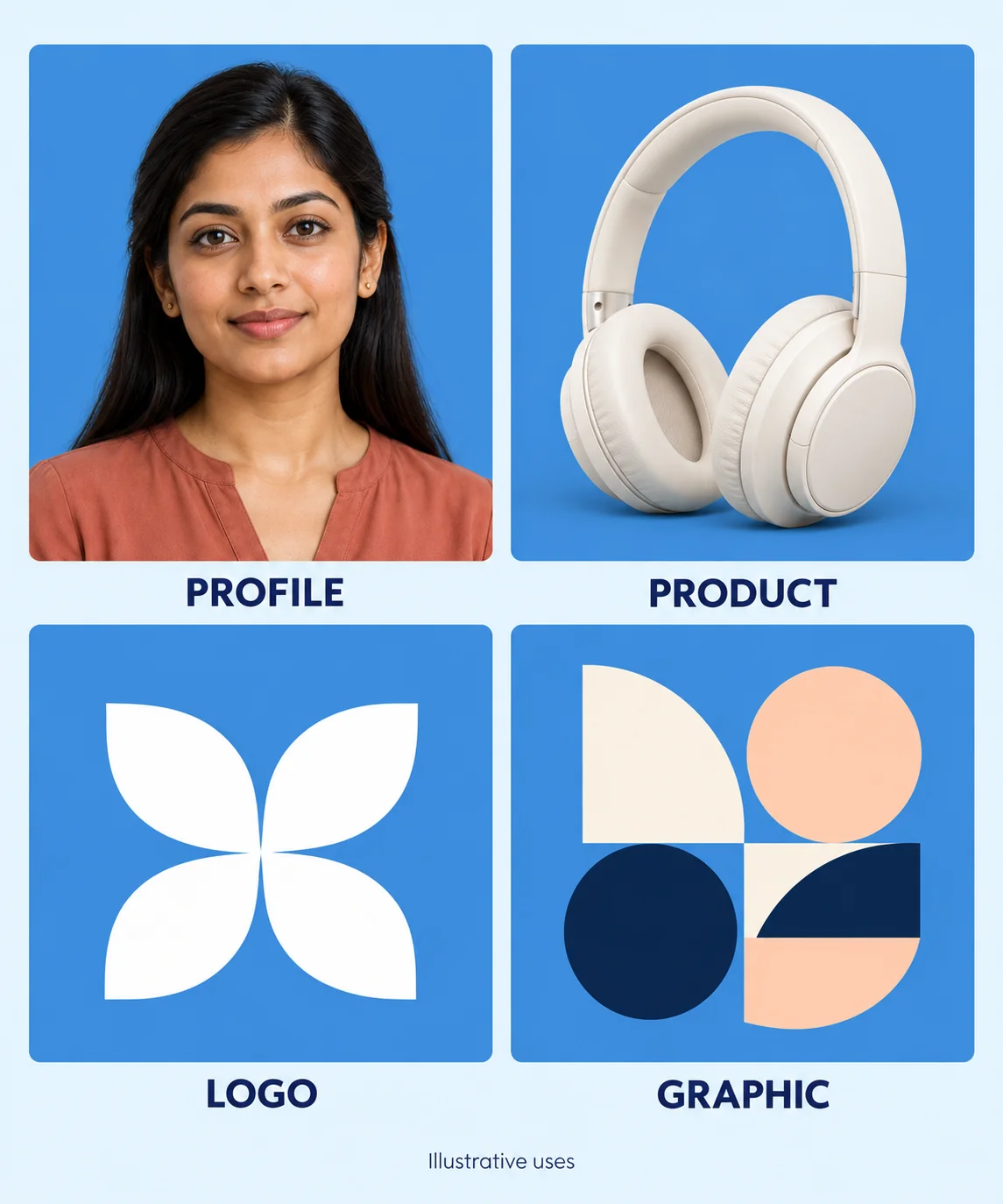
Create a consistent blue backdrop for profile pictures, school portraits, and employee photos. You can also use Free BGRemover to edit the backgrounds of product photos, logos, and graphics. Remove the original backdrop, choose blue or another solid color, and download a PNG for free, without tracing the subject by hand or learning complex selection tools.

Preview My Blue Background Photo
Conceptual collage of a profile portrait, headphones product photo, abstract logo, and geometric graphic with blue backgrounds.

How to Create a Blue Background Passport Photo Online

Upload a portrait, remove its background, choose your blue shade and download the finished PNG file.

  1. 1

    Upload your portrait and remove the background

    Choose a JPG, PNG, or WebP file up to 15 MB. Click Remove background to start processing; uploading alone does not run the tool. Keep the tab open while the model loads and prepares your result. Your browser and device need working WebGPU support.

  2. 2

    Choose blue under Custom color

    After processing, find Output background and select Custom color. Open the color picker, choose a blue shade, or adjust the R, G, and B values using your color reference. Check the displayed HEX code, then click the color swatch again to close the picker. Compare the result with your original portrait.

  3. 3

    Download and check your PNG

    Click Download PNG to save the image with the selected blue background. Open the saved file and check its edges, dimensions, and color. Confirm that the destination accepts PNG files and permits background editing before you use the result.

Why Use Free BGRemover to Add a Blue Photo Background?

Free BGRemover combines AI background removal with solid-color selection, so you can replace a portrait’s backdrop without drawing around the subject yourself. For school forms, employee profiles, and passport-style photos where editing is permitted, it lets you inspect the result and download a finished PNG from the same workspace.

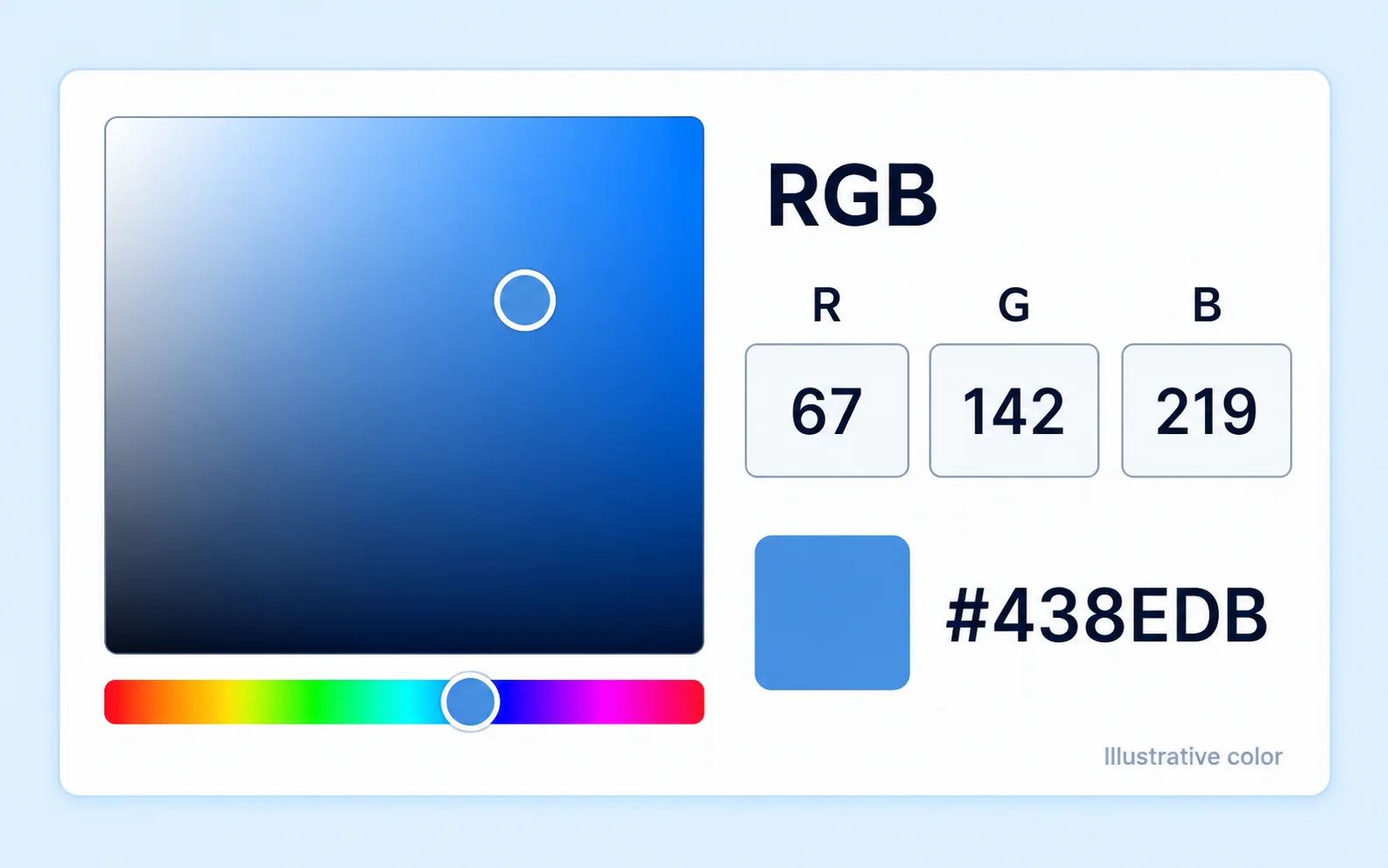
Conceptual blue color picker with RGB values 67, 142, 219 and a static HEX readout of #438EDB.

Choose Your Shade Before You Save

The custom color picker includes RGB controls and a visible HEX value. Use them to compare your chosen blue with a supplied reference, rather than relying only on how the photo looks against your screen’s surroundings.
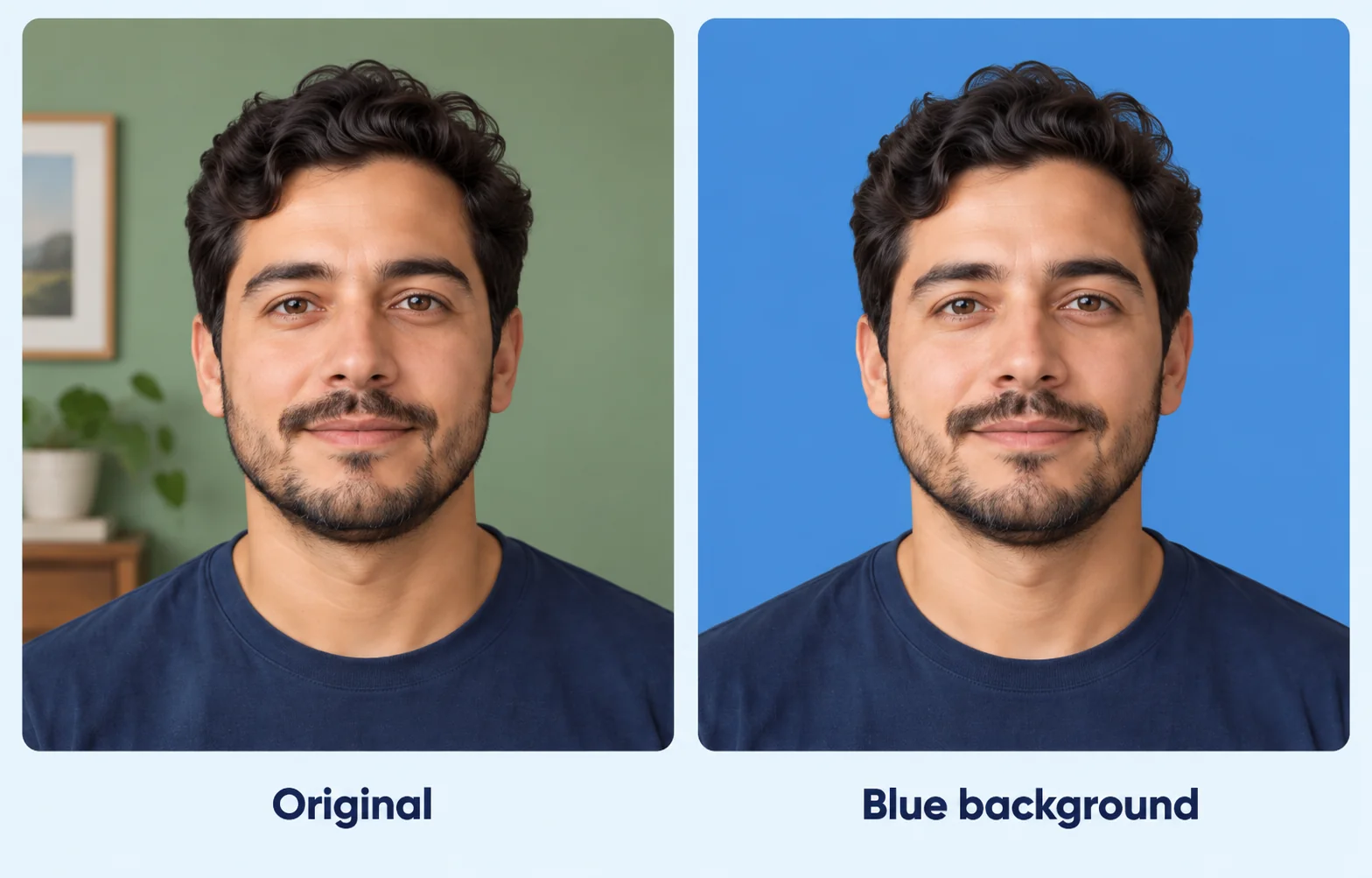
Conceptual comparison of the same man in an original indoor portrait and a blue-background portrait.

Replace the Backdrop Without Manual Tracing

AI background removal creates the subject cutout used for your color change. This reduces the need to trace the portrait yourself, while still letting you compare the result with the original and spot details that need attention.

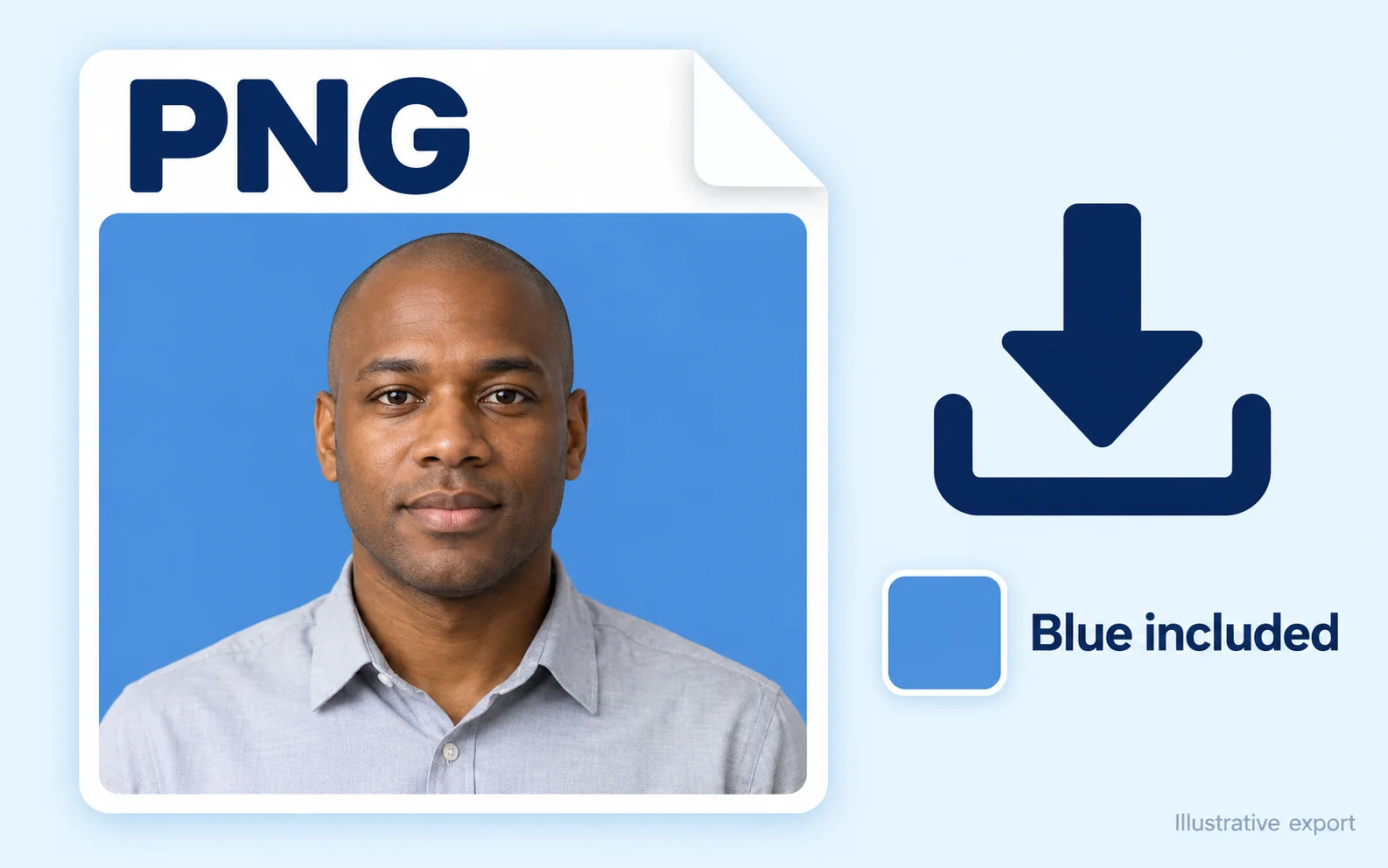
Conceptual PNG export illustration showing a blue-background portrait included in the downloaded image.

Keep the Selected Blue in Your Download

When you select Custom color, the downloaded PNG includes that background color. Save the actual file for your next task instead of a screenshot, which may include interface elements or a smaller preview of your portrait.

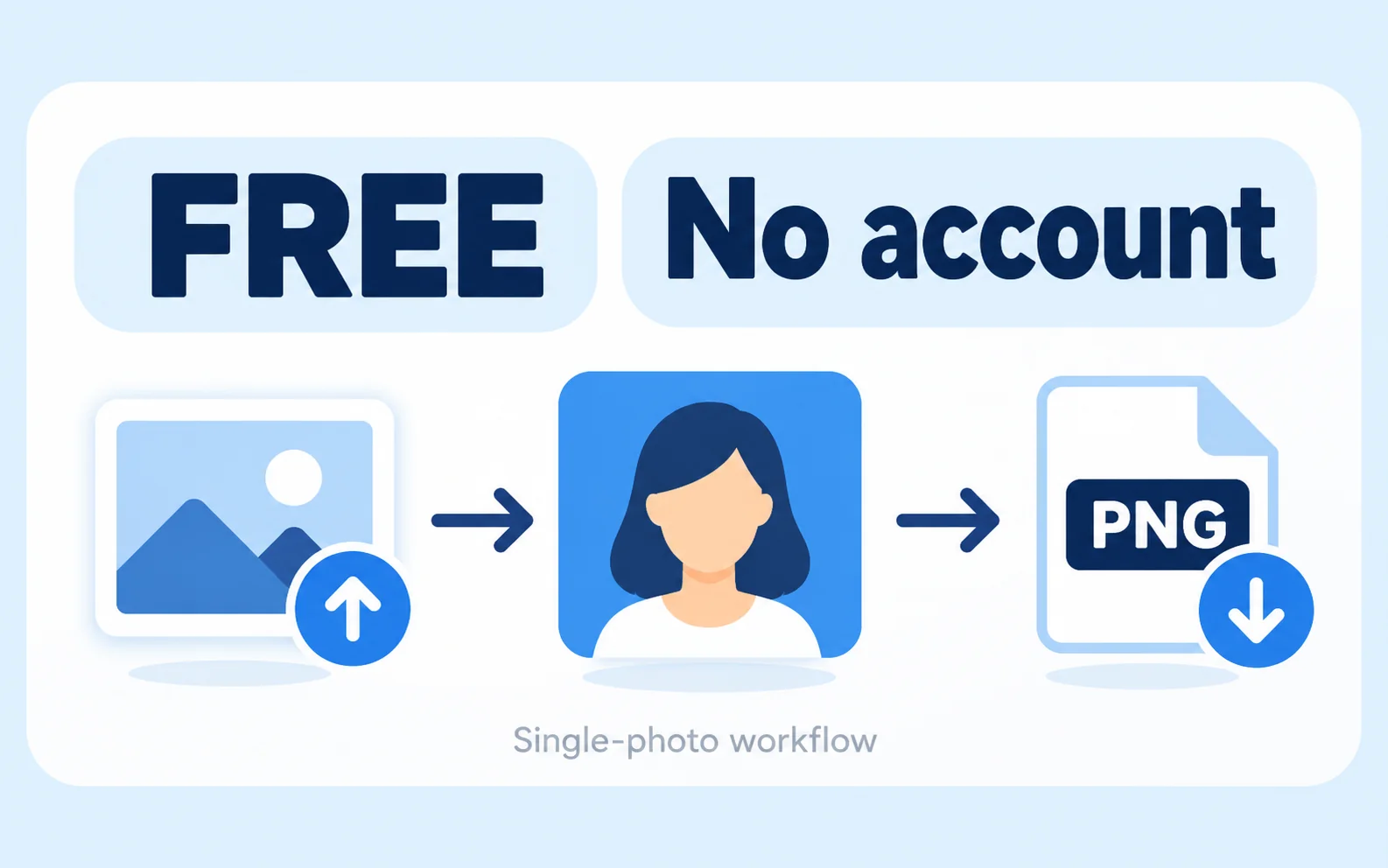
Conceptual free single-photo workflow without an account, from image upload through blue-background editing to PNG download.

Finish One Photo Without an Account

The current single-image workflow lets you remove the backdrop, choose a solid color, and download a PNG without payment or registration. You can inspect a result before deciding whether it meets your destination’s requirements.

Who Needs a Blue Background for a Small Portrait?

A blue backdrop can be useful when an organization requests it for a portrait. Choose your situation below, then check the required shade, image dimensions, and editing rules before preparing your file.

Conceptual personal-use scene of a woman at home reviewing her own blue-background portrait on a laptop.

Prepare a Portrait for a Requested Blue Backdrop

If a form or service asks for a small portrait with a blue background, use your existing photo as a starting point. Check that background editing is allowed, then review the result before uploading it. Color alone does not establish compliance.

  • Check the requested blue shade
  • Review the portrait’s outline
  • Save a PNG for the next step
Edit My Photo Background
How can I add a blue background to a passport photo?

Upload a supported portrait, click Remove background, and wait for processing to finish. Select Custom color under Output background, choose blue, and download the PNG. Check the result against your destination’s rules; replacing the backdrop does not verify document eligibility.

Which HEX or RGB value should I choose?

Use the value specified by the organization receiving your photo. If it provides only a color name, ask for a sample or code before choosing your shade. #438EDB, or RGB 67, 142, 219, is one illustrative blue; it is not an official requirement for a particular passport or document.

Can I paste a HEX code into the editor?

The current picker displays the HEX code but does not offer a HEX text input. Use the RGB fields or color controls, then check the displayed value. If you have only a HEX reference, convert it to RGB before setting your color.

Can I use a blue background for a U.S. passport?

No. U.S. passport photos require a white or off-white background, and the U.S. Department of State prohibits software or AI changes to the photo. Take a new photo that follows the official instructions rather than editing its background for submission.

Will this tool crop my photo to passport size?

No. It replaces the background and exports a PNG. It does not automatically set passport dimensions, check head measurements, or create a print layout. If your destination permits the edit, use a separate sizing tool to meet its required dimensions.

Can I download an HD result?

Start with a sharp, sufficiently large source image and check the downloaded file’s pixel dimensions. Changing the background does not sharpen a blurry photo or create missing detail. A large file can still have imperfect edges, so inspect the saved result at the size you intend to use.

Is it free, and what file formats are supported?

The current single-image tool is free to use without an account. It accepts JPG, PNG, and WebP files up to 15 MB and exports PNG. If the destination requires JPG or a specific file size, convert or resize the result separately and check it again.

What if hair is missing or the old background remains?

Compare the edited photo with the original. Changing the fill color will not restore missing hair or remove leftover background pixels. The current tool has no manual erase or restore brush. Try a clearer original with better separation between the person and the background, then inspect the new result.

Blue Photo Background FAQs

Find answers about color references, changing the backdrop, download quality, and when a blue background is suitable.

Give Your Portrait a Solid Blue Background

Have a clear photo and your destination’s color instructions ready? Upload your image, choose your blue, and inspect the result before downloading. Check that background editing is allowed and that PNG fits your next step.

Create My Blue Background Photo for Free