

Free to useNo signupNo watermark

Add a Yellow Background to Your Photo

Upload your photo, remove the original backdrop, and choose a yellow shade after processing finishes. Create a uniform setting for products, portraits, or profile pictures, then save a free PNG without signing up. Processing time depends on your device and the initial model download.

Cobalt blue over-ear headphones on a pure yellow backdrop
One photo. Three yellow shades.

Pure yellow · ⁦RGB 255, 255, 0⁩

Sample preview only. Choose the color for your upload in the editor after processing.

Your photo, a new setting

Upload your photo. Choose your yellow.

JPG, PNG, or WebP · Up to 15 MB

Privacy details

Create a Plain Yellow Background Around Your Subject

Replace a busy scene with a solid yellow background that keeps the focus on your subject. Choose a bright shade for contrast or a softer tone for a gentler look. The color fills the area revealed by background removal, giving you an even backdrop without a pattern. Review the outline before saving, especially around pale clothing, fine hair, or small gaps. A clean color fill cannot restore details missing from the cutout.

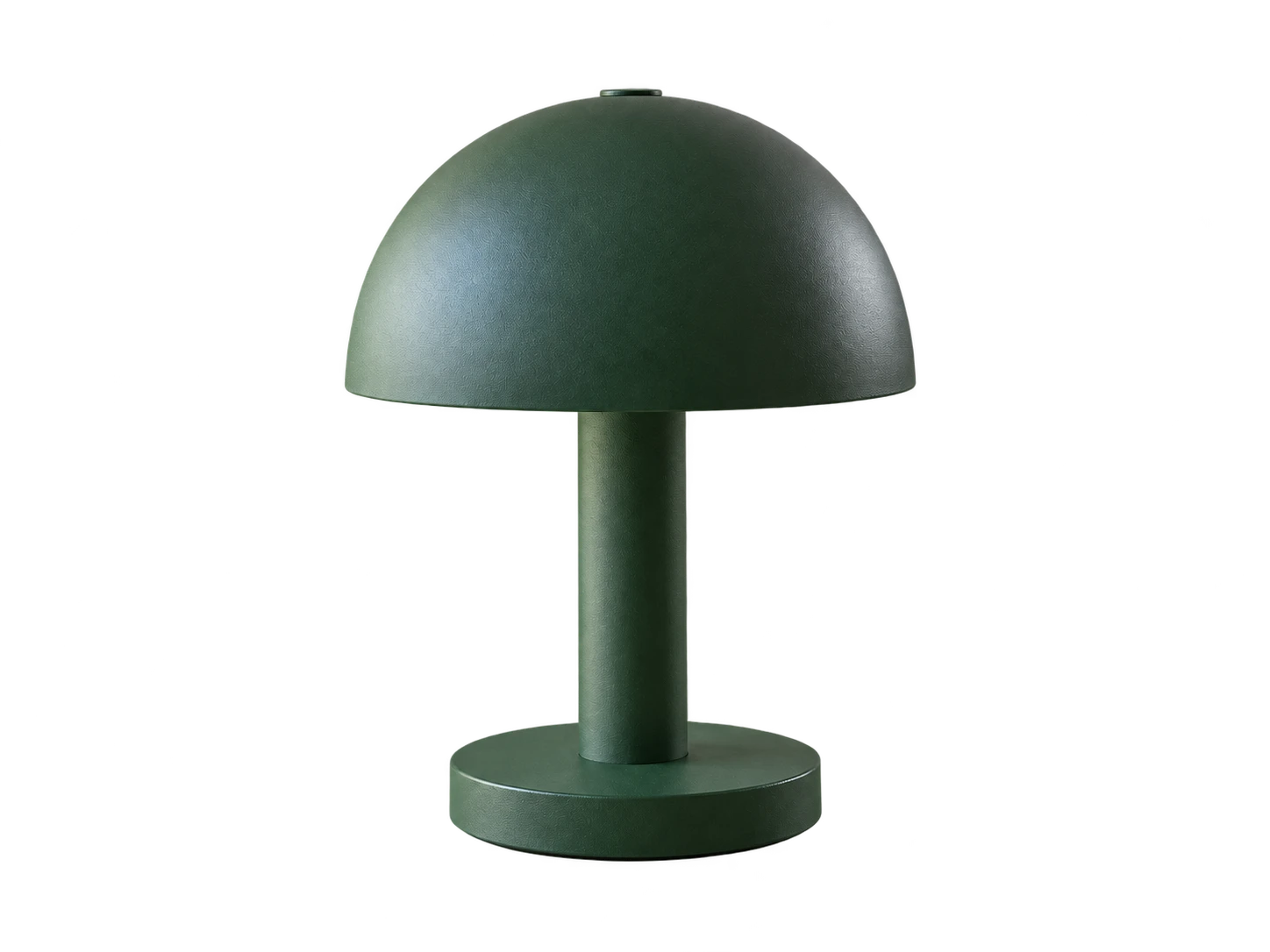
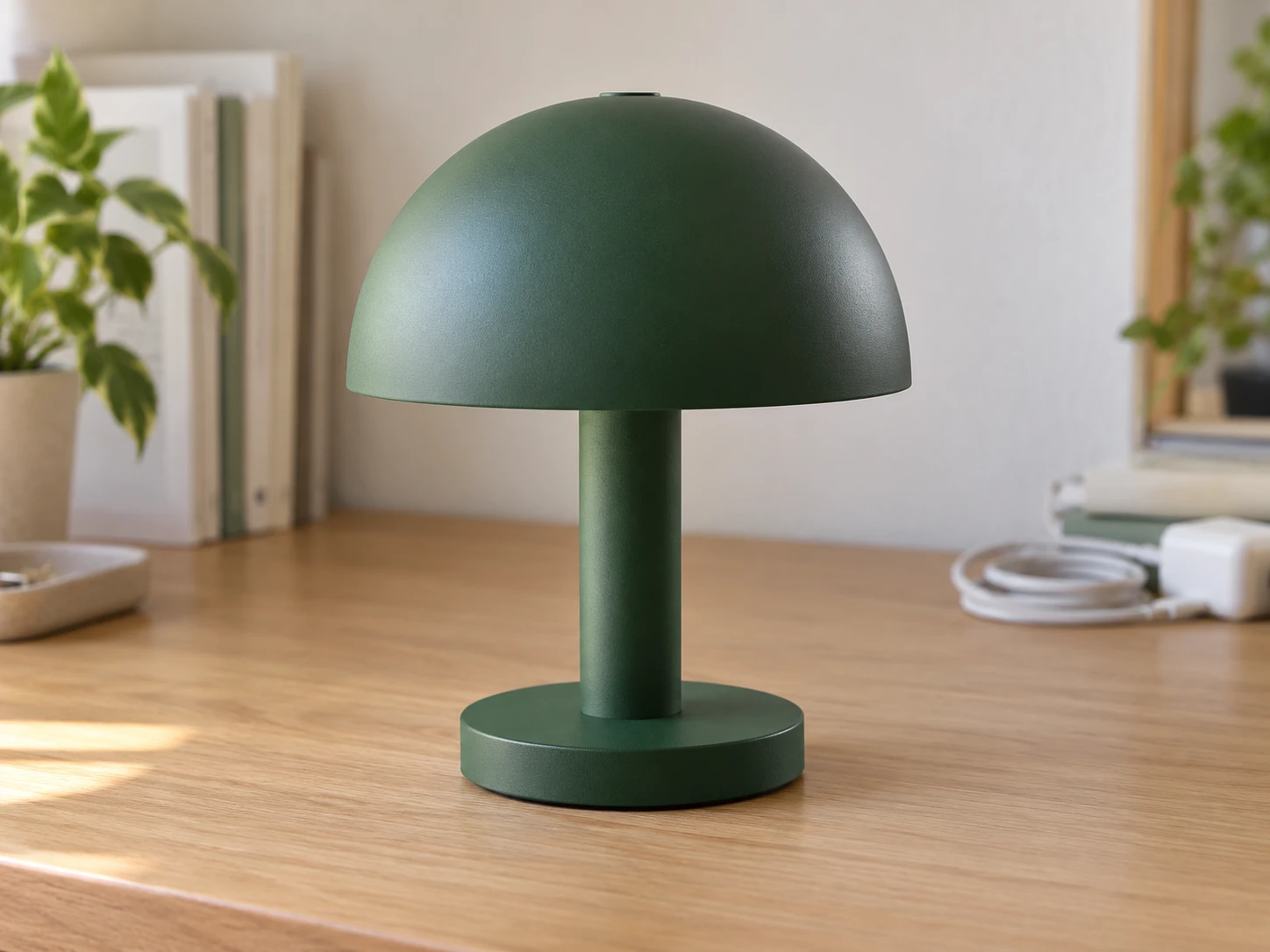
Forest-green mushroom lamp on a home-office desk before a background change

Give Product Photos a Consistent Yellow Backdrop

Prepare product images for campaign graphics, store banners, and social posts with a shared backdrop color. Set the same RGB values on each separate edit to keep the shade consistent across your collection. Compare the color against packaging, labels, and light-colored materials so important details remain visible. Download the finished image for placement in your design. Check the destination's image requirements before using a colored backdrop for a marketplace listing.

Change Photo Background to Yellow for Free
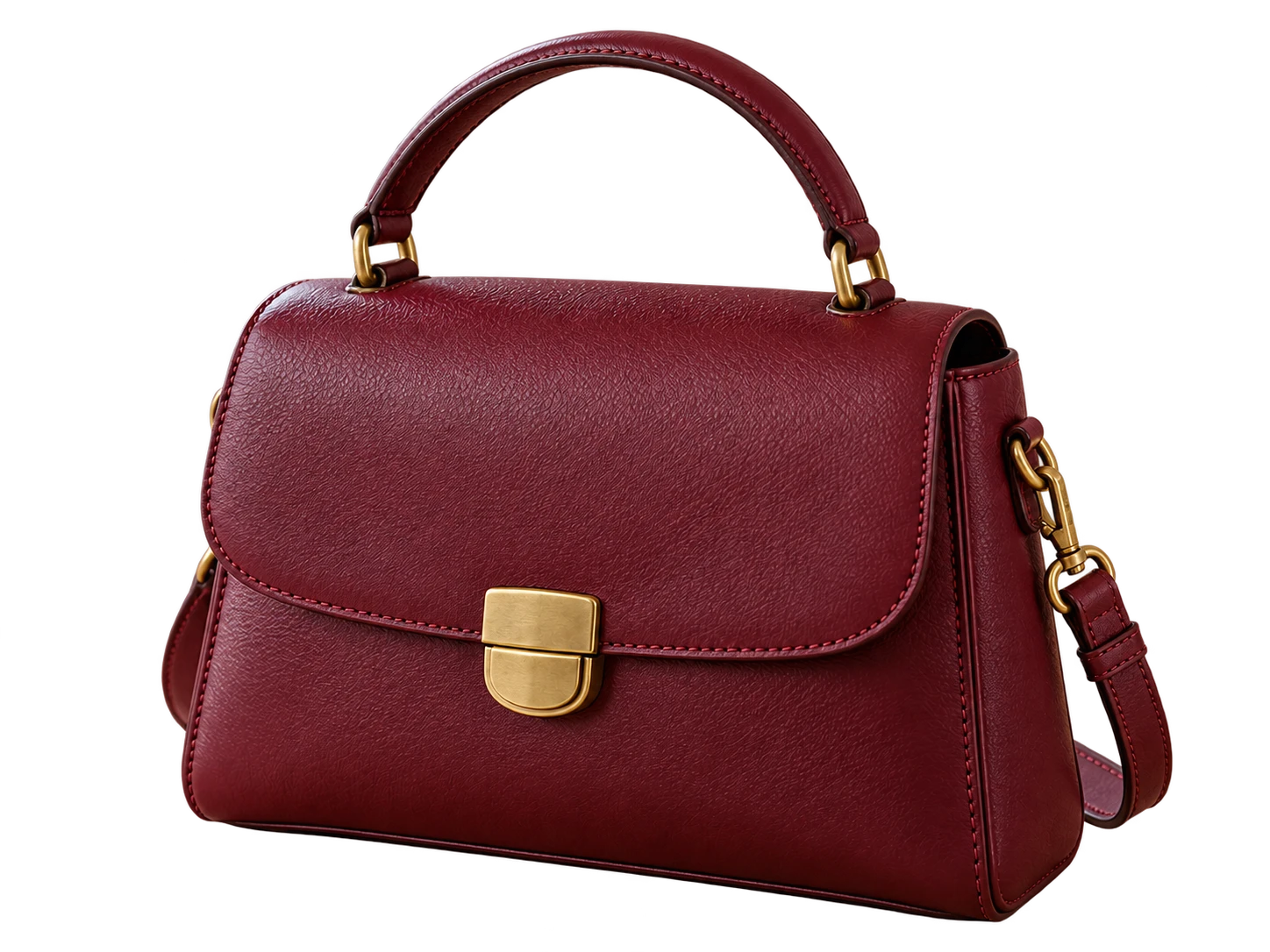
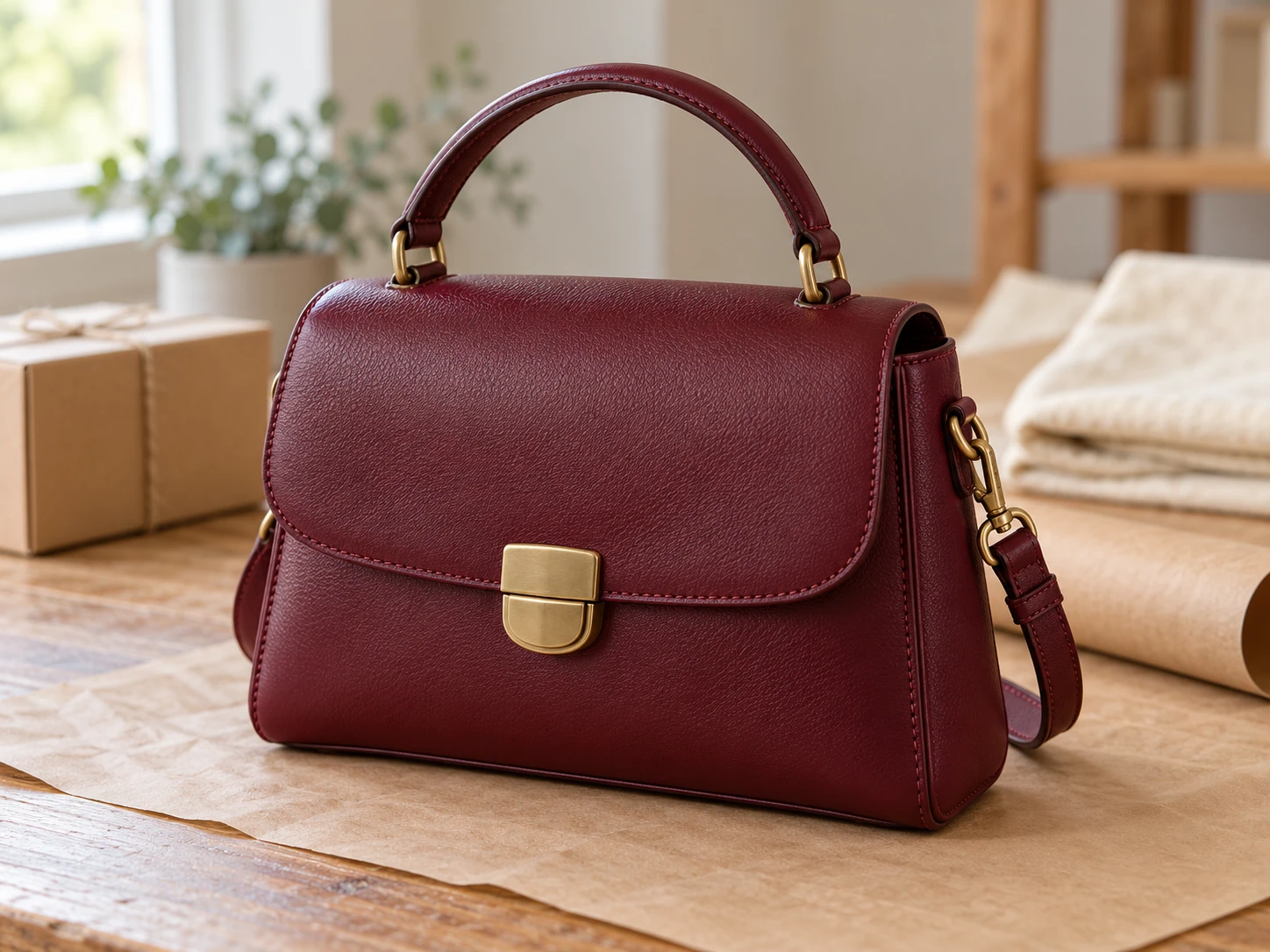
Burgundy leather handbag on a packing table before a background change

Find a Yellow Shade That Suits Your Portrait

Give a portrait or profile picture a backdrop that works with your clothing and the colors of your page. Compare a lighter tone with a deeper shade in the preview, paying attention to contrast around hair, shoulders, and accessories. Start with a photo where the person is clearly separated from the surroundings. Save the edited image for your next layout; any cropping, text, or retouching can be completed in your usual design app.

Make Photo Background Yellow Now
Woman in a navy blazer photographed in a cafe before a background change

How to Add a Yellow Background to a Photo

Turn an existing image into a color-backed PNG with three steps. Keep your original file so you can compare the result before using it elsewhere.

Upload a photo, remove its backdrop, choose a shade, and view the result before saving your new PNG.

  1. 01

    Upload your photo and remove its backdrop

    Choose a JPG, PNG, or WebP file up to 15 MB, then click Remove background. Keep the tab open while the model loads and processes the image. This step requires a browser and device with working WebGPU support; loading may take longer on the first run.

  2. 02

    Choose your yellow shade

    After processing, select Custom color and use the picker or RGB controls to choose the tone. For pure yellow, set R to 255, G to 255, and B to 0; the displayed HEX value should be #FFFF00. Check the subject's edges against the new fill.

  3. 03

    Download and check the finished PNG

    Click Download PNG to save the image with your selected backdrop included. Open the downloaded file and inspect the outline and overall contrast. Use that file in your next project, and confirm that the destination accepts PNG rather than relying on a screenshot of the preview.

Why Use Free BGRemover to Add a Yellow Background to Photos?

Free BGRemover combines AI background removal with custom color controls to give your photos a yellow backdrop without tracing the subject by hand. Product promotions, profile pictures, and campaign graphics can share a consistent backdrop color, with RGB controls for matching shades across separate edits and PNG downloads that include your chosen fill.

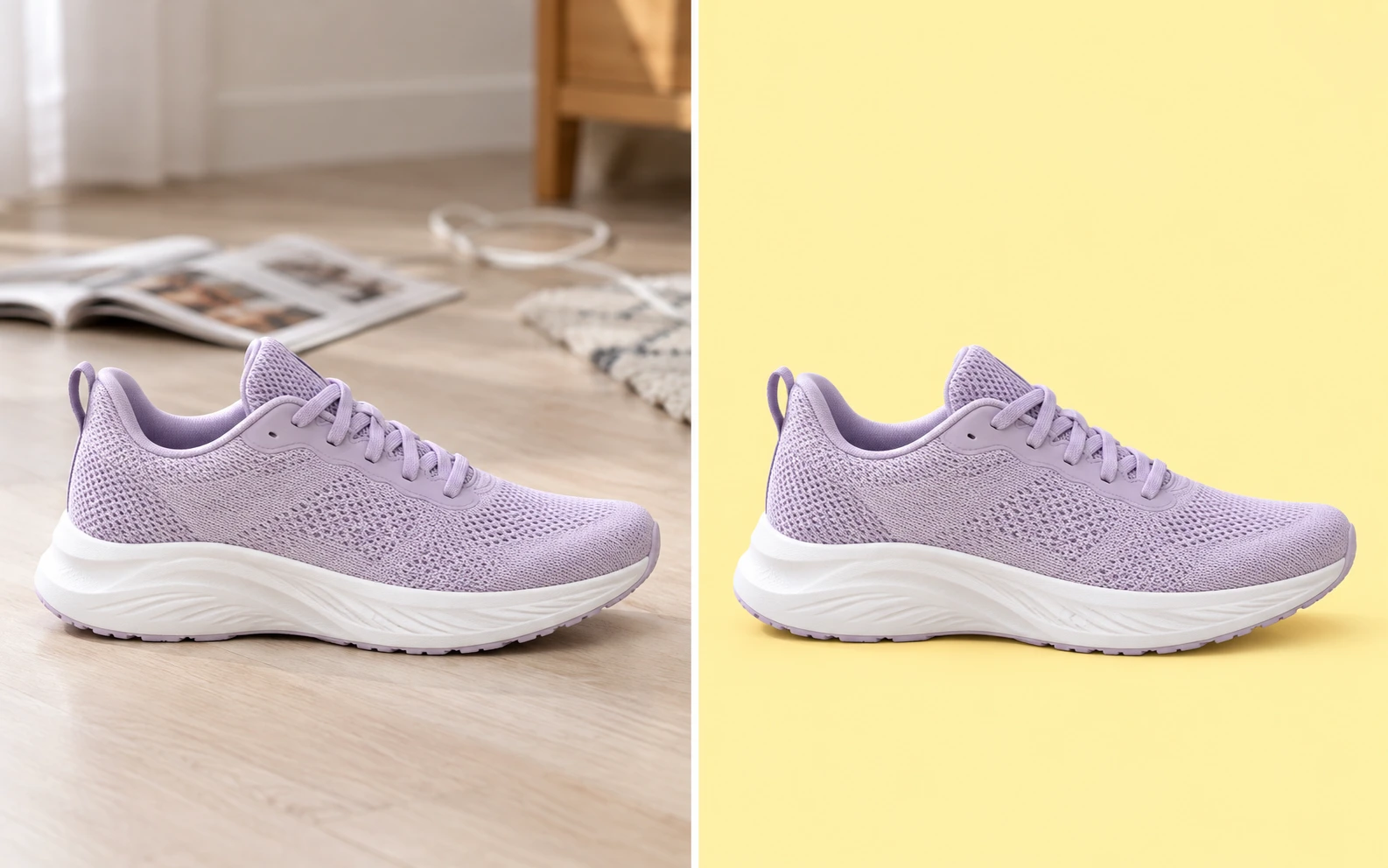
Illustrative comparison of a lavender running shoe in a busy room and on a plain yellow backdrop

Replace Busy Scenes Without Manual Tracing

AI background removal separates the main subject before the yellow fill is applied. This reduces the need to draw around a person or product yourself, so an existing photo can become the starting point for your edit.
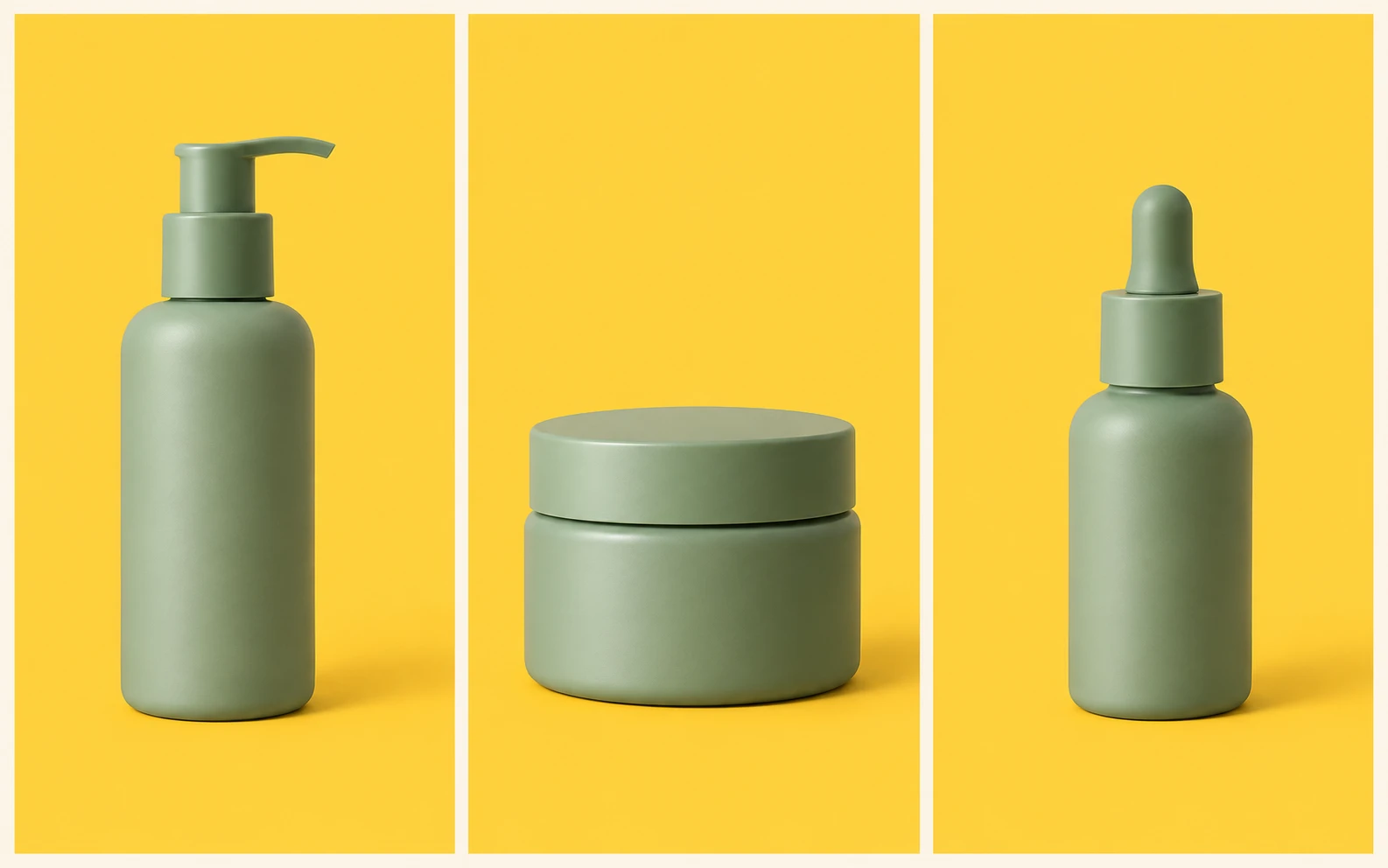
Three sage skincare products sharing the same golden yellow background

Keep Your Yellow Consistent Across Photos

RGB controls let you use specific color values instead of matching shades by eye. Reusing those values across separate edits gives related portraits or product graphics the same backdrop color, even when their original surroundings differ.

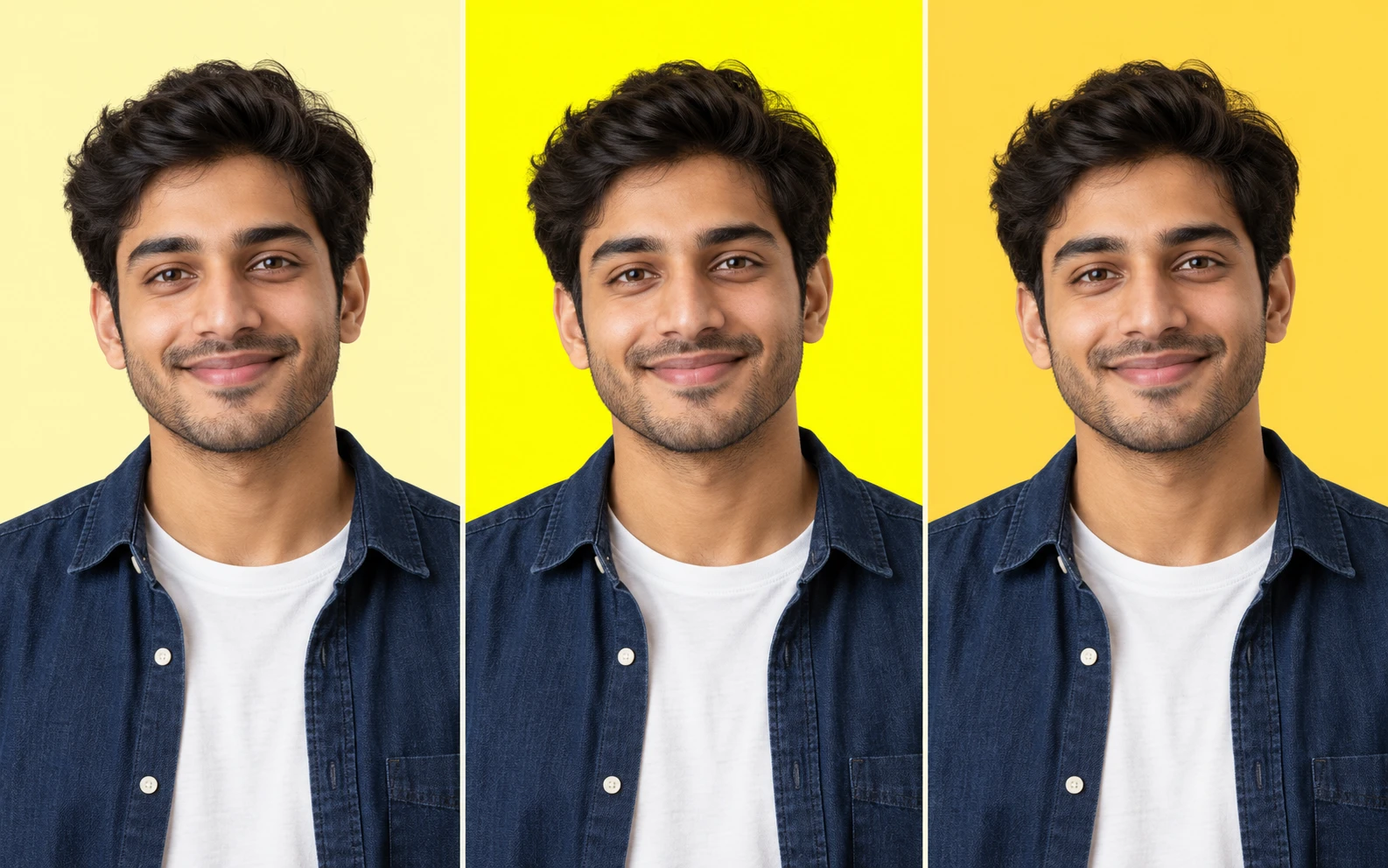
The same male portrait on soft yellow, pure yellow, and golden yellow for contrast comparison

Find a Shade That Suits Your Subject

The preview lets you compare lighter and deeper yellows against hair, clothing, or packaging to judge contrast. Color changes reuse the processed cutout, so you can explore different tones without running AI background removal again.

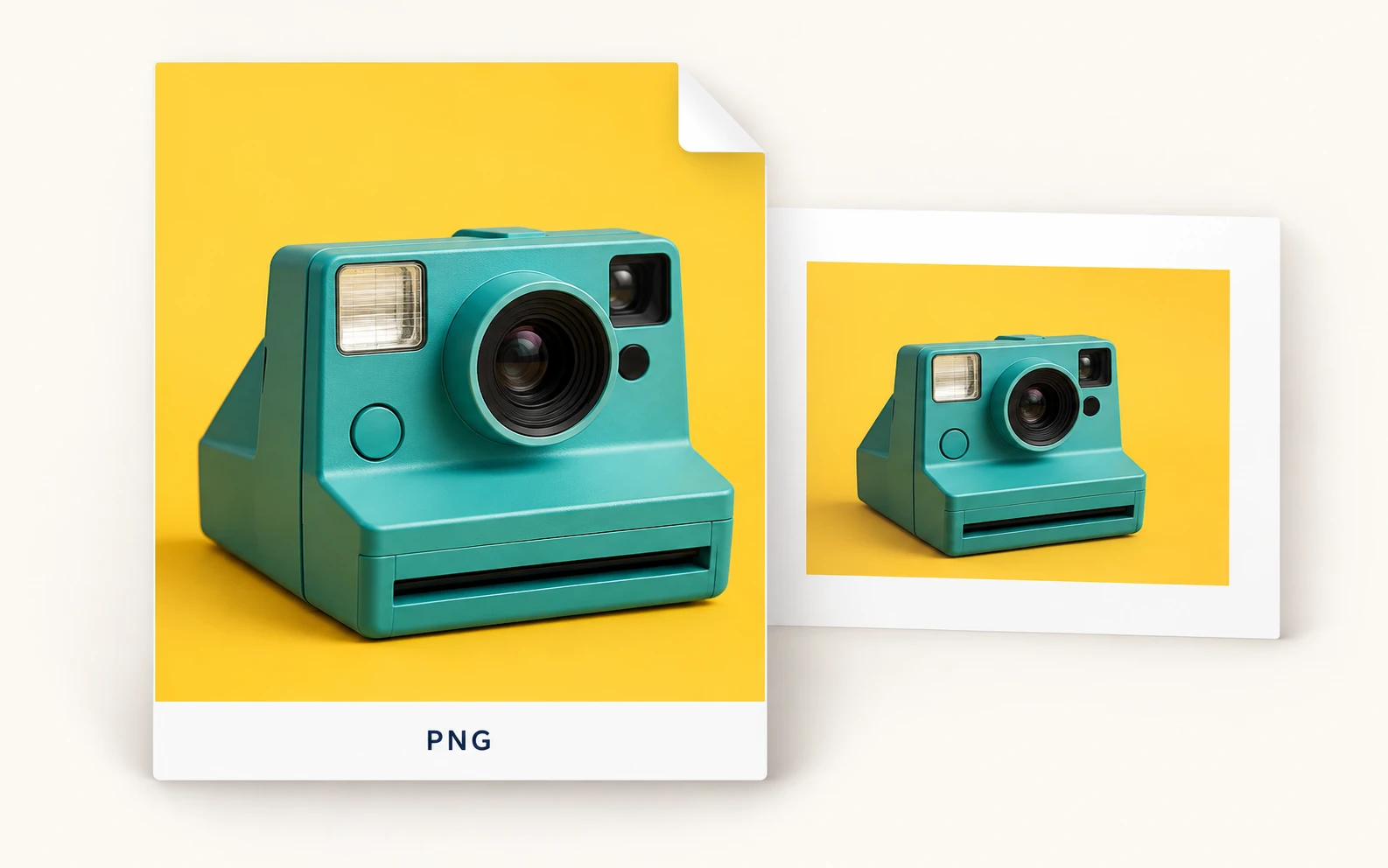
Illustration of a PNG image containing a teal camera and yellow backdrop, reused in a presentation

Save a PNG With the Color Included

The downloaded PNG contains both the subject and selected solid backdrop. It can be placed in a website, presentation, or design project that accepts PNG files, without rebuilding the color behind the subject.

Who Can Use a Yellow Backdrop for Their Photos?

Choose the example closest to your next task. A uniform color can bring related images together, but the right shade depends on the subject and the layout where the photo will appear. Review each result before adding it to your project.

Woman at home reviewing her yellow-background profile portrait on a smartphone

Give Your Profile Photo a Distinct Look

Refresh an existing portrait with a color that suits your profile page or personal site. Compare the backdrop against your hair and clothing before downloading. If the platform uses a circular crop, check how the saved image looks there; the background editor does not position or crop your face for you.

  • Compare contrast around your face
  • Choose a shade that fits your page
  • Save a PNG for your profile layout
Edit My Profile Backdrop
How do I change photo background to yellow?

Upload your image and click Remove background. Once processing finishes, select Custom color, choose your shade, and inspect the preview. Download the PNG when the subject and backdrop look right. To use pure yellow, enter RGB values of 255, 255, and 0.

Is the tool free, and will my download have a watermark?

The current single-image editor lets you remove the original backdrop, apply a custom color, and download the PNG without paying or creating an account. No watermark is added to the export. Use the preview to check the result before saving your file.

Can I add a yellow background to a transparent PNG?

PNG uploads are supported, but the current workflow still requires the Remove background step before custom color controls become available. It does not offer a separate fill-only path for an existing transparent file. Compare the result carefully, since processing may change an already prepared cutout.

Can I upload a JPG or replace a white backdrop?

Yes. JPG, PNG, and WebP images up to 15 MB are accepted, including photos with a white backdrop. Remove the original background, then apply your chosen shade. The finished file downloads as PNG; the editor does not currently offer a JPG export option.

How can I keep the color consistent across several photos?

Enter the same RGB values for each individual edit and keep them as your color reference. This makes the selected fill consistent without matching it by eye. Differences in the subject's lighting will remain, so the same backdrop does not make every photo look identical.

Can I download yellow background images without uploading a photo?

This editor changes the backdrop of an image you upload. It does not provide a stock-image library, a blank color canvas generator, or downloadable wallpapers. Use it when you have a photo to edit; a standalone background asset requires a different workflow.

Will my image be downloaded in HD?

The export canvas uses the source image's pixel dimensions, and the editor does not upscale a small photo into HD. Matching the original dimensions does not guarantee that fine edges will look identical. Use a clear source image and check the saved PNG at your intended display size.

What should I check if the subject blends into the new color?

Compare lighter and darker shades against clothing, packaging, hair, and accessories. A different tone can improve contrast, but it cannot restore details that background removal has missed. Review small gaps and pale edges in the preview before deciding whether the image is suitable for your project.

Why does processing take longer on the first attempt?

The browser needs to download and load the processing model before it can remove the backdrop. Timing depends on your connection and device. Keep the tab open during processing. The editor requires working WebGPU support; if it cannot start, try another compatible browser or device.

Yellow Background Photo Editor: FAQs

Find answers about choosing a shade, supported files, downloads, and what to check before using your edited image.

Give Your Next Photo a Fresh Backdrop

Start with an image you already have. Remove the original scene, choose a shade that suits the subject, and check the preview before downloading. Save your finished PNG for a profile, product graphic, or creative layout, without creating an account.

Add Yellow Background to Photo for Free