

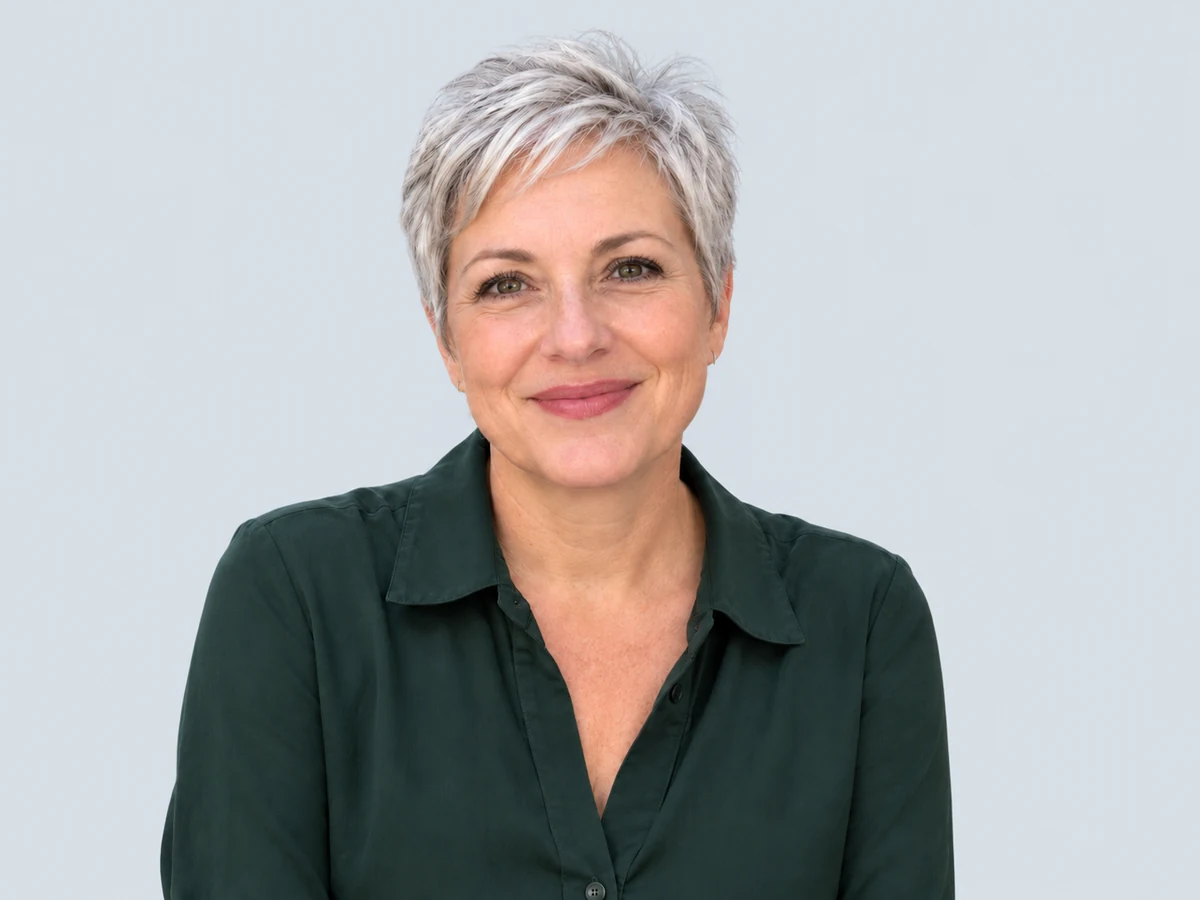

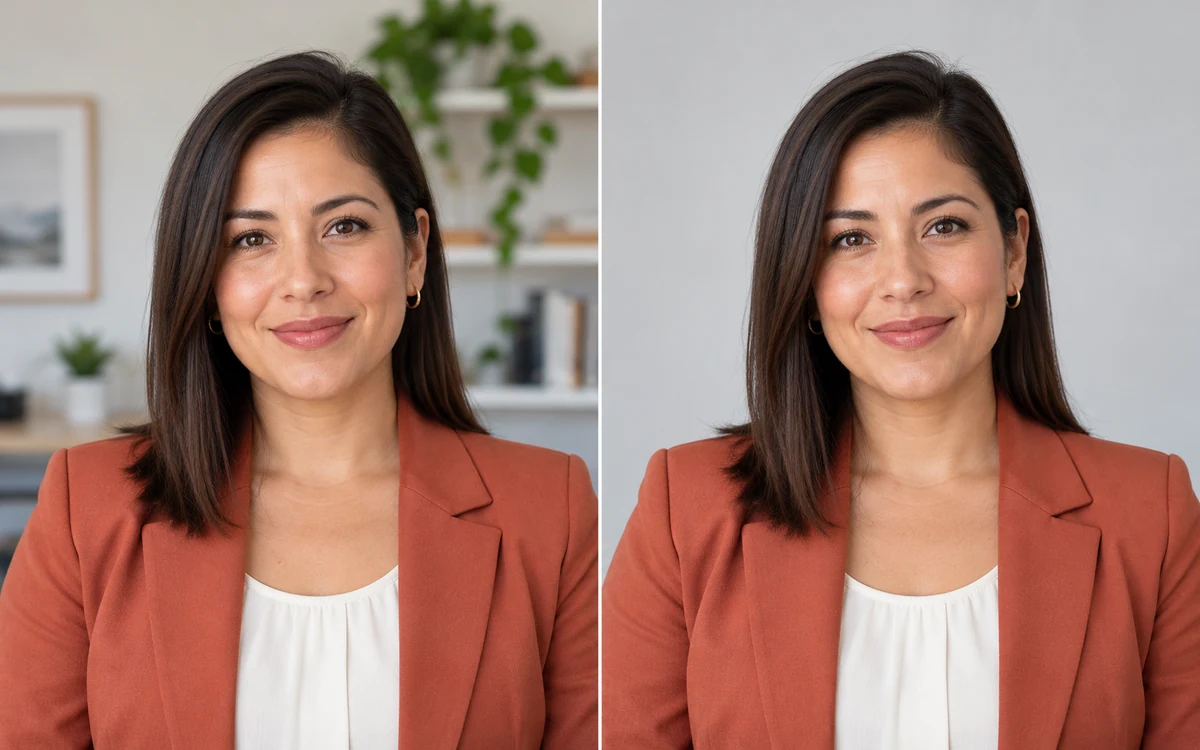
Keep the Headshot You Already Like
Your face, expression, and outfit come from your uploaded photo. AI removes the surrounding scene so you can give that portrait a professional background without arranging another photo session.
Free to useNo account neededPNG download
Need a professional headshot without a studio session? Upload a portrait, let AI remove the distracting backdrop, then choose a clean solid color, preview, and download a PNG for LinkedIn, resumes, or work profiles.
Your portrait, ready for a new backdrop
JPG, PNG, or WebP · Up to 15 MB
Privacy details#EEEEEE Gray blue #DCE2E8 White #FFFFFF Compare a portrait before and after adding a clean, neutral background.

Need a more polished headshot without booking a studio or buying a backdrop? Upload a portrait, let AI remove the existing scene, and choose a clean solid color. Preview the result, then download a PNG for your resume, LinkedIn profile, or company bio—all online.

Want a polished headshot that still feels natural? Replace a distracting scene with white, gray, or a custom solid color that complements your clothing and keeps attention on your face. Preview the shade with your portrait, then download a PNG for LinkedIn, resumes, or company profiles.
Try a Neutral Background Color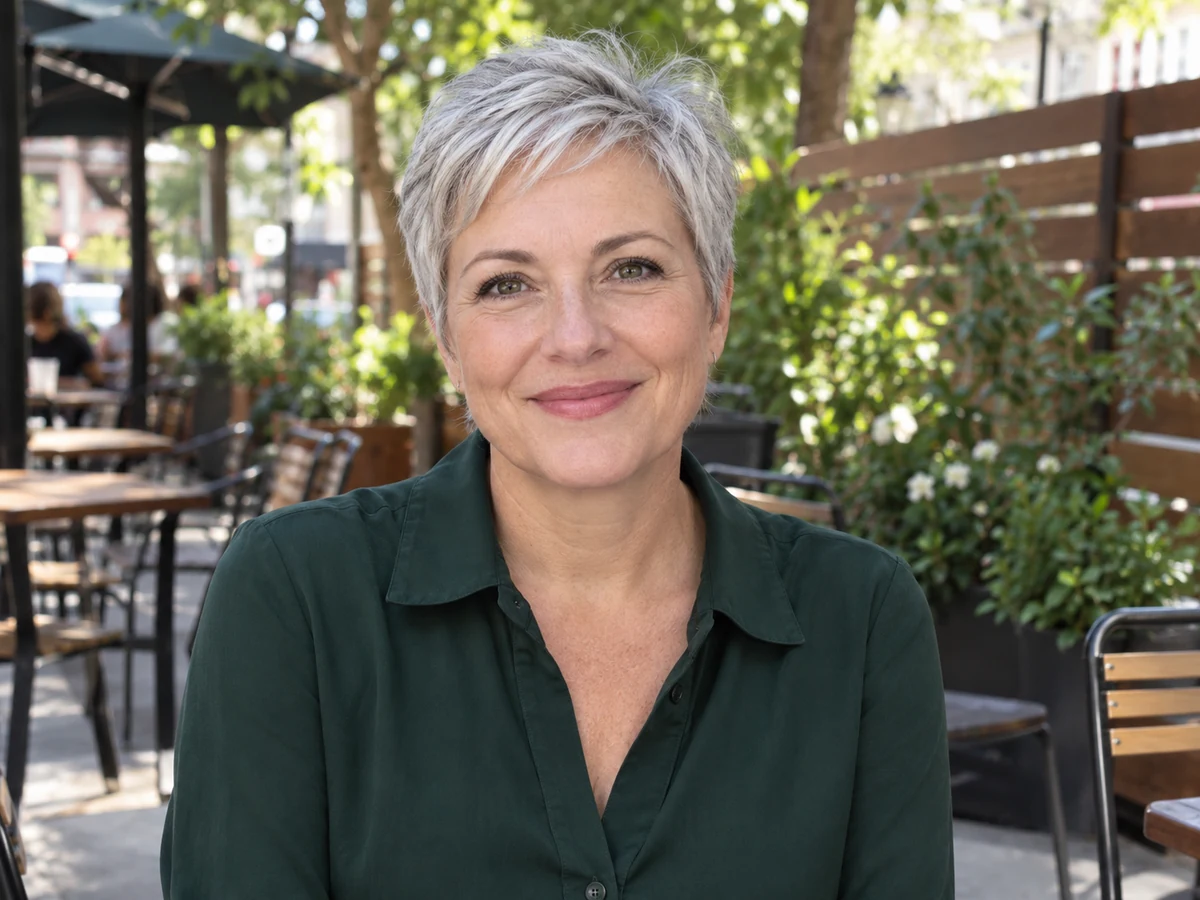
Updating your resume, LinkedIn profile, or company directory? Reuse a portrait you already have. AI removes the original backdrop so you can choose a solid color, preview the result, and download a PNG for your professional profiles—no studio session needed.
Update Your Professional Photo
Upload a portrait, choose a clean solid color, and review the result before you download it.
The editor removes the existing backdrop so you can choose a solid color and check your portrait before saving.
Choose a JPG, PNG, or WebP image up to 15 MB. A clear portrait with the full subject visible gives you a useful starting point.
Start AI background removal, then select white or a custom solid color. Adjust the shade to suit the portrait and the place you plan to use it.
Compare the edited image with the original. Check hair, clothing, and fine edges, then download the PNG when the result fits your needs.
Use your own portrait, choose the background color you need, and review the result before downloading. With Free BGRemover, your finished PNG is free to save—no account or added watermark.
Your face, expression, and outfit come from your uploaded photo. AI removes the surrounding scene so you can give that portrait a professional background without arranging another photo session.
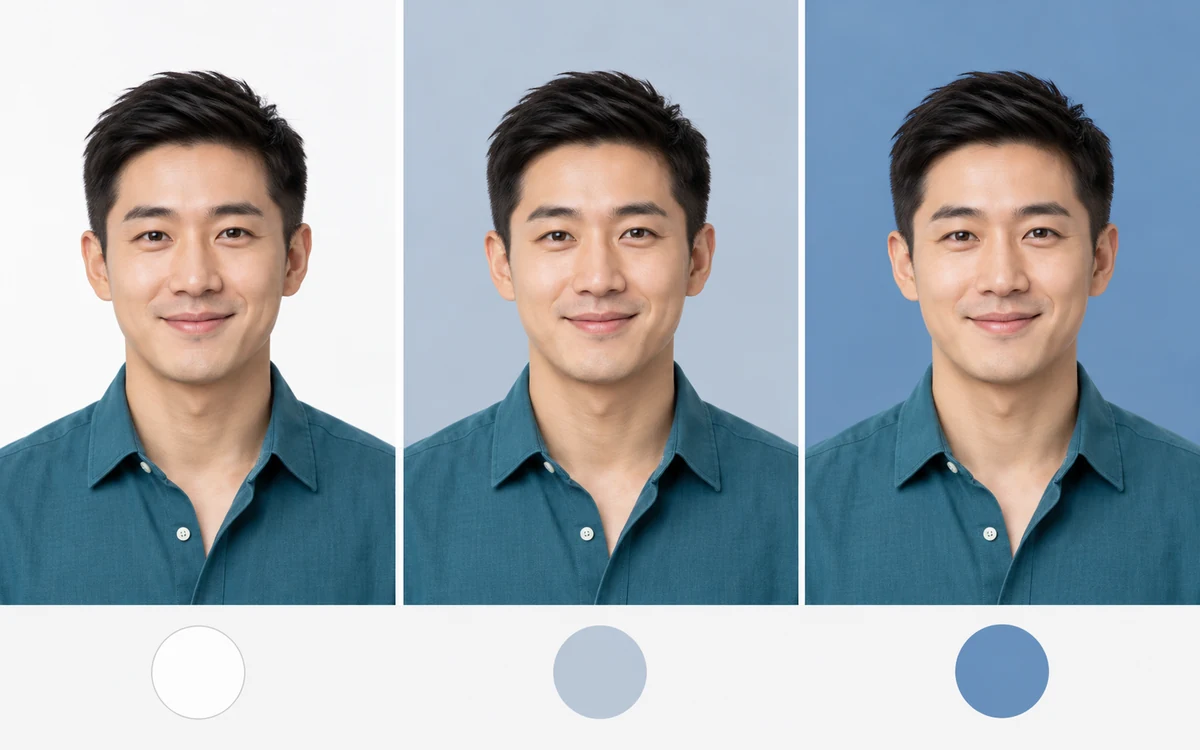
Choose white or a custom solid color, then fine-tune its RGB values. Try different shades on the same portrait, or reuse a color across employee photos for a consistent team page.
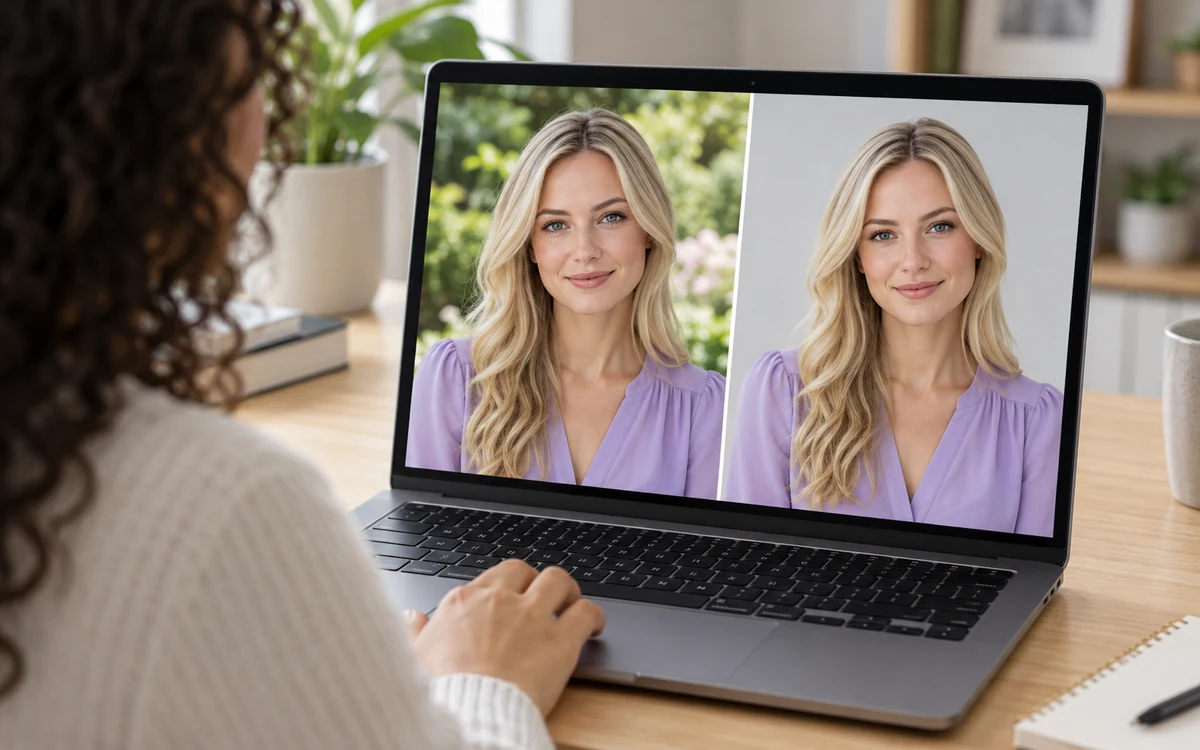
View your original photo beside the result to check the background color and look for stray background around hair or clothing. Adjust the shade before saving your PNG.
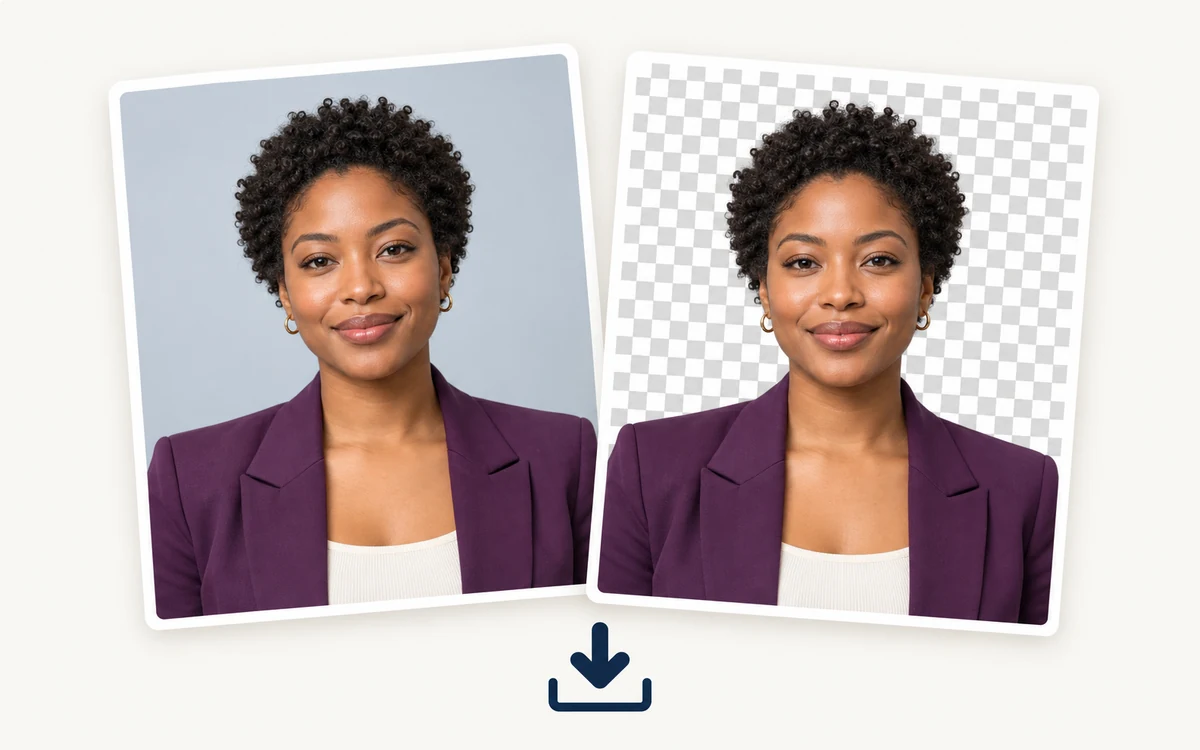
Save your portrait with the chosen background already applied for LinkedIn or a company profile. You can also download a transparent PNG for another design. Both exports are free, with no signup or added watermark.
Choose the profile or workplace use that fits your photo. The editor changes the area behind the subject; it does not retouch facial features or create an office scene.
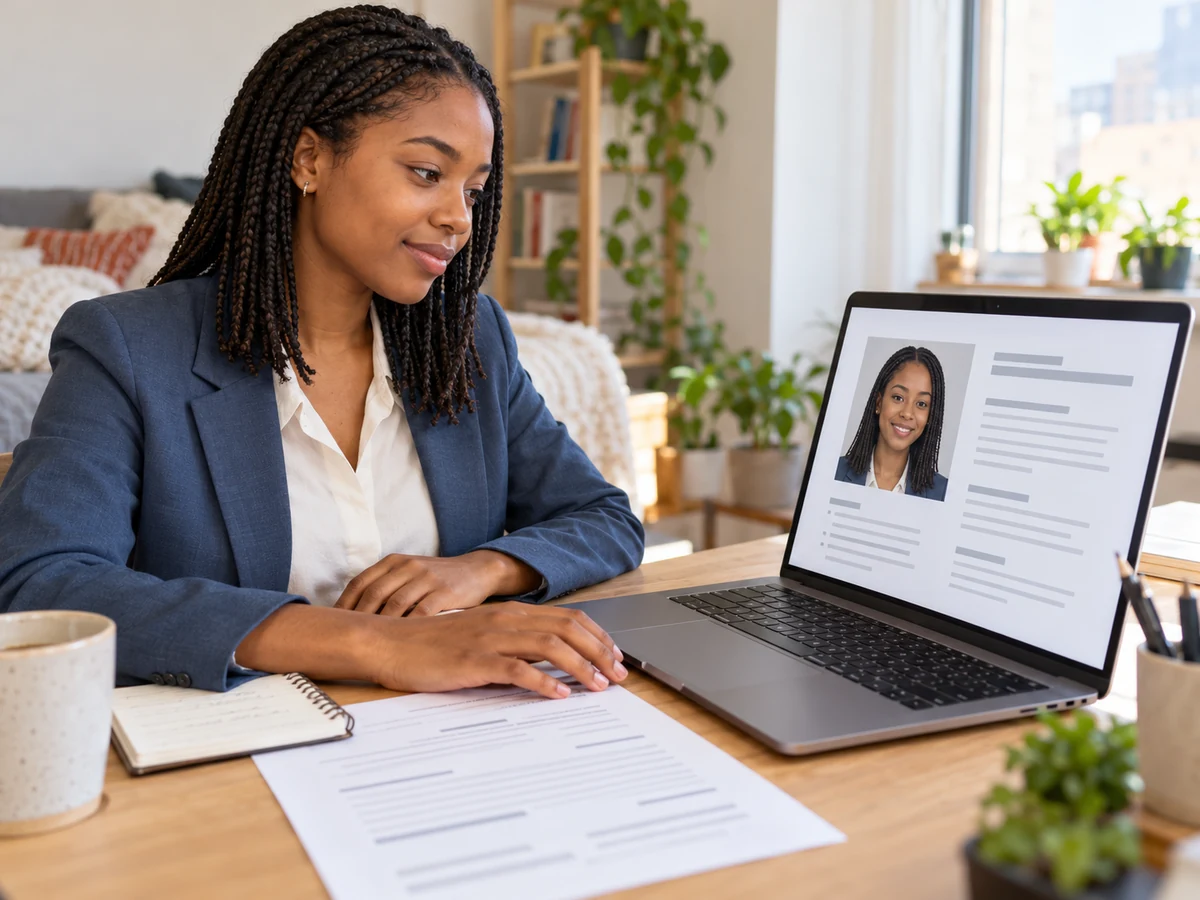
Replace a distracting room or outdoor setting with a clean solid color before adding your portrait to a resume or job profile. Check the final image against any employer requirements.
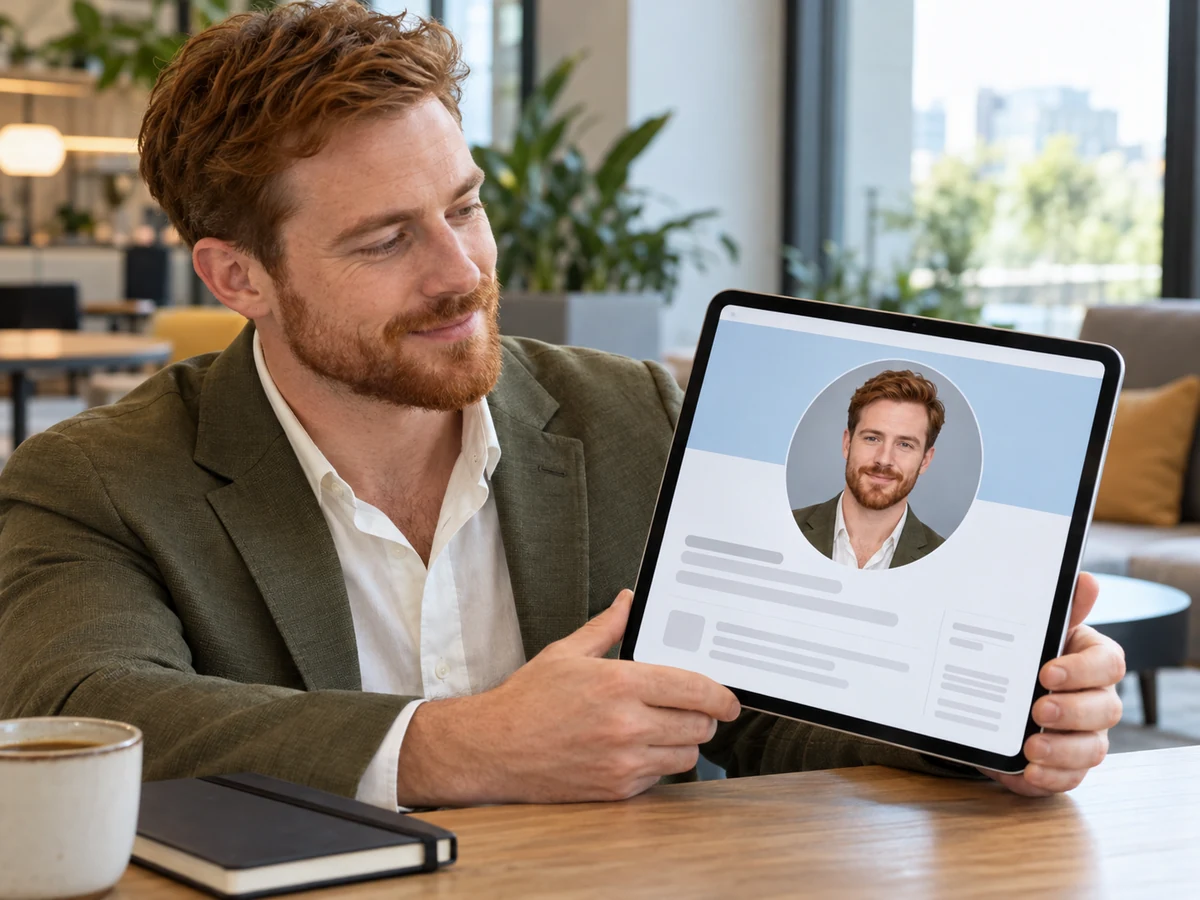
Give an existing headshot a simpler backdrop before updating your profile. Download the PNG and check LinkedIn's current image requirements before uploading.
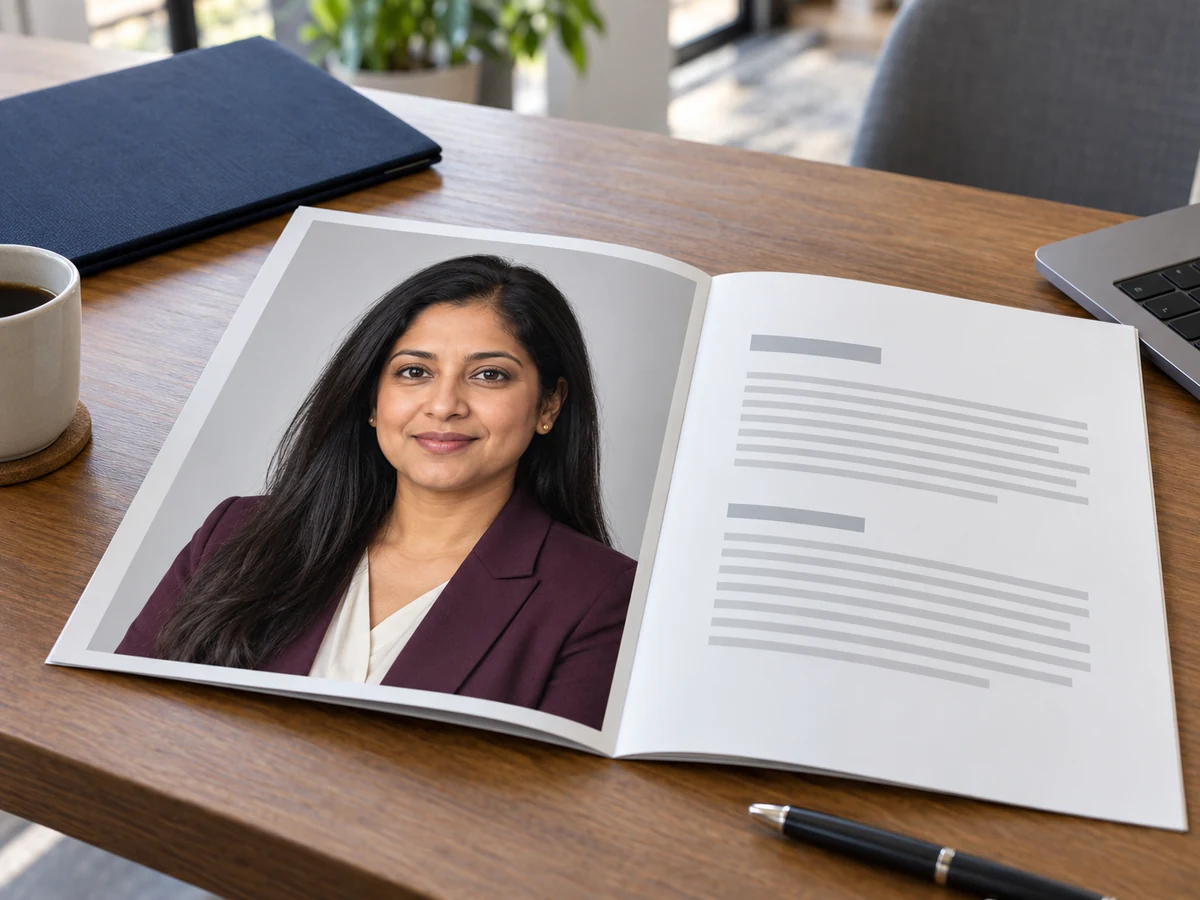
Use a clean background for a company bio, speaker profile, or client-facing page. Choose a color that keeps your face and clothing distinct from the backdrop.
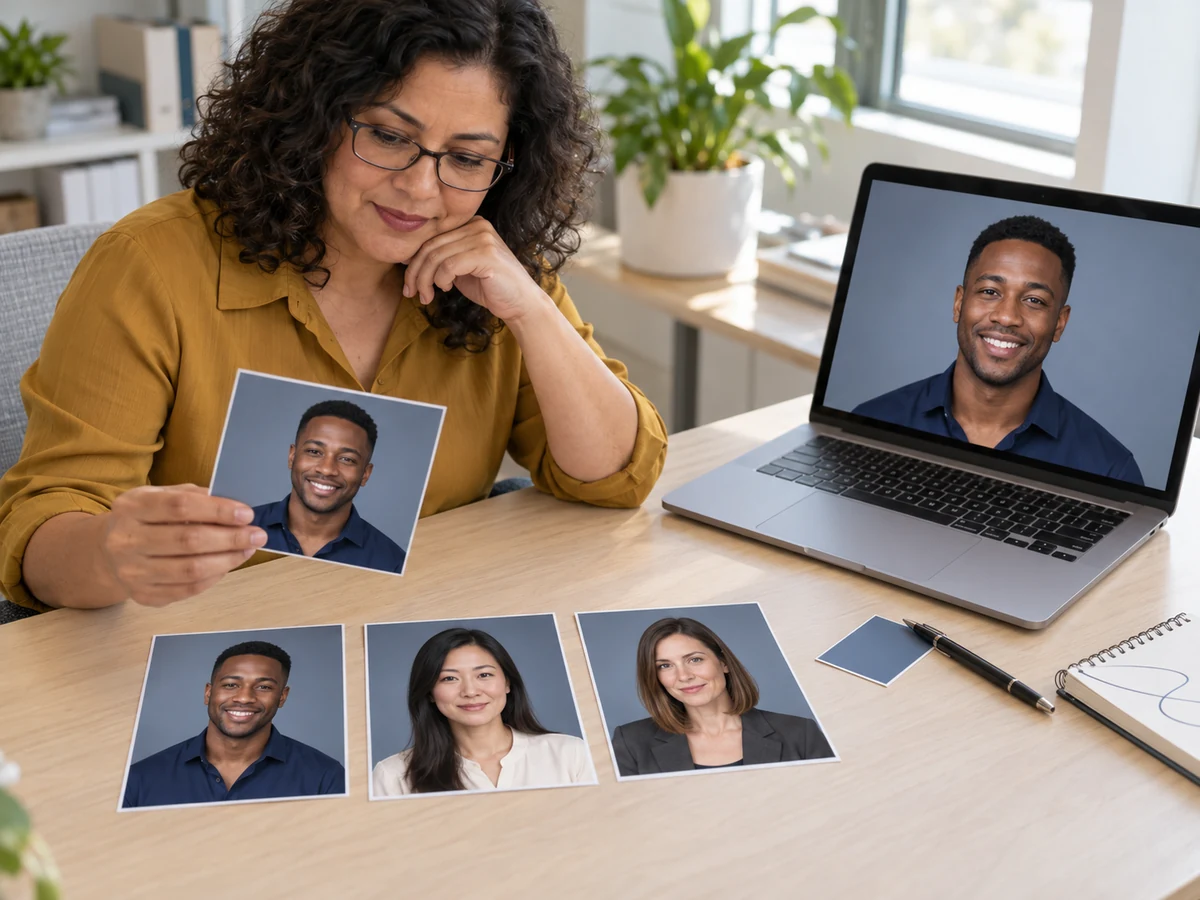
Apply a chosen solid color to individual employee portraits and review each PNG before using it. The current editor processes one image at a time, so repeat the steps for each team member.
Yes. Free BGRemover lets you upload a photo, apply a solid background color, preview the result, and download a PNG without creating an account.
Upload your headshot, let AI remove the existing background, choose white or a custom solid color, then review and download the PNG.
A neutral color such as gray or white can work well for many business portraits. Choose a shade that keeps the subject easy to see, and check any photo or employer requirements before using it.
The current editor supports white and custom solid colors. It does not provide office or studio scene backgrounds.
You can download the PNG for use as a profile photo. Check the platform's current image requirements before uploading it.
Get practical answers about free use, changing a headshot background, choosing a color, and the types of backgrounds the editor supports.
Upload a portrait, choose a clean solid background, and review your PNG before downloading.
Add a Professional Background for Free