Start With a Blank Canvas
Build the backdrop from two colors alone. This is useful when you already have the foreground content and only need an image to place behind it.
Choose two colors, adjust how they blend, and preview the result as you work. Download a background sized for your website, slide deck, social post, or screen.
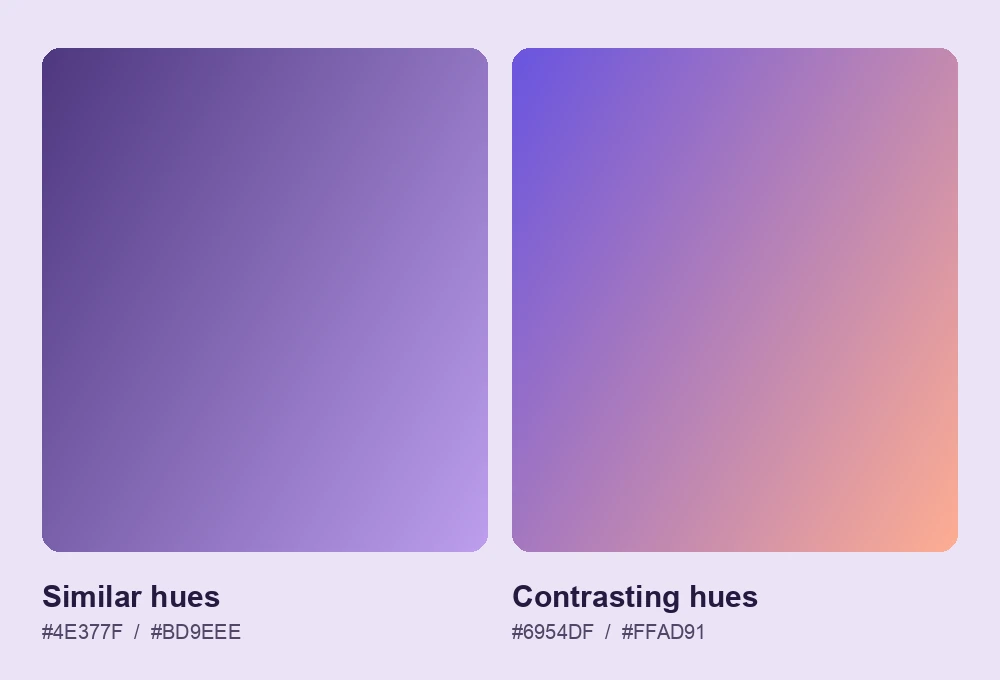
Start with two shades of the same hue for a subtle transition, or pair contrasting colors for a stronger effect. If your layout uses large type or a logo, choose a quieter blend so the content has room to stand out.
Use a linear gradient to carry color across the canvas, from top to bottom or at an angle. Choose a radial gradient to draw attention to one area, and position its center where you want that focus.
Adjust Your Gradient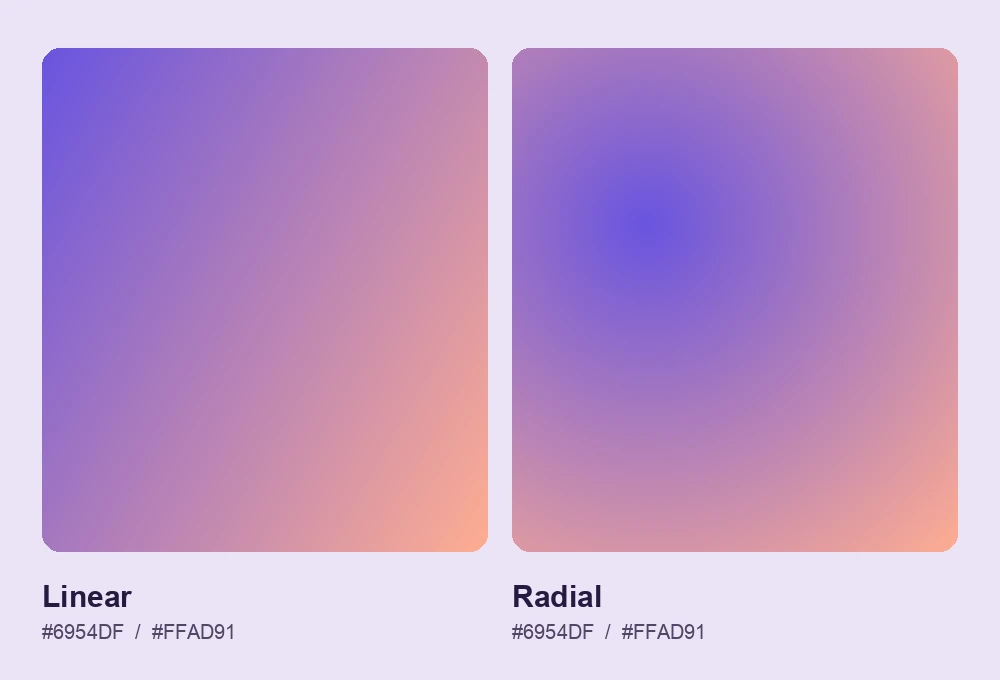
Set the canvas to match your phone or desktop. For a lock screen, keep the area behind the clock calm. On a desktop, leave a less busy area for icons. Preview the framing before you download the image.
Create a Gradient Wallpaper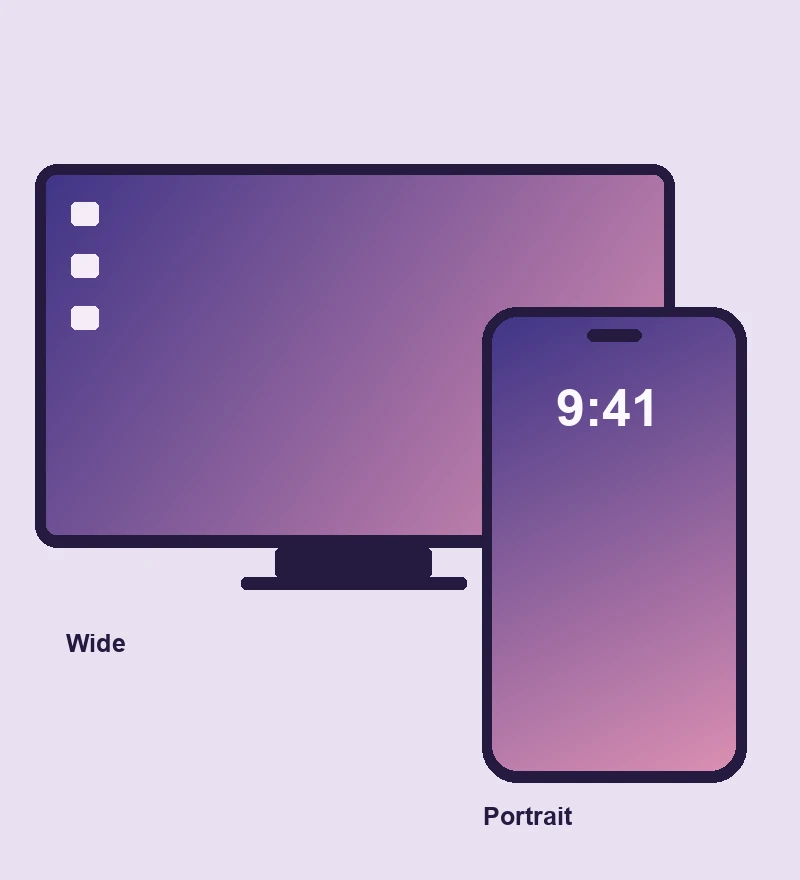
Pick two colors, preview the blend and save a finished image sized for your screen or design layout.
Pick the two colors that will anchor the blend.
Choose linear or radial, then adjust the angle or center and enter your width and height.
Review the canvas at the selected proportions, then save the finished image.
Work on a dedicated canvas where color, shape, and size are the main decisions. If you need a color backdrop for a slide deck, a web banner, or a social post, you can build one that fits the layout you already have.
Build the backdrop from two colors alone. This is useful when you already have the foreground content and only need an image to place behind it.
Check the transition as you adjust the colors. A live preview helps you spot where the colors meet and decide whether the shift suits the space behind a heading or logo.
Enter the width and height required by your design. A canvas with the right proportions makes it easier to position the light and dark areas before placing the image in your layout.
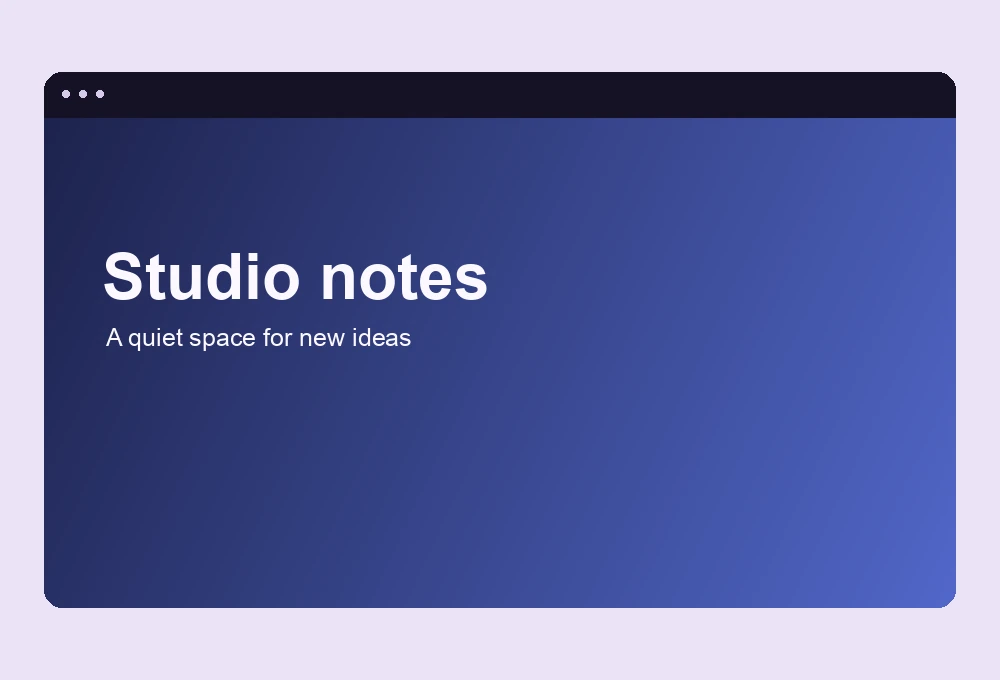
Save the result as a standalone image. You can import that file into a slide deck or design editor and position it beneath the text and graphics you already have.
Use a color blend wherever your layout needs a backdrop.

Make a background image for a hero or banner. Keep the area behind the headline muted and move the stronger color toward the edge.

Make a wide backdrop for title and section slides. Use a subtle transition so a heading stays readable from across the room.

Build a square post or a vertical story background. Check where the title or logo will sit before you save the image.
It blends colors along a straight line. A radial gradient spreads outward from a center point, which is useful when you want a soft highlight in one area.
Keep the part behind the text close in brightness. Check the text against both the lightest and darkest areas it overlaps, especially for small labels.
Use the dimensions of the final slide or screen. For example, 1920 × 1080 is a 16:9 slide size, while 1080 × 1920 is a 9:16 starting point for a vertical layout. For wallpaper, check your specific screen size.
Use the downloaded file as the background image of a page section. Check the section on both desktop and mobile so the crop leaves the area behind the text readable.
Choose a style, size the canvas, and get the image ready for your layout.
Pick a color pair and shape the blend to fit the space you have.
Create My Gradient