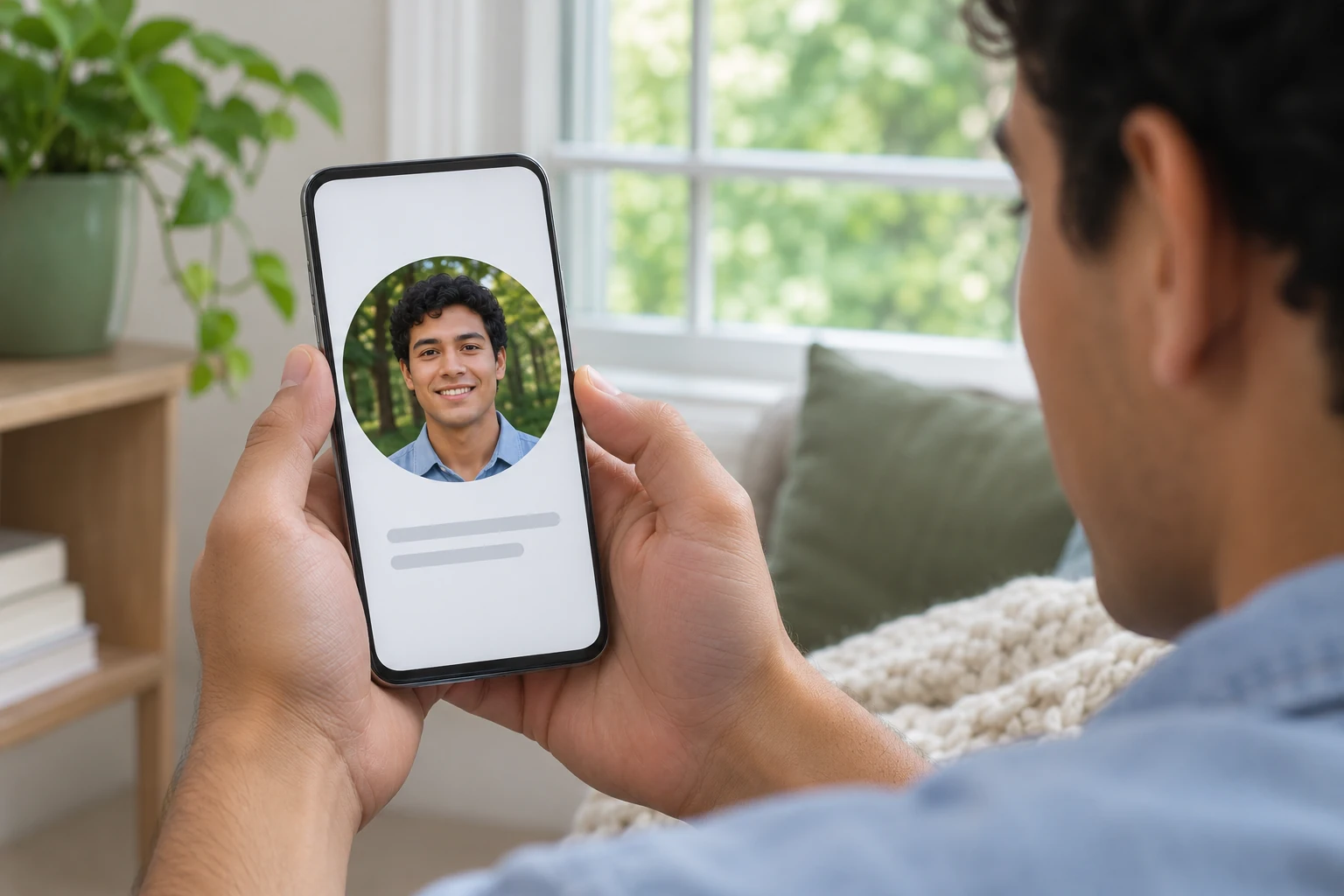
A different view. The same you.

Add a Nature Background to Your Photo

Upload a portrait, pick a scenic setting, and let AI separate the subject from the original scene. Once processing finishes, compare the result and save a PNG for a profile picture, personal photo, or social post without tracing the outline by hand.

Illustrative AI-generated portrait of a smiling man in a slate-blue shirt over the selected natural setting
Illustrative composition using an AI-generated portrait. Upload your photo to make your own.

Your portrait, a new view.

JPG, PNG, or WebP · Up to 15 MB

Choose your scene

Loading your selected scene…

Privacy Policy

AI processing requires a WebGPU-compatible browser and a model download.

Examples use AI-generated portraits composited with the same selectable scenes. They illustrate the workflow; check your own result before saving.

Choose a Forest, Mountain, or Garden Setting

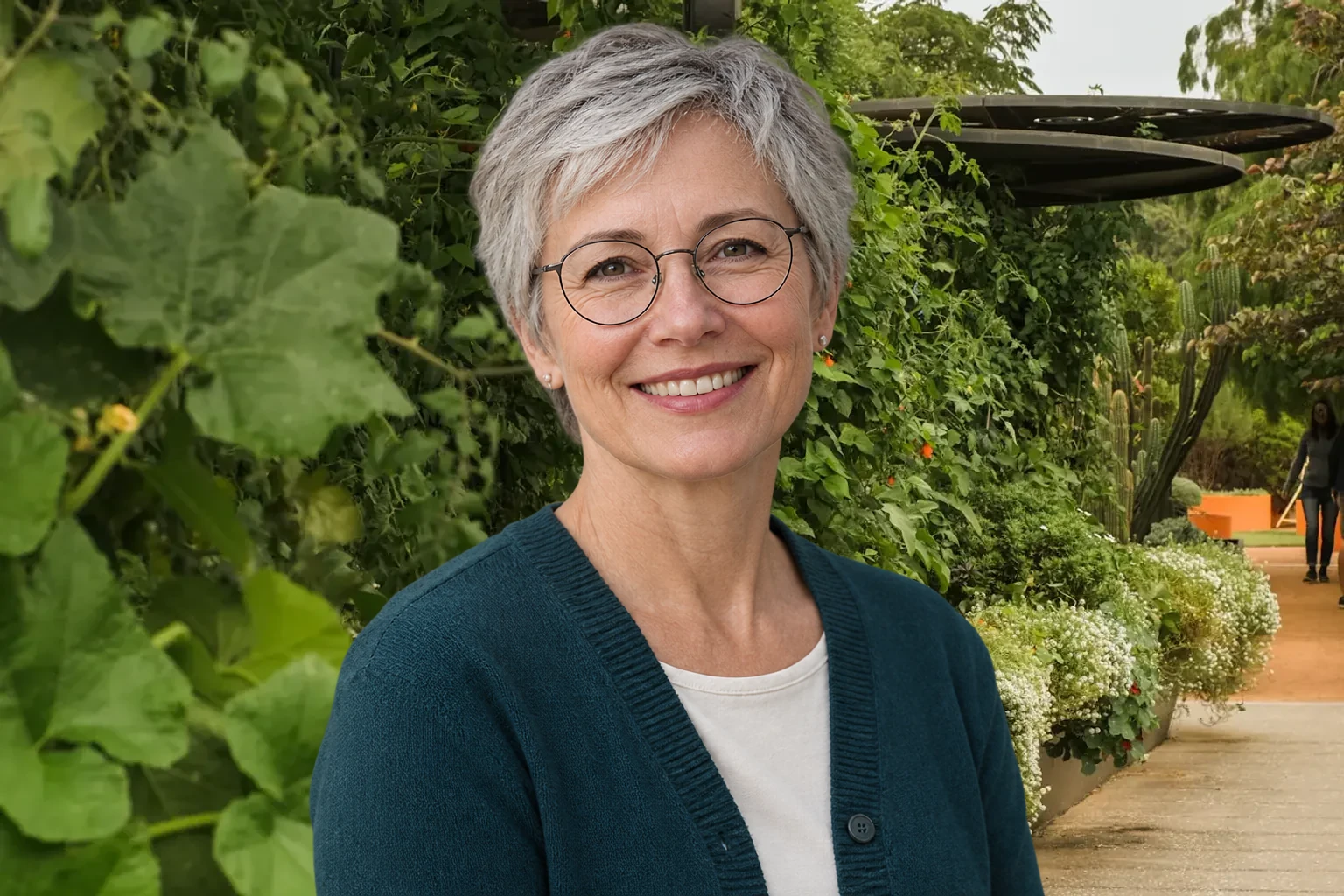
Choose a forest background when you want soft greenery behind your portrait, a mountain background for an open landscape, or a garden background for a gentler outdoor setting. Look for light that comes from a similar direction to the light on your face. A quieter area behind your head can help your expression stand out, while a busy branch or bright horizon may draw attention away from it. Compare the available scenes with the same photo, then keep the setting that works with your pose and clothing.

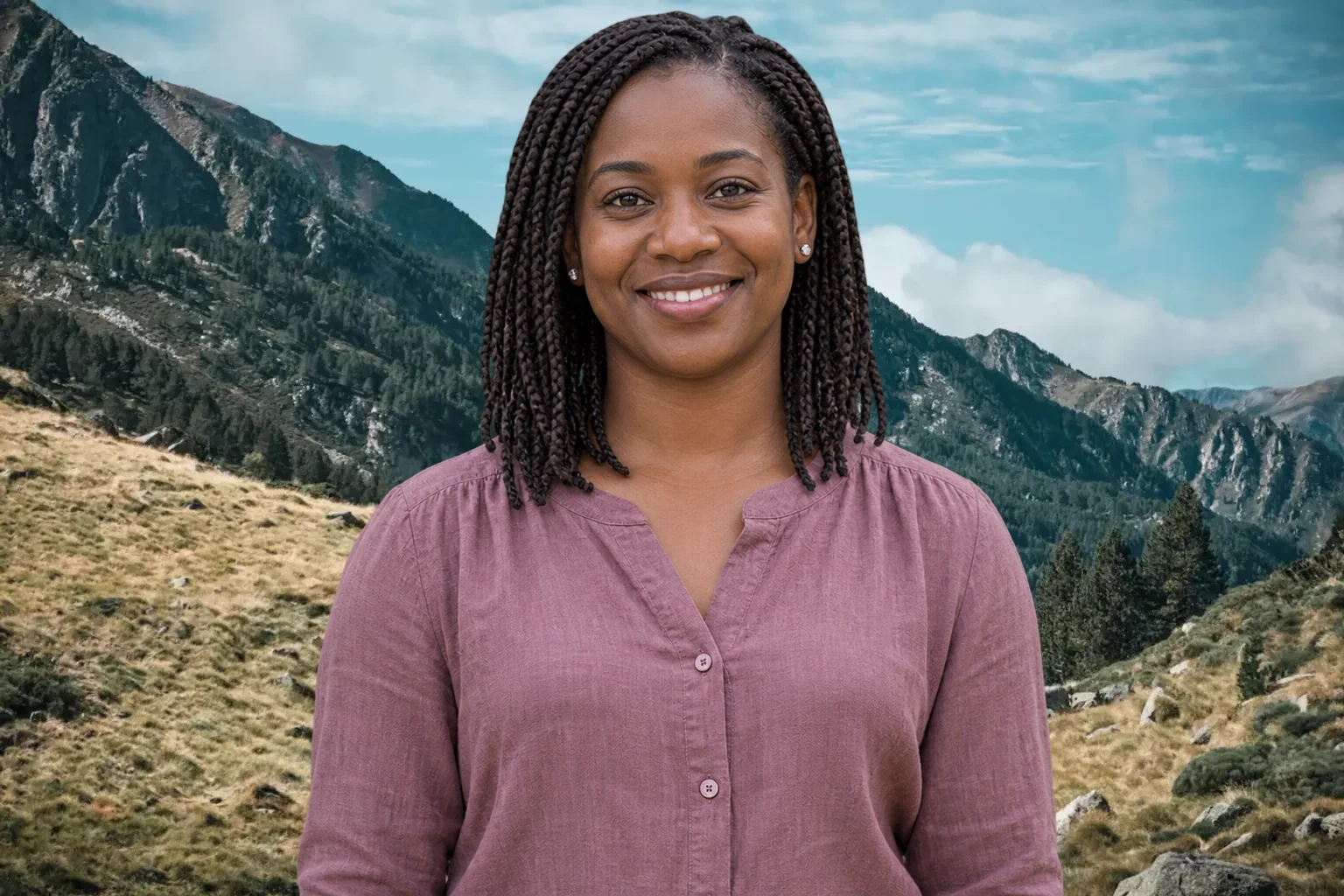
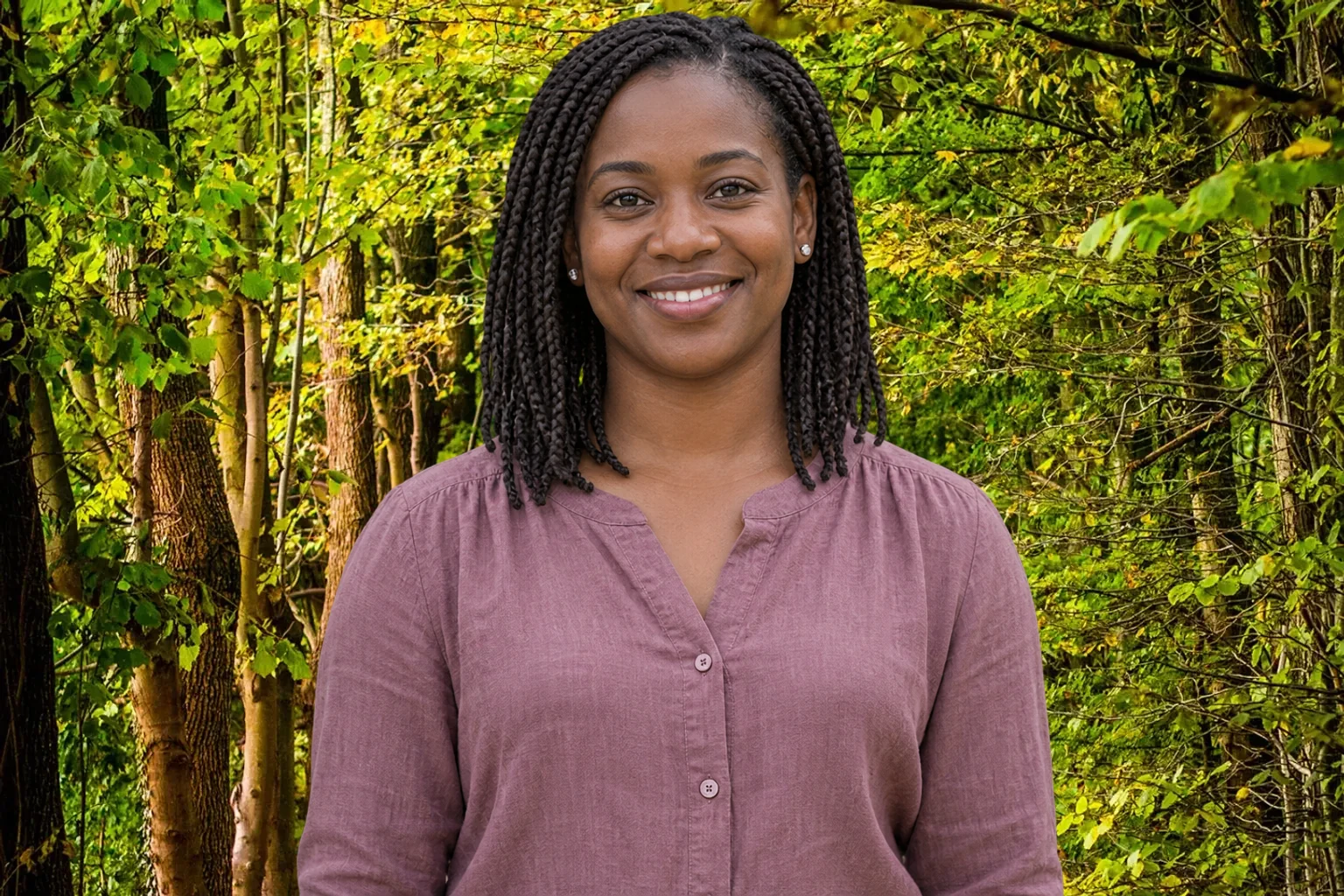
Illustrative AI-generated portrait of a braided woman in a mauve blouse with a forest setting

Change the Setting, Keep Your Favorite Portrait

A nature photo background can give a familiar portrait a different mood while keeping the person in the uploaded picture as the starting point. Use a selfie or personal photo with a clear view of your face, hair, and shoulders. The editor separates that subject and places it over the selected scene, so you do not have to assemble the layers yourself. Inspect the outline around glasses, loose hair, and clothing before saving. If an important part of the subject is missing from the source, choose a more complete photo.

Change My Photo Background
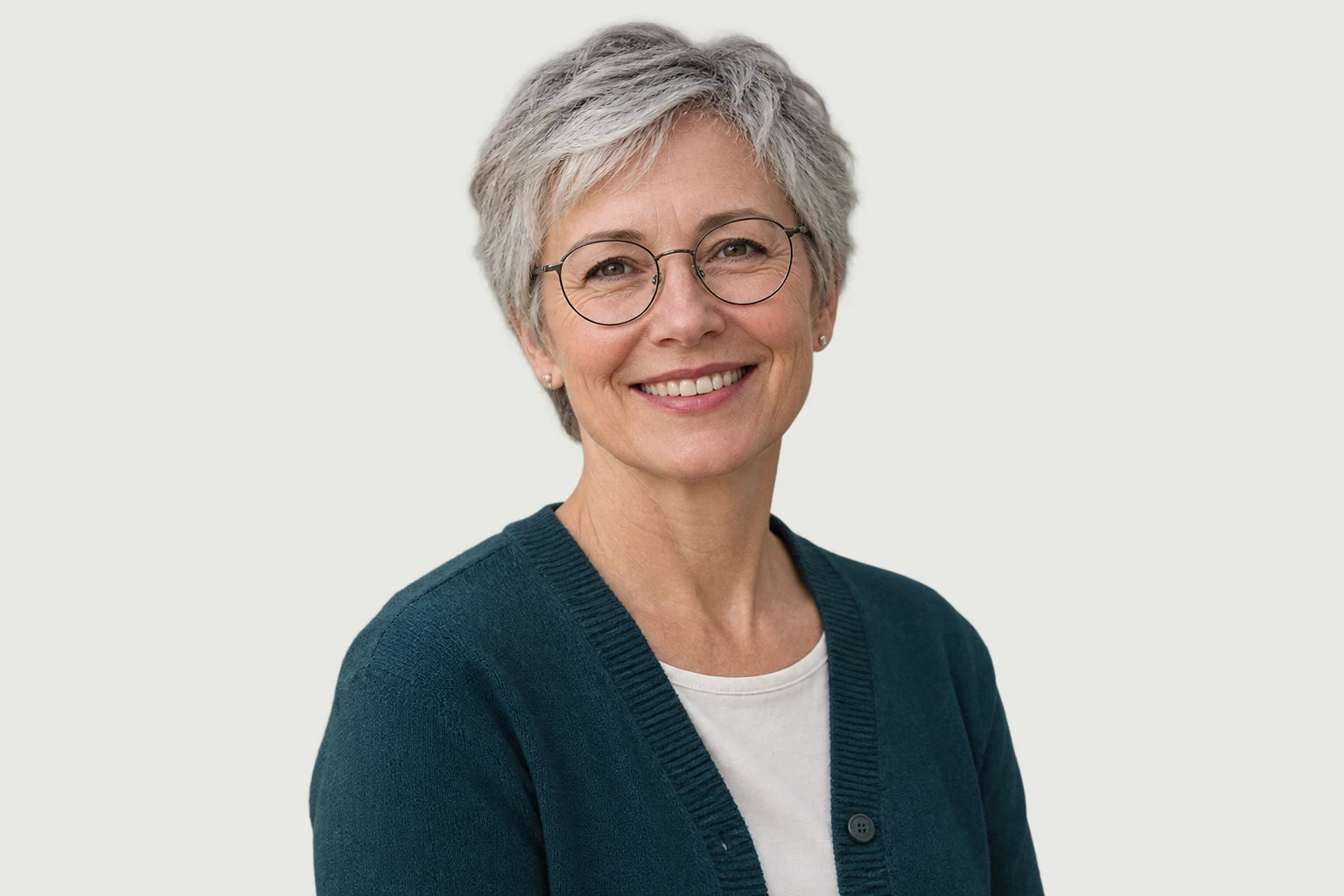
Illustrative original portrait of a silver-haired woman wearing round glasses and a teal cardigan

Make a Scenic Portrait for Your Next Post

Prepare a portrait for a profile update, a personal announcement, or a social post with a setting that fits its mood. Download the edited image and bring it into your preferred design app to build the finished layout. Choose a scene that leaves the face easy to recognize and does not compete with the subject. Finish any crop, caption, or layout in the app where you plan to share it. Check the smaller version too, since landscape details can disappear inside a profile image.

Edit My Photo With a Scenic Background
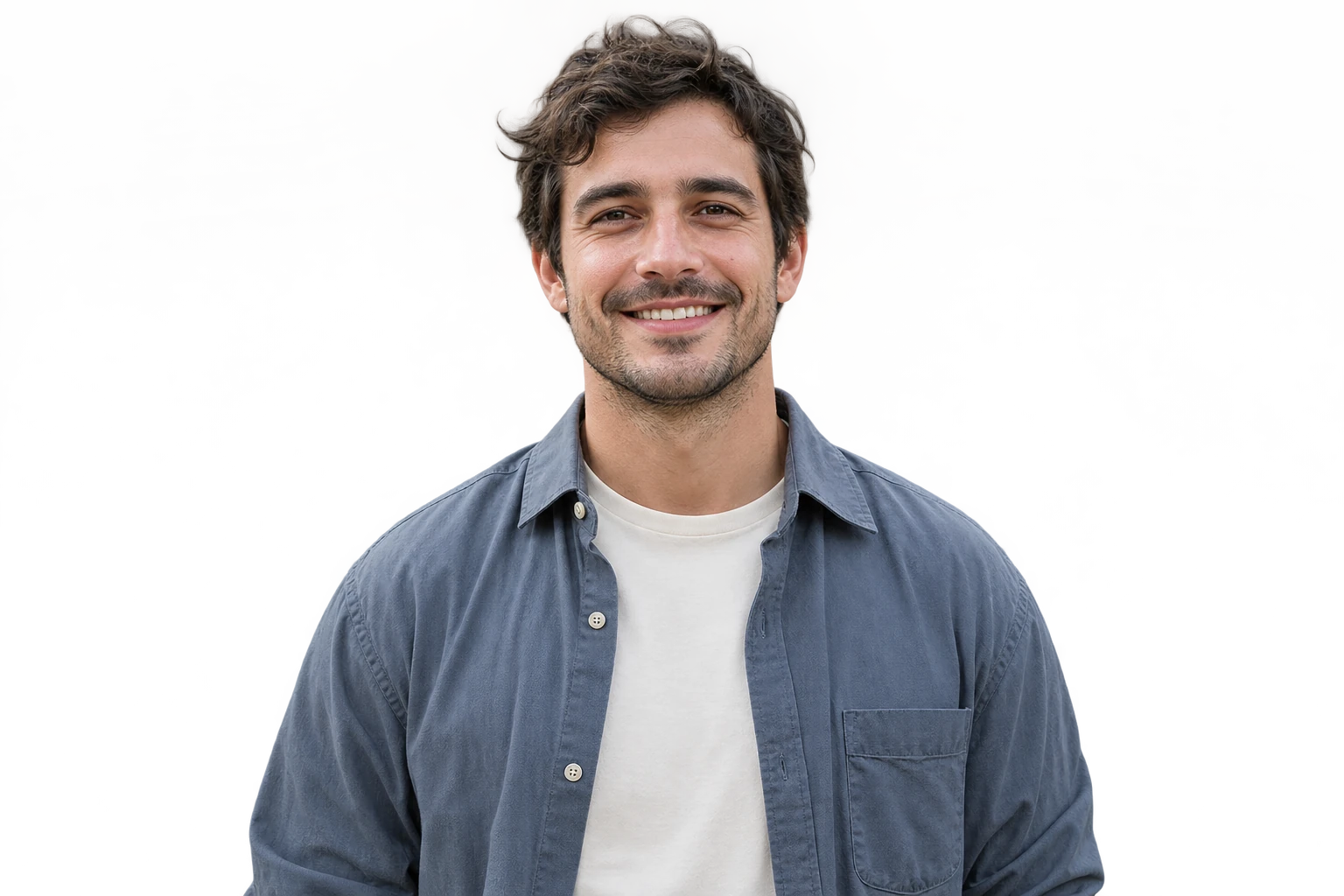
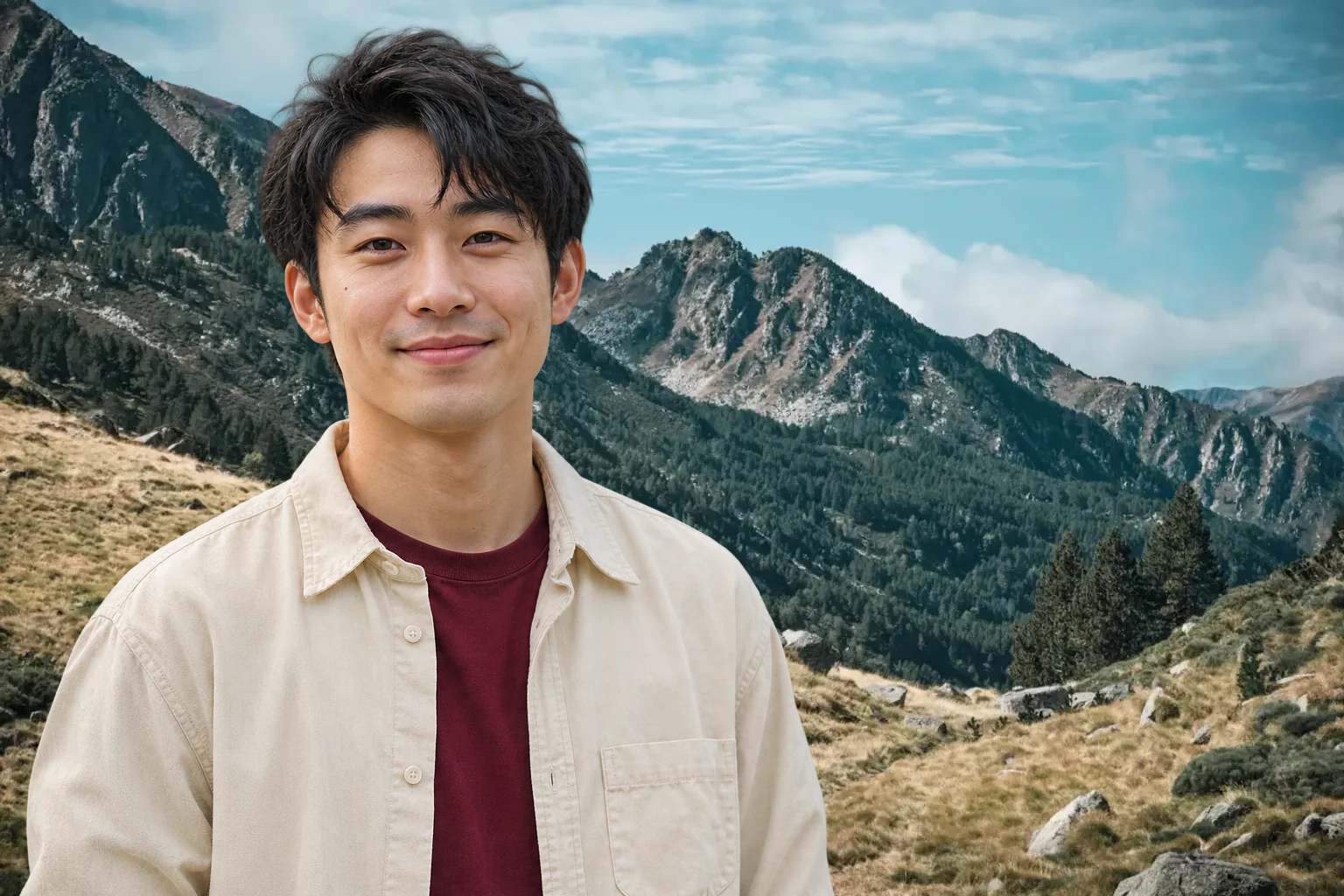
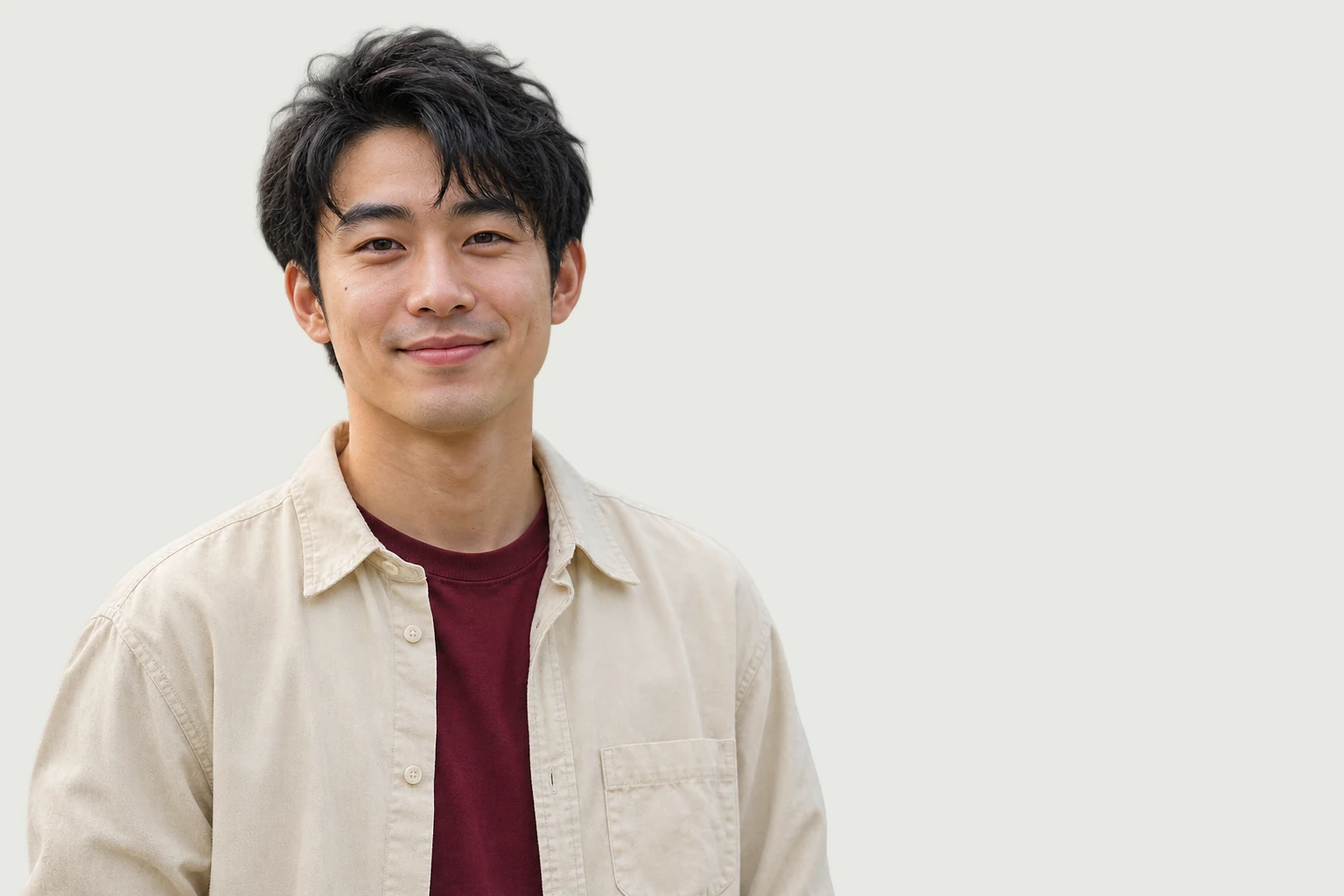
Illustrative original portrait of a man in an ivory shirt, positioned to the left with space beside him

How to Add a Nature Background to a Photo

Give your portrait a new setting in three steps: upload a photo, choose a scene and let AI replace the background, then review and download the finished PNG.

  1. 1

    Upload a clear portrait

    Choose a JPG, PNG, or WebP image up to 15 MB. Use the original photo when possible, with the face and shoulders clearly visible. Strong detail around the subject gives you more to inspect when the result appears.

  2. 2

    Select a scene and apply it

    Pick an available landscape, then select Apply Background. AI separates the subject and combines it with that setting. Allow extra time on the first run while the model loads. After processing, compare other scenes to find a better match for the light and composition.

  3. 3

    Review and download your PNG

    Switch between the original and edited views. Check hair, glasses, clothing edges, and the area behind the head. Read the export dimensions shown in the editor, then download the version you want to use in your next photo or design project.

Add a Scenic Background to My Photo

Why Use Free BGRemover to Give Your Photo a Scenic Setting?

Free BGRemover combines AI subject separation with selectable scenery, so you can build a new composition without cutting out and layering the portrait yourself. For a profile update, a personal keepsake, or a social post, review the finished picture in the editor and take the PNG into the app you use next.

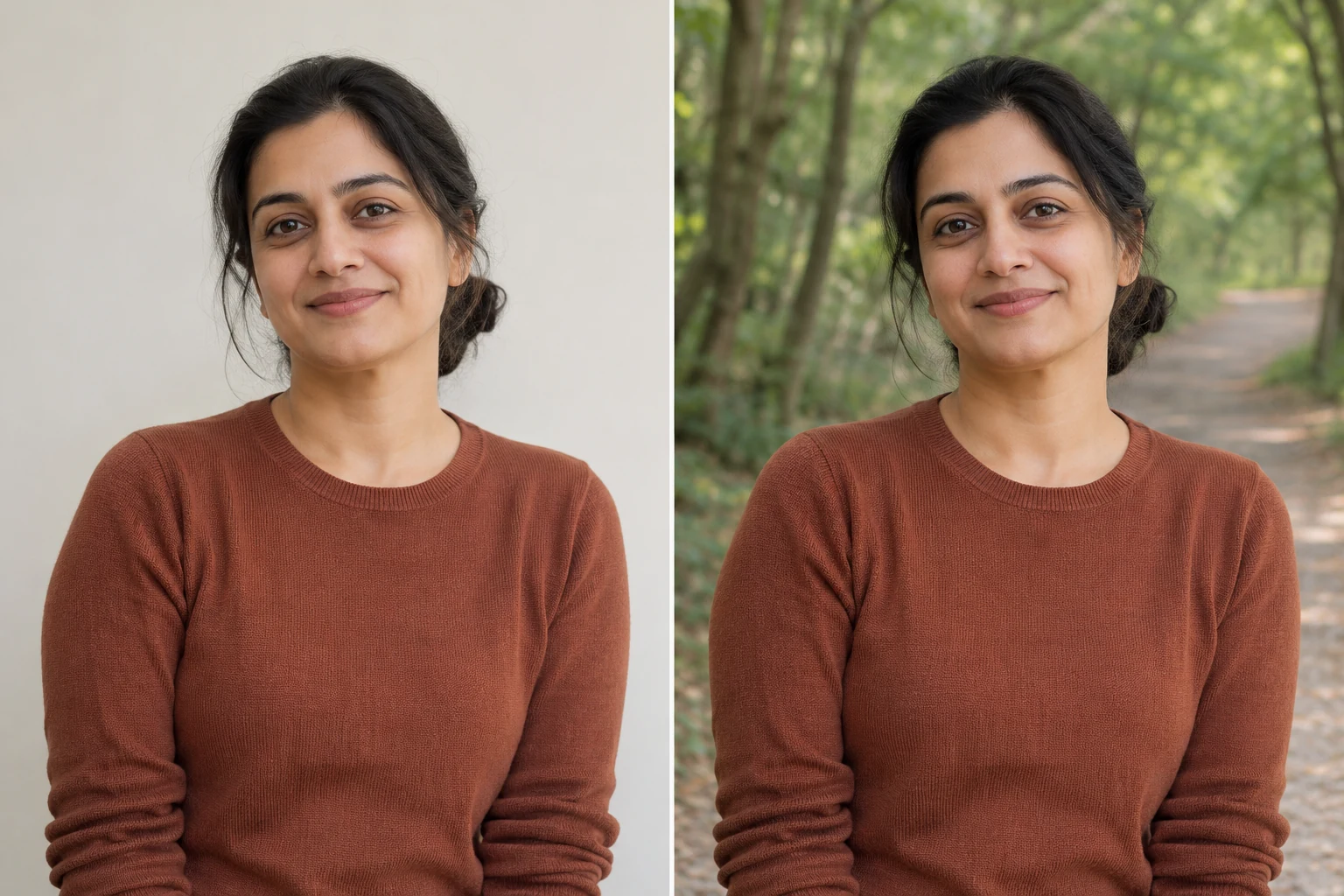
AI-generated illustration of the same woman in a cinnamon sweater against a neutral wall and a woodland setting

Keep Your Expression, Change the Scenery

Your uploaded portrait supplies the person in the finished image, including their expression, pose, and clothing. The tool changes the surrounding scene, letting you reuse a photo you already like.

AI-generated illustration; actual results depend on your photo.
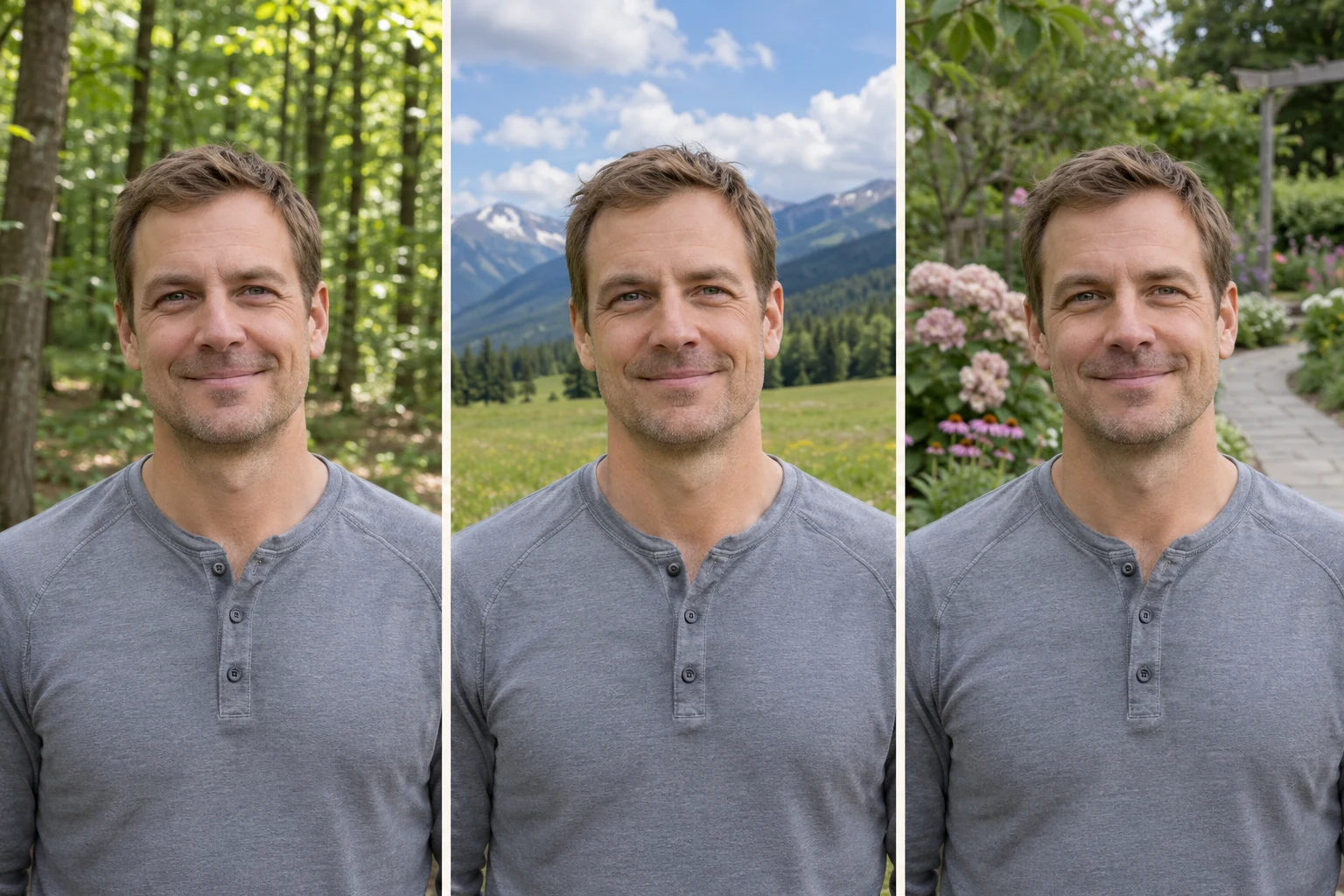
AI-generated illustration of the same man in a gray shirt with forest, mountain, and garden backgrounds

Find a Setting That Fits

Forest, mountain, and garden scenes can be applied to the same extracted subject without another upload. Compare their lighting and colors to choose a backdrop that works with your portrait.

AI-generated illustration; actual results depend on your photo.
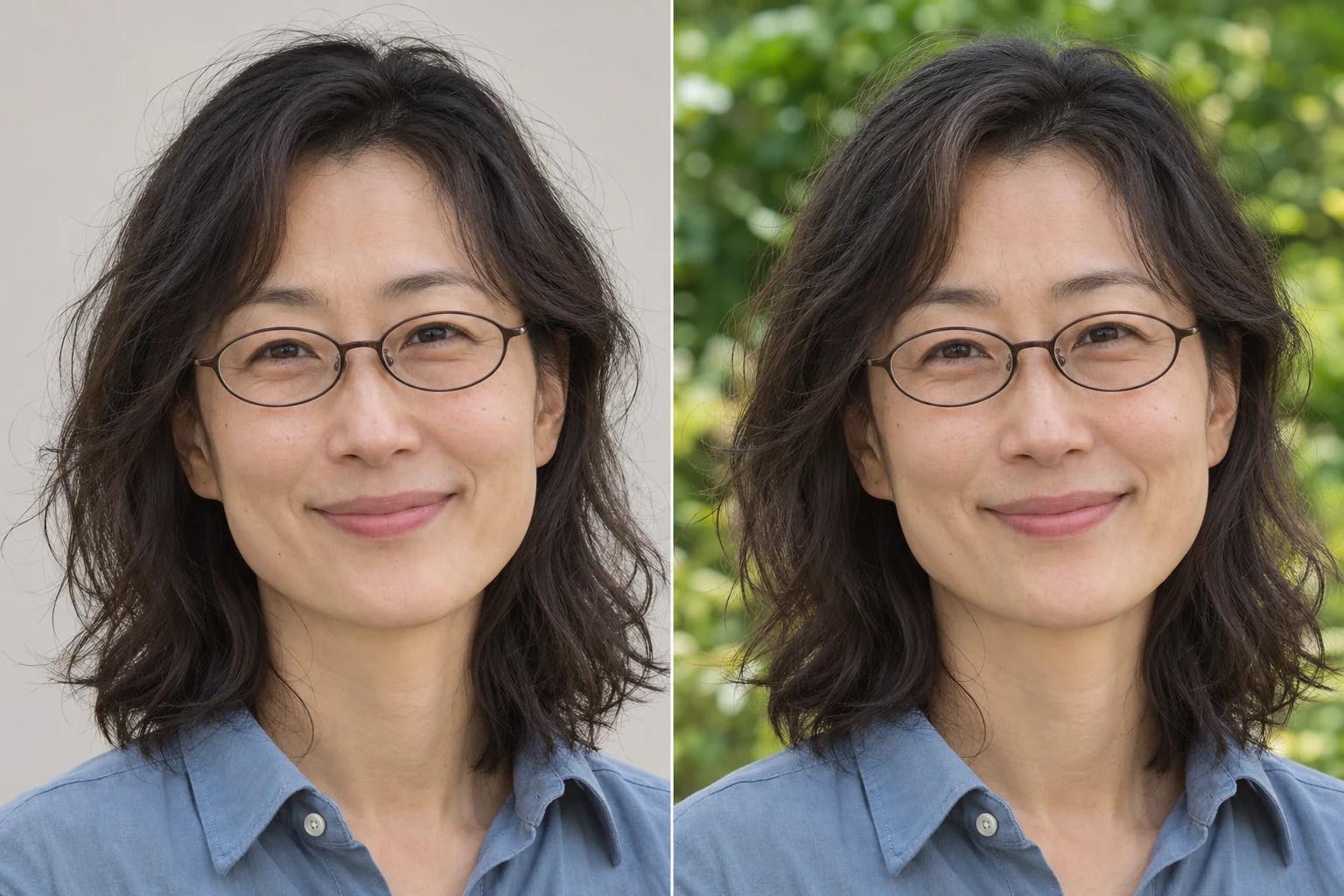
AI-generated close-up illustration comparing a woman’s fine hair and eyeglass edges against neutral and garden settings

Judge the Result Before Downloading

Switch between the original photo and the edited view to check hair, glasses, and clothing edges. This comparison helps you spot missing details and decide whether a different source photo would work better.

AI-generated illustration; actual results depend on your photo.
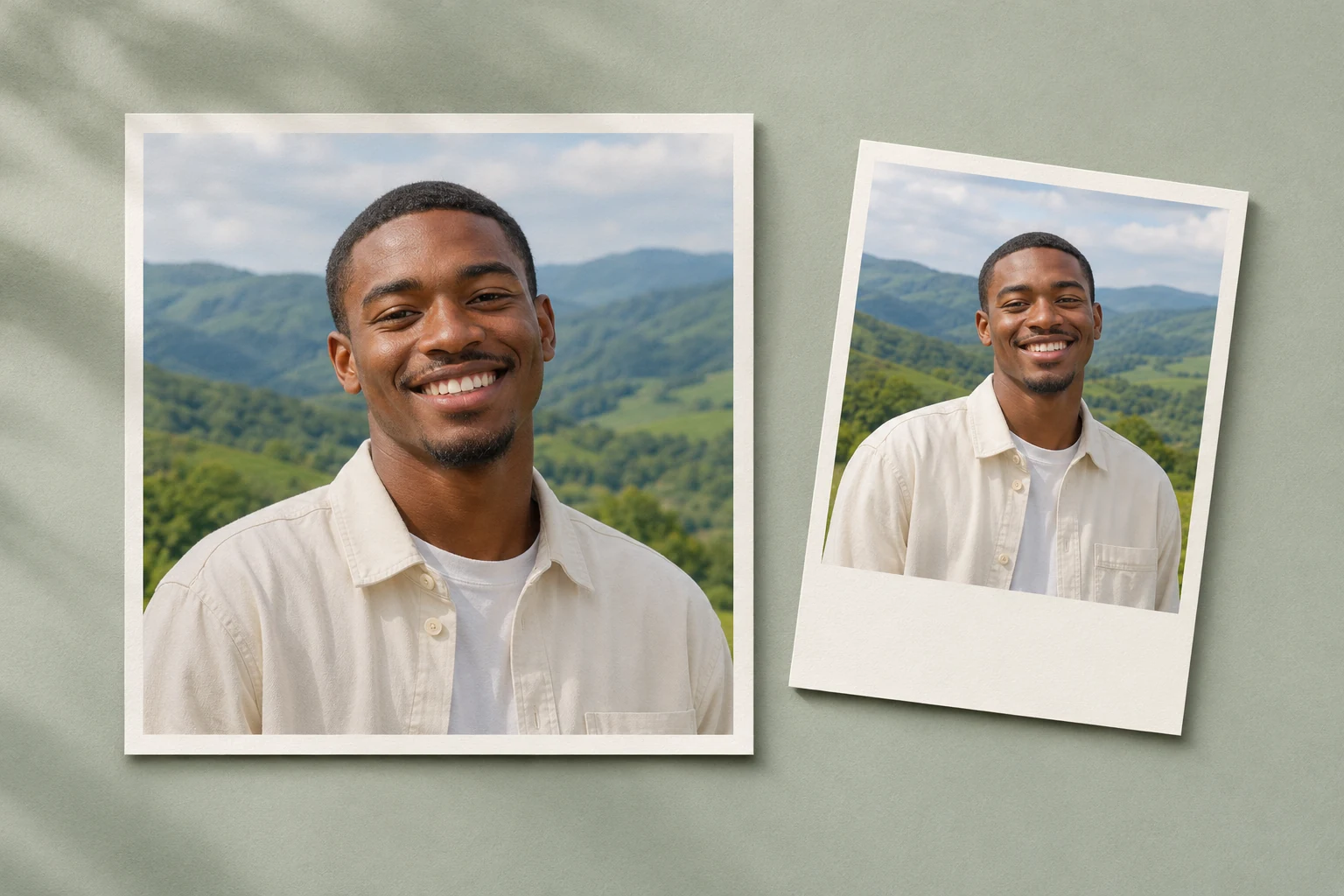
AI-generated concept showing a scenic male portrait in square and vertical photo layouts for later reuse

Keep Creating With Your Edited Photo

Download the finished composition as a PNG, with the export dimensions shown before saving. Bring it into your preferred app to finish a profile crop, add a caption, or arrange a social post.

AI-generated illustration; actual results depend on your photo.
A Scenic Setting for the Portraits You Want to Share

Start with the photo you already have and choose the use closest to yours. The editor prepares the composition; any final crop, text, or page layout can be completed in your usual app.

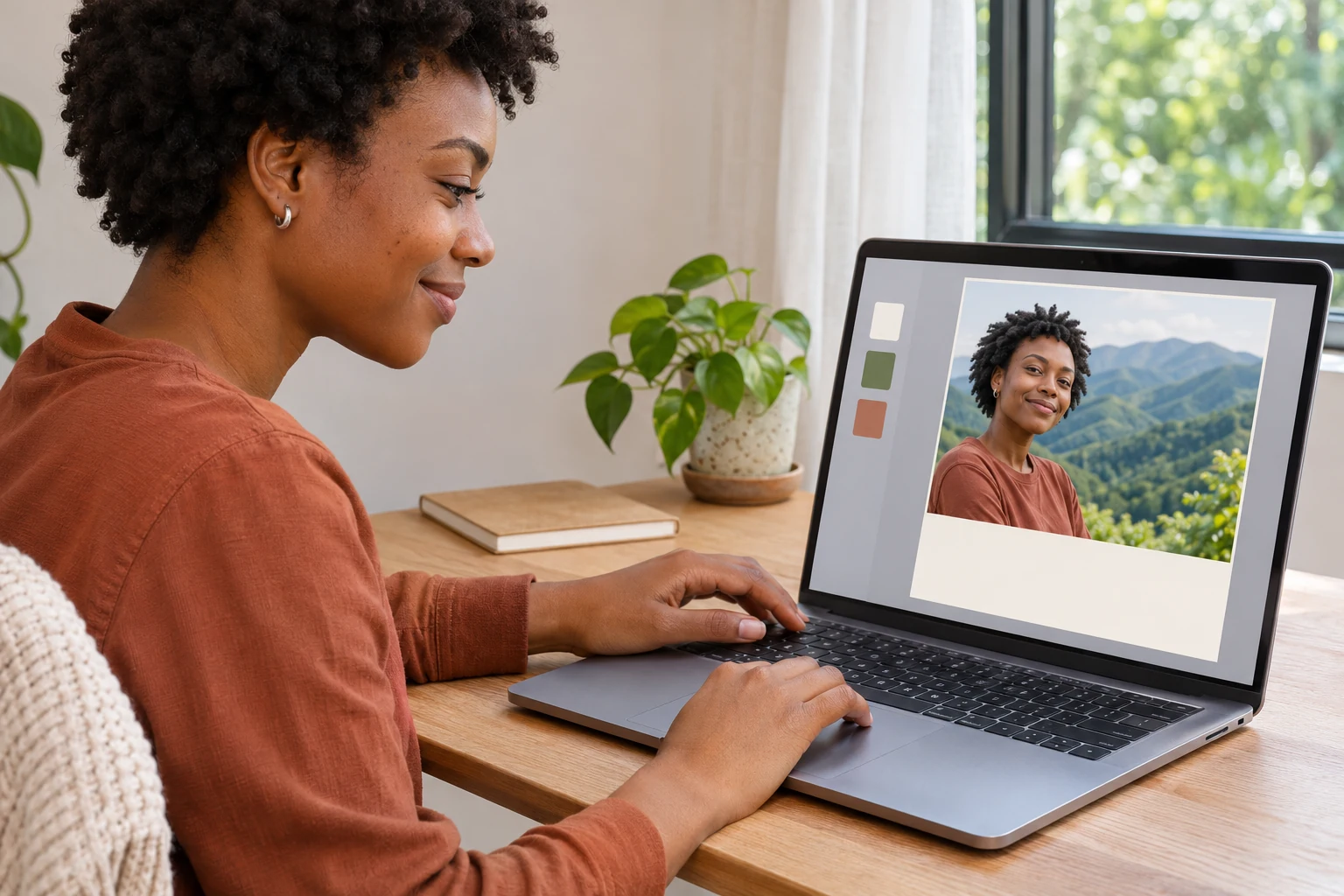
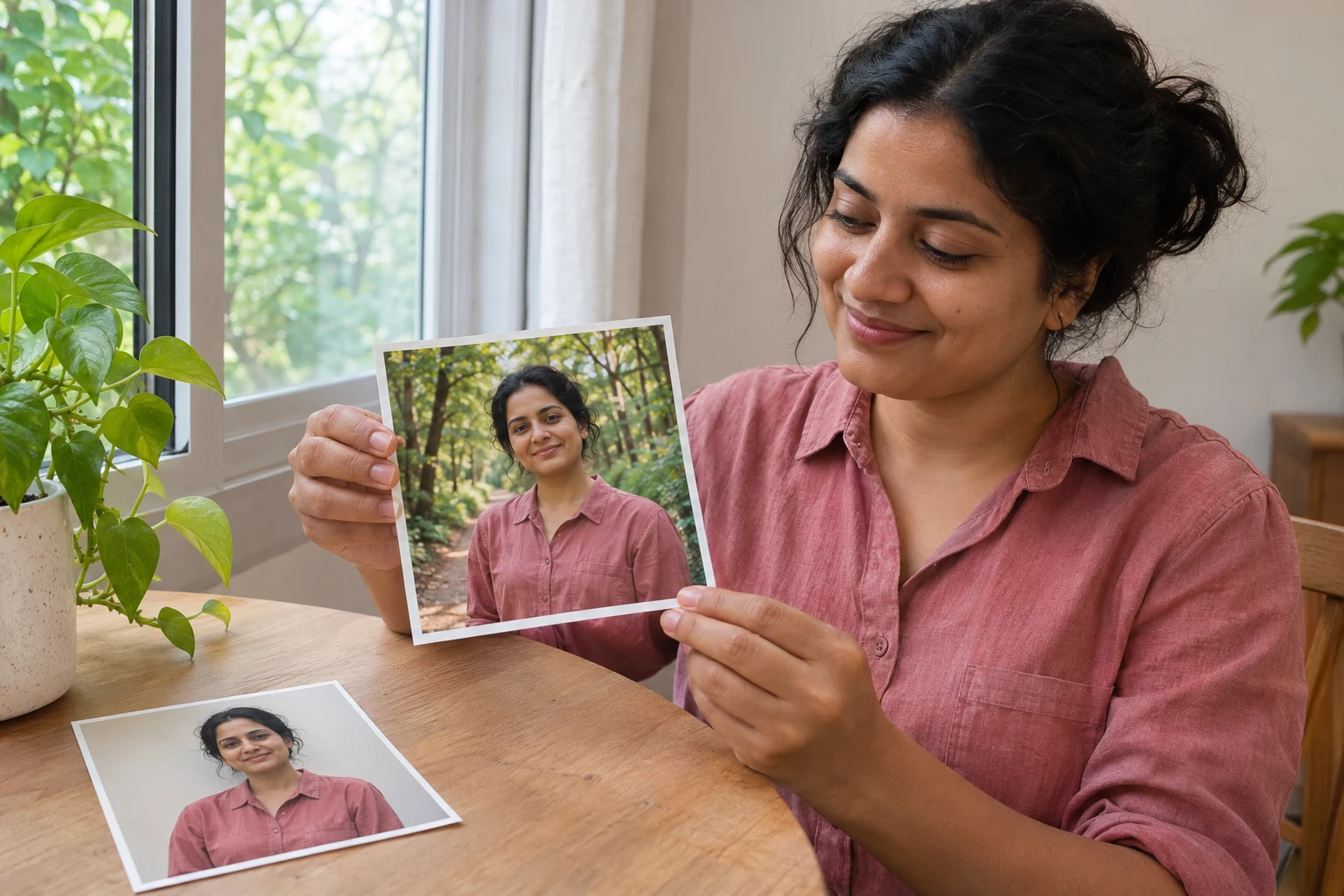
AI-generated lifestyle illustration of a woman at home viewing her woodland portrait, with the original personal photo on the table

Give a Favorite Photo a Fresh Setting

Use a portrait you enjoy as the starting point for a personal edit. Choose an outdoor scene that suits the expression and clothing, then compare it with the original. A calm setting can bring a different mood to the picture without needing another photo session.

  • Start with an existing portrait
  • Compare outdoor settings
  • Save a personal edit
Create My Scenic Portrait
Can I use the editor for free?

You can download your edited photo as a PNG through the free export option. Check the pixel dimensions displayed beside the download control before saving. The free download gives you the finished composition with your chosen scene behind the subject.

Which photo formats can I use?

Upload a JPG, PNG, or WebP image up to 15 MB. Start with a clear portrait rather than a heavily compressed screenshot. The finished file is a PNG with the selected landscape behind the subject, so this download is a complete picture rather than a transparent cutout.

Can I use a selfie for the edit?

Yes, when the face, hair, and shoulders are clearly visible. The tool uses the subject in the uploaded image. Choose a different source if the crop cuts off details you want to keep, since changing the setting does not reconstruct missing parts of the person.

How can I make the result look more natural?

Choose a scene with light coming from a similar direction to the light on your face. Check the horizon and avoid bright details directly behind the head. Compare the outline around hair, glasses, and clothing with the original; a clearer source photo may work better when details are missing.

Does the tool turn my photo into HD or 4K?

Replacing the scene does not recover detail missing from your original or guarantee a particular resolution. Use a sharp source photo and read the export dimensions before saving. A larger file alone will not make a blurry face clearer.

Can I download an empty landscape instead?

The download described on this page is your photo combined with the selected scenery. For a standalone backdrop, a desktop wallpaper, or a stock image to reuse in another project, choose a source that provides those files and check its usage terms.

Does AI create a new landscape from my text?

This workflow uses AI to separate the subject, then combines it with a scene provided in the editor. Choose among those settings to change the composition. Creating a new landscape from a written prompt requires a scene-generation tool and is outside this workflow.

What if my browser cannot process the photo?

The subject-separation step needs a WebGPU-compatible browser and a model download. Use an up-to-date version of Chrome or Edge with hardware acceleration enabled. If processing fails, check your connection and retry. Loading the model on the first run can take longer.

Questions About Editing Your Photo With Scenery

Find out what to upload, how the edit works, and what you receive when you save your picture.

Scene photographs on Unsplash: David Bruyndonckx · damien dufour · Raelle Cameron

Give Your Favorite Portrait a New View

Bring a photo you already like and see how a different setting changes its mood. Compare the available scenes, check the details around your subject, and save the version that fits your next personal photo, profile update, or post.

Use the Nature Background Changer