Add a Wedding Background to a Photo You Love

Upload a bridal or couple portrait, choose a setting, and apply the new backdrop. Compare the composition with your original before saving a PNG. Start with a photo where faces, clothing, and the edges of each person are clearly visible.

AI-generated bride and groom in the selected wedding setting
Sample with an AI-generated couple. Upload your photo to make your own.

Give your portrait a wedding setting

JPG, PNG, or WebP · Up to 15 MB

Choose a wedding setting

Loading your selected scene…

Privacy Policy

AI processing requires a WebGPU-compatible browser and a model download.

Choose a Setting That Works With Your Portrait

A new scene should complement the photograph you already have. Look for lighting that comes from a similar direction, space around the dress, and a perspective that fits the pose. Compare the available settings with the same portrait, paying attention to where background flowers, furniture, or strong lines sit around the people. A quieter backdrop can help the expressions and clothing remain the focus.

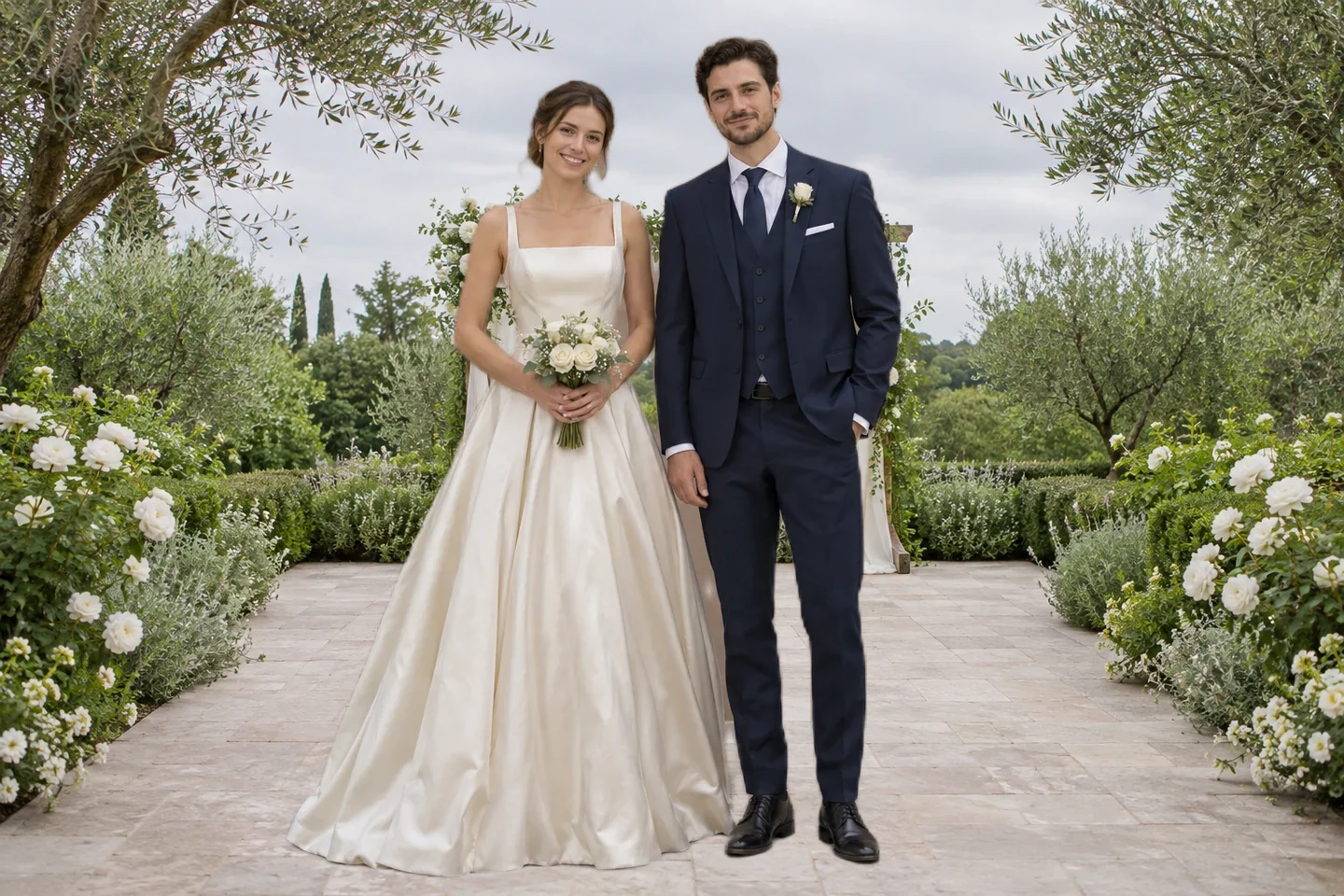
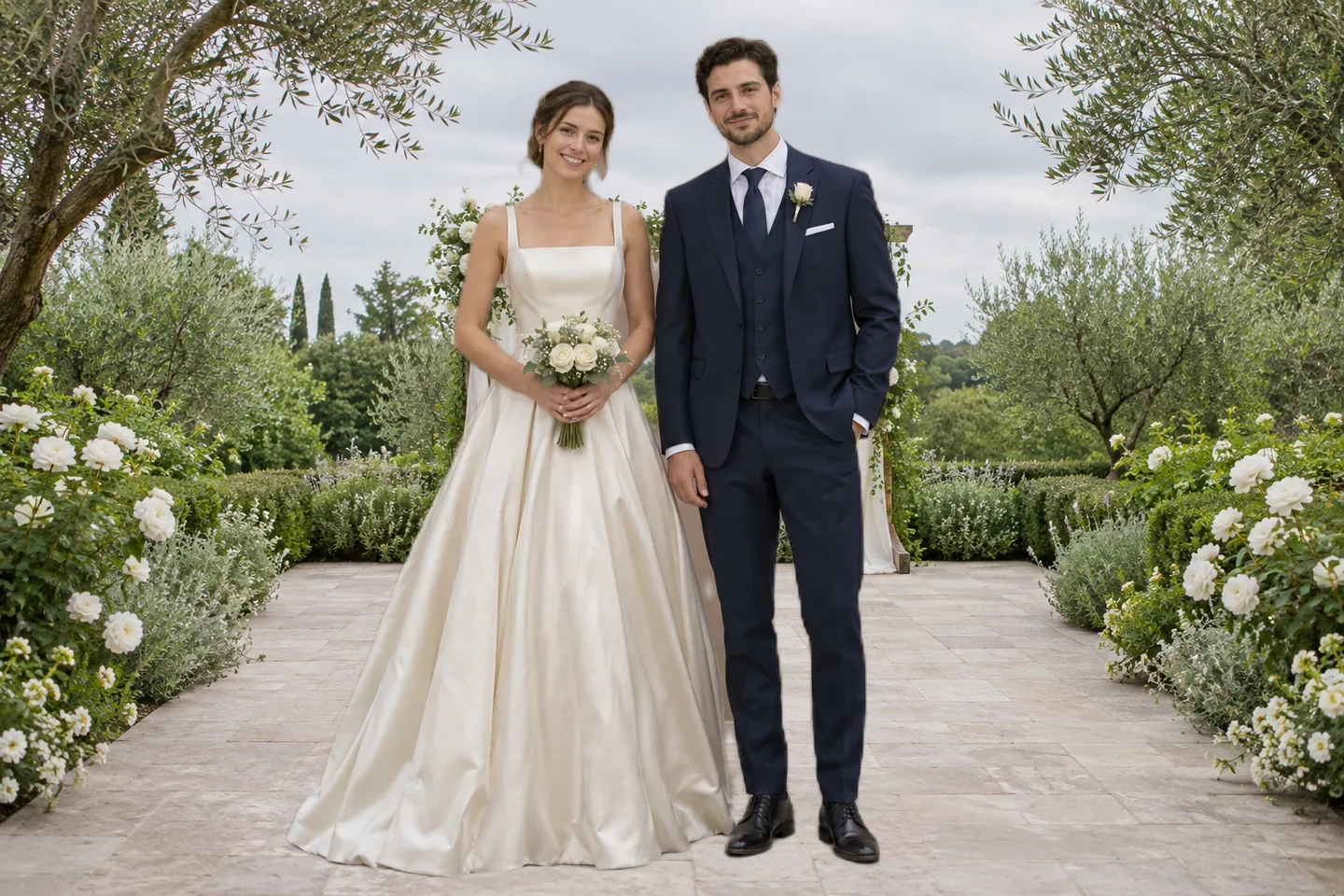
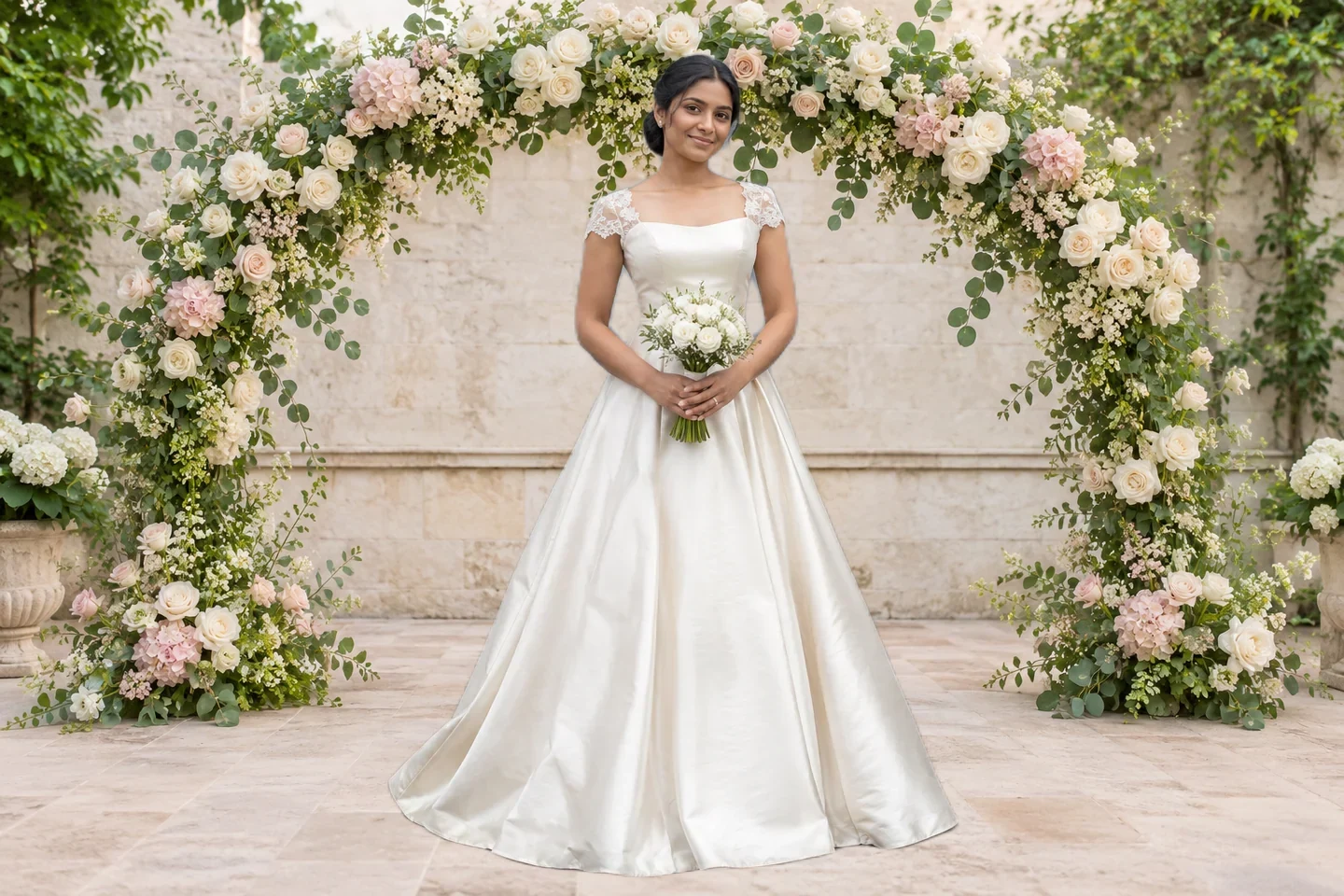
The same AI-generated couple in a garden wedding setting

Change the Surroundings, Keep Your Original Portrait

Use the wedding photo background editor to replace the setting around an existing portrait. The composition takes the foreground from your uploaded photograph; it does not generate a new face, pose, or outfit. Review both people in a couple photo, especially hands, hair, bouquets, and the space between them. If part of a person disappears, try a clearer source image. Fine lace and translucent veils need particular care when checking the result.

Change My Photo Background
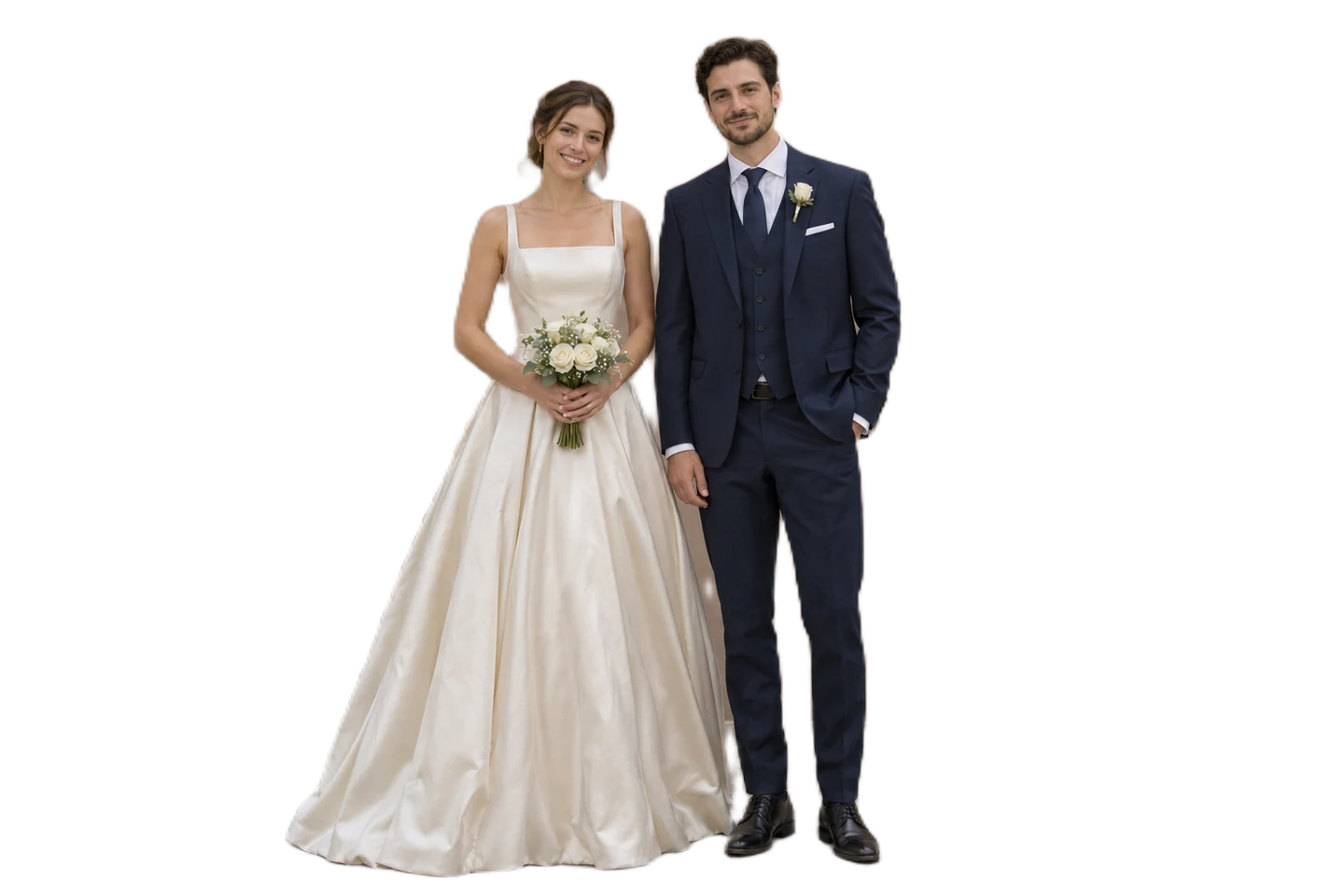
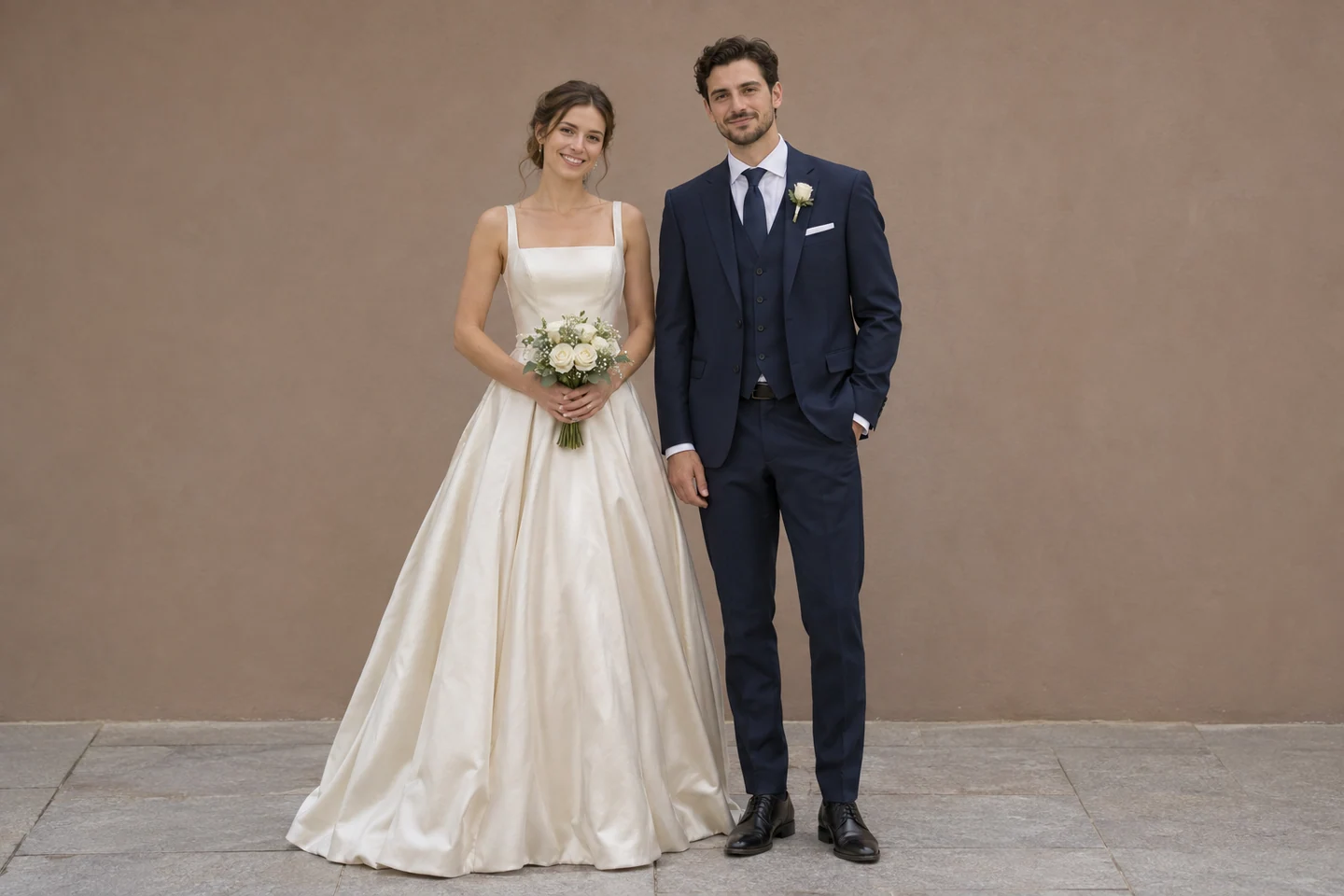
AI-generated bride and groom before changing the neutral terrace background

Prepare a Favorite Photo for Your Wedding Layout

Give a bridal portrait a different setting for a personal wedding website, a digital announcement, or a photo you plan to place in an album. Check the finished image at the size it will appear, including whether the full dress remains visible. Save the composition as a PNG, then add text or arrange the page in your design editor. Read the export dimensions before deciding whether the file suits a printed layout.

Add a Wedding Background
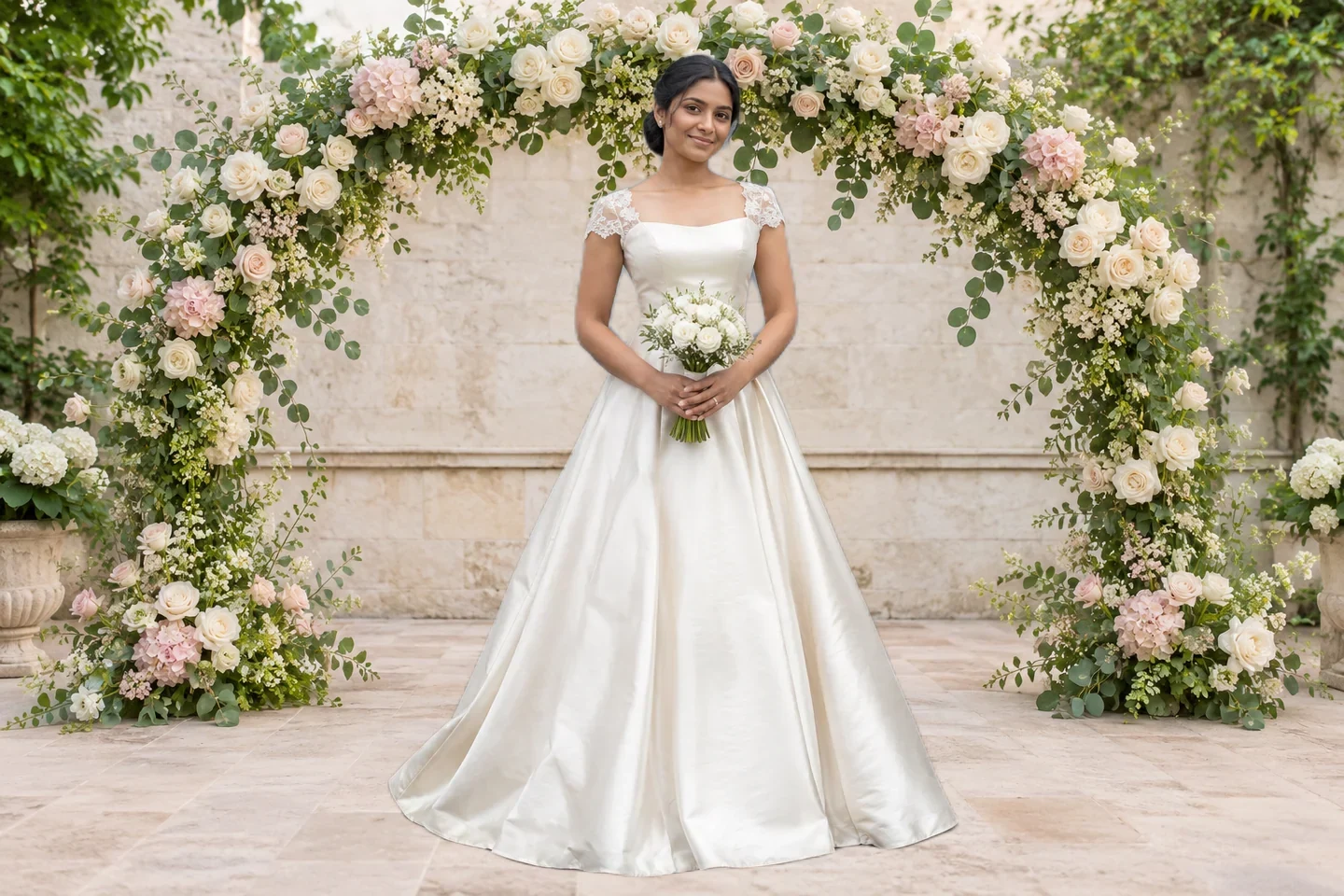
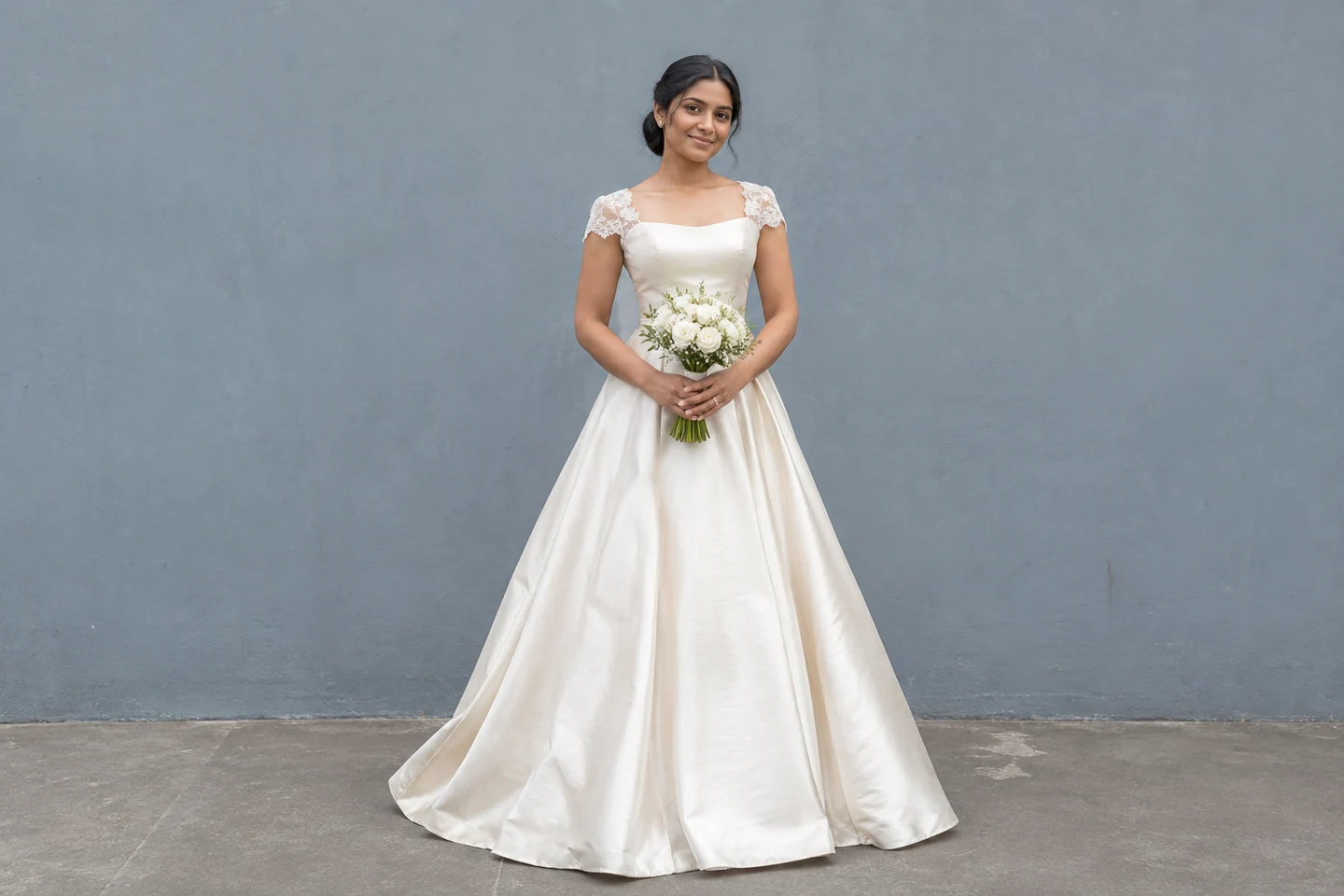
AI-generated bridal portrait before replacing the original setting

How to Change Your Wedding Photo Background

Give your portrait a new setting in three steps: upload a photo, let the tool apply your chosen scene, then review the composition and download your PNG.

  1. 1

    Upload a clear portrait

    Choose a JPG, PNG, or WebP file up to 15 MB. Use a photograph with clearly visible faces and enough room around the clothing for your intended layout. Keep the original available for comparison.

  2. 2

    Choose and apply a scene

    Select an available backdrop and click Apply Background. The editor separates the foreground and places it over the scene. Once processing finishes, switch settings to compare the composition. The first edit may take longer while the model loads.

  3. 3

    Review and save your PNG

    Compare the edited and original views. Check each person's outline, dress edges, jewelry, and bouquet. Read the displayed pixel dimensions, then download the composition. Open the saved file and inspect it again before sharing or printing.

Choose a Scene for My Photo

Why Use Free BGRemover for Your Wedding Photo Edit?

Free BGRemover combines the foreground from an uploaded photograph with a selected scene. You can compare settings and revisit the original before saving the result. For a personal wedding page, an announcement image, or a portrait going into another design, this gives you a way to judge the composition before using it.

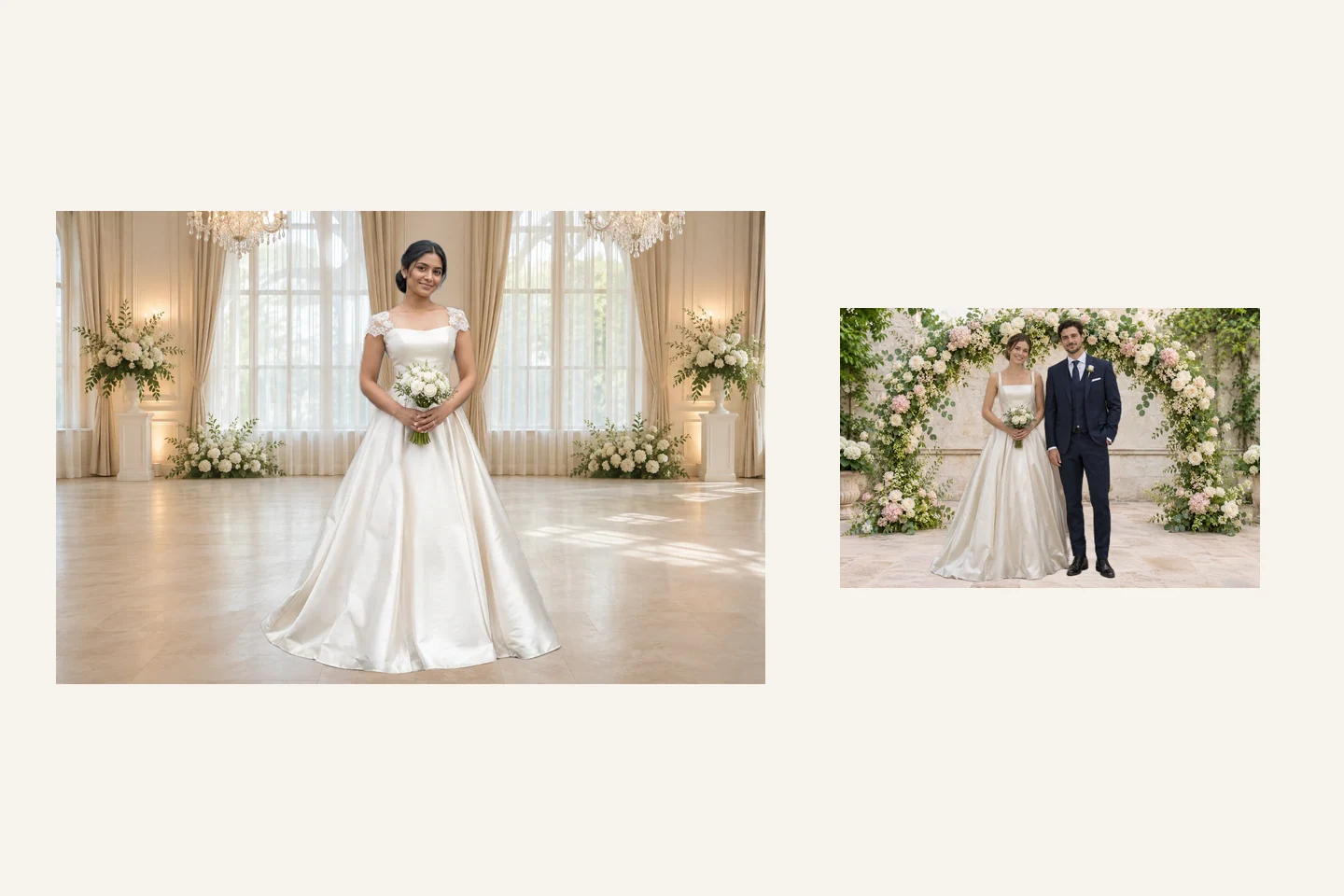
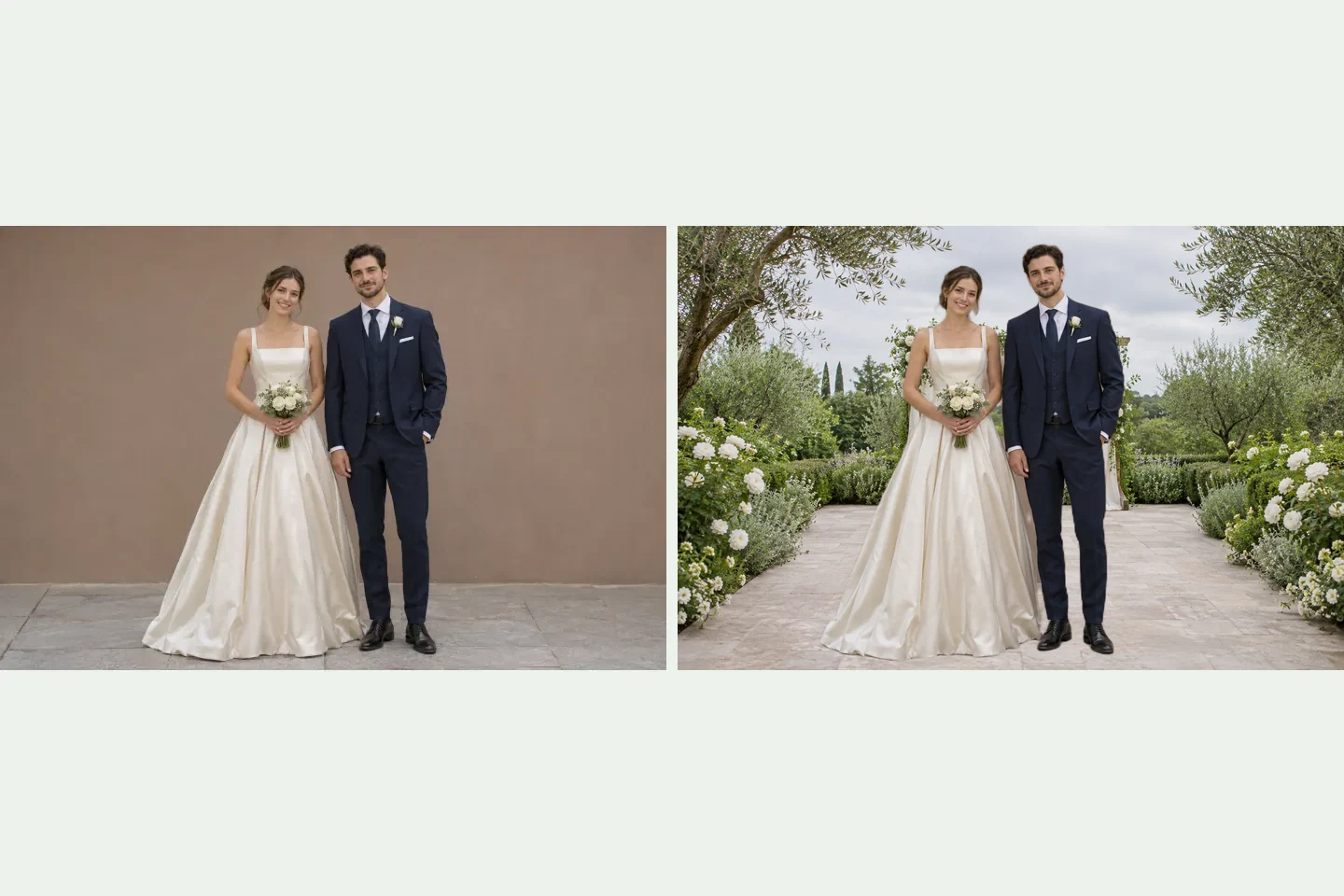
AI-generated couple before and after a background replacement using the editor mask

Start With the Portrait You Chose

The foreground uses image content from your source photograph. Faces, poses, and clothing come from that photo, so changing the setting does not require generating a replacement portrait. Check the extracted outline before saving.
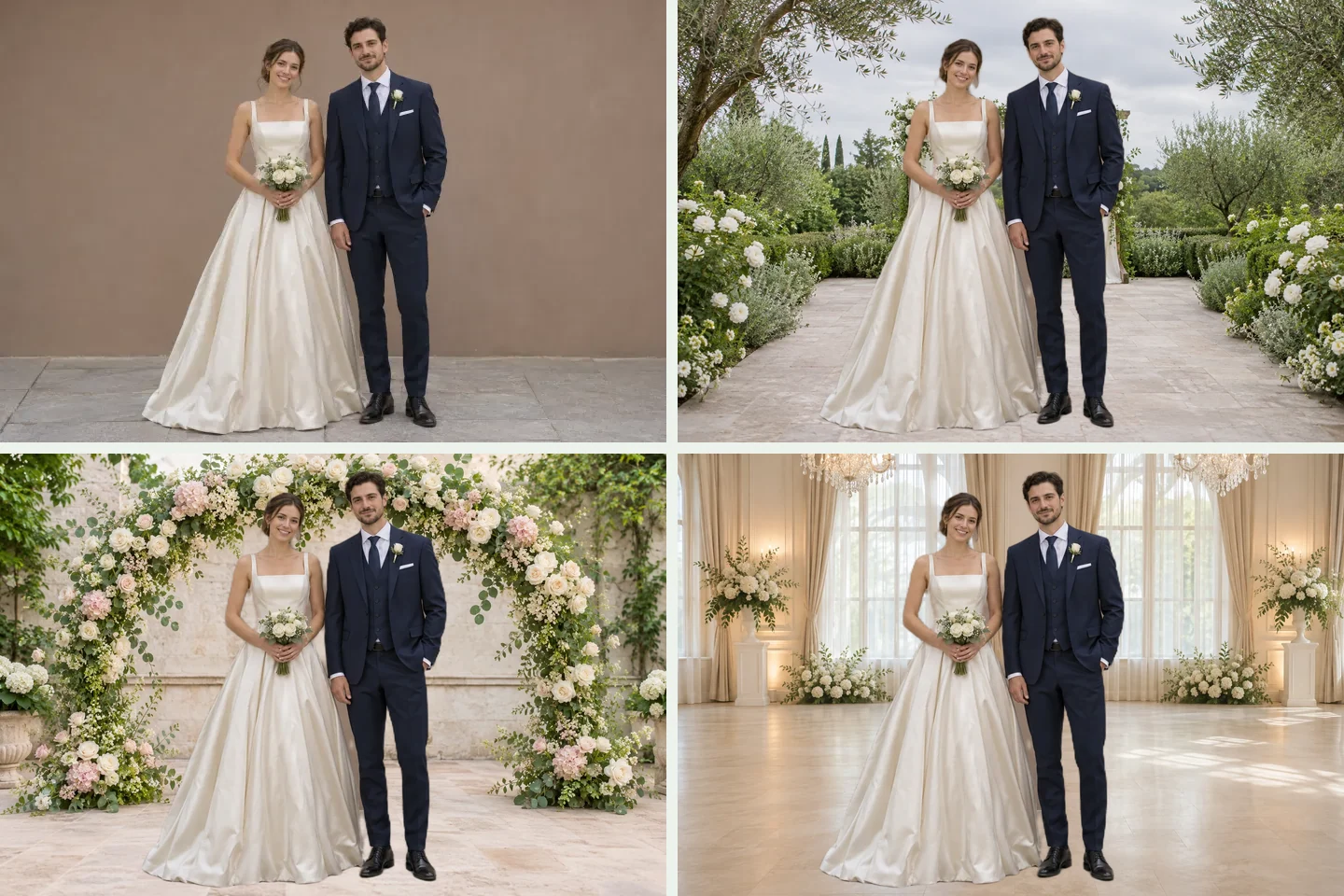
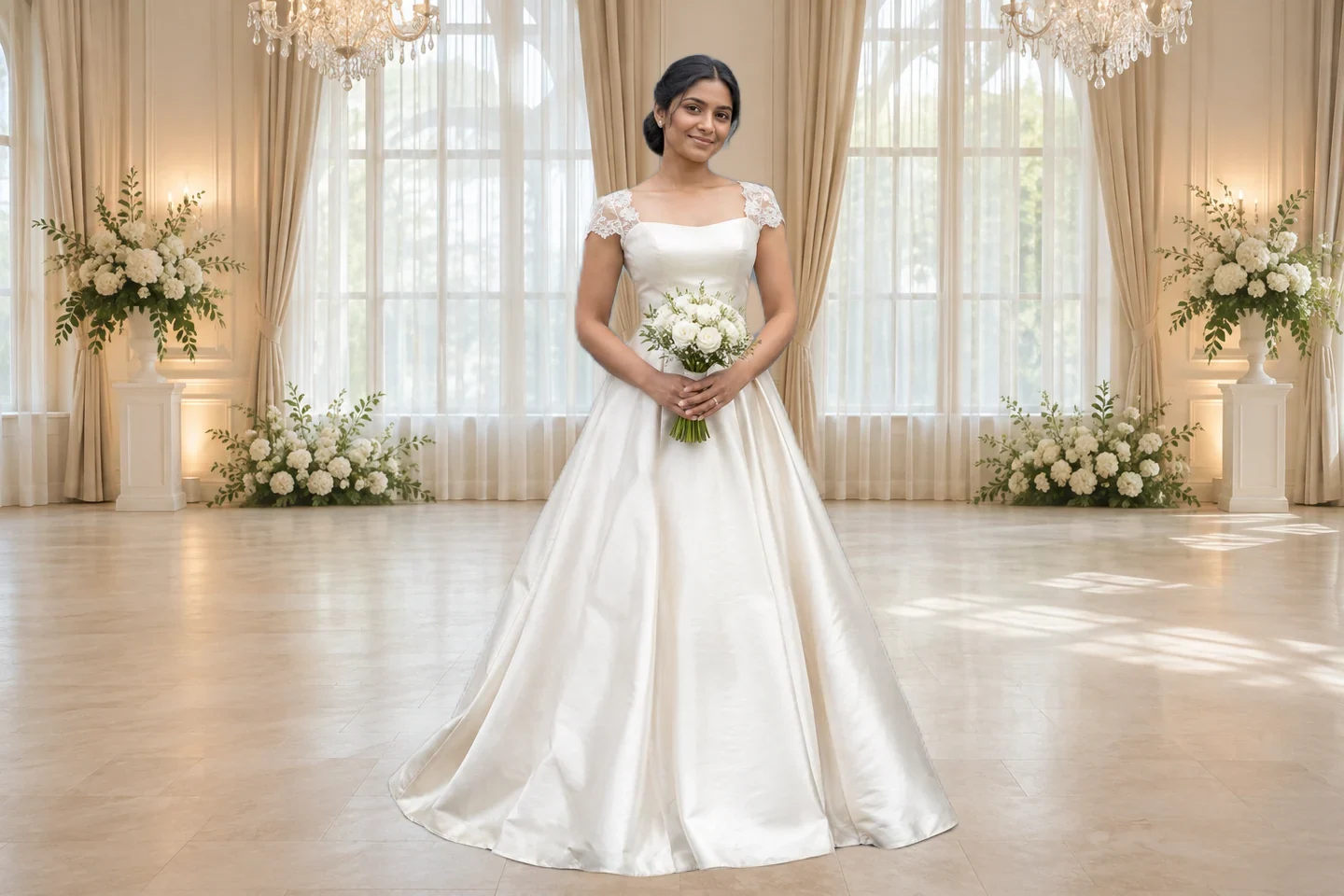
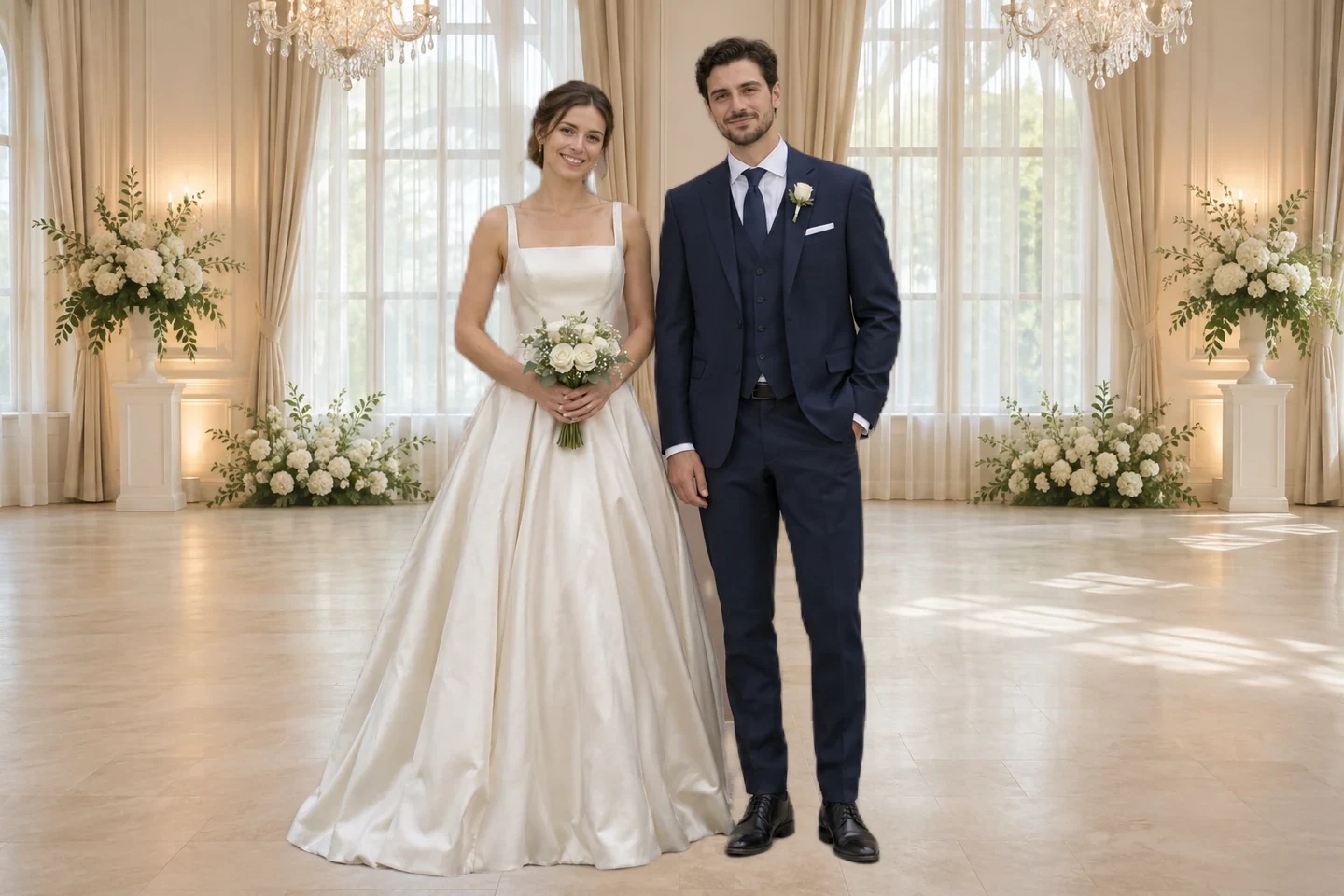
The same AI-generated couple composited over three available wedding settings

Compare Settings With the Same Foreground

After the initial separation, switching scenes reuses the extracted foreground. Compare how each setting works with the clothing, light, and pose without running the subject extraction again for every background choice.

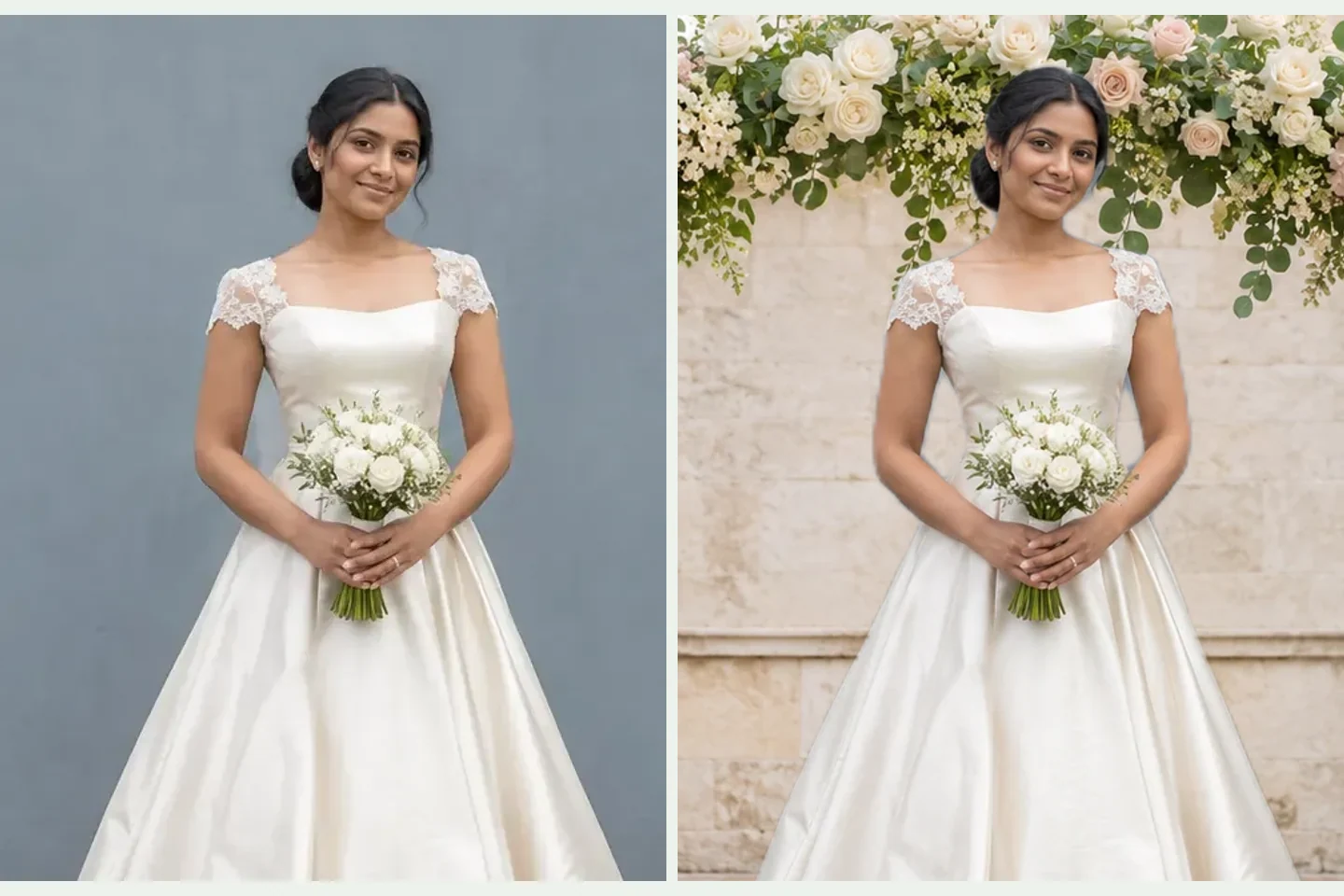
Close comparison of an AI-generated bridal portrait before and after editing

Check the Edit Against Your Original

The original view remains available after processing. Use it to inspect hands, hair, and clothing against the edited composition, making it easier to spot missing details before choosing which result to keep.

Wedding portrait composition ready to use in a personal layout

See the Dimensions Before You Save

The download area displays the output width and height. Check those values against the needs of your wedding website or design layout, then save a PNG containing the portrait and selected backdrop.

For the People Preparing Your Wedding Photos

Start with an existing portrait and a specific place you want to use it. Review each edit in the context of that final layout.

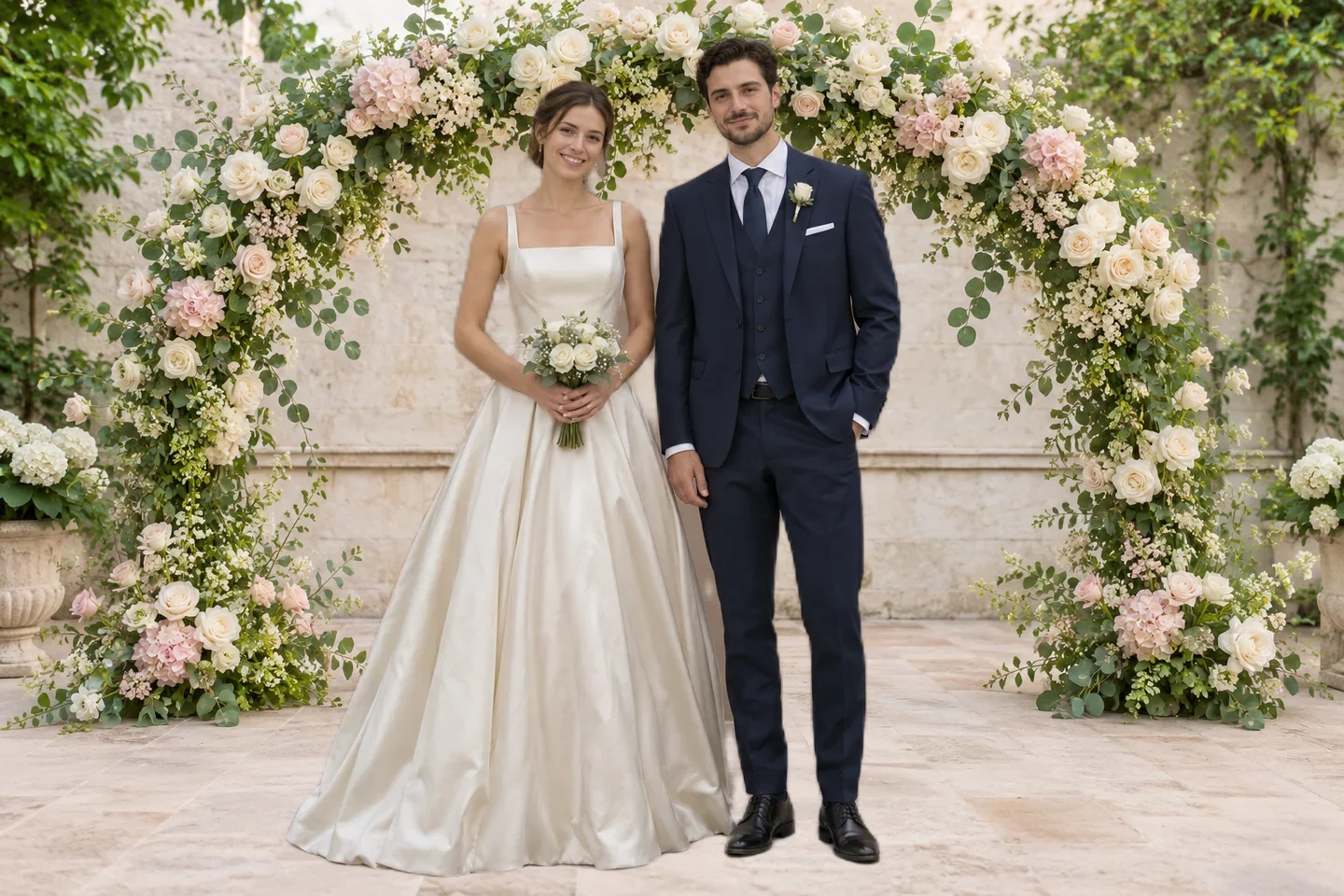
AI-generated couple composited over a garden wedding scene

Refresh a Photo for Your Wedding Website

You may already have a couple portrait with the expressions you want, but a setting that feels distracting. Compare a different backdrop for your personal wedding page or announcement. Review both people carefully, then finish the crop and any text in the editor you normally use.

    Edit Our Portrait
    What kind of photo should I upload?

    Use a JPG, PNG, or WebP file up to 15 MB. A clear portrait with visible faces and distinct clothing edges gives the editor a better starting point. For a couple photo, check that both people are clearly visible, and review each person's outline after processing.

    Will the edit change our faces or wedding clothes?

    The composition uses your uploaded photograph for the foreground rather than generating new faces or outfits. Subject separation can still miss fine details. Compare the result with the original, especially around hands, hair, jewelry, and the edges of the dress.

    Can I change the background of a photo with a sheer veil?

    Translucent fabric and fine lace can be difficult to separate from the original surroundings. Inspect the veil closely in the preview. If it becomes a solid patch, loses detail, or carries part of the old scene, try another source photo before using the result.

    Which wedding settings can I choose?

    Choose a garden ceremony, a floral arch, or an indoor reception setting from the scene previews. Compare how each backdrop works with your original lighting and clothing. The backgrounds are preset images; selecting a different scene does not generate a new venue from a written description.

    What file will I download, and is it suitable for printing?

    The scene editor saves a PNG containing the foreground and selected backdrop. Read the displayed pixel dimensions before downloading. Suitability for printing depends on those dimensions, the intended print size, and source image quality; changing the setting does not restore missing detail.

    Can I download an empty backdrop or create one from a prompt?

    This workflow combines your uploaded portrait with a scene you select. It does not provide standalone backdrop downloads or create a new setting from a written prompt. Use a separate asset source or image generation tool for those tasks.

    Is this wedding background changer free to use?

    A free PNG export is available. Check the pixel dimensions displayed beside the download control before saving. Original-size exports may require credits and sign-in when those options are enabled. Use the current options shown in the editor; a free download does not guarantee that every source photo is exported at its original dimensions.

    Why is my photo taking longer to process?

    The first edit may need to load the image processing model. Timing depends on your device and connection, and the workflow requires a browser with working WebGPU support. Check any message shown in the editor if processing does not complete.

    Questions About Editing Your Wedding Portrait

    Learn what to upload, what the edit changes, and what to check before using the finished image.

    Give a Favorite Portrait a Wedding Setting

    Start with a photograph you already want to share. Compare the available scenes, inspect the people and clothing, and save a composition for the place you plan to use it.

    Choose My Wedding Setting