Add a Flower Background to Your Photo

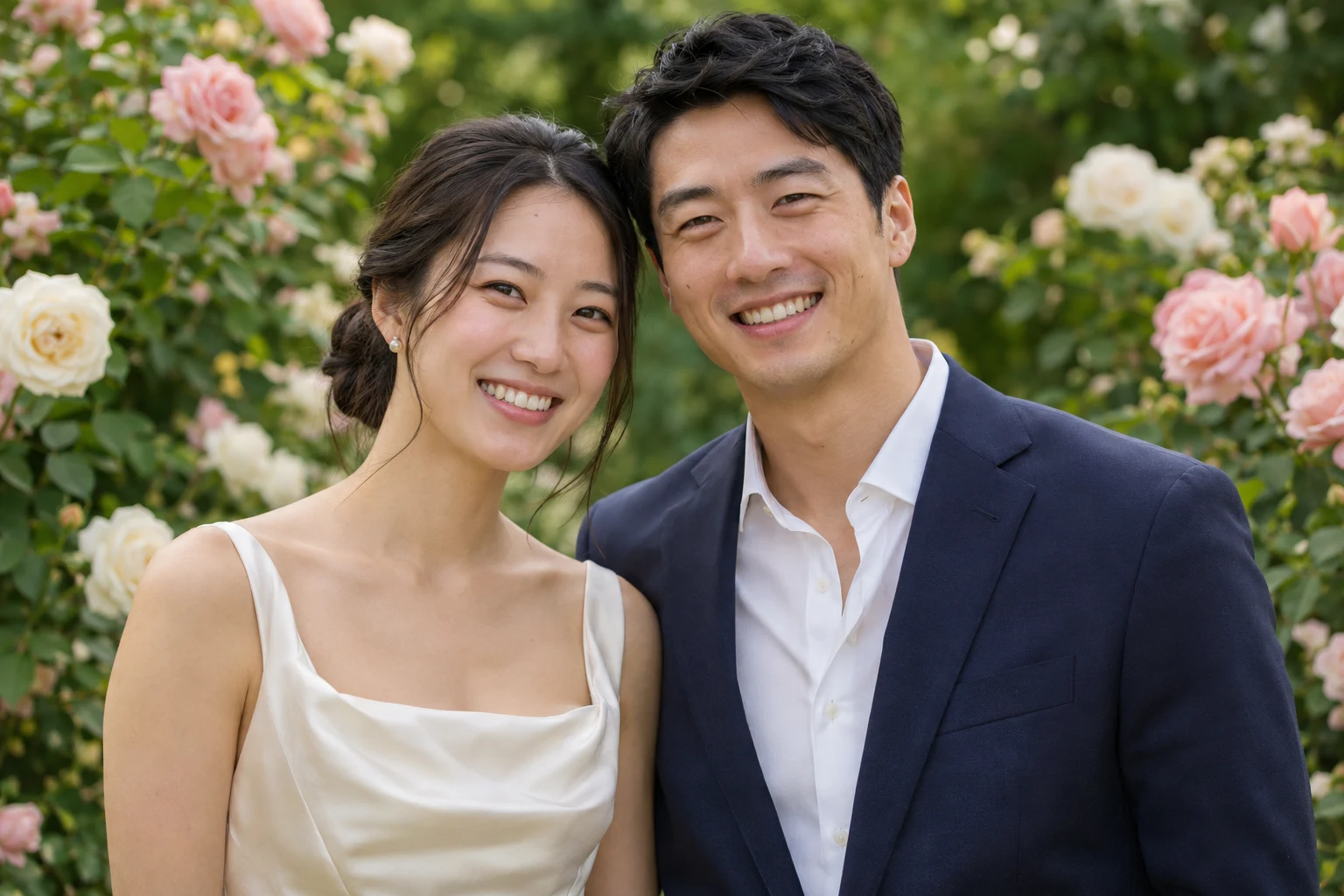
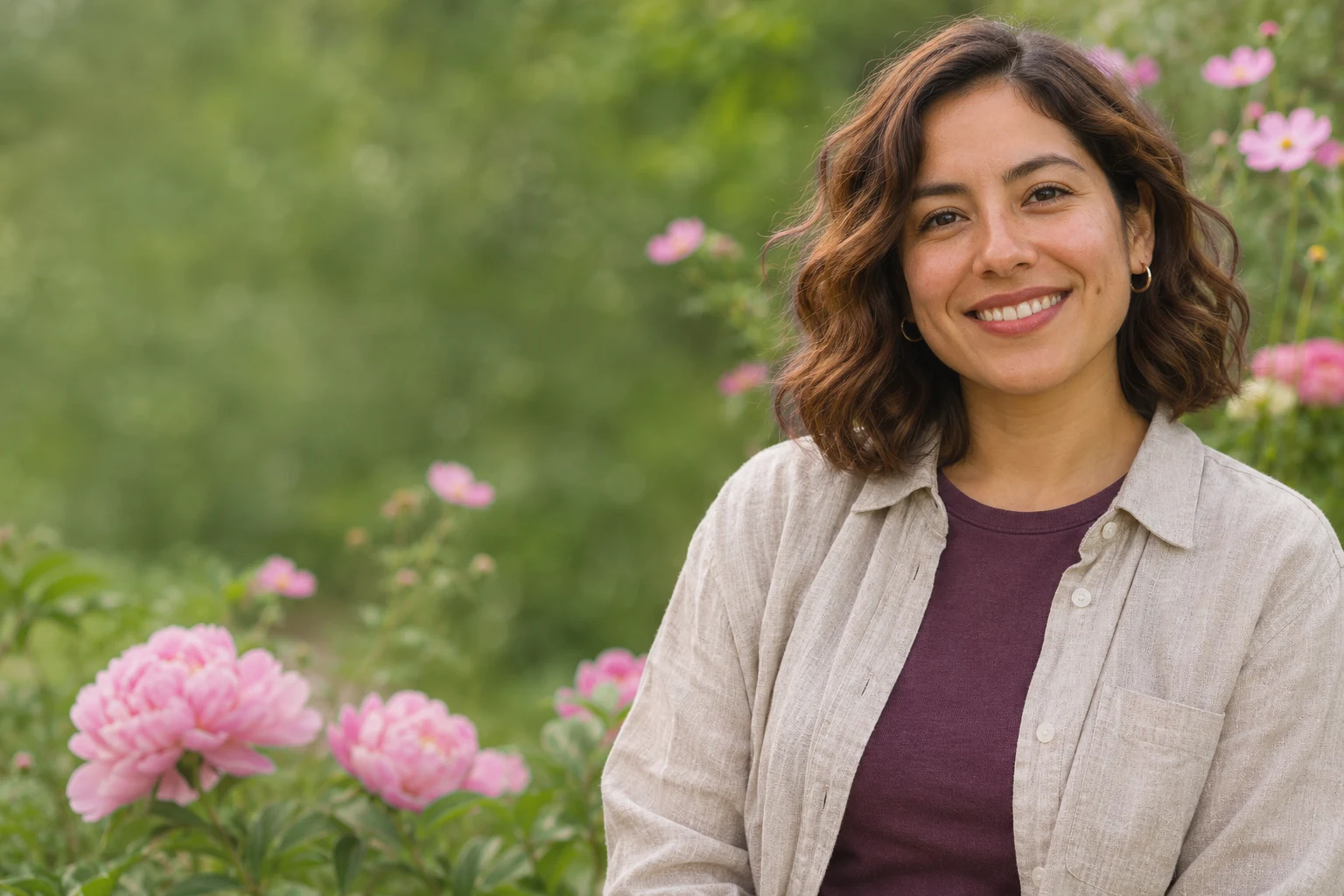
Upload a portrait, choose the flowers you want behind you, and apply the new setting. AI separates your subject so you can preview the composition and save a PNG after processing. Give a selfie, couple photo, or profile picture a different mood without cutting out and layering the image by hand.

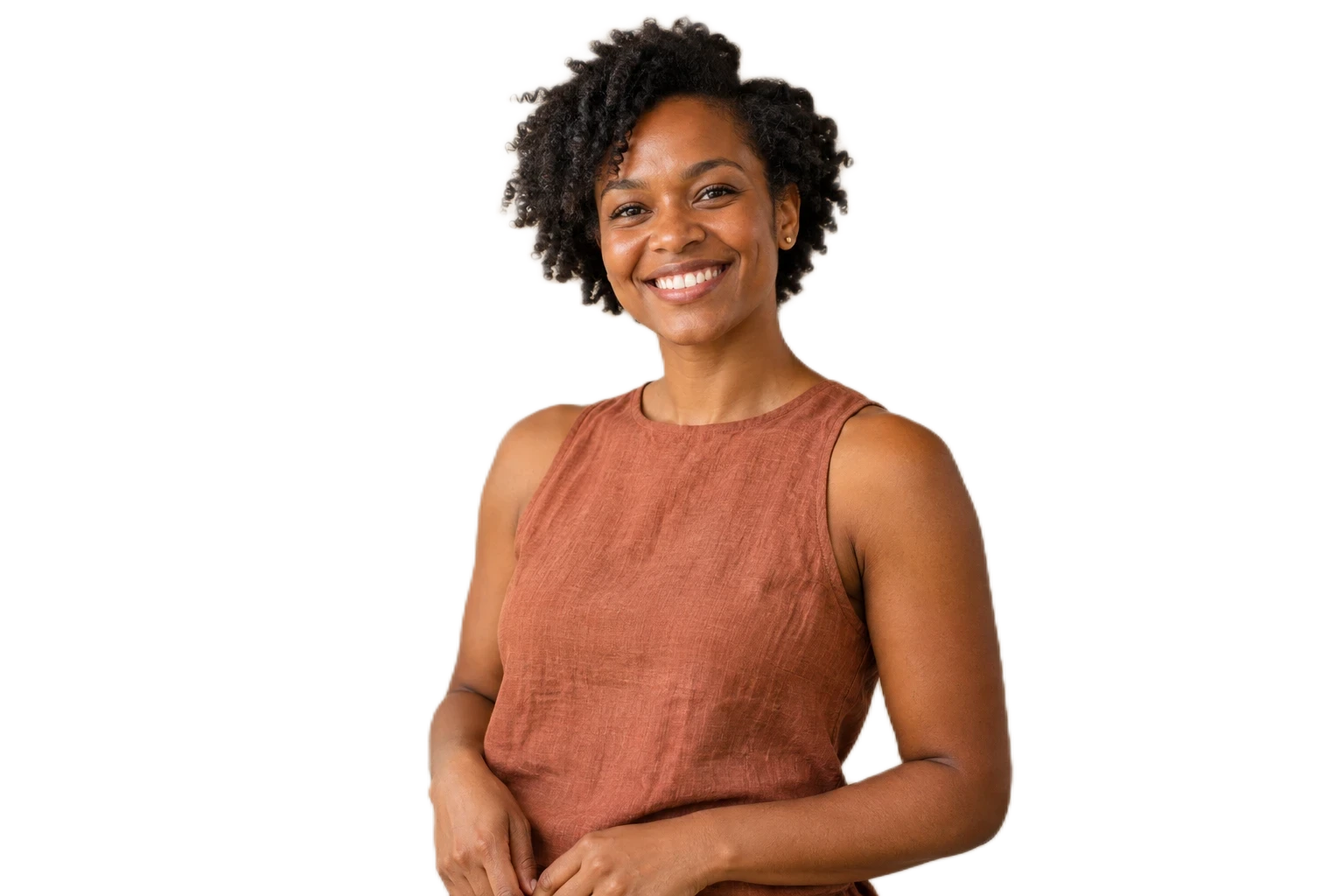
AI-generated woman with short natural curls and a terracotta top, shown with the selected floral setting
Sample using an AI-generated portrait. Upload your photo to make your own.

Your portrait, in bloom.

JPG, PNG, or WebP · Up to 15 MB

Choose your flowers

Loading your selected scene…

Privacy Policy

AI processing requires a WebGPU-compatible browser and a model download.

Find the Right Flowers for Your Portrait

Choose a pink flower background for a gentle color palette, a rose background for a romantic mood, or a cherry blossom background for a lighter spring setting. Compare the flowers with the colors already in your clothing. Large blooms can make a close portrait feel crowded, while smaller blossoms leave more breathing room around the face. Look for a quieter area behind your head and light that comes from a similar direction to your original photo. Use the available previews to find a setting that supports the person in the picture.

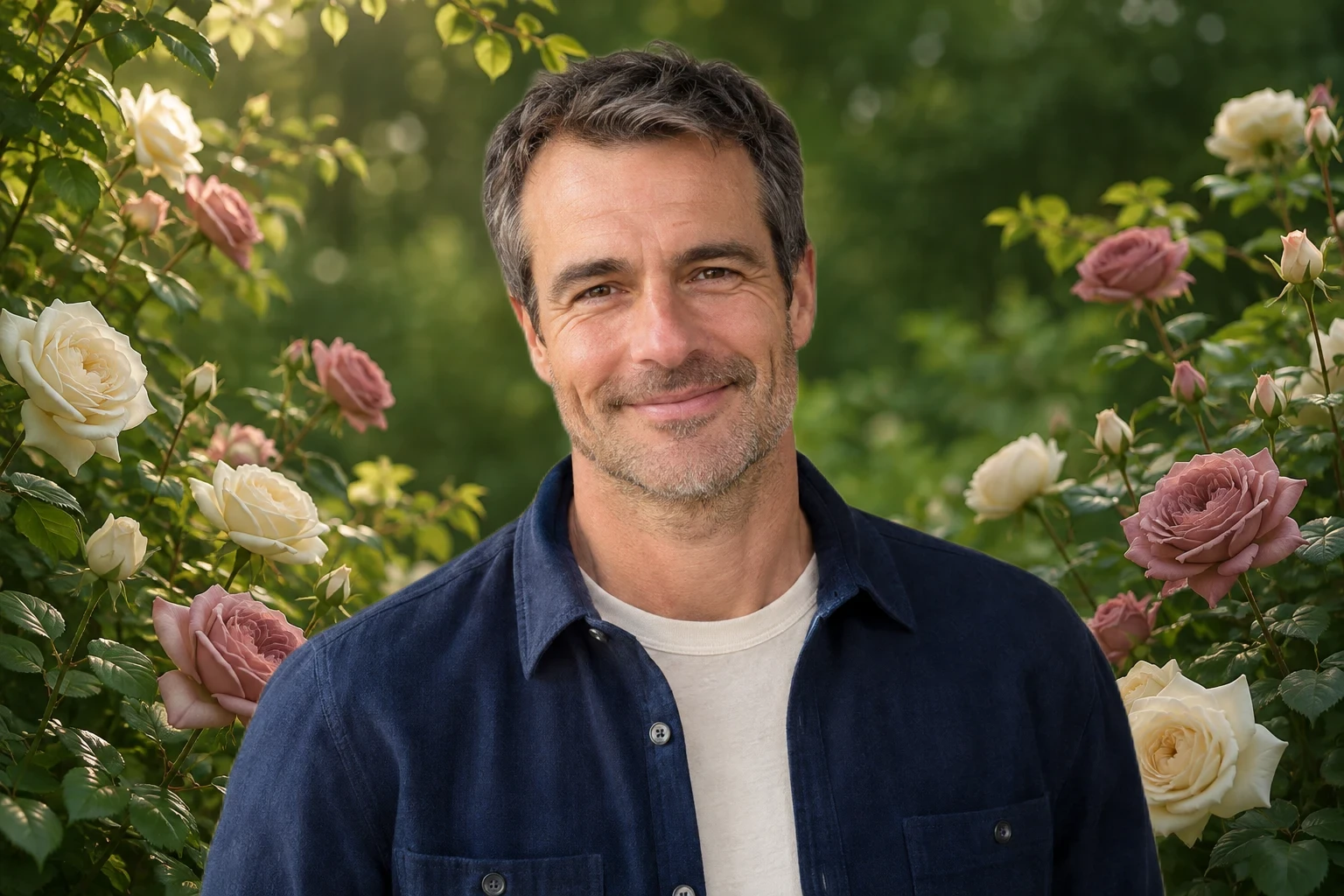
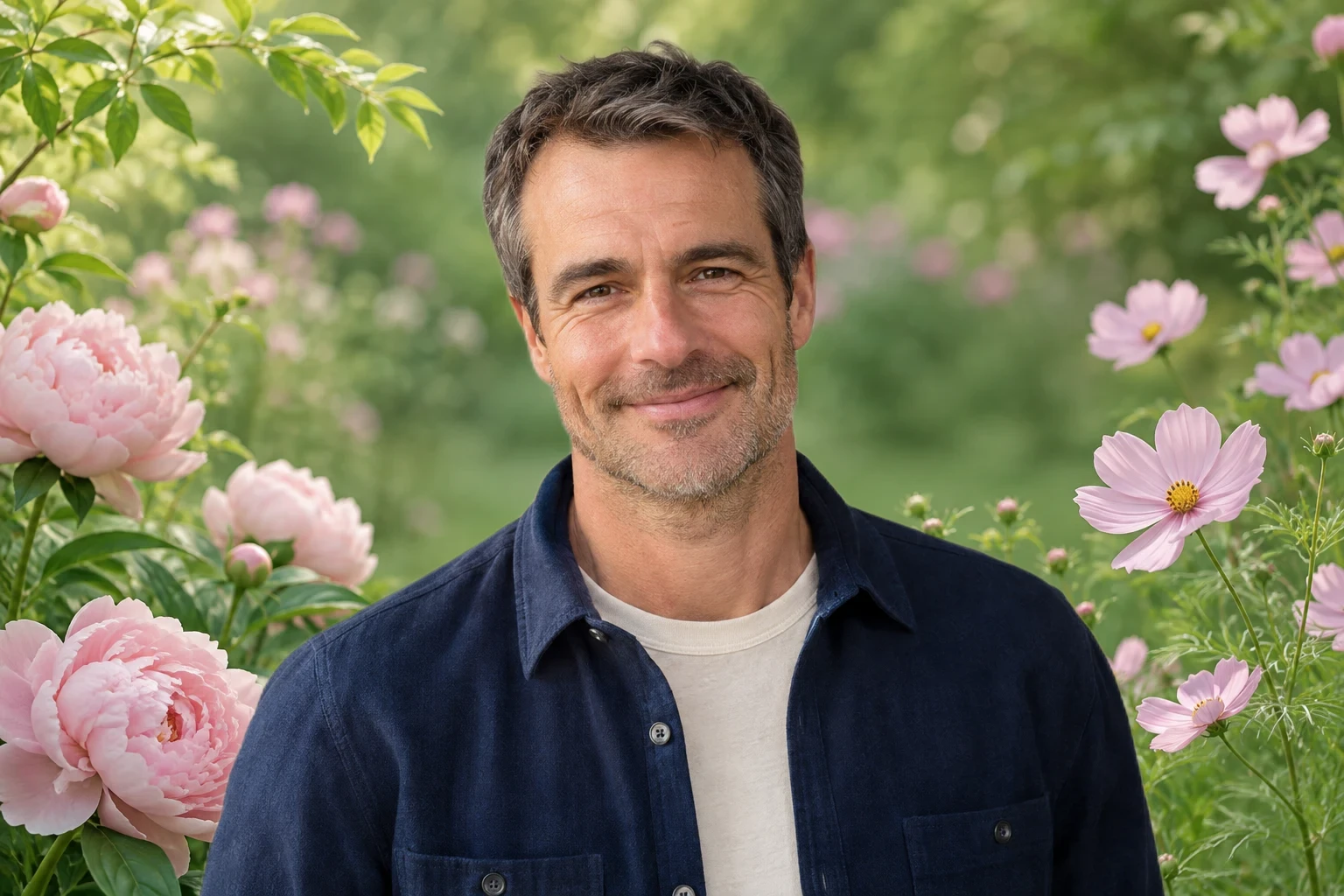
The same AI-generated man in an indigo overshirt with pink blooms and rose garden settings

Keep the Portrait You Like, Change the Setting

A busy room or plain wall does not have to define a photo you otherwise love. Use a flower photo background to build a different setting around the person in your original picture. The editor separates the subject and places the selected scene behind them, keeping the source photo as the basis for the face, pose, and clothing. Check the outline around loose hair, glasses, sleeves, and hands before saving. If petals appear to blend into the clothing, compare a less crowded scene or start with a clearer source image.

Edit My Floral Photo Background
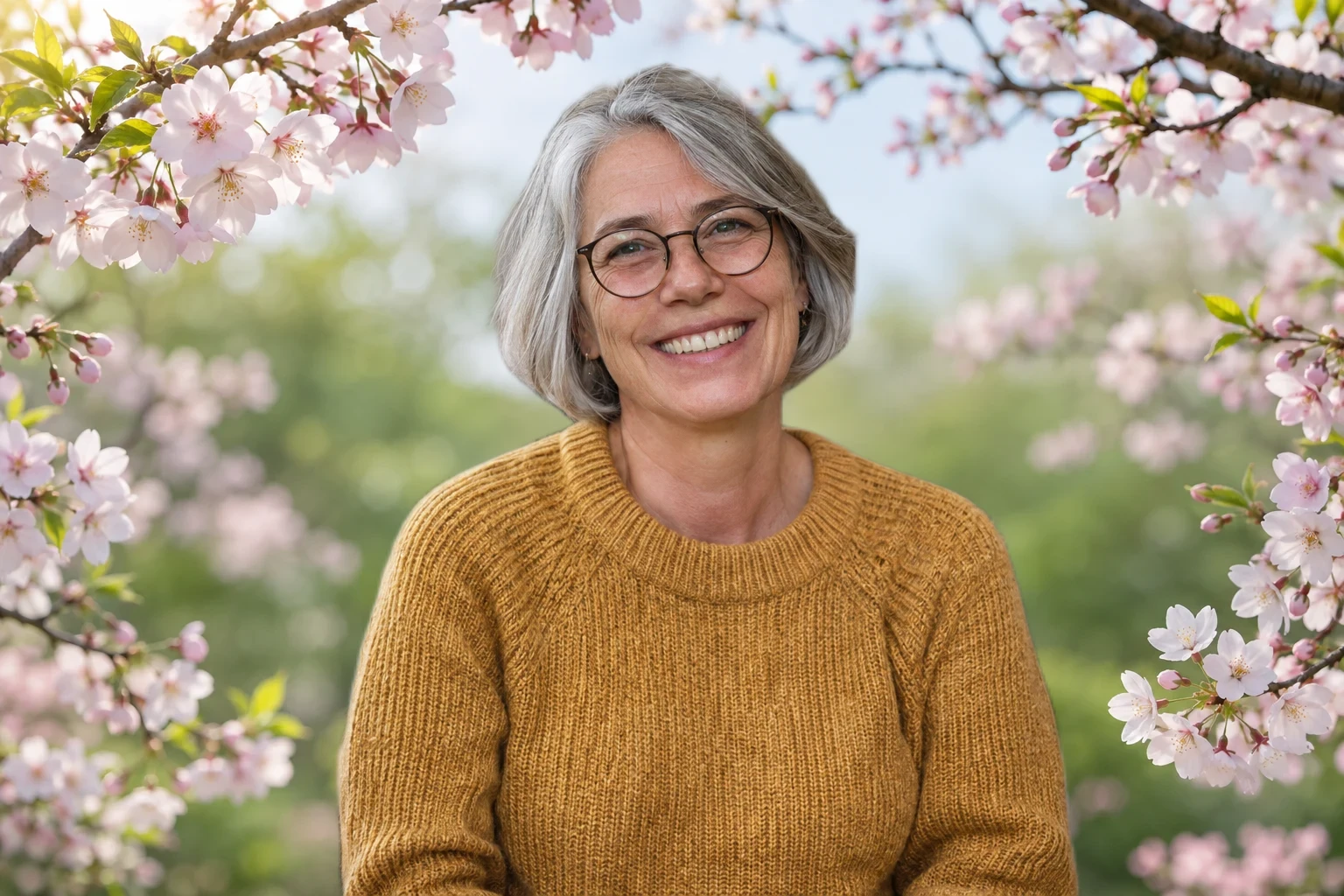
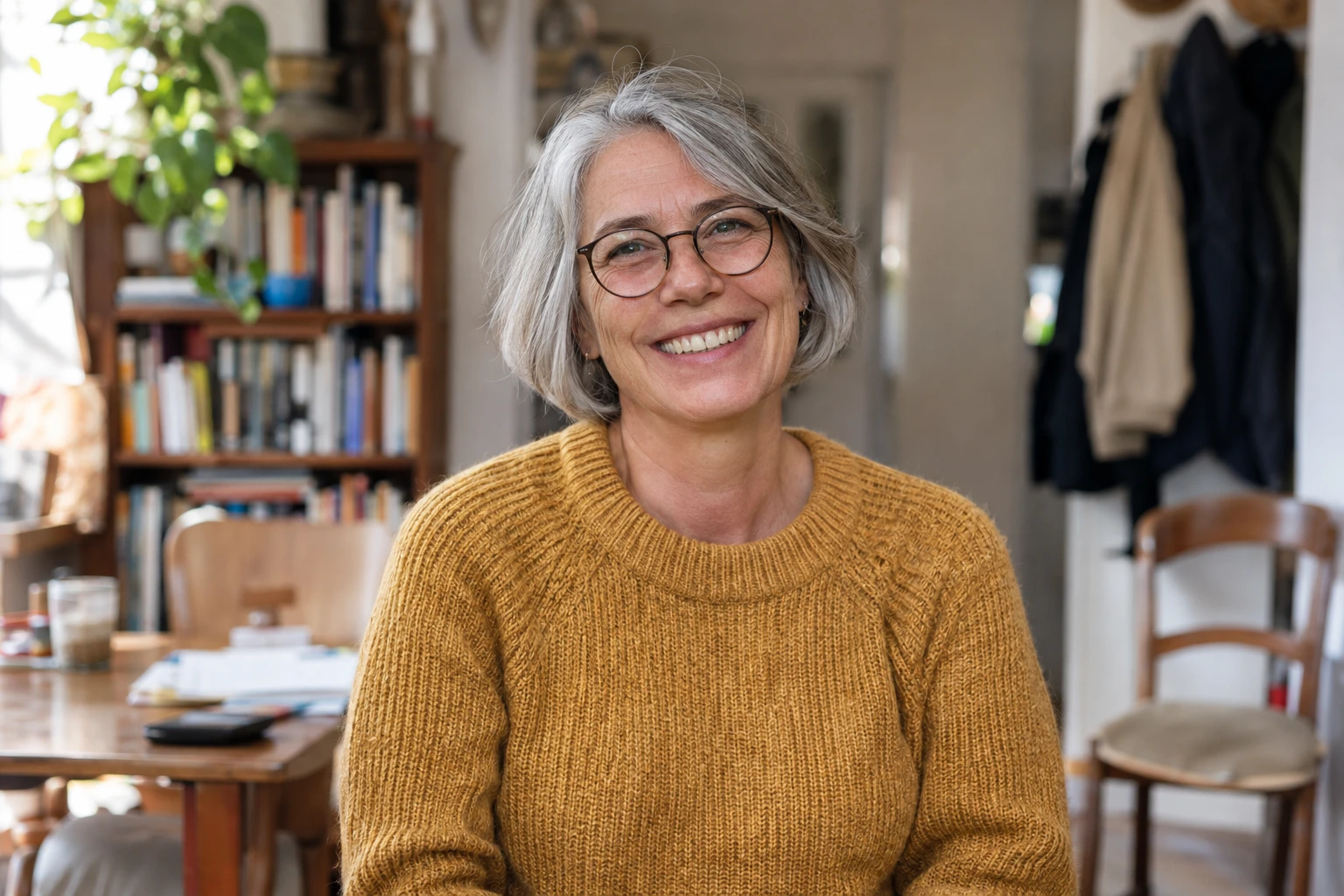
AI-generated silver-haired woman with round eyeglasses and an ochre sweater in a busy room

Turn Your Edited Portrait Into Something to Share

Prepare a personal post, a profile update, or a couple photo with a floral setting that fits the occasion. A flower background for editing works best when the finished composition leaves the person easy to recognize. For a profile picture, check how the face looks inside a small crop. For a photo you plan to place in a greeting or announcement, leave space around the subject for the layout you will add later. Download the composition, then finish any text, crop, or page design in your usual app.

Create My Floral Background Photo
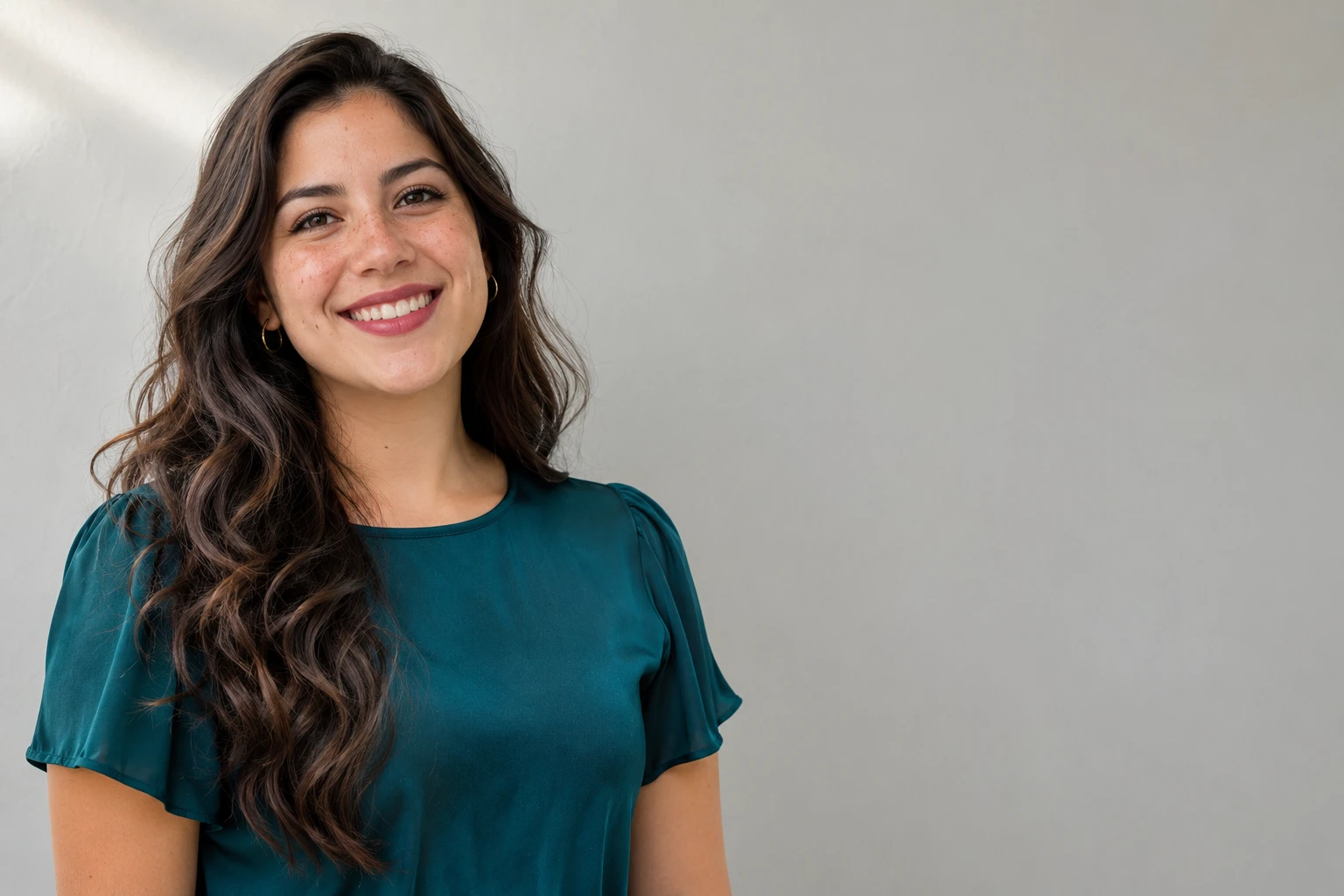
AI-generated woman in a teal blouse, positioned left with space beside her before background replacement

How to Add a Flower Background to a Photo

Give your portrait a floral setting in three steps: upload a photo, choose a scene and let AI replace the background, then review and download the finished PNG.

  1. 1

    Upload a clear photo

    Choose a JPG, PNG, or WebP image up to 15 MB. Start with a portrait that shows the face, hair, and shoulders clearly. Avoid a crop that cuts off parts you want in the finished picture, since changing the setting will not reconstruct them.

  2. 2

    Choose your flowers and apply the background

    Select one of the available scenes, then choose Apply Background. AI separates the subject and combines it with your selection. The first use can take longer while the model loads. Once the result appears, compare other settings with the same photo to check their colors and visual balance.

  3. 3

    Review the result and save a PNG

    Switch between the original and edited views. Inspect hair, clothing edges, and the space around the face. Read the pixel dimensions shown beside the download control, then save your composition through the free export option. Review it again in the size you plan to share.

Add Flowers to My Photo for Free

Why Use Free BGRemover to Add a Flower Background?

Free BGRemover uses AI to separate your subject and place them against pink blooms, roses, or cherry blossoms, without manual cutouts or layered editing. For profile pictures, couple keepsakes, and personal posts, you can reuse a portrait you already love and compare floral settings before downloading the finished PNG.

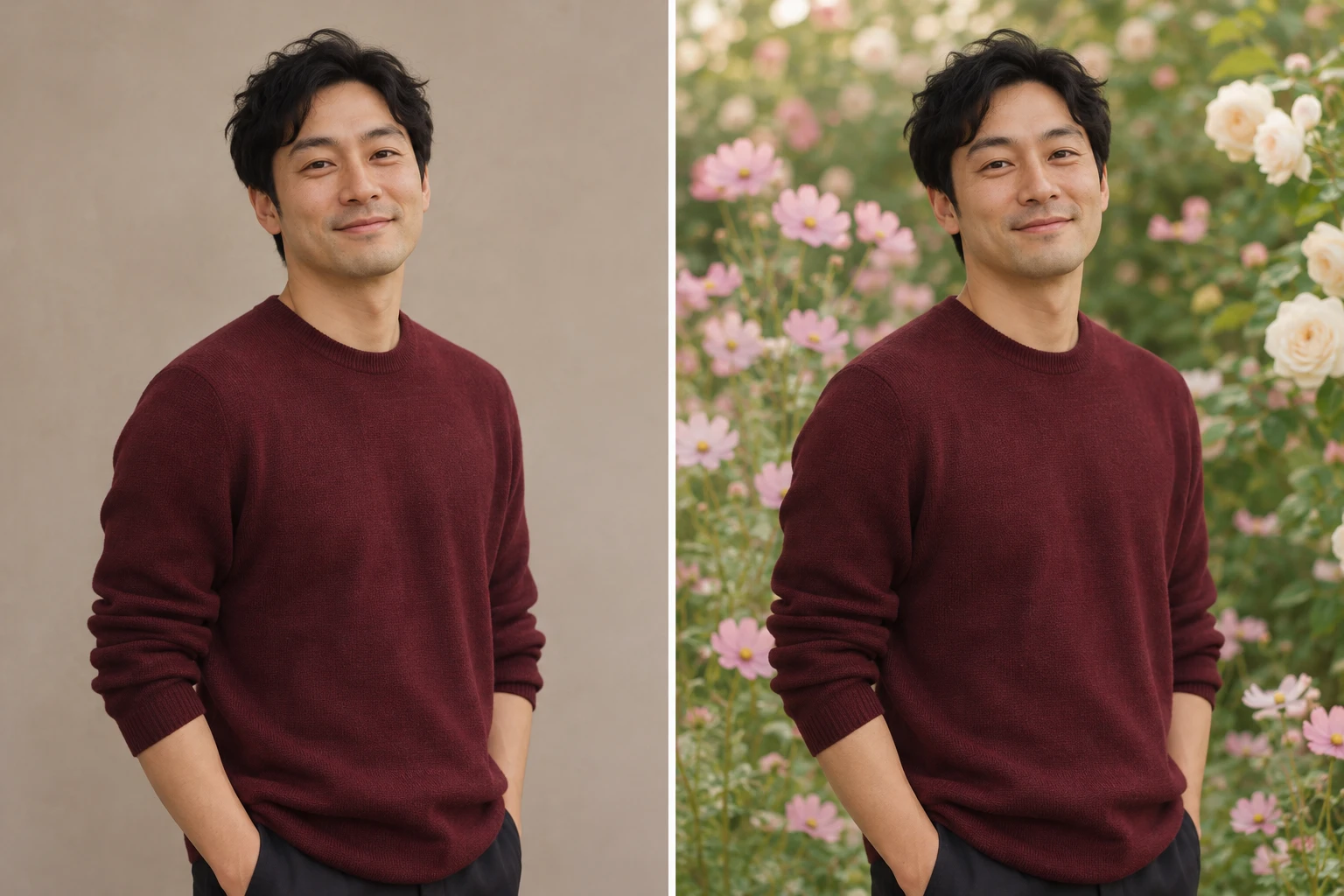
AI-generated illustration comparing the same man in a burgundy sweater before and after adding a floral background

Keep the Portrait That Feels Like You

Your uploaded photo supplies the face, pose, and clothing in the composition. AI separates the subject from the original setting, letting you reuse a favorite portrait without assembling the image layers yourself.

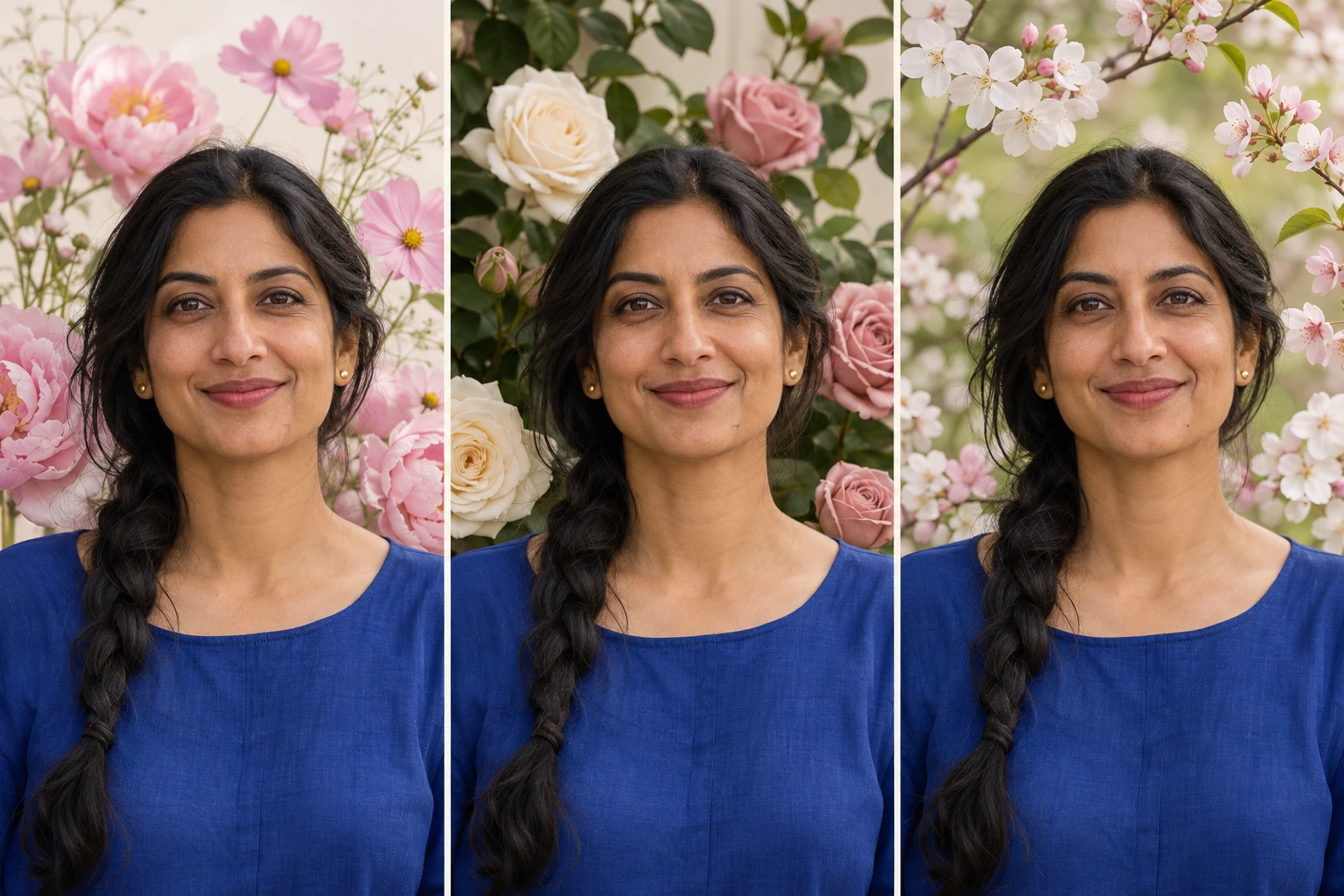
AI-generated illustration of one portrait in a cobalt blouse with pink flowers, roses, and cherry blossoms

Find Flowers That Complement Your Portrait

Pink blooms, roses, and cherry blossoms offer distinct colors and moods. You can compare these settings with the same extracted subject, making it easier to choose flowers that work with your outfit.

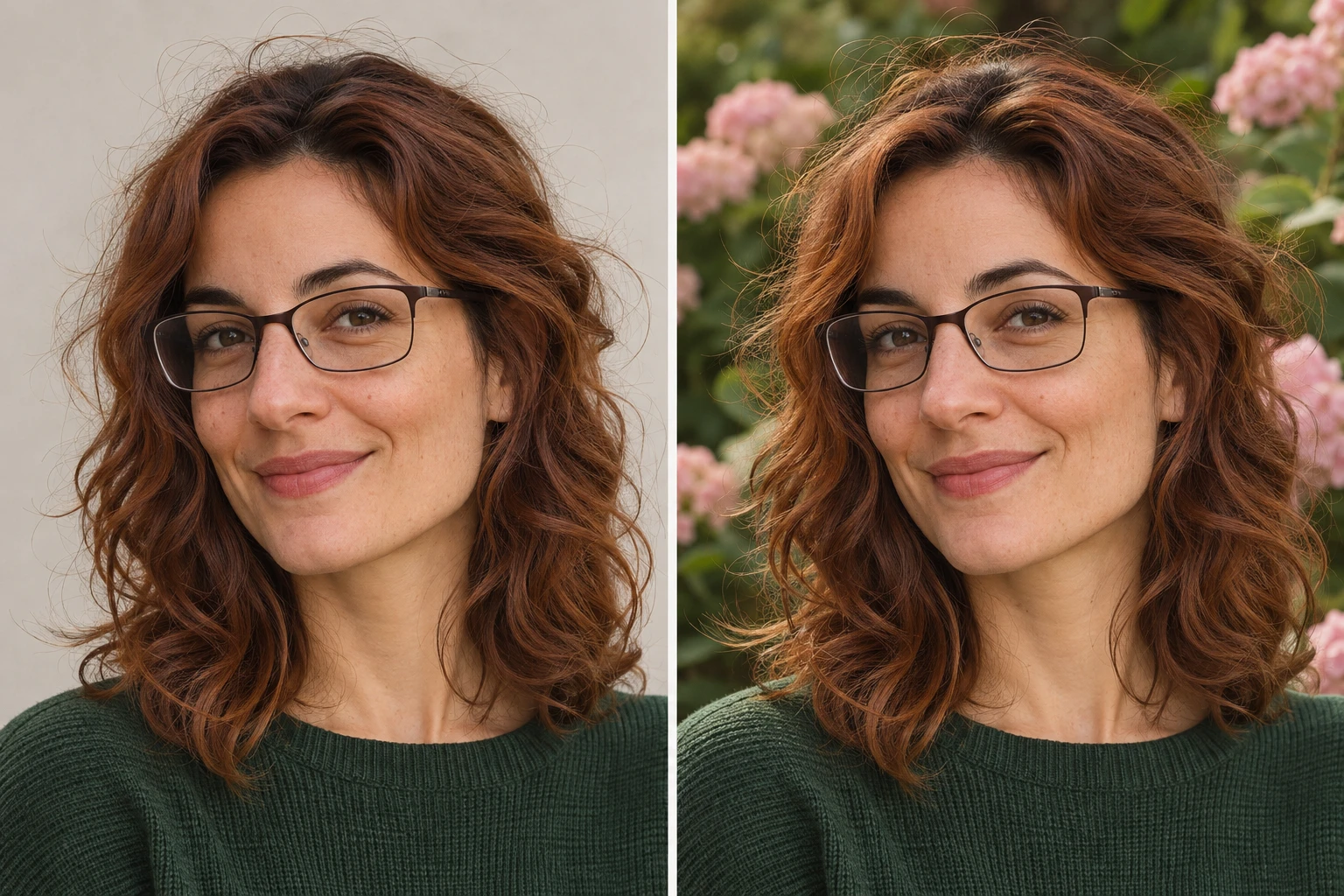
AI-generated close-up illustration comparing hair and eyeglass edges against neutral and floral backgrounds

Check the Details Before Saving

The original and edited views let you check hair, glasses, and clothing edges against your source photo. That comparison helps you spot missing details and decide whether the composition is worth saving.

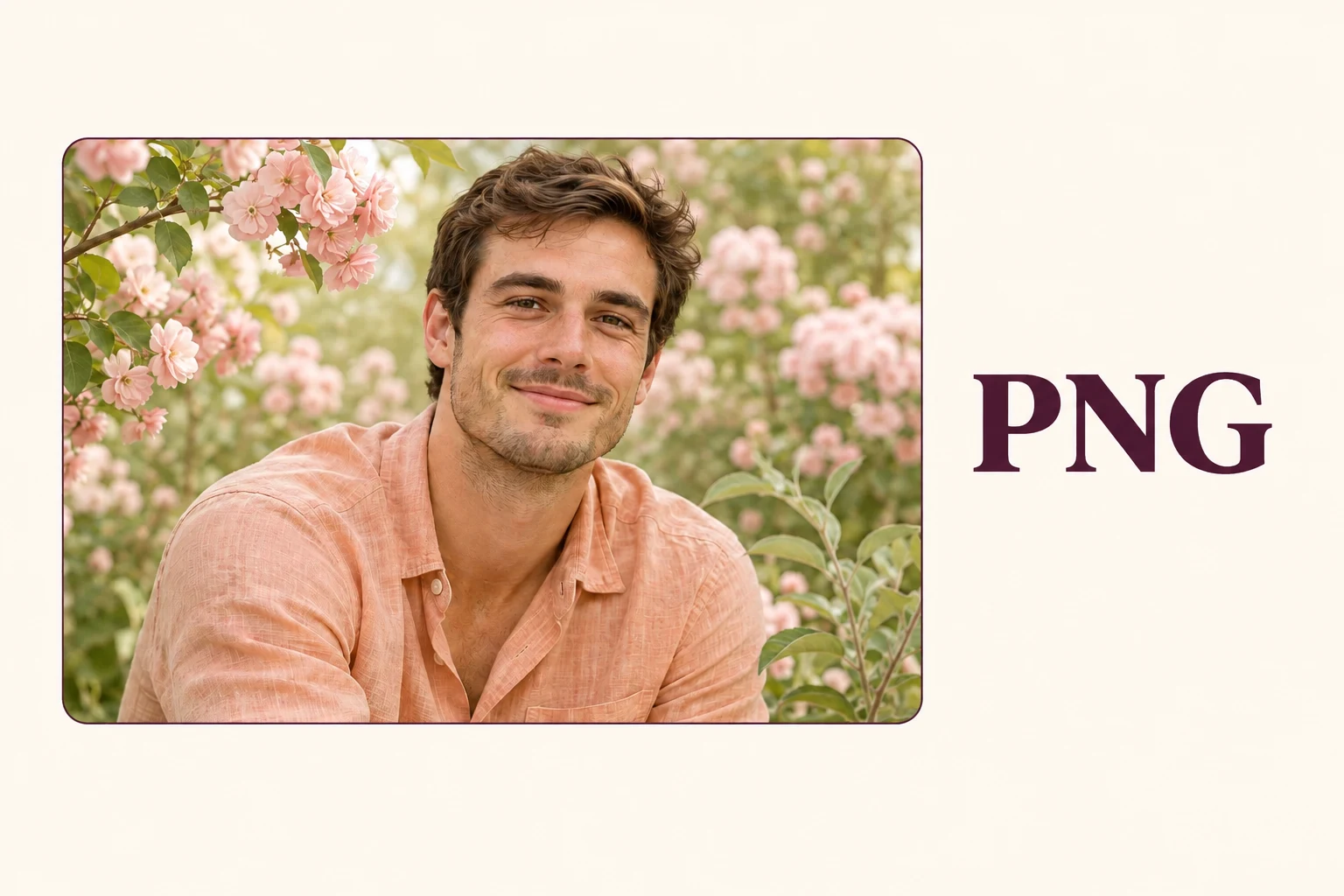
AI-generated PNG export illustration with a floral portrait and PNG label

Know Your Export Size Before Downloading

The PNG export includes the complete floral composition, with pixel dimensions shown before download. Knowing the size helps you decide whether the result suits a profile picture, personal post, or further editing.

Floral Photo Edits for the Moments You Want to Keep

Choose the use closest to yours, then start with a photo that already captures the person or moment you want to share. The editor changes the setting; your choice of picture gives the result its meaning.

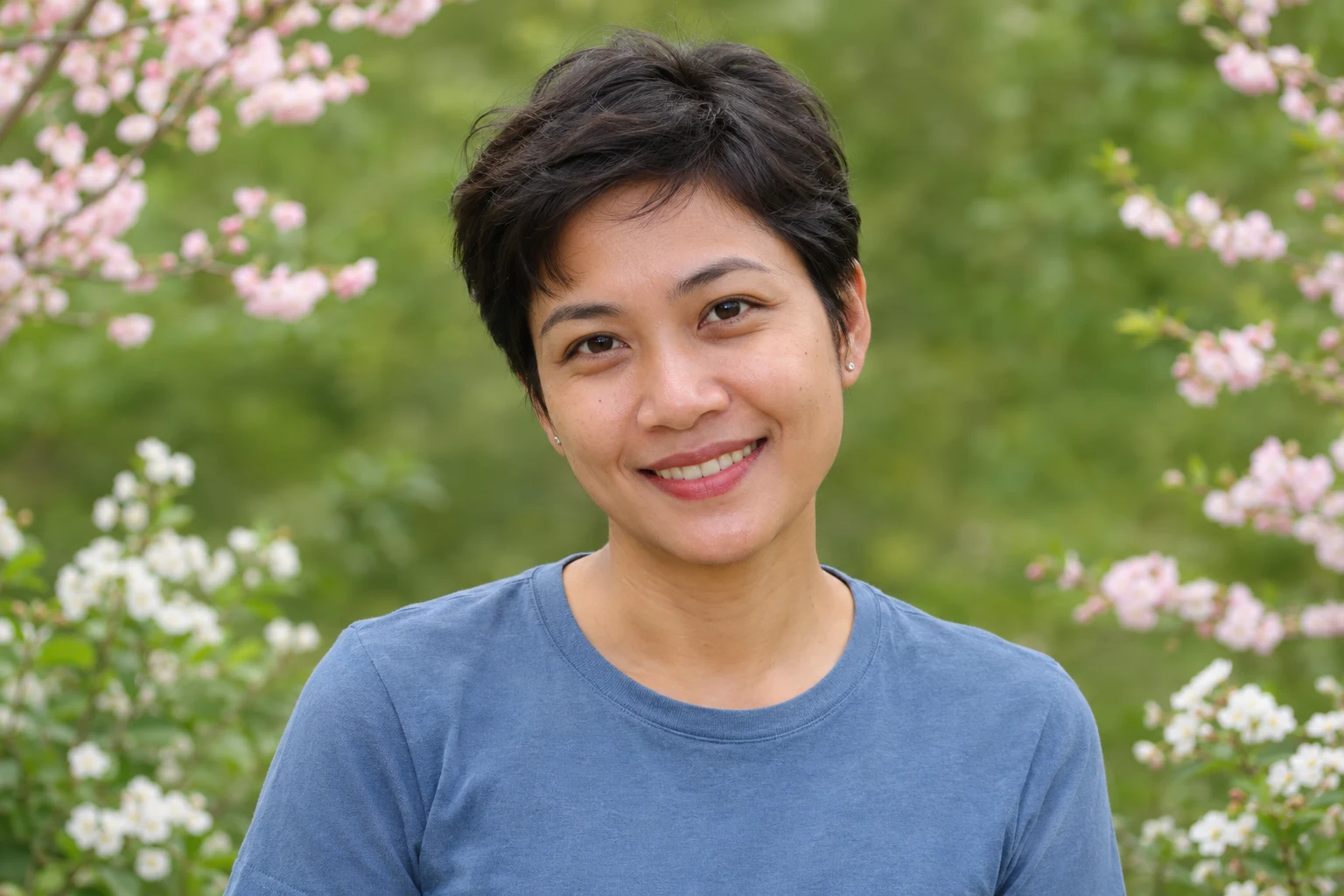
AI-generated selfie-style illustration of a short-haired woman in a blue shirt with soft pink and white flowers behind her

Give a Familiar Selfie a Fresh Setting

Start with a selfie where your face and hair are clearly visible. Pick flowers that stay readable behind the shoulders without competing with your expression. After downloading, finish the crop in your profile app and check the small preview before you upload it.

  • Reuse a favorite selfie
  • Compare colors around your face
  • Check the final profile crop
Prepare My Floral Profile Photo
Is the photo editor free to use?

You can save the finished composition as a PNG through the free download option. Check the export dimensions displayed beside the download control before saving. Availability of larger exports follows the options shown in the editor, so a free download does not promise an original-size file.

Which image formats can I upload and download?

Upload a JPG, PNG, or WebP image up to 15 MB. The edited result downloads as a PNG containing your photo and the selected scene. The PNG format does not mean the image has a transparent background; the flowers remain part of the finished composition.

Which flowers can I choose for my photo?

Choose from the pink blooms, roses, and cherry blossoms shown in the editor. Compare the available scenes with your portrait before deciding. Consider the size of the flowers, the light on your face, and whether the colors work with the clothes in your original picture.

How can I make the composition look more natural?

Choose a scene with light coming from a similar direction to the light on your face. Avoid placing a bright blossom directly behind the head, and check where petals meet hair or clothing. A clearer source photo or a quieter scene can make the result easier to read.

Will the edit make my photo HD or 4K?

Changing the setting does not restore missing detail or upscale a blurry portrait. Start with a sharp image and check the pixel dimensions shown before download. The result depends on the source photo, the selected scene, and the export size available for that image.

Can I download an empty backdrop or a transparent flower?

The download in this workflow is your photo combined with the selected scene. A standalone backdrop or an isolated transparent flower is a different type of asset. For those uses, choose a source that provides the file you need and explains its usage terms.

Does AI create a new scene from my description?

This editor uses AI to separate the subject from your uploaded photo, then combines it with a scene you select. It does not turn a written prompt into a new setting. To change the look here, compare the available options with the same portrait.

Why is my photo taking longer to process?

The first edit requires a model download, and processing time varies with your device and connection. AI processing also needs a WebGPU-compatible browser. Use a current version of Chrome or Edge with hardware acceleration enabled. If the edit fails, check the browser message before retrying.

Questions About Your Floral Photo Edit

Learn what to upload, how to choose your scene, and what to expect from the finished download.

Put Your Favorite Portrait in Bloom

Start with a photo you already love. Choose a floral setting, check the details, and save the composition for the moment you want to share.

Choose a Floral Background