To change the background of a picture to white or a solid color, upload it to Free BGRemover, click Remove background, choose White or Custom color, then click Download PNG. This single-image workflow is free and does not require an account.
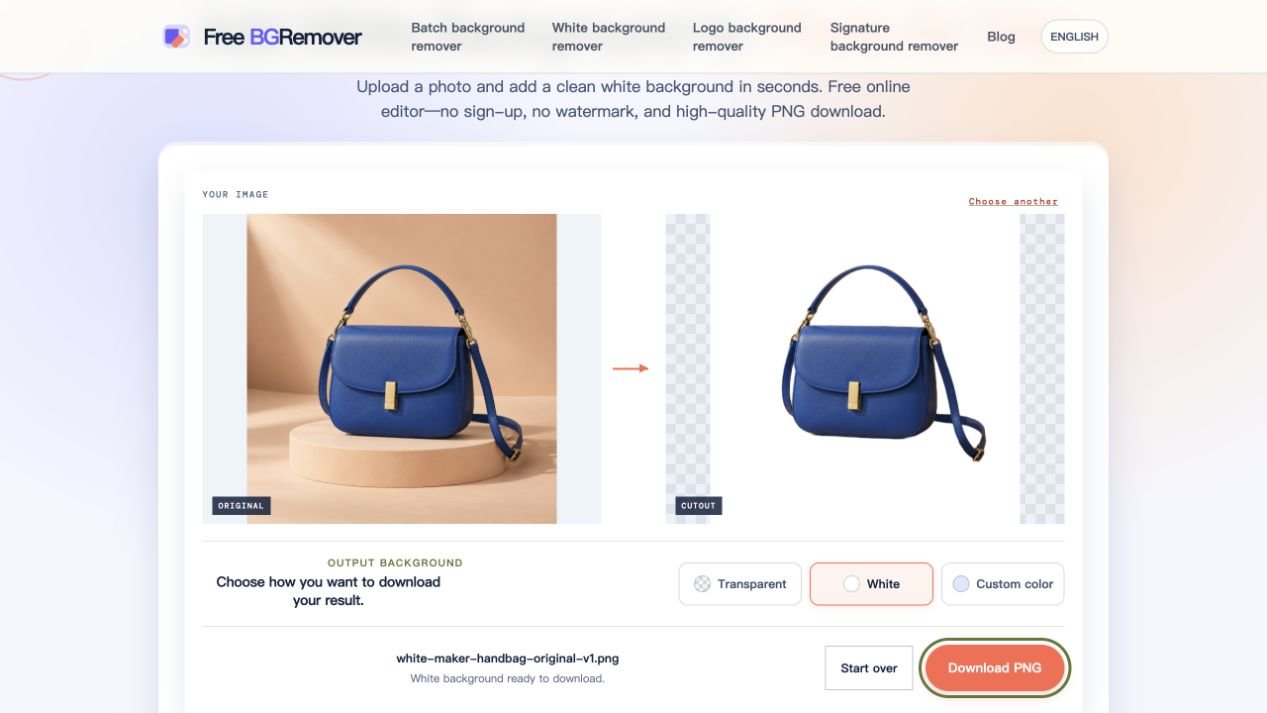
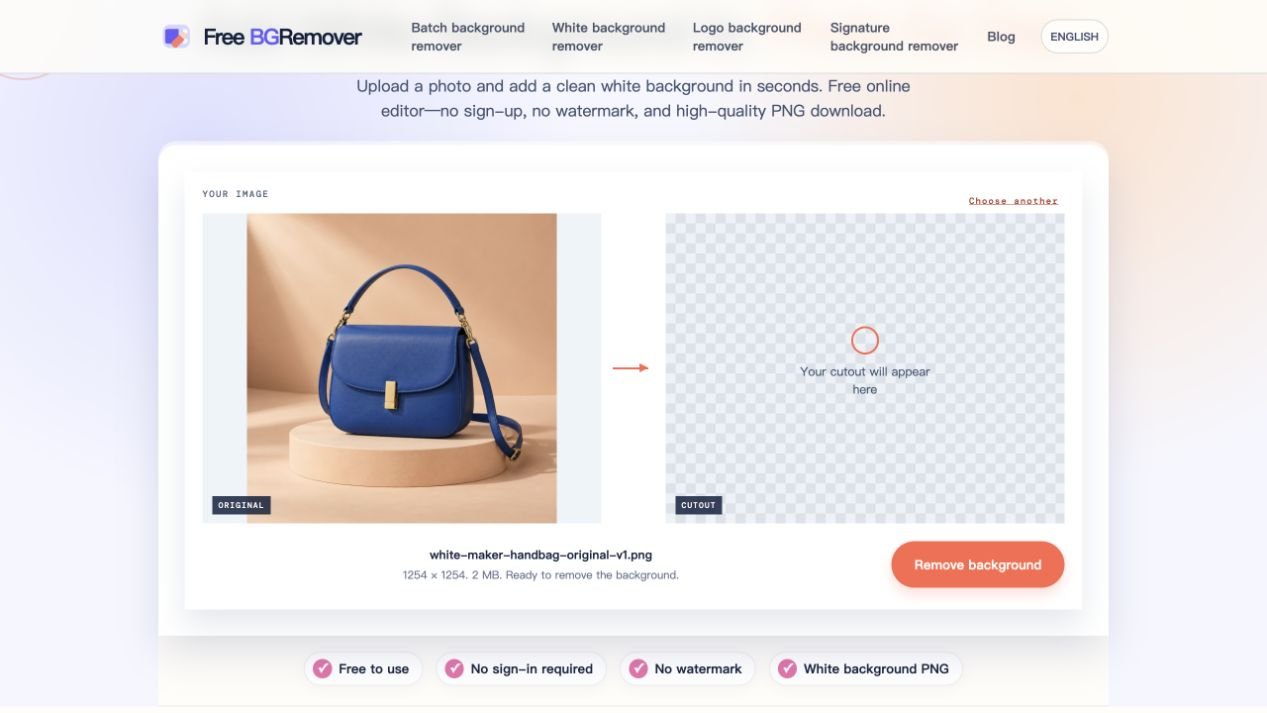
The handbag screenshots show an actual Free BGRemover session using an AI-generated source image. The result comes from the tool, without manual retouching.
Change to White or a Solid Color
You need a JPG, PNG, or WebP file up to 15 MB. Use the original photo if you have it: a screenshot or compressed copy may lose hair and other fine details. Background removal needs a browser and device with working WebGPU support, plus an internet connection for the initial model download.
1. Upload Your Photo and Remove the Background
Open the background remover, select Upload an image, and choose your file. Click Remove background after the preview appears; uploading alone does not start processing. Keep the tab open while the model loads and processes the image.
2. Choose Your Background Color
After processing finishes, find Output background below the previews:
- Select White for a plain white background.
- Select Custom color, then click the color swatch to open the picker. Choose a shade or enter its R, G, and B values.
- Select Transparent only if you want a cutout to place on another image.
Compare the result with your original. In the handbag example at the top of this page, the peach stand disappears and the opening beneath the handle becomes white. Check the thin strap too: a missing piece of the subject will not come back when you change the background color.
If the edge is hard to see against white, temporarily choose a dark custom color. Switch back to your intended color before downloading.
3. Download the Finished Picture
Click Download PNG and open the saved file. PNG does not automatically mean transparent: choosing White or Custom color puts that color into the image. Checkerboard padding outside the picture in the preview is not part of the download.
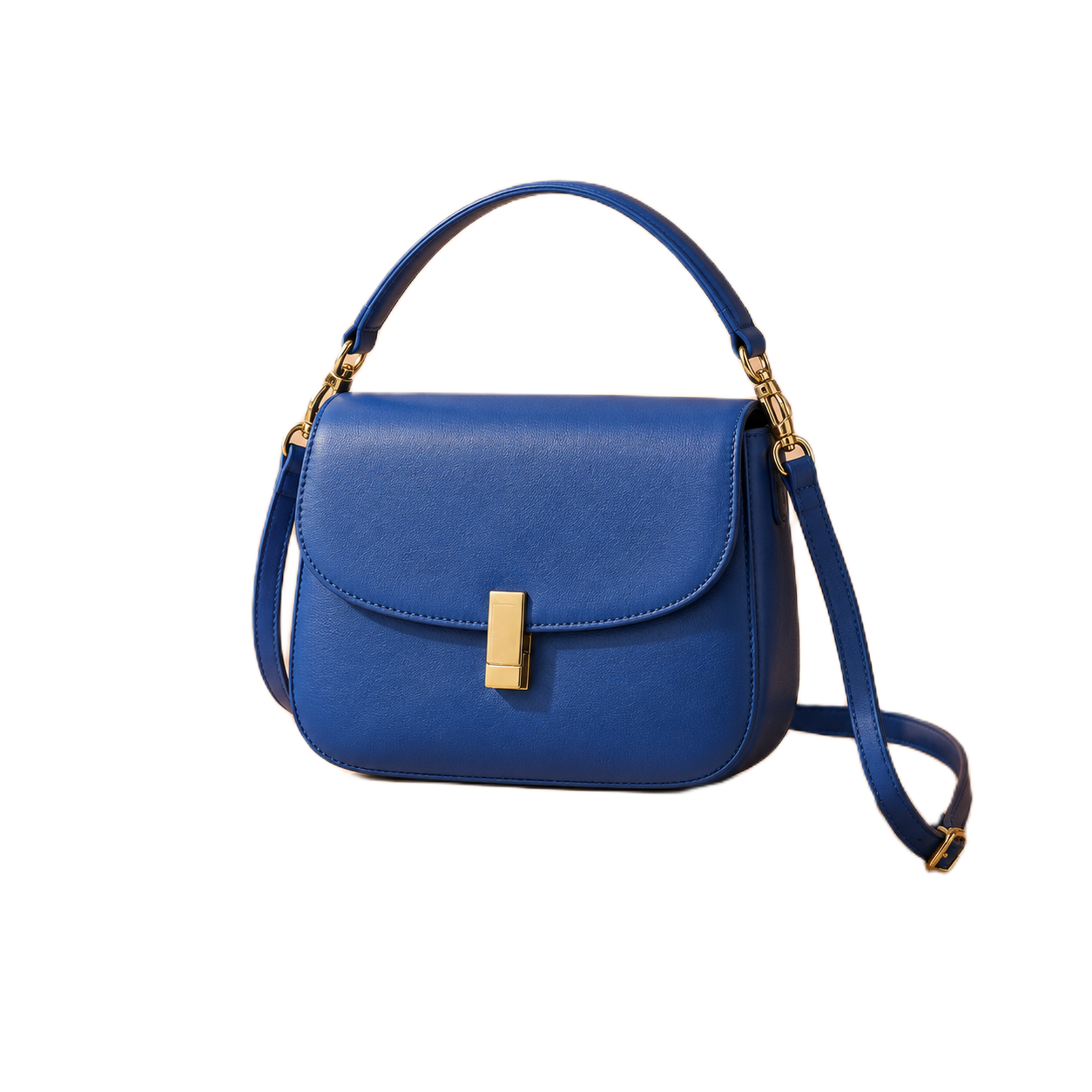
You can inspect the actual handbag download. It is 1254 × 1254 pixels, with a solid white background. This example shows what happened to one sample; inspect your own result before using it.
For a large photo, check the saved dimensions. Images longer than 2200 pixels on either side are normally reduced during processing, so the download may be smaller than the original. Use the downloaded file rather than a screenshot of the preview.
Fix White Outlines or Missing Details
Free BGRemover has no manual erase or restore brush. Repeating removal on the same photo may produce the same mistake. Use the symptom below to decide your next step.
| What went wrong | What to do next |
|---|---|
| A white rectangle covers the saved picture | Return to Free BGRemover, choose Transparent, then download again. |
| A thin rim or patch of the old background remains | Try an original photo with clearer separation between the subject and background. Changing the output color will not remove retained background pixels. |
| Hair, a strap, or clothing was removed | Return to the original photo. The downloaded cutout cannot recover detail that is no longer visible in that file. |
| The picture looks blurry | Check the source and export dimensions. Enlarging a small cutout will not restore detail. |
Free BGRemover has no manual edge-cleanup or restore brush. Reprocessing an unchanged image may produce the same result. When a remaining edge or missing detail matters, start again from the original photo and try a source with clearer separation between the subject and its background. A hand or product corner already cropped out of the original cannot be restored this way.
Change a Picture’s Background on a Phone
For a solid color, open Free BGRemover in your phone’s browser and follow the same upload, removal, color selection, and download steps. Choose a JPG, PNG, or WebP from Photos or Files. If your photo is HEIC, convert or export a JPG copy first; this tool does not accept HEIC uploads.
If uploading works but processing fails:
- Check your connection—the first run needs to download the model.
- Update your browser and retry. The tool requires working WebGPU support; the browser name alone does not establish compatibility.
- If it still reports an unsupported device, move the original file to a computer and try a current Chrome, Edge, or Safari browser there.
The screenshots above are from a desktop session. This guide has not been verified on physical iPhone or Android devices. A computer gives you more room to inspect the result and its edges.
After Download PNG, look in the browser’s downloads list or the Files app. Open the image and use its share or save-image option to add it to your photo library.
Frequently Asked Questions
Can I Change the Background for Free?
Yes. Free BGRemover’s single-image workflow lets you remove the original background, choose a solid color, and download a PNG without payment or an account.
Will Changing the Background Change My Face or Product?
The solid-color workflow replaces the area around the extracted subject. It does not deliberately redraw your face or product, but automatic removal can erase details it mistakes for background. Compare those details with the original before saving.
Can I Download Both a Finished Picture and a Transparent Cutout?
Yes. Download your White or Custom color version first. Then select Transparent and click Download transparent PNG. Keep the cutout if you want to try another backdrop later.