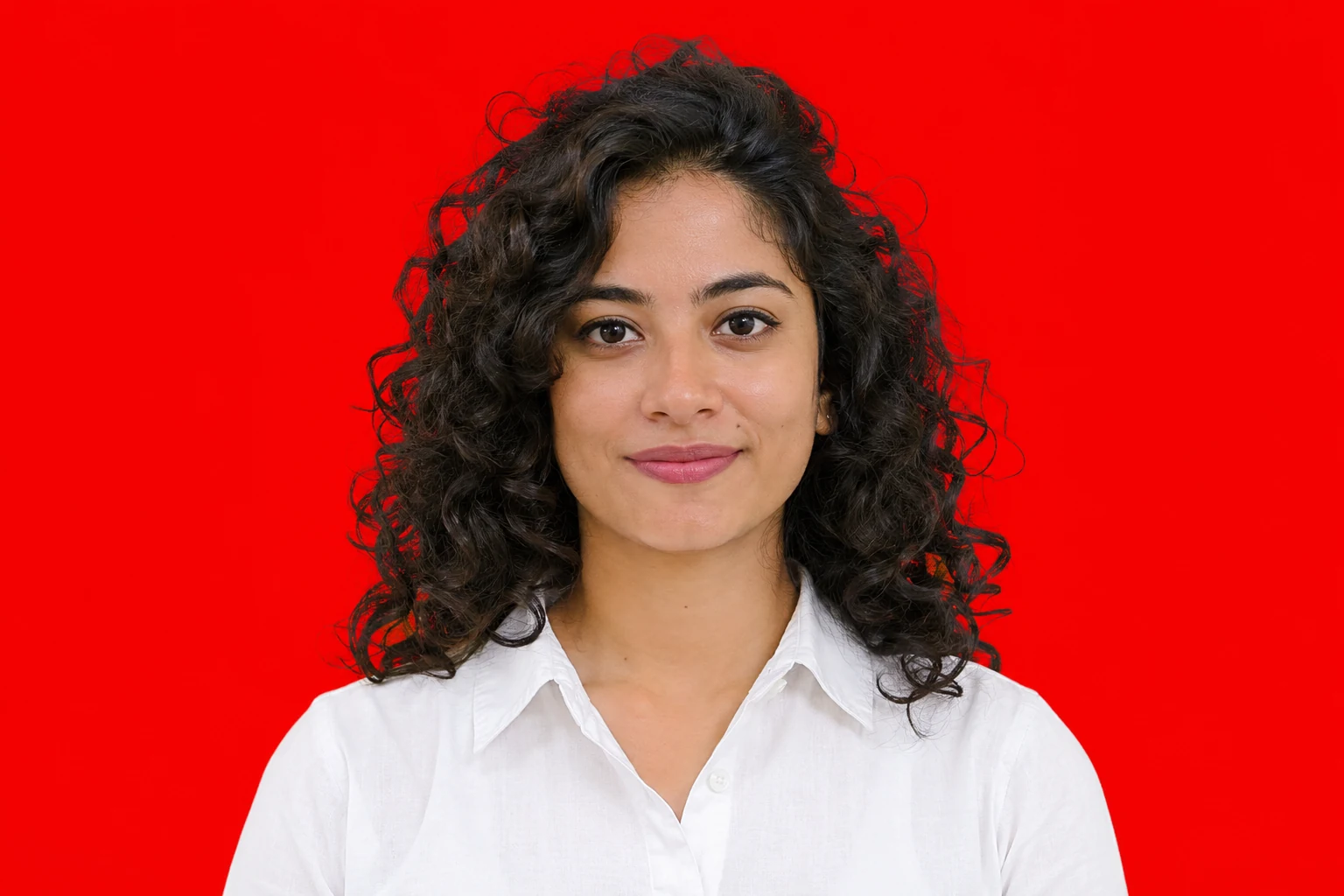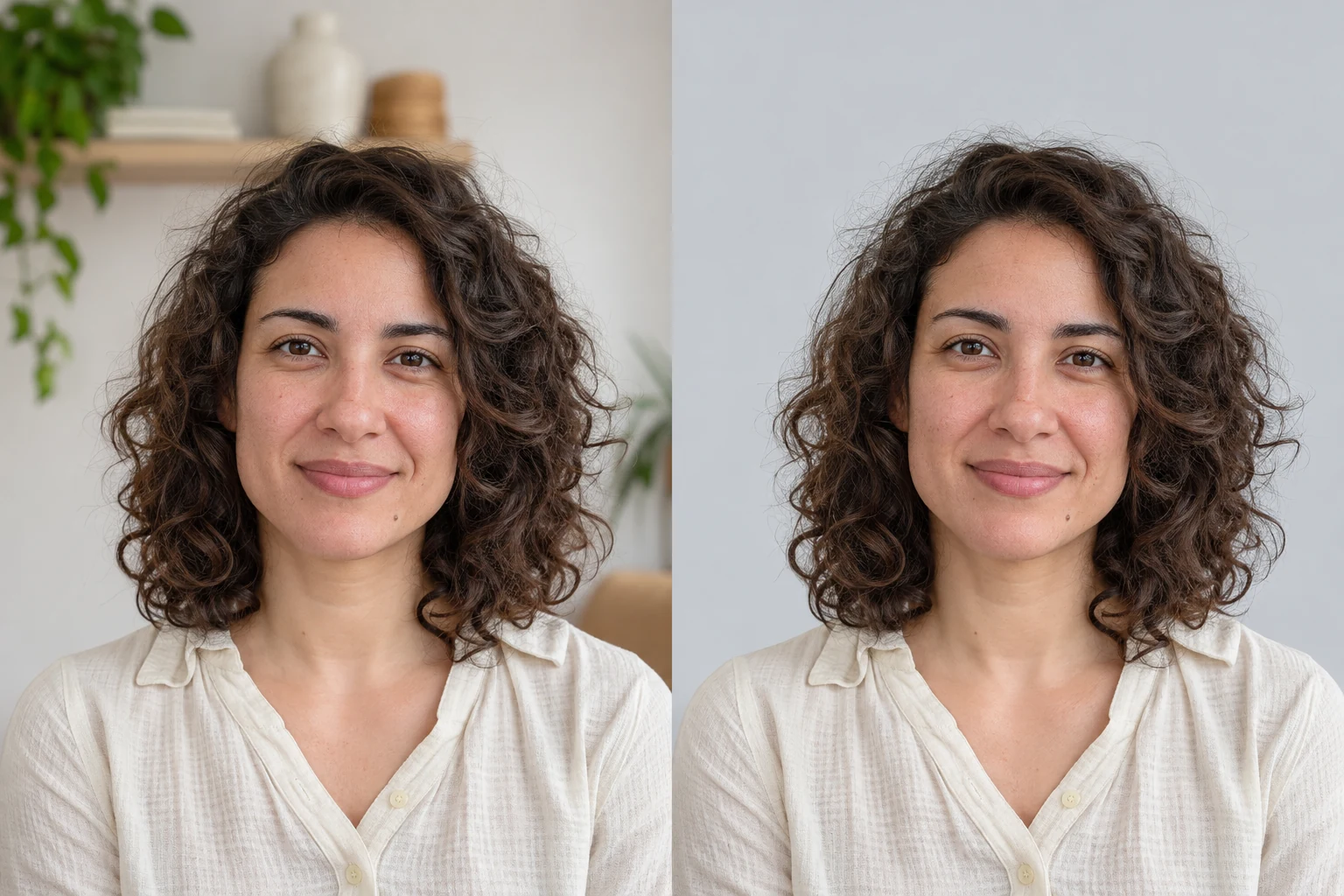
Upload your photo to the Free BGRemover blue background editor. It removes the old background and shows your photo on sky blue. If that shade works, save the PNG. To use a lighter or darker blue, open Custom color before you download.
How to change your photo background to blue online
1. Upload your original photo
Select Upload your photo and choose a JPG, PNG, or WebP up to 15 MB. To follow along, save the sample portrait. If the only copy of your own photo came from a message, zoom in on the hairline, glasses, or collar. If those edges already look blurry, choose a sharper frame.
The editor starts as soon as you select the file. When the sky blue preview appears, look for any pieces of the old background between curls or around glasses. If a piece of the shirt seems to have vanished, compare that spot with the original before you change the color.
2. Choose a different blue if you need one
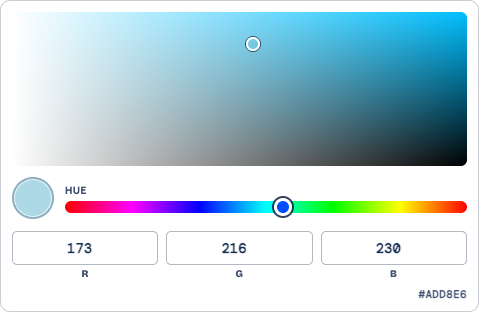
Open the swatch beside Custom color under Output background. Drag in the picker or type a number into each of the R, G, and B fields. For light blue, enter 173, 216, and 230. You should see #ADD8E6 in the picker and light blue behind your subject.
3. Save the blue background PNG
Look at the preview one last time. If you see a checkerboard, choose Custom color to put blue back behind the subject. The download uses the background option currently selected.
Read the pixel dimensions on the download button before saving. The free PNG contains up to 250,000 pixels. If your original is within that limit, it keeps its dimensions. With a larger photo, you can compare the free size and the Original size option before choosing whether to unlock the larger file.

Which blue should you choose?
Start with the part of the subject that touches the background. If you’re wearing a navy shirt, try light blue first and look at the shoulders. If you’re wearing white or photographing a pale object, try a deeper blue and check the outline again.
| Try this shade | RGB | When to try it |
|---|---|---|
Light blue · #ADD8E6 | 173, 216, 230 | Dark hair or a navy shirt blends into the current background |
Sky blue · #87CEEB | 135, 206, 235 | You want a starting point and can already see the outline clearly |
Navy · #000080 | 0, 0, 128 | A pale shirt or object needs a darker backdrop |

For a profile photo, shrink the preview to about the size people will see it. A shoulder that looks clear in a large preview can disappear at thumbnail size. For a set of headshots, use the same RGB values, then check each person individually. The same shade can work well with a white shirt and blend into a navy jacket.
What to do if the edge looks wrong
Try a lighter blue and compare the same spot with the original. If the shoulder comes back into view, keep the lighter shade or try another blue with similar brightness. If a lock of hair or a piece of the collar is missing on both shades, upload a sharper photo or one where that edge is easier to see against the old background.
A pale line around the hair can be light catching the hair itself. Check for the same line in the original. If you see bits of wall between curls in the edited version, try another frame with a clearer outline. Check again at the size you plan to use the photo.

Check the saved file where it will be used
Open the downloaded PNG and make sure the blue is visible in the saved file. For a round avatar, check where the circle cuts across the hair and shoulders. For printing, compare the file’s pixel dimensions with the space it needs to fill. If the small download already looks soft at the size you need, check the Original size option before ordering a print.
Frequently asked questions
Can I change a white background to blue if I’m wearing white?
Yes, when the editor can see where the shirt ends and the wall begins. Look at the cuffs and collar in the preview. If a piece of fabric is missing, try a photo where the shirt and wall are easier to tell apart.
Can I change the background to blue on my phone?
Yes, in a compatible mobile browser. If your photo is in HEIC format, choose a JPG copy. If the browser shows a compatibility message, open Free BGRemover on a compatible device and upload the same photo.
Why does my downloaded PNG have a transparent background?
Check which background you selected. Transparent saves a cutout. To include blue in the file, select Custom color, wait for the blue preview, and download again.
Can I use a blue background PNG for an ID photo?
Check the required shade, dimensions, and file format before editing, along with whether digital changes are accepted. Free BGRemover saves a PNG, so check that your submission accepts that format.