
One Backdrop, Many Photos
Apply one background to photos from different suppliers or shoots so the products look like part of the same collection in a catalog grid.
Choose multiple photos and give them a crisp white background in one batch. Prepare a matching set for your listings, catalog, or team page.
Or select the photos you want to make white.
JPG, PNG, or WebP · Up to 20 photos · 15 MB per photo
When you have a folder of photos to edit, repeating the same background change for every file takes extra work. Select the group you want to finish together and apply a white background in one batch. Then check the results as a set before downloading the finished images.
Make Backgrounds White
When supplier photos and phone shots sit side by side, the backdrop can change from one product to the next. Give them one white background so the collection looks consistent. Include related items and product variants in the same batch when you want them to sit together in a catalog.
Make Backgrounds White
Set a product on white to make its shape, finish, and edges easier to inspect. This is especially useful when the original photo has a busy countertop or shelf behind it. Compare the original and finished image to check thin straps, pale edges, and other details before using it in a listing.
Make Backgrounds White
Resale listings and team directories can both benefit from a consistent backdrop. Put items from different shoots on white for your next listing update, or do the same with a group of headshots so they sit together on a team page, even when people took their photos in different offices.
Make Backgrounds White
Choose your photos, apply one white background across the batch, and download the finished images.
Select the product photos, headshots, or catalog images you want to edit together. Use originals where the subject is easy to see against the existing background.
Run the batch so Free BGRemover can separate each subject from its original backdrop and place it on white. Check pale edges and fine details in the finished images.
Save the white background images after checking the results. Use them in a product grid, your next set of listings, or a team page with a consistent backdrop.
Use one white background across a set, then check how it looks on each subject.
Apply one background to photos from different suppliers or shoots so the products look like part of the same collection in a catalog grid.

Start with the product photos you already have. Keep the photographed subject while replacing the original backdrop for a catalog update or new listing.

Look closely at pale products, thin handles, and reflective edges in the result. A quick check helps you decide which images are ready to use.
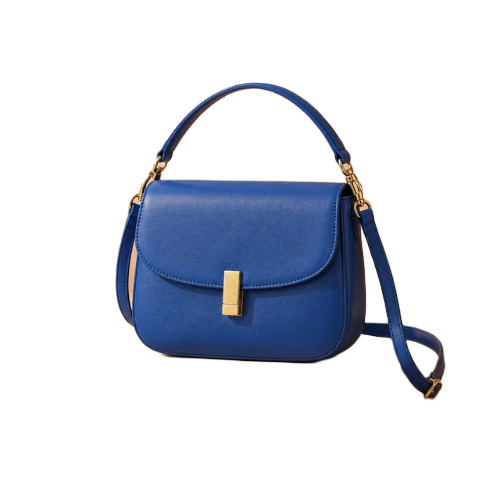
Use a finished image with a visible white background for layouts that need it to look white after you place it on the page.
Use a common white backdrop for catalogs, resale listings, photo deliveries, and team pages.

When a collection mixes supplier images and in-house shots, apply one white backdrop across the product photos to make the catalog grid feel more consistent.


Group photos of shoes, bags, or accessories from different rooms and put them on white before preparing several listings for your shop.

Give product images from separate shoot days a matching white backdrop so clients can place them together in a catalog, brief, or line sheet.

Take existing headshots from different offices and give them a common backdrop, so the photos look consistent when they sit beside one another in a staff directory.
Select the photos you want to edit together, apply a white background to the batch, and download the finished images. If the set includes a pale product or one with fine details, review that image closely before using it in a listing.
Yes. You can group photos taken against different backdrops and give each a white background. A product shot on a tabletop and another on a shelf can go into the same batch. Start with photos in which the subject is easy to distinguish.
Compare the result with the original and look closely at the product outline, especially around corners, handles, or pale fabric. A source photo with visible contrast around the item gives you a clearer starting point for seeing where the product ends.
Yes. A solid white export includes white pixels behind the subject. To check your file, open it on a colored canvas. The white area should remain visible around the subject when you move the image onto the canvas.
A pure white background can help meet one of Amazon’s main image requirements. Check the current rules for your marketplace and category before uploading. Amazon’s guidelines also cover product framing and other image details, so review the finished image against those requirements.
Review each result for missing details, rough edges, and any visible parts of the original background. Start with the trickiest images, such as pale or reflective products. Check the framing too, especially if the photos will sit together in a catalog grid.
A white background fills the area behind the subject with visible white pixels. A transparent background allows the design, page, or color behind it to show through. Choose a solid white image for a white listing backdrop or a transparent cutout for layering.
Get answers about mixed photo sets, light subjects, and how to use your finished images.
Choose the photos for your next catalog update, listing batch, or team page.
Choose a Batch of Photos