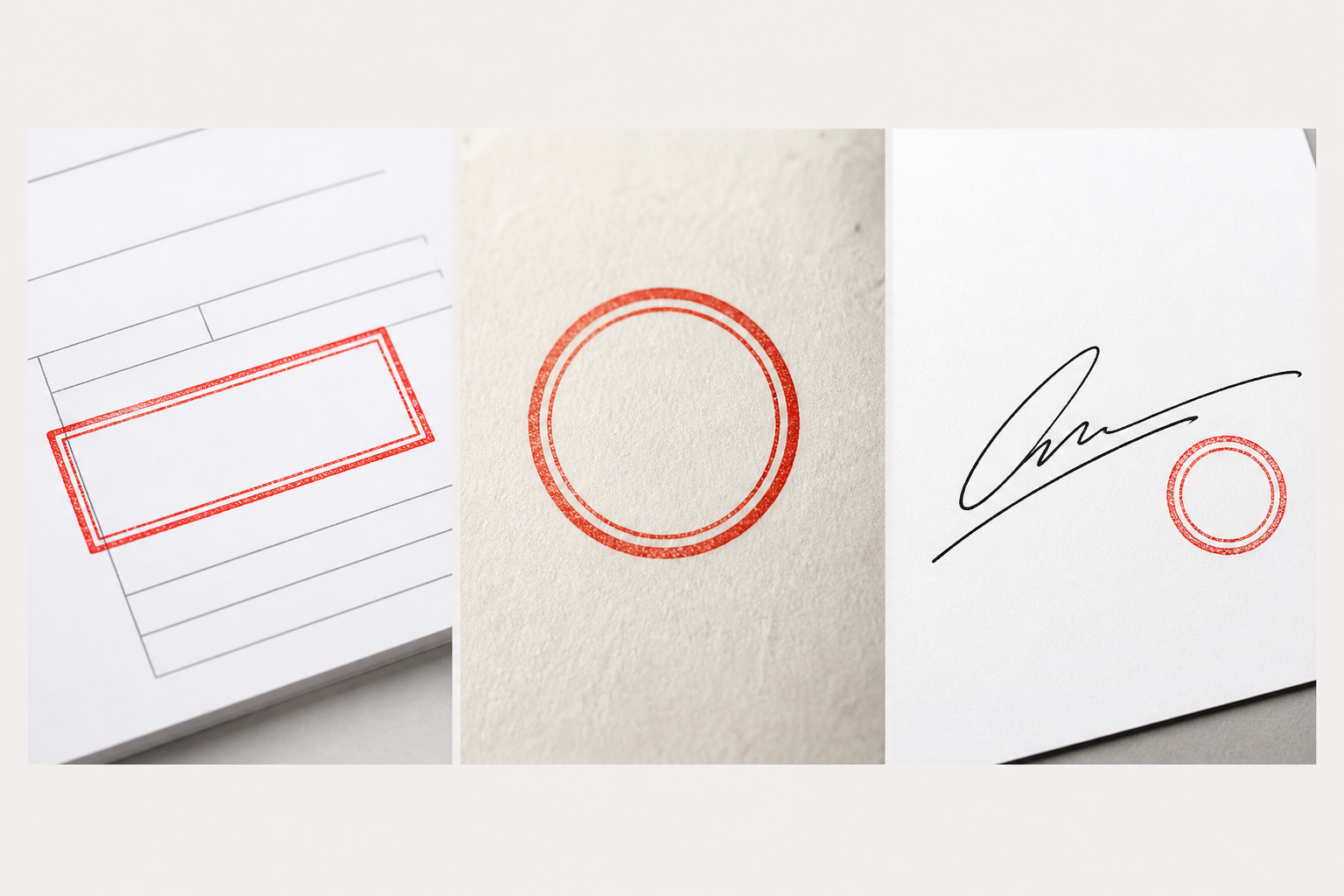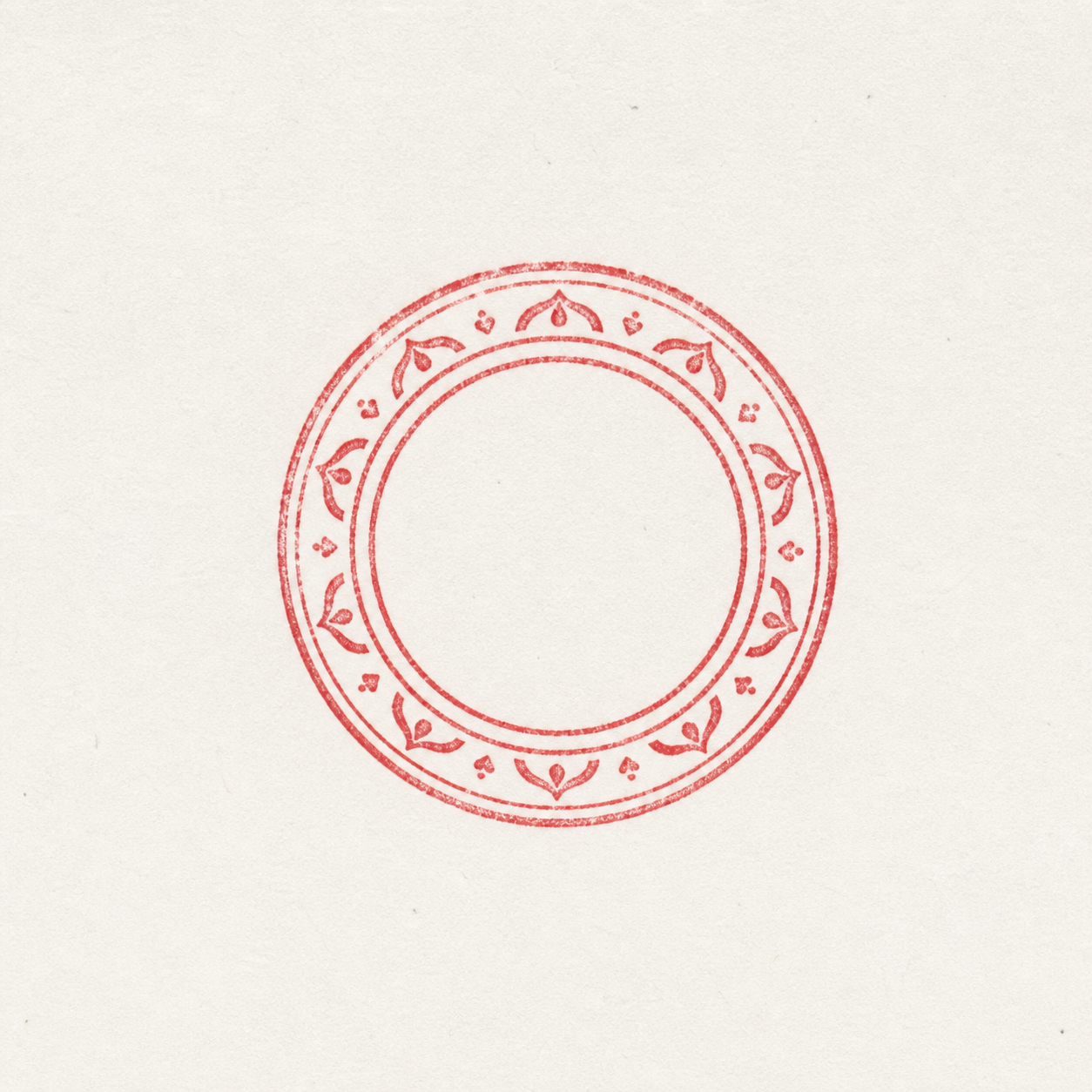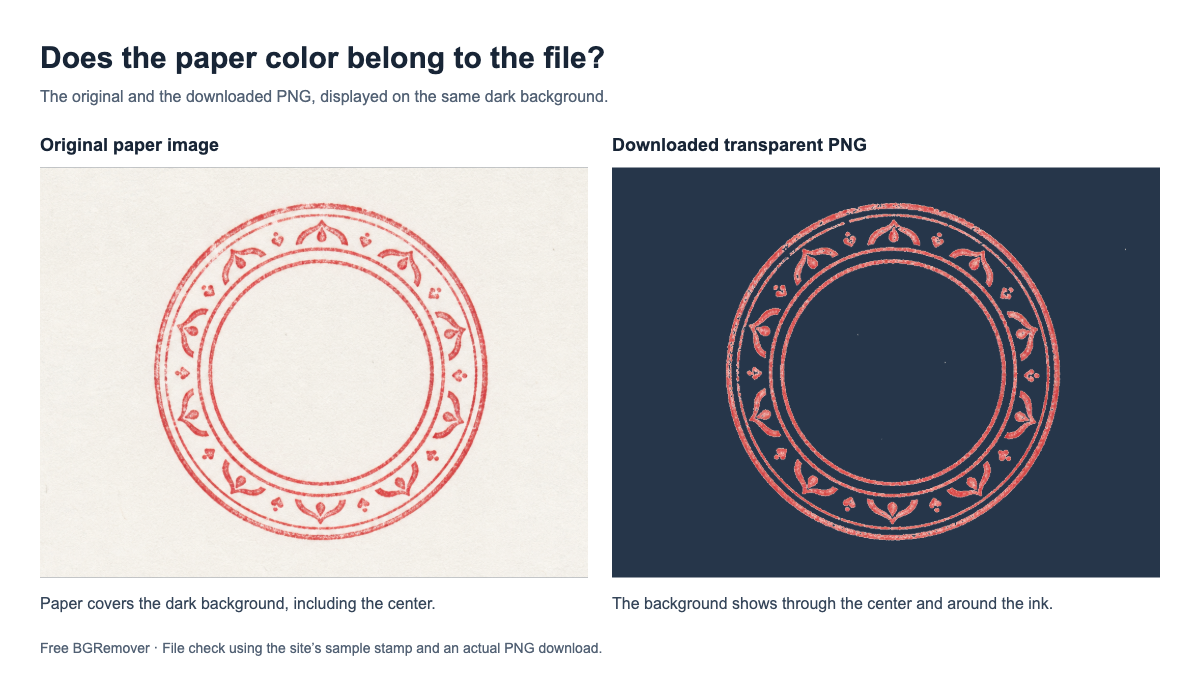
Your stamp still has a white background if the paper pixels were left in the image, a solid background was added before download, or the result was flattened into a JPG or screenshot. It may also be transparent already and simply displayed on a white page.
Before removing the background again, place the downloaded file over a dark or colored area. If the color shows through the empty spaces around and inside the stamp, those spaces are transparent. If a white box blocks it, the file still needs work.
Find your symptom and the right fix
| What you see | Likely cause | What to try |
|---|---|---|
| A complete white rectangle | The paper is still in the file, or a white background was added | Remove the paper, select Transparent, and download again |
| Clear space outside, white inside the seal | Enclosed paper areas were missed | Remove the paper color inside the stamp as well |
| A narrow white or gray outline | Pale edge pixels remain attached to the ink | Check a small tolerance increase; stop if ink starts disappearing |
| White only in a preview on a white page | The preview may be showing white behind a transparent image | Test the saved file on a contrasting color |
| A verified PNG gains a white box after insertion or export | The document workflow adds or flattens a background | Compare the inserted image with the final exported document |
Cropping can hide excess paper around a stamp, but it cannot clear the paper inside a ring or between letters. Lowering the whole image’s opacity fades the ink along with the white box.
Why saving your stamp as PNG may not fix it
PNG can preserve transparent areas, but saving as PNG does not remove existing white pixels. A PNG with a white rectangle is still a valid PNG.
Converting a JPG to PNG keeps the paper unless you remove it first. Renaming the extension does not convert the image at all. If you need more detail on this distinction, see why a PNG can still have a background.
A screenshot has a similar problem: it captures the visible preview, including any white canvas or checkerboard behind the stamp. Use the tool’s download button to save the processed image.
There is also an easy setting to miss. If you choose White as the output background, the tool adds white back behind the cutout. Choose Transparent when you want the document to show through.
Remove the white background in Free BGRemover
Start with the clearest original scan or photo you have. Leave a little room around the stamp’s outer border, and keep an untouched copy. A stamp copied from a small document preview may have too little detail to preserve fine lettering.
Try automatic stamp removal first
- Open the stamp background remover and choose Upload a stamp.
- Select the image, then click Remove background.
- Compare the original with the result. Check the center, spaces between border rings, small lettering, and faint ink.
- Keep the background set to Transparent.
- Click Download transparent PNG.
If the outer paper disappears but the center stays white, try removing the paper color directly using the steps below. If the result loses important ink, go back to the original rather than processing that damaged cutout again.
Use color removal for paper left inside the stamp
For a red, blue, or black stamp on fairly even paper, the color removal tool gives you control over which shades disappear. It checks matching pixels throughout the image, including enclosed spaces.
- Upload the original stamp image.
- Click a blank part of the paper in the source preview to pick its color. Avoid clicking the ink or a dark shadow.
- Under Replace with, select Transparency.
- Click Remove selected color and inspect the result.
- If paper remains, increase Tolerance a little and click Remove selected color again.
- Use Compare original to check for missing ink, then Show result to return to the cutout.
- When the result is usable, click Download PNG.
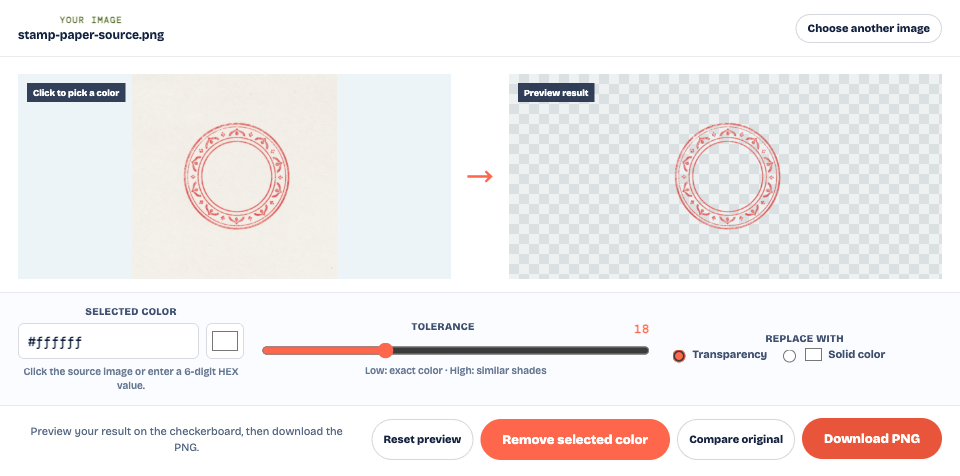
Paper that looks white may actually be cream or light gray. Picking the paper color can work better than assuming it is pure white. Heavy shadows and uneven lighting are harder: a flatter scan or a new photo in even light may save more ink than a large tolerance increase.
Color removal also affects matching colors inside the design. If your stamp contains an intentional white symbol or pale lettering, check that those details survive. This tool has no local restore brush; lower the tolerance and rerun from the original if it removes too much.
Fix a white outline without losing the stamp
A transparent background and clean edges are two separate checks. In the cover comparison, the dark color shows through the downloaded PNG, but pale pixels are still visible along parts of the ink. A checkerboard alone makes those pixels easier to miss.
Those light edges can come from paper mixed with ink in a scan, blur, or compression. Try a small tolerance increase, then compare the ring and the thinnest strokes with the original. Judge the result at the size you will actually use, as well as enlarged.
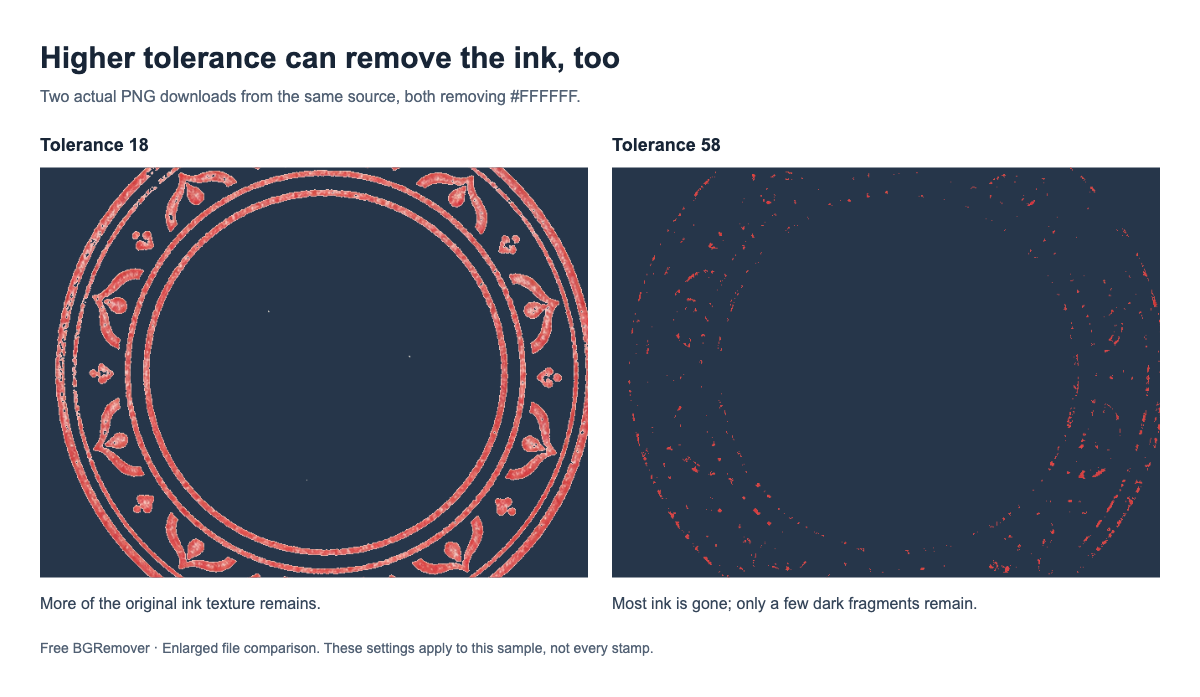
Stop when the next adjustment breaks a border, removes a letter, or erases faint parts of the impression. There may be no single setting that clears every pale edge while preserving all the ink in a poor source. A sharper, more evenly lit original gives you a better starting point.
Do not blur the whole stamp to hide a halo. It softens the lettering too. Keep natural gaps in a physical ink impression unless they were introduced by the removal process.
Check the downloaded PNG, then the final document
Use the saved PNG for this check, rather than a screenshot of the editing preview. If you want to inspect the example yourself, open the sample source and actual transparent PNG download.
Place your PNG over a colored test area and look at the outer corners, the center of the seal, and the holes in letters. The background should show through wherever there was unwanted paper. Check that small text is still readable and that a dark background does not reveal an unacceptable fringe.
If the file passes that test but the white box returns later, check these stages in order:
- Insertion: Insert the verified PNG from its saved location. Check that you did not select the original or copy a preview.
- Placement: Move it over a colored part of the page. If it works there, inspect any white frame, shape, or filled container behind it.
- Export: Reopen the final saved document. If the box appears only now, check the export or image-conversion settings at this stage.
A stamp on a plain white page is not enough to verify transparency: both an opaque and a transparent image can look right there. Keep the original and verified PNG separately so you can return to the source if a later conversion changes the result.
Common questions
Why is the inside of my stamp still white?
The removal method may have cleared only paper connected to the outer edge. Use color removal to reach matching paper inside rings and letter openings. Keep any white details that belong to the design.
Can I remove the white background without losing faint ink?
Sometimes, if the ink and paper are different enough in color. Start conservatively and compare the thinnest strokes with the original. If clearing the paper also erases the ink, use a better scan or photo instead of increasing tolerance further.
Why does the stamp look transparent online but download with white?
Check whether you downloaded the processed PNG, selected a solid output background, or saved a screenshot. Reopen the actual download on a colored background to separate a white preview from white pixels in the file.
Is a checkerboard proof that my stamp is transparent?
It is a preview aid, not proof about the saved file. A checkerboard can be baked into a screenshot. In the downloaded PNG, a new background should show through the empty spaces without carrying the checkerboard with it.