Start with Free BGRemover if you want a transparent PNG without signing up or paying for the download. It saves your cutout at the original image dimensions, adds no watermark, and has a separate batch tool for processing several images together.
Need more control over a difficult edge? Photopea lets you guide the cutout manually. Already working in Adobe? Firefly may save you a trip between editors. The right choice depends on what you need after the background is gone.
Free BGRemover is included in this comparison; its screenshots are shown in this guide.
Best free background remover: which should you choose?
For a quick decision:
- A transparent image with no account: start with Free BGRemover.
- Several images to download together: use Free BGRemover’s batch tool.
- An automatic cutout keeps deleting something important: try Photopea Magic Cut.
- You want to continue editing in Adobe: consider Firefly’s free daily allowance.
- You only need a small image for a personal project: remove.bg’s free preview may be sufficient.
- You want to explore product-photo layouts: consider Photoroom, but read its Free Space restrictions before using it for a store.
Free download limits compared
| Tool / entry point | Free PNG size | Account needed? | Visible watermark | Free allowance |
|---|---|---|---|---|
| Free BGRemover | Original dimensions | No | No | Single images; up to 20 per batch |
| Adobe Firefly | Limit not stated | Yes | Unconfirmed | Daily allowance; count not stated |
| remove.bg website | Up to 0.25 MP | Unconfirmed | Unconfirmed | Free previews for personal use |
| Photoroom Free Web App | Longest side: 2,000 px | Yes | No, per its announcement | 100 exports/month per Space |
| Photopea Magic Cut | Document size | No login step documented | Unconfirmed | No count limit stated |
“Unconfirmed” means the cited information does not settle that condition; it does not mean the feature costs money. Photoroom’s figures apply to its signed-in Web App, not its mobile apps or every standalone tool. Sources and the restrictions that affect each recommendation appear below.
The 5 best free background remover tools
1. Free BGRemover — our first pick for downloads without signup
Free BGRemover suits everyday cutouts: a person for a slide, a product for a promotional graphic, or a subject you want to place on another background. Its main advantage is the complete free download: you do not need an account, and the PNG retains the original width and height.
You can keep the background transparent, make it white, or choose a custom solid color. That covers both a reusable cutout and a finished image on a plain background. There is no need to open another editor just to put a solid color behind the subject.
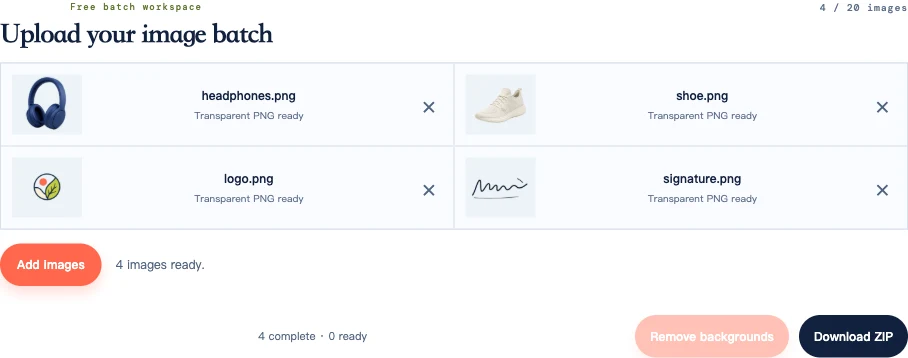
For a group of files, the Batch Background Remover accepts up to 20 images per batch and saves completed PNGs in one ZIP. Both tools accept JPG, PNG, and WebP files up to 15 MB each. The batch limit is the number of files you can add together, not a daily quota.
Where it falls short: there is no brush to restore an edge the model removed. For intricate lettering or a repeatedly missing strap, use Photopea to guide the separation. You also need a browser and device with WebGPU support. The first run loads an AI model, so it can take longer than subsequent processing.
Images are processed in your browser; an internet connection is needed to load the tool and model. Our privacy page explains image handling.
Try Free BGRemover for a single image, or open the batch tool for a small collection.
2. Adobe Firefly — for editing beyond the cutout
Choose Firefly if you want to remove a background and then generate a different scene, expand the image, or continue editing in Adobe. Those follow-up options are its main attraction over a tool limited to cutouts and solid backgrounds.
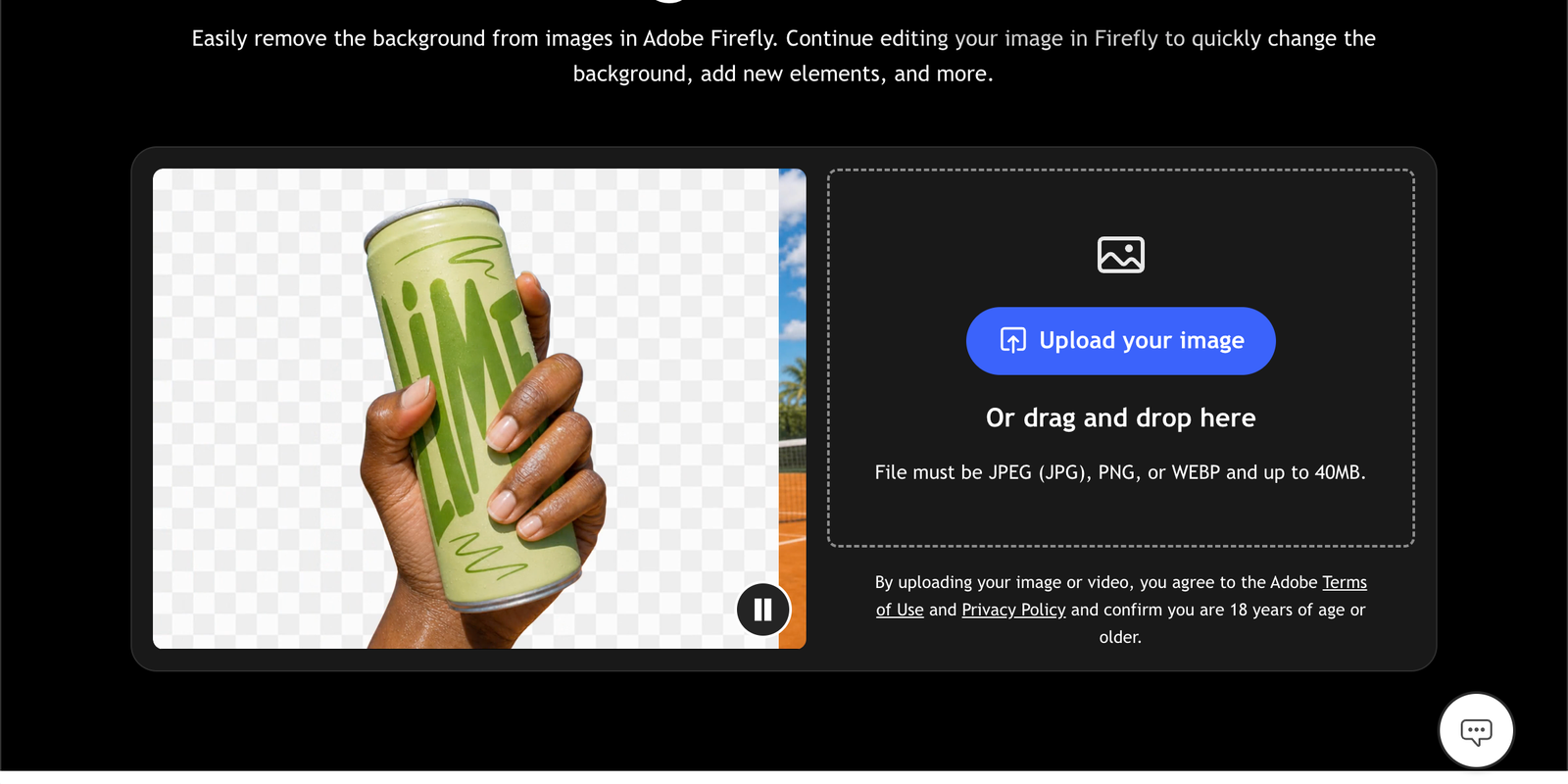
The Adobe background remover offers transparent PNG downloads with an Adobe account. Its current page describes free daily generations and a paid plan for unlimited background removal. It does not specify the exact daily count or free export dimensions.
The familiar Express background-remover link now presents Firefly. If you already have a design open in Express, use Adobe’s Express editor instructions instead.
Choose another option if you want to avoid an account or need a predictable number of free downloads for a larger job. Additional Adobe editing features have their own access conditions; free removal does not make the whole suite free.
3. remove.bg — for small personal-use cutouts
remove.bg is worth a try when the result only needs to occupy a small part of a personal slide or graphic. Its free website output reaches 0.25 megapixels, according to its free-use guide.
For context, 625 × 400 pixels is one possible 0.25 MP image. A different aspect ratio produces different dimensions. That can be enough for a small cutout, but it will not meet a requirement for a 2,000-pixel image.

The limit that matters: higher-resolution output and commercial use are covered by paid options. If you are preparing store images or need a large file, this free tier is not the appropriate recommendation. Its desktop app and API have a separate preview allowance; those figures do not describe the website.
For a personal project, it offers another automatic result to compare if your first cutout is unsatisfactory. Download the preview before deciding whether the alternative result solves the problem.
4. Photoroom — for trying product-photo layouts
Photoroom’s Web App editor lets you remove the background and continue with text, graphics, shadows, and background changes. Consider it when you want to explore how a product image could look in a finished layout. Some additions depend on your plan.
The documented Free Web App export limit is 2,000 pixels on the longest side. Its newer allowance guide lists 100 exports per month per Space. Photoroom also announced that it removed the corner watermark for free users. These are useful free capabilities, rather than merely a preview you cannot save. Export dimensions, export allowance, watermark announcement.
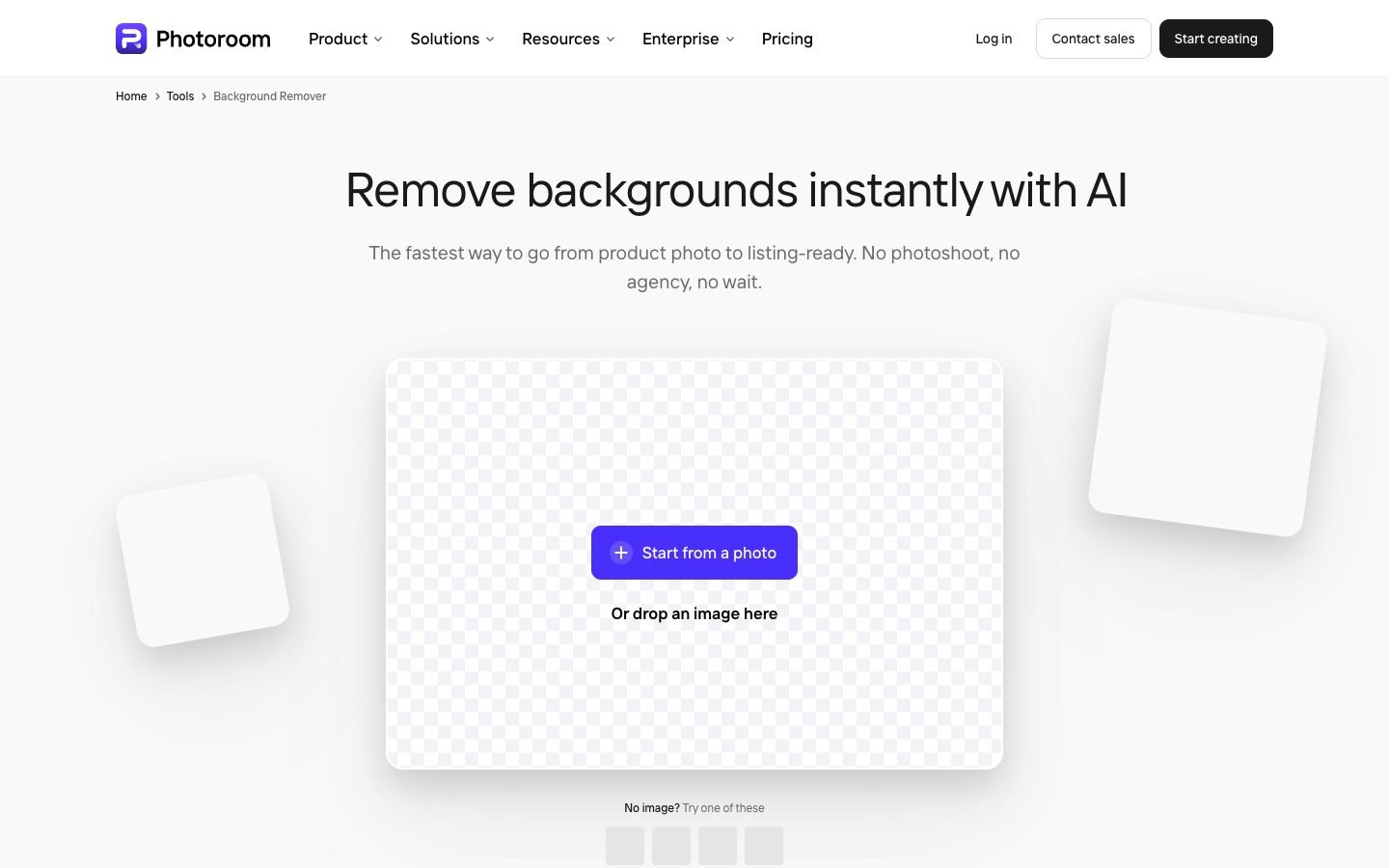
For sellers, there is a catch: the plan guide says Free Spaces cannot be used commercially and Batch Mode requires a paid plan. Use the free version to explore its editing experience; choose an appropriate plan before relying on it for store listings. Account allowances can change, so the limit displayed in your Space is worth noting before a large job.
5. Photopea Magic Cut — for fixing difficult selections
Photopea gives you something the automatic tools may not: a way to tell the editor which areas belong to the subject. In Select → Magic Cut, paint the subject green and the unwanted background red, then adjust the edge transition with the Border setting. The official tutorial documents this free method and PNG export.
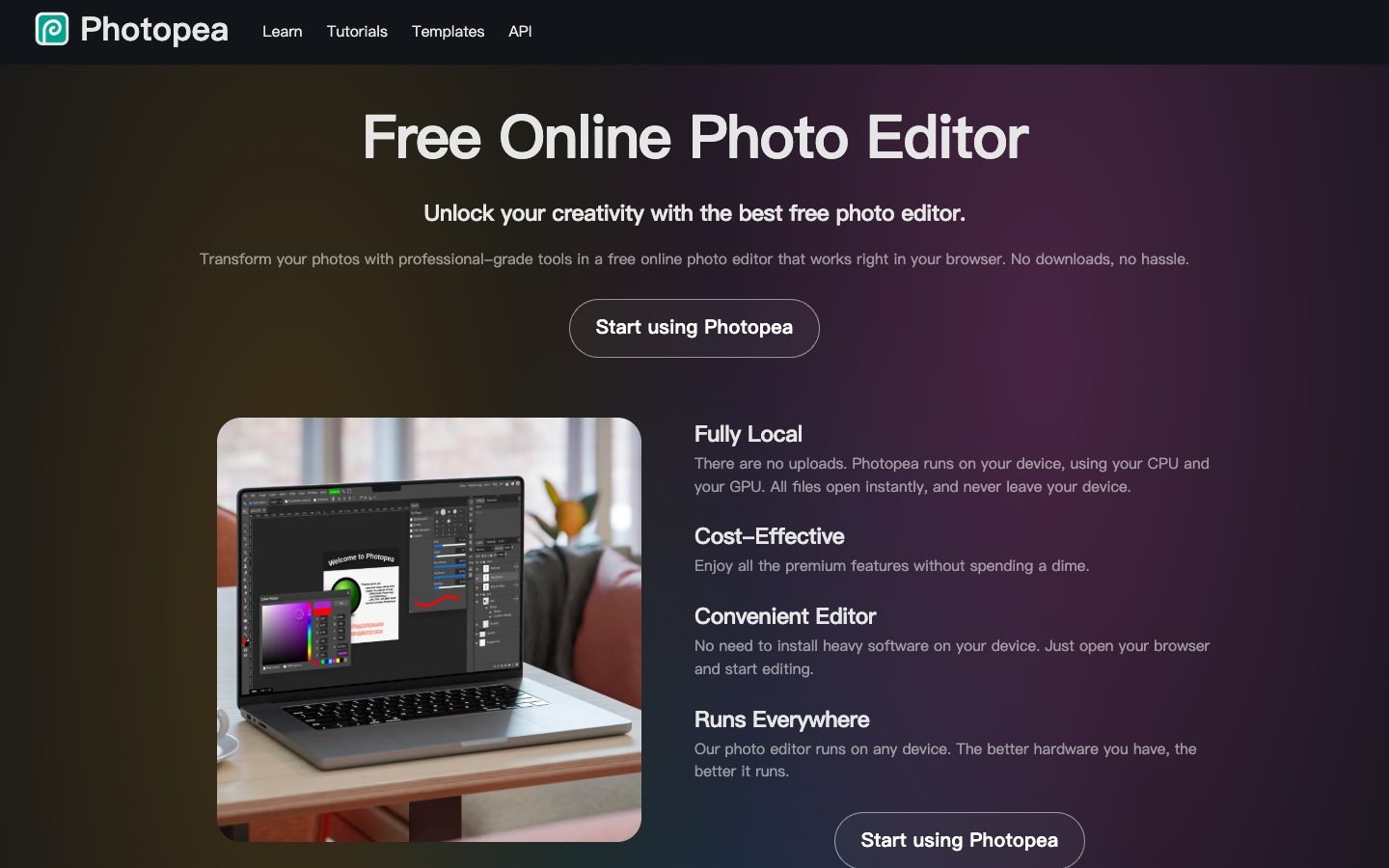
For example, if a bag strap disappears in an automatic result, open the original in Photopea and mark that strap as foreground. Work from the original because a downloaded cutout may already have discarded the pixels you need.
When the result looks right, choose File → Export As → PNG. You can continue editing the image in the same document. Photopea’s account guide describes Premium as an option for removing ads and gaining other benefits.
The tradeoff is your time. You may need several brush strokes and edge adjustments. Start with Free BGRemover for a straightforward cutout; choose Magic Cut when an important detail needs manual guidance. This recommendation is specifically for Magic Cut, not every separate AI command in Photopea.
What a usable free result looks like
A free download needs to pass two different checks: it must have enough pixels for its destination, and it must preserve the subject you want to use.
Original dimensions do not guarantee a clean edge
A 3,000 × 2,000 PNG can still have a soft outline or missing detail. Retaining the original dimensions avoids shrinking the file, but it does not repair an imperfect cutout. Judge the result at its intended display size before deciding whether a flaw needs correction.
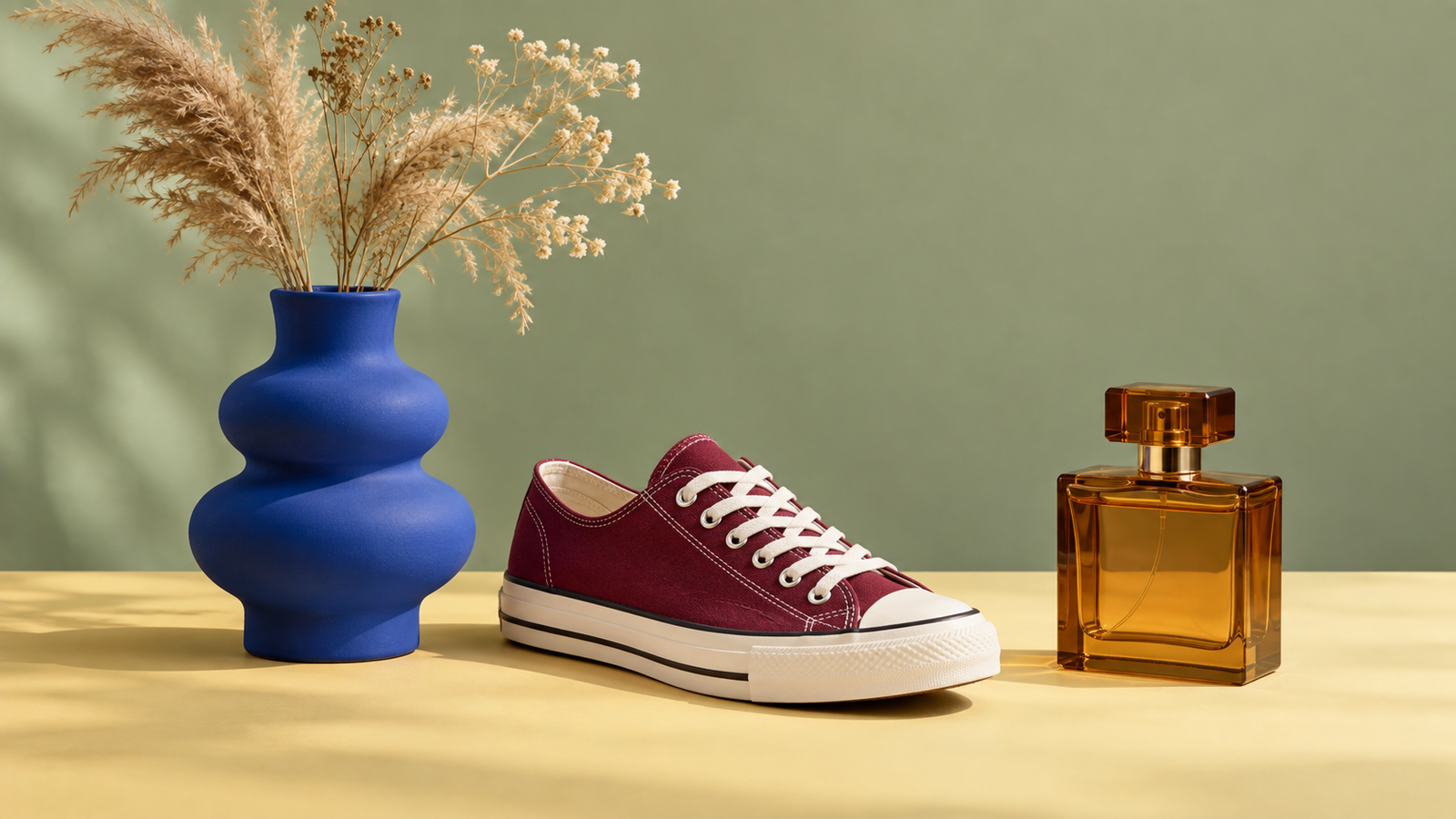
The Free BGRemover example at the top of this guide shows both a useful result and a limitation. The background inside the vase opening is removed. The perfume bottle, however, retains peach-colored areas. Removing the outside background does not reconstruct how a new scene would appear through glass.
For a collage, that bottle may be acceptable. For a product image where the material’s appearance matters, it needs more work. For opaque items, pay particular attention to openings and thin edges; for glass, inspect the interior as well as the outline.
Focus on the detail your image needs
| Your image | The detail to look at | If the automatic result fails |
|---|---|---|
| Product photo | Straps, handles, holes, pale edges, and glass | Guide the selection in an editor; do not use a cutout that changes the product’s shape |
| Portrait or pet | Loose hair, fur, glasses, and colored fringes | Try a sharper source or adjust the edge manually |
| Logo or graphic | Thin strokes, dots, enclosed letters, and white artwork | Use a manual selection if background and artwork share a color |
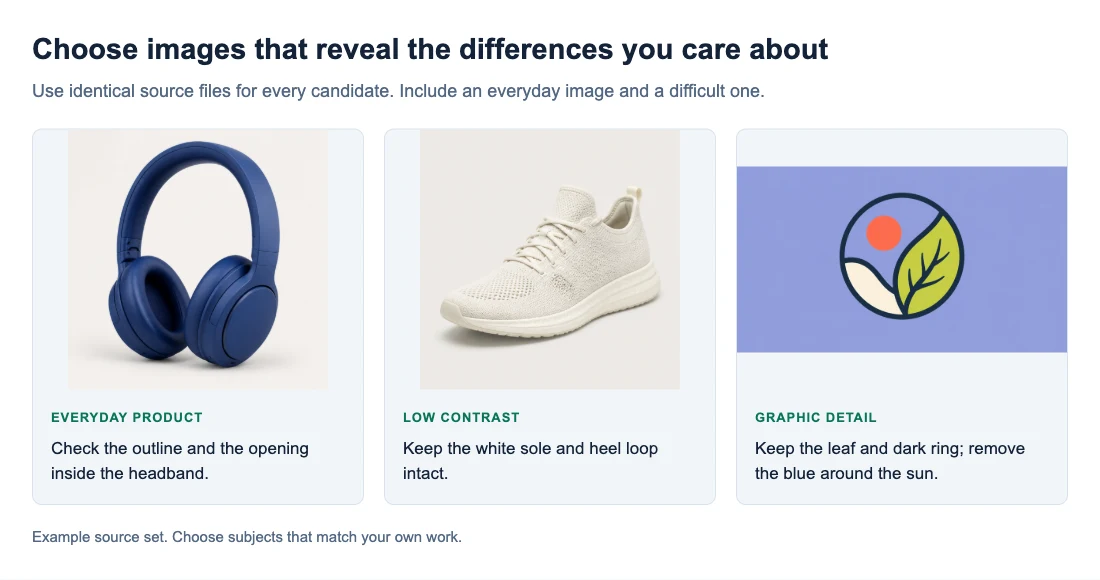
On a logo, white pixels inside the design may need to stay even when the outside background is white. The Logo Background Remover provides a starting point; enlarge the lettering before accepting the result.
For side-by-side evaluation, use the same original in each tool and compare the files you download. Our comparison checklist explains that process in detail.
How to remove a background with Free BGRemover
- Choose your image. Open Free BGRemover and select Upload an image. Use a supported original rather than a screenshot of it.
- Click Remove background. Wait for the cutout, then use the background choices to view the outline against white or a darker color.
- Select Transparent and download. Choose Download transparent PNG. Leaving a solid color selected will save that color into the PNG.
Save the downloaded file itself. A screenshot captures the checkerboard or preview background. For the full illustrated instructions, see how to remove a background from an image.
Frequently asked questions
Can I use Free BGRemover on my phone?
It can work in a mobile browser when the device supports the required WebGPU features. Compatibility depends on both the browser and hardware, so a recent browser alone is not a guarantee. If the tool reports that WebGPU is unavailable, try a compatible computer or another service above.
Why is the first removal taking so long?
The tool downloads and prepares its AI model before processing. Keep the tab open and allow that initial loading to finish. If loading fails, check the connection before retrying. If processing repeatedly fails on a large file, try a smaller copy or another device.
Why does my downloaded PNG look white or black instead of transparent?
Some image viewers display transparent areas on white or black. Place the PNG over a colored background in your design to find out whether that color shows through. If an opaque rectangle remains, return to the tool, select Transparent, and download again.
What if I have more than 20 images?
Split the files into smaller batches and save each completed ZIP before starting another. For a large collection, try a few representative images first so you can identify any recurring detail that needs manual correction. ZIP download does not combine the images into one picture; each cutout remains a separate PNG.
Start with the tool that fits your next step
For a free transparent download without an account, try Free BGRemover. If the cutout needs precise manual correction, move to Photopea with the original image. Choose Adobe or Photoroom when their additional editing features are useful enough to justify the account and plan conditions.