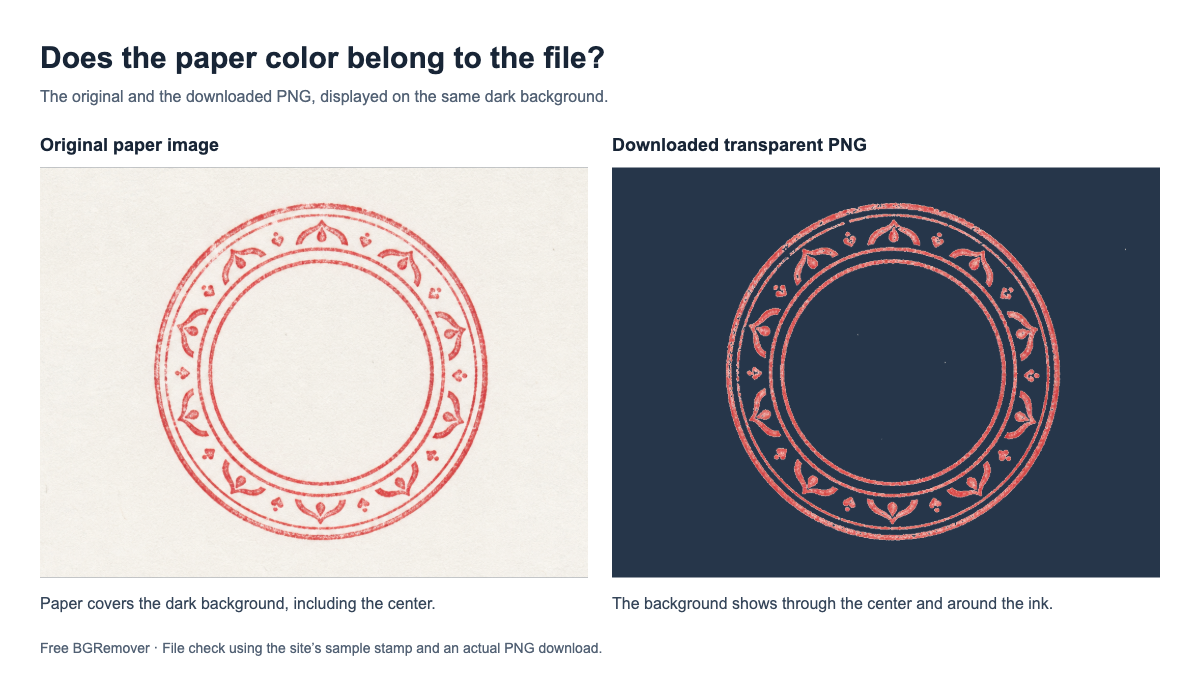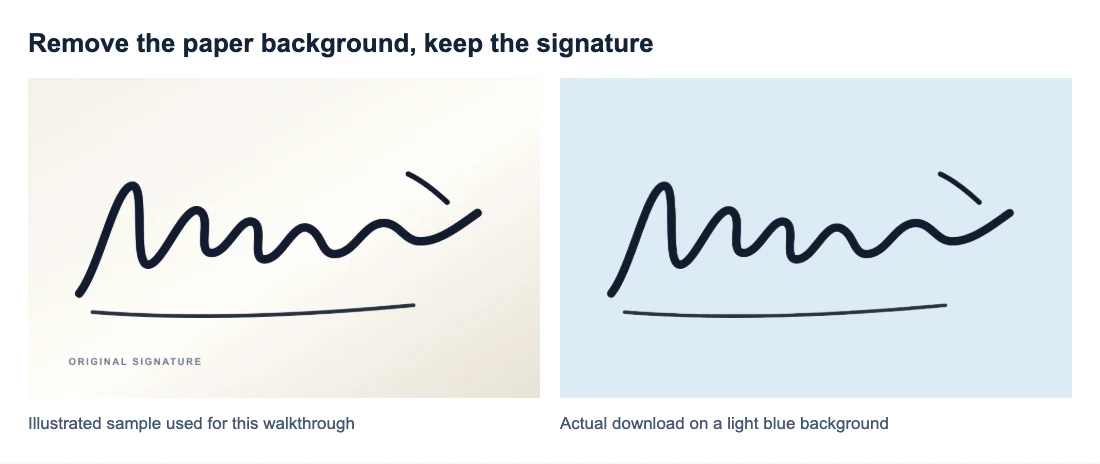
To make a signature background transparent, open Signature Background Remover, upload a clear image, click Remove background, and download with Transparent selected. Place the saved PNG over a colored area in your document to check that the paper is gone and the pen strokes remain.
The cover compares an illustrated signature sample with the PNG we downloaded after processing. Its thick strokes remain while the off-white background disappears. This example shows the workflow; it does not establish how well fine handwriting or a shadowed photo will turn out.
How to make a signature background transparent online
1. Choose a clear photo or scan
Use a PNG, JPG/JPEG, or WebP image up to 15 MB. If your scanner saved a PDF, export the signature area as an image first.
For a new photo, place the paper flat and hold the camera above it. Use even light so your phone does not cast a shadow across the writing. Dark ink on plain, unlined paper gives you a clearer starting point than faint pencil, ruled paper, or a creased sheet.
Crop away most of the empty page in your usual photo editor, leaving a small margin beyond the longest stroke. Open the crop at full size: if thin lines are already broken or blurred, start with a sharper scan or photo. Cropping removes empty space but cannot recover missing ink detail.
2. Remove the paper background
On the tool page, click Upload a signature to open the processing window and choose your image. If the file picker does not open immediately, use the upload button inside the window.
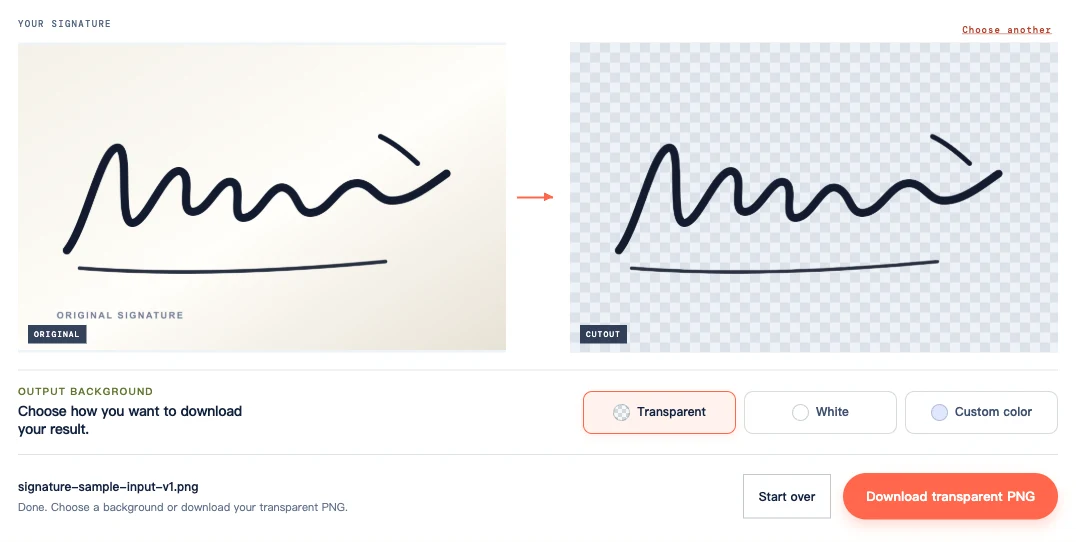
Once the original preview appears, click Remove background. Uploading alone does not run removal. Leave the window open while processing; the first run can take longer while the browser prepares the model.
In the preview, look for any part of your signature that has disappeared. For this sample, that includes the separate upper mark and long underline.
3. Download with Transparent selected
Under Output background, choose Transparent, then click Download transparent PNG. White and Custom color add a filled background to the output. If you selected one to inspect the preview, switch back before saving.
Download the PNG so the document background shows around your signature. A screenshot would save the checkerboard as part of the image.
Check the pen strokes before using the signature
Compare the saved PNG with your source at 100% view. Check narrow strokes, detached dots, short crossbars, and the points where pen strokes meet. Enlarge a suspicious area if you cannot tell whether the ink is still connected.
The close-up below shows a pale fringe around the rising stroke and underline. It is easier to see on slate than on the light document background shown later.
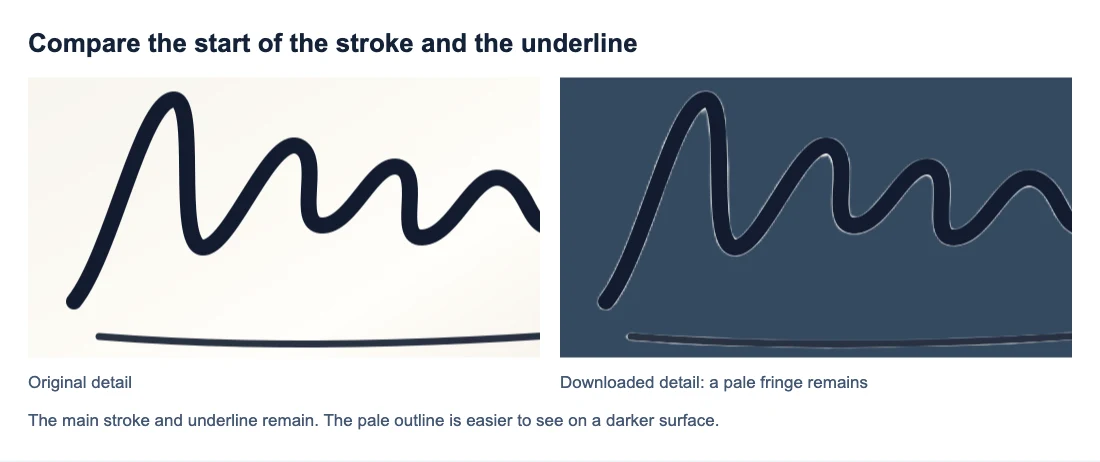
For handwriting with loops, check whether the paper inside each loop is gone. Filled ink at a crossing should stay. Also check that light stroke endings remain; they do not need to be as dark or thick as the rest of the writing.
If dark ink is visible on a light surface but hard to see on slate, the background may simply be too dark. A stroke missing on both surfaces needs a closer comparison with the original.
Place the PNG in your document without a white box
Insert the downloaded PNG as an image in your document. Resize it proportionally so the signature keeps its shape. Stretching the width or height independently changes the handwriting.
In this document layout, the original paper covers part of the horizontal line. With the transparent PNG, the line and shading show through around the ink.
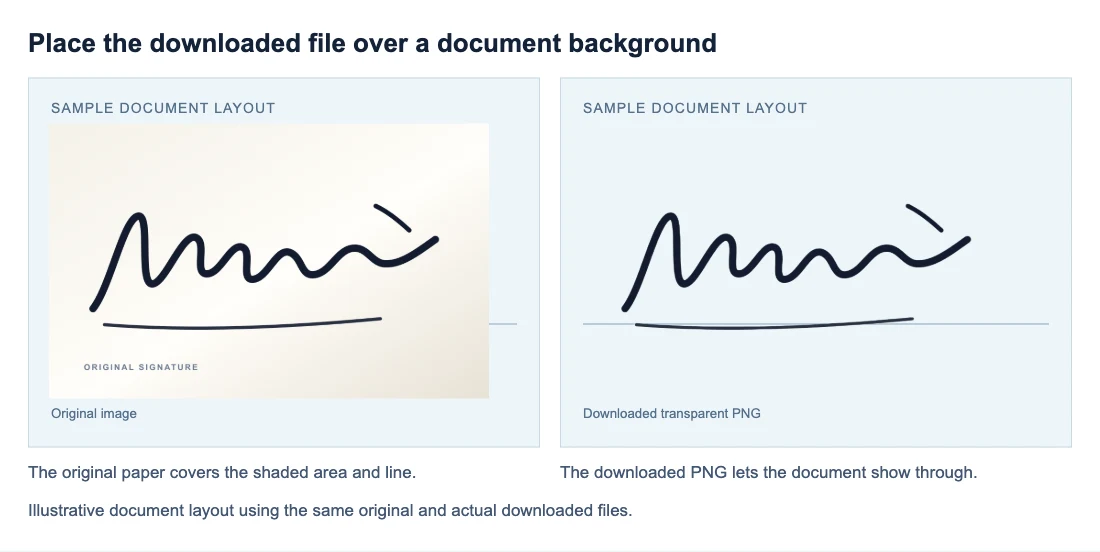
Check your placement on a shaded section or over a temporary colored shape; a white page can hide a white rectangle. Position the signature without covering nearby text, then view the page at its normal reading size.
Save or export the document, then reopen it. If a box appears only after export, check whether the document app converted the image or added a fill. Reinsert the PNG that passed the colored-background check if the document used a different copy.
Why the paper remains or the signature looks faint
Compare the problem area with the original before choosing a fix.
| What you see | What to check and do |
|---|---|
| A solid white or colored rectangle | Check whether White or Custom color was selected. Choose Transparent and download again without rerunning removal. |
| Gray patches or a shadow across the writing | Look for the same shadow in the source. Retake the photo with the phone out of the light path and the paper evenly lit; another upload of the same shadowed file may give the same result. |
| Thin lines are broken in both the source and the cutout | The source already lacks that detail. Rescan or retake the photo with the writing in focus before processing. |
| A dot or stroke is complete in the source but missing from the PNG | Removal has lost detail. Changing the output background cannot restore it, and the current tool has no restore brush. Keep the original if the cutout is incomplete. |
| Paper remains inside a loop | If the loop is clearly open in the source, removal missed that area. This tool has no manual correction for it. If the source itself is blurred there, try a sharper capture. |
| A pale edge surrounds the ink | Compare it with the original, then inspect it at the size used in the document. If the fringe is distracting, a different capture may help, but the tool cannot guarantee its removal. |
| The signature looks faded | View the source and cutout on the same light background. If only the cutout is lighter, processing may have reduced the strokes. If both are faint, the source ink or capture is the issue. |
| The signature is tiny after insertion | Check for a wide empty border. Crop the excess before processing, leaving room beyond the furthest stroke. If the cropped signature is already blurry at the required size, use a higher-resolution source. |
Save a reusable copy without losing transparency
Keep the original image and transparent PNG together, and use the PNG for future placements.
JPG cannot preserve transparent areas. Converting the result to JPG fills the background, and changing it back to PNG will not remove that fill. For more help with a saved file that still looks white, see How to Make a PNG Transparent.
Frequently asked questions
Can I make a signature background transparent on my phone?
Yes, on a compatible browser and device. Use the same upload, remove, and download steps. The current tool requires WebGPU support; some devices cannot run it. If you cannot find the PNG in Photos, check your browser’s downloads or the Files app.
Can I upload a scanned signature saved as a PDF?
PDF uploads are not supported. Export the signature area as a PNG or JPG, or choose an image export in your scanner. Renaming a PDF file to .png does not convert it.
Will removing the background make my signature darker?
No ink-darkening control is included. Removing the paper may make the writing easier to see, but it does not deliberately thicken or darken the pen strokes.