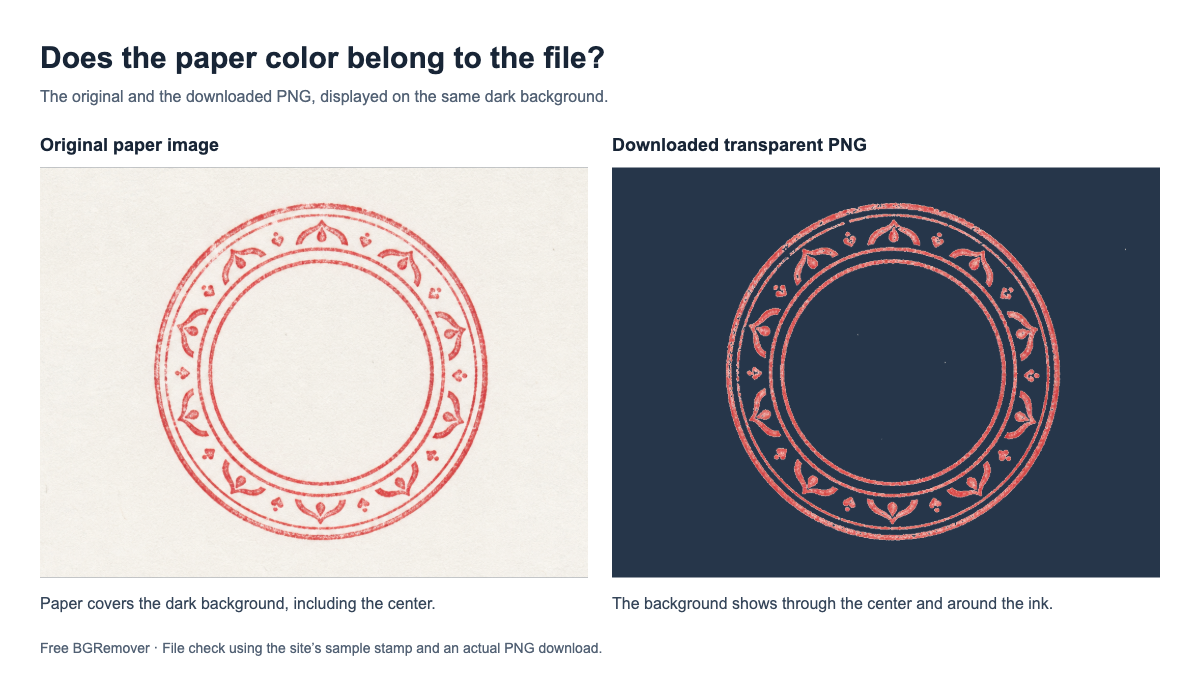
To remove a logo background, open Logo Background Remover, upload your logo, click Remove background, choose Transparent, and download the PNG.
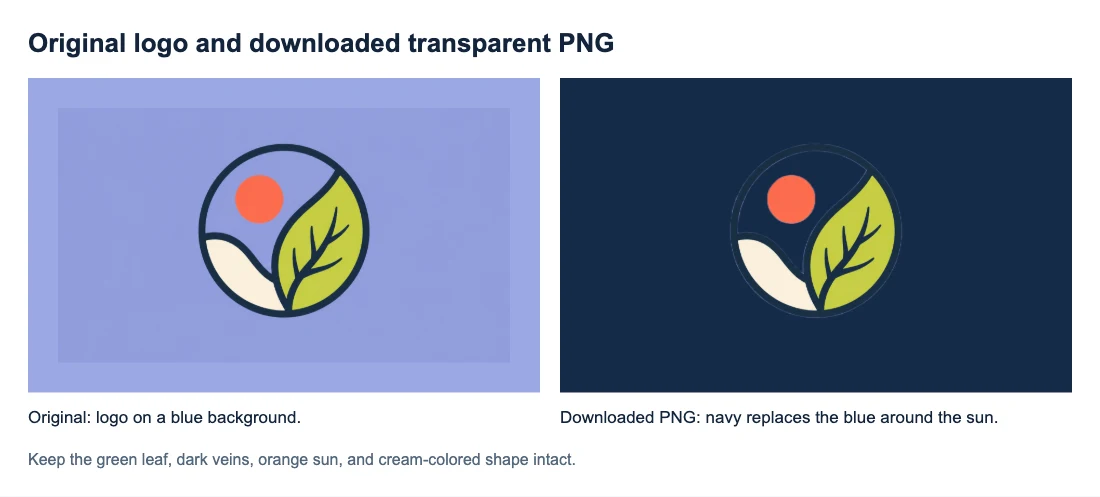
Here is a logo we processed and downloaded. The blue background around the symbol and orange sun becomes transparent. The green leaf, dark veins, orange sun, and cream-colored shape stay visible.
How to remove a logo background online
1. Upload the clearest version of the logo
Select Upload an image and choose a PNG, JPG/JPEG, or WebP file up to 15 MB. Use an original export from your designer or brand folder if available. Small screenshots and compressed copies can blur fine lettering before processing even starts.
If your PNG looks white in a photo viewer, first place it over a colored shape in your design. Some viewers display transparency as white. If the new color shows around the logo, you may already have the file you need.
For a badge or seal, check whether its solid background is part of the design. A white star inside a colored badge may need that color to remain recognizable.
2. Click Remove background and compare the previews
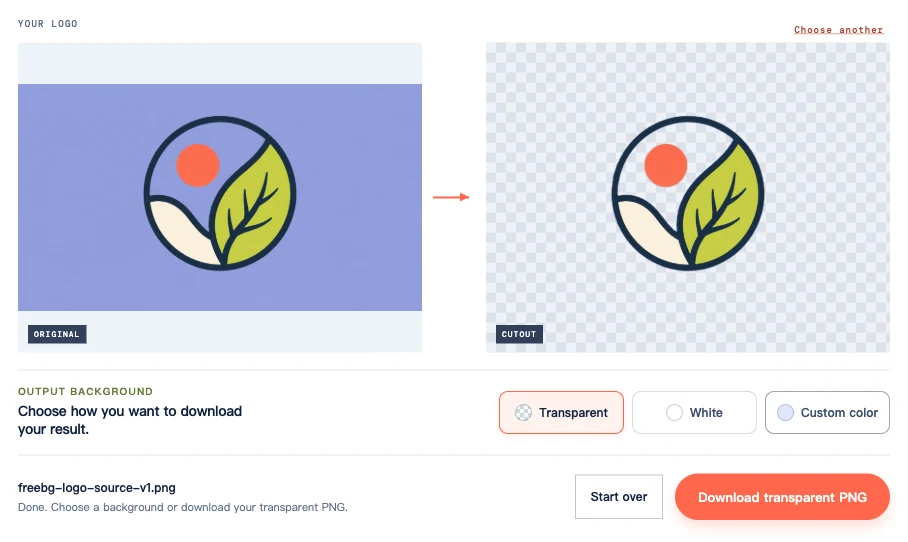
Click Remove background below the previews. Uploading a file alone does not start the removal. Keep the tab open while the progress message is visible; the first run can take longer while the browser prepares the model.
When the cutout appears, compare it with the original preview. In this example, the blue space around the orange sun should reveal the checkerboard. The green areas between the leaf veins should stay green: they belong to the leaf.
3. Select Transparent and download the PNG
Under Output background, select Transparent, then click Download transparent PNG. The White and Custom color options are useful if you need a filled background, but they do not create a reusable transparent cutout.
Use the download button to save the file. Taking a screenshot would include the checkerboard in your image.
Check that the logo design is still intact
Place the downloaded PNG on a light background and a dark one. Compare the same parts of the logo in each view, then check it at the size you intend to use.

In this example, the surrounding background and the blue space inside the circle are removed. The cream-colored shape at the bottom remains opaque. A faint light edge is visible along parts of the outline on navy; check whether that edge is distracting in your finished layout.
If the outline is hard to see on a dark background
The dark outer ring is clear on the light panel but blends into the navy panel. That is a contrast problem: the logo and background have similar colors. If the ring is complete on a light surface, running removal again will not make it easier to read on navy.
Use your brand’s existing light-colored logo version, if available, or choose a lighter background. If a piece is missing on both backgrounds, compare that spot with the original to check for removal damage.
If your logo includes text
The example above is a symbol without lettering. For a wordmark or a logo with a tagline, also check:
- Thin letter strokes, dots over lowercase letters, and small ® or ™ marks at 100% view.
- Openings inside letters such as O, P, R, A, or e. Where those openings showed the old background, they should now show the new one.
- The tagline at its actual display size. If it was already unreadable in the source, background removal will not sharpen it.
What to do if letters disappear or background remains
| Problem | What to do next |
|---|---|
| The downloaded file has a white or custom-color rectangle | Select Transparent and download again. You do not need to run removal a second time. |
| The logo is tiny, blurry, or full of compression artifacts | Try a clearer original export. Enlarging the same blurry image cannot recreate clean letter edges. |
| A clear source still loses a thin letter, dot, or small mark | Keep the original and try another source with better separation if one exists. The current tool does not include a restore brush. |
| A filled patch remains inside a letter, ring, or icon opening | Check whether that area was part of the original logo. If it should be transparent, an original transparent design export is the most reliable source. |
| A pale or dark fringe appears around the outside | Check it at the final placement size and against the intended background. A clearer source with a more distinct edge may help; changing the preview color does not repair the PNG edge. |
| The PNG is transparent in one app but has a box in another | Confirm that the downloaded PNG—not a screenshot or converted copy—was placed in the layout, and check the destination frame or fill. |
Keep the original design and a reusable PNG
Save the transparent PNG for your website, slides, and social graphics. Keep the original design file for edits and larger exports: removing a background does not turn a raster PNG into a vector file.
Avoid converting the transparent PNG to JPG. JPG fills transparent areas, and converting it back to PNG will not restore them.
For help checking a saved file that still looks white, see How to Make a PNG Transparent.
Frequently asked questions
Can I remove a logo background on a phone?
You can follow the same upload, remove, and download steps in a compatible browser. The current tool requires WebGPU support, so some browsers or devices may not be able to run it. If the file downloads but does not appear in Photos, check the browser downloads list or the Files app.
Can I remove the background from a logo icon too?
You can upload an icon using the same steps. Compare its filled shapes and openings with the original, just as with the circular symbol above. A colored area inside the icon may be artwork that needs to stay.